
Trying to upgrade your gaming experience with a PlayStation Plus subscription but hitting a wall at checkout? You're not alone. Many users encounter frustrating obstacles when attempting to purchase or renew their PS Plus membership. These can range from payment failures and network timeouts to region locks and account restrictions. While the issue may seem technical or even final, most problems have clear, actionable solutions. This guide walks you through the most common causes of failed PlayStation Plus purchases and how to resolve them quickly and effectively.
Common Reasons You Can’t Buy PlayStation Plus
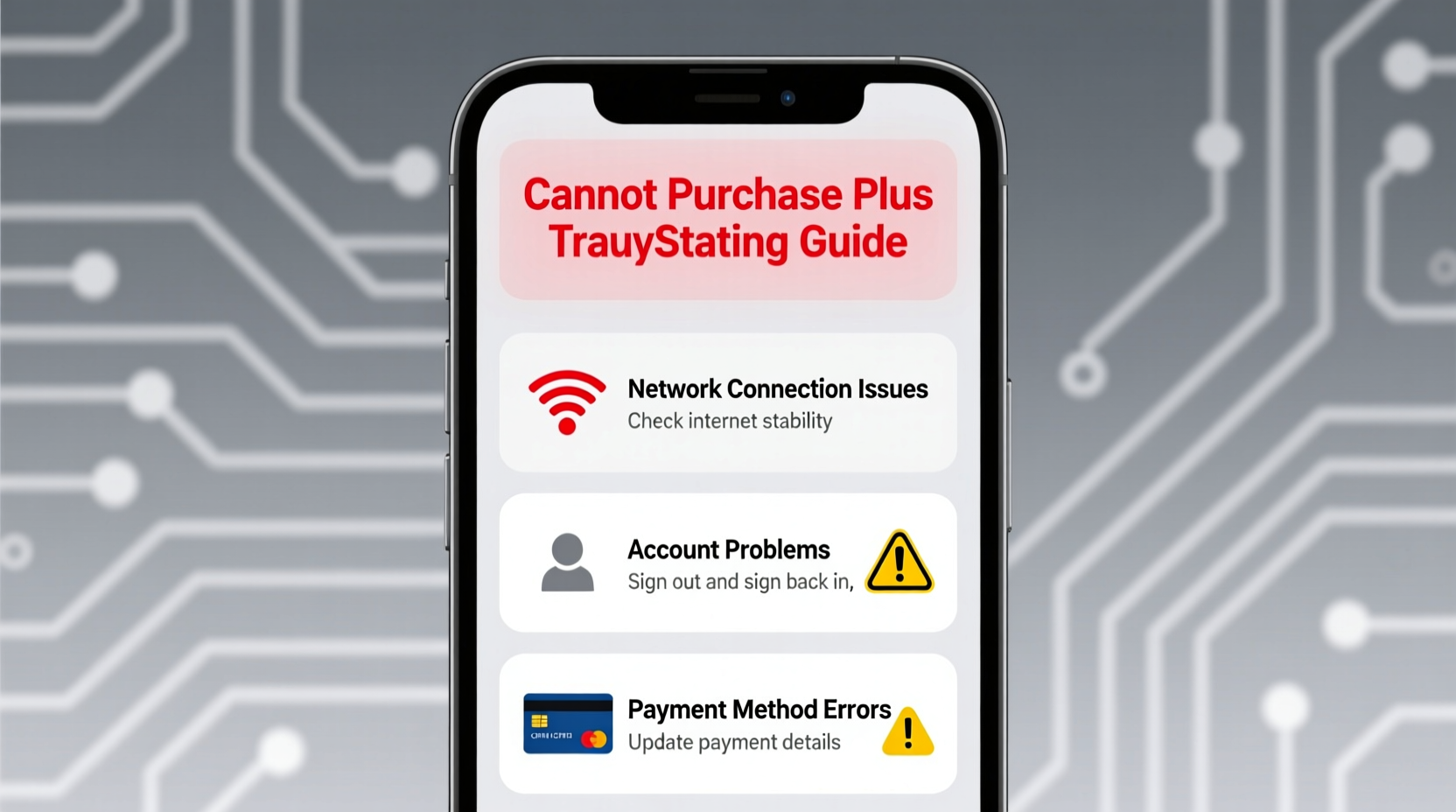
Before diving into fixes, it’s essential to understand what might be blocking your transaction. The root cause often falls into one of several categories:
- Payment method rejection – Credit card, PayPal, or wallet balance issues.
- Network connectivity problems – Unstable internet disrupting communication with Sony’s servers.
- Account region mismatch – Your PSN account region doesn’t align with your payment method or store access.
- Server-side outages – Temporary downtime on PlayStation Network (PSN) services.
- Account restrictions – Age verification, parental controls, or suspended privileges.
- Outdated system software – An older console OS version preventing secure transactions.
Identifying which category your issue belongs to is the first step toward resolution.
Step-by-Step Troubleshooting Guide
Follow this structured approach to isolate and fix the problem efficiently. Start from the top and move down until the issue resolves.
- Verify PSN Server Status
Visit status.playstation.com. Look for red alerts under “Account Management” or “Store Services.” If active, no local fix will work—wait for Sony to restore service. - Check Internet Connection
On your PS5 or PS4, go to Settings > Network > Test Internet Connection. Ensure you have stable upload/download speeds and low NAT type. Use Ethernet over Wi-Fi if possible during purchase attempts. <3>
Update Console Software
- Clear Browser Cache (PS4 Only)
On PS4, accumulated cache in the built-in browser can interfere with store functions. Navigate to Settings > Application Saved Data Management > Clear Web Browser Data. - Try a Different Payment Method
Switch between credit card, PayPal, or PSN wallet. If using a card, ensure it supports international transactions (important for non-local accounts). - Use a PC or Mobile Device
Attempt the purchase via store.playstation.com on a computer or smartphone. Sometimes web-based transactions succeed where console ones fail. - Log Out and Back Into PSN
Sign out of your account (Settings > Account Management > Sign Out), then sign back in. This refreshes authentication tokens that may have expired. - Restart Router and Console
Power cycle both devices. Unplug them for 60 seconds, then restart. This clears DNS and IP conflicts that disrupt connectivity.
Outdated firmware can block secure transactions. Go to Settings > System Software Update and install any pending updates.
Fixing Payment-Specific Errors
Payment failures are among the most frequent barriers. Below is a breakdown of common error codes and their remedies.
| Error Code | Description | Solution |
|---|---|---|
| WS-37368-7 | General network error during purchase | Restart console, test connection, retry on web store |
| NP-32456-3 | Payment declined by issuer | Contact bank; confirm card supports international charges |
| PS-10003 | Cannot connect to PSN | Check router settings, disable VPNs, use DNS 8.8.8.8 |
| “Your country/region does not match” | Region mismatch between account and payment | Use region-matched gift card or change account region (if eligible) |
Tips for International Buyers
If you’re purchasing from a country different than your PSN account’s registered region, you’ll face limitations. Sony restricts cross-region payments to prevent currency arbitrage. The best workaround is to use a digital gift card from the correct region, available through reputable retailers like Amazon or CDKeys.
Real Example: Maria’s Failed Purchase Attempt
Maria, a student in Spain, tried to renew her PS Plus using her local Visa card but kept seeing error NP-32456-3. Her bank confirmed the transaction wasn’t blocked. After checking online forums, she realized her PSN account was still set to the U.S., where she created it years ago. Because her card was Spanish, the system rejected it due to region mismatch. She switched to buying a €49.99 PSN gift card from a local electronics store, added it to her wallet, and successfully completed the purchase. Her solution? Align payment tools with her account’s region.
Expert Insight on Account Health
“Many failed transactions stem from overlooked account inconsistencies—like outdated billing info or inactive two-factor authentication. Keeping your profile updated isn’t just about security; it ensures smooth commerce on the platform.” — Daniel Reyes, Senior Console Support Analyst
Do’s and Don’ts When Buying PlayStation Plus
| Do’s | Don’ts |
|---|---|
| ✅ Use a stable wired connection | ❌ Use public Wi-Fi for purchases |
| ✅ Verify your account region matches your payment method | ❌ Attempt multiple rapid retries after failure (can trigger temporary lock) |
| ✅ Keep your console software up to date | ❌ Share account credentials with third-party sites |
| ✅ Try the web store if the console fails | ❌ Use unauthorized resellers for discounted subscriptions |
Frequently Asked Questions
Why does my card keep getting declined even though I have funds?
Banks often block international transactions by default. Contact your financial institution and confirm that foreign purchases are enabled. Also, ensure your PSN account’s billing address exactly matches your card details—down to punctuation and apartment numbers.
Can I change my PSN account region to match my current country?
You can only change your region if you’ve never made a purchase on the account. Once you’ve bought content, the region is permanently locked. To switch, you’d need to create a new account and repurchase subscriptions using locally valid payment methods.
What happens if I get charged but don’t receive PS Plus?
This is rare but possible during server glitches. First, check your subscription status under Account Settings > PlayStation Subscriptions. If missing, contact Sony Support with your transaction ID. They can manually credit your account or issue a refund.
Final Checklist Before Purchase
- ✅ PSN servers are operational
- ✅ Console is updated to latest firmware
- ✅ Stable internet connection confirmed
- ✅ Payment method is valid and region-compatible
- ✅ Billing address matches card records
- ✅ Wallet has sufficient funds (if using PSN balance)
- ✅ No active parental controls blocking purchases
Conclusion: Take Control of Your PS Plus Access
Being unable to buy PlayStation Plus is frustrating, especially when you’re eager to dive into monthly games or online multiplayer. But in most cases, the fix lies in simple adjustments—verifying your network, aligning regions, or switching payment methods. By following the steps outlined here, you regain control and avoid unnecessary delays. Don’t let a temporary error dim your gaming experience. Apply these solutions today, and get back to playing with full access.




 浙公网安备
33010002000092号
浙公网安备
33010002000092号 浙B2-20120091-4
Comments
No comments yet. Why don't you start the discussion?