
Streaming entertainment should be seamless—crisp visuals, uninterrupted audio, and instant playback. Yet, many users find themselves staring at a spinning wheel on their smart TV, even when their internet plan promises speeds of 100 Mbps or higher. Buffering doesn’t always point to slow internet; it’s often a symptom of deeper technical issues in your home network, device performance, or service delivery. Understanding the root causes and applying targeted solutions can restore smooth streaming without upgrading your plan.
Understanding the Real Causes Behind TV Buffering
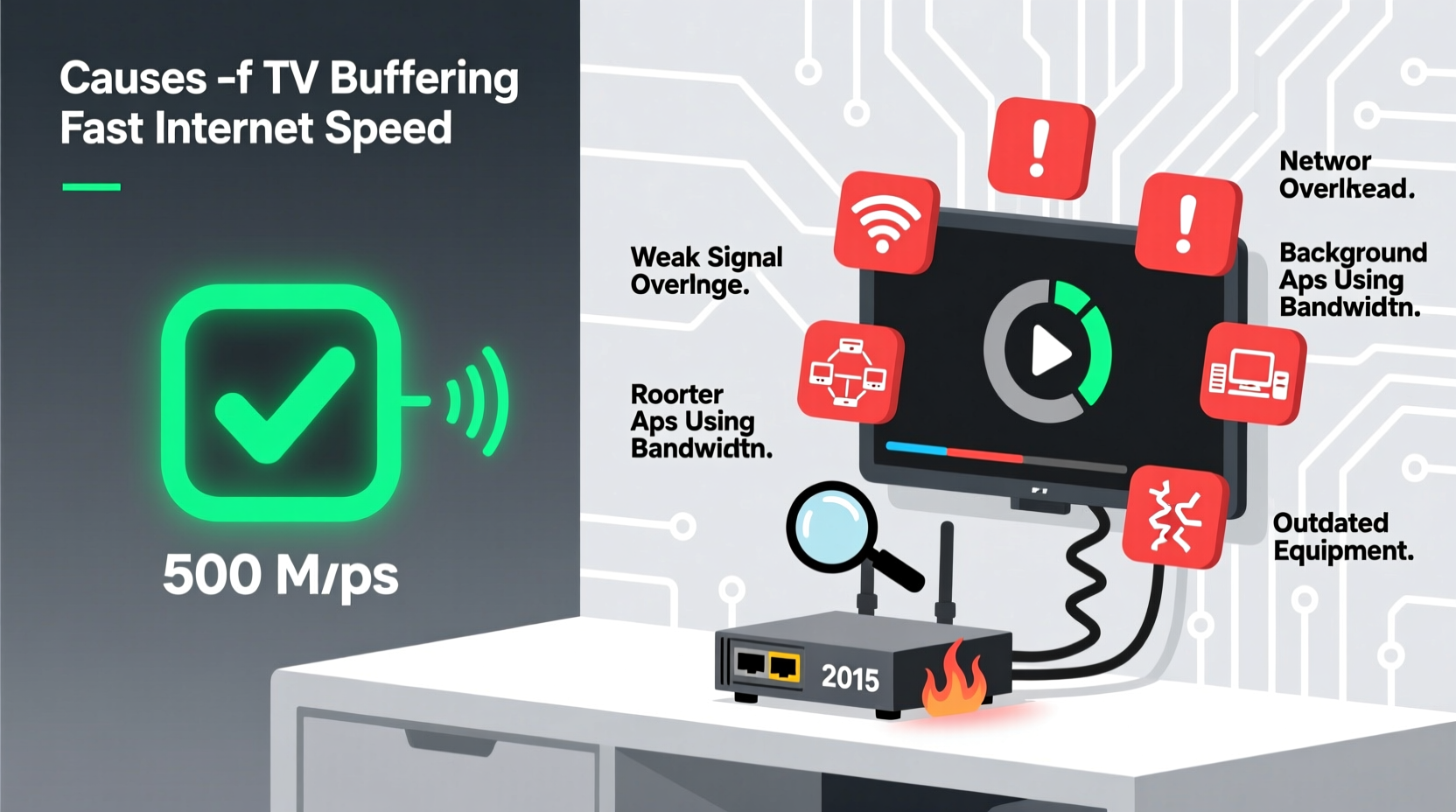
Buffering occurs when your TV temporarily stops playback to download more data from the streaming server. While insufficient bandwidth is a common cause, modern high-speed connections often rule this out. Instead, several hidden factors contribute to inconsistent video delivery:
- Wi-Fi signal strength: Distance from the router, physical obstructions, and interference degrade signal quality.
- Network congestion: Multiple devices using bandwidth simultaneously (e.g., gaming consoles, smartphones, downloads) reduce available resources for your TV.
- Router limitations: Older routers may not support modern Wi-Fi standards (like Wi-Fi 5 or Wi-Fi 6), limiting throughput even if your internet speed is high.
- Server-side issues: The streaming platform (Netflix, Hulu, Disney+) might be experiencing traffic spikes or regional outages.
- TV hardware or software problems: Outdated firmware, limited internal memory, or inefficient apps can hinder decoding and playback.
Even with a 300 Mbps connection, these variables can create bottlenecks that lead to frustrating pauses mid-episode.
Step-by-Step Guide to Diagnose and Fix Buffering Issues
Follow this systematic approach to identify and resolve the core issue causing buffering:
- Test your actual internet speed on the TV: Use apps like Speedtest by Ookla available on most smart TVs. Compare results with your ISP’s advertised speeds.
- Check wired vs. wireless performance: Connect your TV via Ethernet. If buffering stops, the problem is Wi-Fi related.
- Restart all devices: Power cycle your modem, router, and TV. This clears temporary glitches and resets network handshakes.
- Update firmware and apps: Navigate to your TV’s settings and ensure both the operating system and streaming apps are up to date.
- Reduce network load: Pause large downloads, cloud backups, or other streaming devices during viewing.
- Change DNS settings: Switch to Google DNS (8.8.8.8 and 8.8.4.4) or Cloudflare (1.1.1.1) for faster domain resolution.
- Adjust streaming quality: Manually lower resolution in app settings (e.g., from 4K to 1080p) to reduce bandwidth demand.
This sequence helps isolate whether the issue lies with connectivity, configuration, or external services.
Optimizing Your Home Network for Streaming
Your internet speed is only as good as your weakest network link. Even gigabit fiber can underperform with poor Wi-Fi coverage or outdated equipment.
Upgrade Your Router Strategically
If your router is over three years old, it likely lacks MU-MIMO, beamforming, or dual-band capabilities essential for stable multi-device homes. Consider upgrading to a Wi-Fi 6 (802.11ax) model, which handles multiple streams more efficiently and reduces latency.
Use Ethernet When Possible
A wired connection eliminates wireless interference entirely. If running a cable isn’t feasible, consider powerline adapters or mesh Wi-Fi systems to extend reliable coverage.
Position Your Router Correctly
Place your router centrally, elevated, and away from thick walls, metal objects, and appliances like microwaves or cordless phones that emit 2.4 GHz interference.
| Wi-Fi Band | Speed | Range | Best For |
|---|---|---|---|
| 2.4 GHz | Lower (~150 Mbps) | Longer range | Large rooms, fewer devices |
| 5 GHz | Higher (up to 1 Gbps) | Shorter range | HD/4K streaming, close proximity |
Connect your TV to the 5 GHz band for faster speeds—just ensure it’s within reasonable distance of the router.
“Many customers assume their internet is the issue, but in over 60% of cases, we find the real culprit is outdated Wi-Fi infrastructure.” — Jordan Lee, Senior Network Technician at NetSecure Solutions
Device-Specific Fixes for Smart TVs and Streaming Boxes
Your internet may be fast, but your TV or streaming stick could be the bottleneck. Here’s how to troubleshoot each:
Clean Cache and Data
Over time, streaming apps accumulate cached data that can corrupt performance. On Android TV, Fire Stick, or Roku:
- Go to Settings > Apps > [Streaming App] > Clear Cache
- If problems persist, select “Clear Data” (this logs you out but resets the app)
Reinstall Problematic Apps
If Netflix or YouTube consistently buffer, uninstall and reinstall the app. This ensures you have the latest version free of corruption.
Limit Background Processes
Smart TVs run background updates and widgets that consume memory. Disable auto-updates or unused features like voice assistants to free up resources.
Factory Reset as Last Resort
If nothing works, reset your TV to factory settings. Back up login details first, then reconfigure with fresh app installations.
Real-World Example: Sarah’s Weekend Streaming Struggles
Sarah upgraded her internet to 200 Mbps hoping to enjoy 4K movies without interruption. Yet every Saturday night, her TV buffered during peak hours. Her husband was gaming online, her daughter was on Zoom, and multiple phones were downloading updates—all while the smart TV tried to stream.
She tested her speed on the TV and got only 35 Mbps. After connecting via Ethernet, she saw 180 Mbps—proof the Wi-Fi couldn’t keep up. She upgraded to a mesh Wi-Fi 6 system, set up Quality of Service (QoS) rules to prioritize her TV, and scheduled large downloads for overnight. Buffering stopped completely, and her family now enjoys uninterrupted weekend movie nights.
Essential Checklist to Stop TV Buffering
Use this actionable checklist to systematically eliminate buffering issues:
- ✅ Run a speed test directly on the TV
- ✅ Restart modem, router, and TV
- ✅ Connect TV via Ethernet to test stability
- ✅ Switch to the 5 GHz Wi-Fi band
- ✅ Update TV firmware and streaming apps
- ✅ Clear cache/data for problematic apps
- ✅ Limit active devices during streaming
- ✅ Upgrade router if older than 3 years
- ✅ Change DNS to 8.8.8.8 / 8.8.4.4
- ✅ Reinstall frequently glitching apps
Frequently Asked Questions
Why does my TV buffer only during evenings?
Evening hours are peak usage times for internet networks. Congestion on your local network (family devices) or your ISP’s infrastructure can reduce available bandwidth. This is known as “network contention.” Prioritize your TV with QoS settings or shift heavy downloads to off-peak hours.
Can a VPN cause my TV to buffer?
Yes. A poorly configured or distant VPN server adds latency and reduces effective speed. While some use VPNs for geo-unblocking, they often sacrifice performance. Try disabling the VPN temporarily to test if streaming improves.
Does 4K really need that much more bandwidth?
Absolutely. Standard HD (1080p) requires about 5–8 Mbps, while 4K Ultra HD needs 25 Mbps minimum—and up to 40 Mbps for HDR content. If your measured speed drops below this threshold, buffering is inevitable regardless of your plan’s headline speed.
Final Thoughts: Smooth Streaming Is Within Reach
Buffering despite fast internet is a common but solvable issue. It’s rarely about raw speed alone—it’s about how that speed is delivered, managed, and utilized across your ecosystem. By diagnosing the true source of disruption, optimizing your network setup, and maintaining your devices properly, you can achieve the seamless streaming experience you paid for.




 浙公网安备
33010002000092号
浙公网安备
33010002000092号 浙B2-20120091-4
Comments
No comments yet. Why don't you start the discussion?