
There are few frustrations more immediate than picking up your phone to make an important call—only to find it won’t connect. Whether you're trying to reach a doctor, confirm a reservation, or check in on a loved one, a non-functional calling feature can feel like a breakdown in communication itself. The good news is that most call issues aren’t permanent hardware failures. More often, they stem from correctable software glitches, network problems, or overlooked settings. Understanding the root cause is the first step toward restoring seamless connectivity.
Common Causes of Call Failures
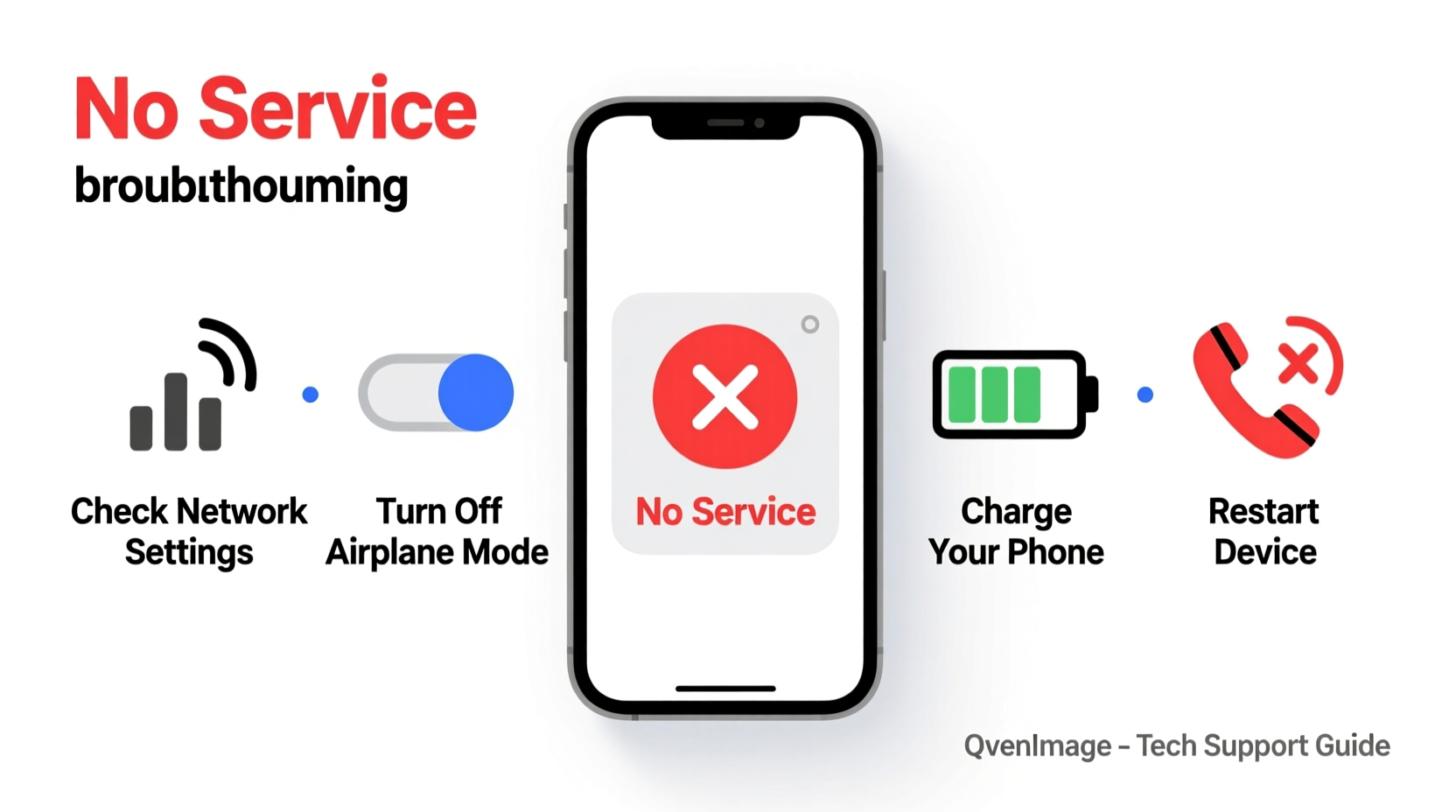
Before diving into fixes, it helps to know what might be going wrong. Phones today rely on a complex interplay of hardware, software, carrier services, and network infrastructure. A failure at any point can prevent outgoing calls. Some of the most frequent culprits include:
- No network signal – Your phone may show bars, but weak or unstable coverage can still block calls.
- Do Not Disturb or Airplane Mode enabled – These modes silence calls without clear visual warnings in some cases.
- Carrier service outage – Temporary network disruptions affect entire regions.
- Blocked number or SIM issue – Damaged, improperly inserted, or deactivated SIM cards stop calls from going through.
- Software bugs after updates – OS or app updates occasionally introduce calling bugs.
- Call forwarding or restrictions active – Accidental settings can redirect or disable outgoing calls.
Step-by-Step Troubleshooting Guide
Follow this logical sequence to isolate and resolve the issue efficiently. Start with the simplest checks before moving to advanced solutions.
- Check signal strength. Look at the top of your screen for signal bars or LTE/5G indicators. Try moving near a window or stepping outside. If no signal appears, the problem may be location-based.
- Verify Airplane Mode is off. Swipe down (Android) or up (iPhone) to access quick settings. Ensure the airplane icon is not highlighted.
- Restart your phone. A reboot clears temporary glitches and refreshes network connections. Hold the power button, select restart, and wait 30 seconds.
- Ensure Do Not Disturb isn’t blocking calls. On iPhone, check Control Center; on Android, go to Settings > Sound > Do Not Disturb. Disable if active.
- Test with a different number. Try calling a landline or another mobile. If one number fails but others work, the issue may be contact-specific.
- Inspect the SIM card. Power off the device, remove the SIM tray, and check for damage or dirt. Reinsert firmly and restart.
- Update carrier settings. On iPhone: Settings > General > About. On Android: Settings > Network & Internet > Mobile Network > Carrier Update (if available).
- Reset network settings. This clears Wi-Fi, Bluetooth, and cellular configurations. Note: You’ll need to re-enter saved networks. (iPhone: Settings > General > Reset > Reset Network Settings; Android: Settings > System > Reset Options > Reset Wi-Fi, Mobile & Bluetooth).
Do’s and Don’ts When Fixing Call Issues
| Do’s | Don’ts |
|---|---|
| Restart your phone regularly to prevent memory leaks. | Ignore persistent “No Service” messages—investigate immediately. |
| Keep your OS and apps updated for optimal performance. | Use third-party apps to “boost” signal unless from a trusted source. |
| Contact your carrier if troubleshooting fails. | Assume it’s a hardware issue without checking software first. |
| Test calls over Wi-Fi if cellular fails (enable Wi-Fi Calling). | Drop your phone repeatedly hoping to “jolt” it back to life. |
Real-World Example: When a Software Update Broke Calling
Sarah, a small business owner in Austin, upgraded her Android phone to the latest OS version overnight. The next morning, she couldn’t reach clients—calls would ring once then drop. She checked her signal, restarted the phone, and even swapped SIM cards, all to no avail. After searching online forums, she discovered dozens of users reporting the same bug after the update. The solution? Disabling VoLTE (Voice over LTE) temporarily until a patch was released. Sarah went to Settings > Mobile Networks > Advanced > VoLTE Calling and toggled it off. Her calls resumed instantly. Two weeks later, a system update fixed the underlying conflict. This case highlights how widespread software bugs can disrupt core functions—and why community reports and carrier advisories matter.
Expert Insight: What Carriers See That You Don’t
“Over 60% of ‘no call’ issues we diagnose are resolved by resetting network settings or updating carrier profiles. Users often overlook these simple steps and jump to conclusions about broken phones.” — Jamal Reeves, Senior Network Support Engineer at NexaLink Wireless
Carriers maintain diagnostic tools that detect account-level blocks, line deactivation, or regional outages. If basic troubleshooting fails, a quick call to customer support (from another device) can reveal whether your line is active and properly provisioned. They can also push remote fixes, such as refreshing your account on their network or enabling Wi-Fi Calling.
When to Consider Hardware or Account Problems
If software fixes don’t restore calling, consider deeper issues:
- Damaged antenna or internal radio module – Common after drops or water exposure.
- Deactivated or suspended account – Missed payments or expired prepaid credit halt service.
- Blacklisted IMEI – Stolen or reported devices may be blocked from networks.
- Faulty microphone or earpiece – While rare, hardware failure can mimic call connection issues.
To test hardware, try using VoIP apps like WhatsApp or FaceTime Audio. If these work, the issue is likely network- or carrier-related, not the phone’s speaker or mic.
FAQ: Common Questions About Call Failures
Why does my phone say “Calling Failed” even with full signal?
This error often points to a temporary network glitch, incorrect APN settings, or carrier authentication issues. Restarting the phone or resetting network settings usually resolves it. If not, contact your provider to verify your account status.
Can a virus prevent me from making calls?
True malware that disables calling is extremely rare on modern smartphones due to strict OS security. However, malicious apps can misuse permissions or trigger crashes. If you suspect malware, uninstall recently downloaded apps and run a security scan using Google Play Protect (Android) or consult Apple Support (iOS).
Why can I receive calls but not make them?
This asymmetry suggests a configuration issue rather than a dead network. Check if call barring is enabled (Settings > Phone > Call Barring), or if emergency calls work. If only incoming works, your carrier may have misconfigured your line—call support to investigate.
Final Checklist Before Seeking Repair
Before handing your phone over for service, complete this final checklist:
- ✅ Confirmed signal strength is adequate
- ✅ Disabled Airplane Mode and Do Not Disturb
- ✅ Restarted the device
- ✅ Verified SIM is seated correctly and undamaged
- ✅ Updated carrier settings and OS
- ✅ Reset network settings
- ✅ Tested Wi-Fi Calling
- ✅ Contacted carrier to confirm line status
Conclusion
Losing the ability to make calls doesn’t mean your phone is broken beyond repair. In most cases, the fix lies in a forgotten setting, a temporary network hiccup, or a recoverable software state. By methodically testing each potential cause—from the obvious to the obscure—you regain control and avoid unnecessary repairs or replacements. Don’t let a silent phone silence your life. Apply these steps, stay patient, and reconnect with confidence.




 浙公网安备
33010002000092号
浙公网安备
33010002000092号 浙B2-20120091-4
Comments
No comments yet. Why don't you start the discussion?