
If your PC suddenly can’t detect Bluetooth, or the option is missing entirely from your settings, it can disrupt everything from wireless headphones to file transfers. While frustrating, this issue is often solvable with systematic troubleshooting. Whether you're using Windows 10 or 11, the root cause could be hardware-related, driver-based, or a simple setting misconfiguration. This guide walks through practical, tested steps to diagnose and resolve why Bluetooth isn’t appearing on your computer.
1. Verify Hardware Compatibility and Status
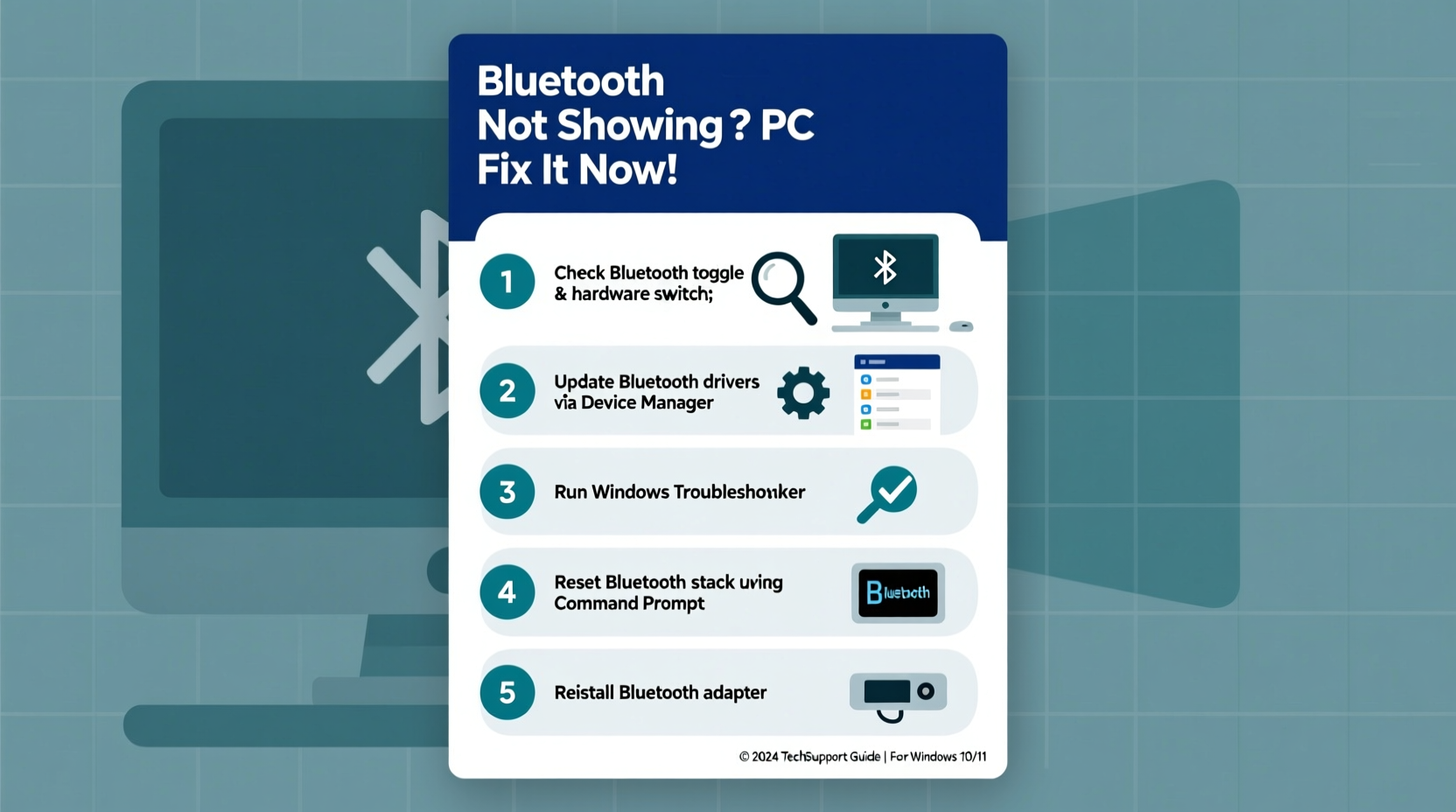
Before diving into software fixes, confirm that your PC actually supports Bluetooth. Not all desktops and some older laptops lack built-in Bluetooth adapters. If you’re using a desktop without an integrated radio, you’ll need a USB Bluetooth dongle.
To check if your system has Bluetooth hardware:
- Press Win + X and select Device Manager.
- Look for a category labeled Bluetooth. If present, expand it.
- If no Bluetooth section appears, check under Network adapters—some Bluetooth modules are listed there.
If nothing shows up, your PC may not have Bluetooth capability. In such cases, a low-cost USB Bluetooth adapter (Bluetooth 5.0 or higher recommended) can add functionality instantly.
2. Enable Bluetooth in Settings and BIOS
Even with proper hardware, Bluetooth might be disabled at the system level. Start by checking Windows settings:
- Go to Settings > Devices > Bluetooth & other devices.
- Ensure Bluetooth is toggled On.
- If the toggle is missing, proceed to the next sections.
In some cases, Bluetooth may be disabled in the BIOS/UEFI firmware, especially after a system update or reset. To verify:
- Restart your PC and enter BIOS (typically by pressing F2, F10, DEL, or ESC during boot).
- Navigate to the Advanced or Integrated Peripherals section.
- Look for a setting like Bluetooth Controller or Wireless Devices and ensure it’s enabled.
- Save changes and exit.
After rebooting, check again in Windows settings. Enabling Bluetooth at the firmware level often resolves invisible or inactive adapters.
3. Update or Reinstall Bluetooth Drivers
Outdated, corrupted, or missing drivers are among the most common causes of missing Bluetooth functionality. Here’s how to address them:
Step-by-Step Driver Reset
- Open Device Manager via Win + X.
- Locate any entry under Bluetooth or Network adapters related to Bluetooth (e.g., Intel Wireless Bluetooth, Realtek Bluetooth, etc.).
- Right-click the device and select Uninstall device.
- Check “Delete the driver software for this device” if available, then confirm.
- Restart your computer. Windows will attempt to reinstall the driver automatically.
If automatic reinstallation fails, visit your PC manufacturer’s support site (e.g., Dell, HP, Lenovo) and download the latest Bluetooth driver for your model. Alternatively, identify your Bluetooth chipset via Device Manager (even if hidden) using hardware IDs:
- Right-click the unknown device, choose Properties.
- Go to Details tab, select Hardware Ids from the dropdown.
- Note the VID/PID codes and search online to identify the chipset.
“Driver issues account for over 60% of Bluetooth visibility problems in Windows systems.” — Michael Tran, Senior Support Engineer at Dell Technologies
4. Run the Built-in Bluetooth Troubleshooter
Windows includes a diagnostic tool designed specifically for Bluetooth issues. It can detect and fix many common problems automatically.
To access it:
- Go to Settings > System > Troubleshoot > Other troubleshooters.
- Find Bluetooth in the list and click Run.
- Follow the prompts. The tool may restart services, re-enable devices, or suggest fixes.
This utility often resolves configuration glitches that prevent Bluetooth from appearing in settings. After completion, restart your PC and verify if Bluetooth is now visible.
5. Check Essential Services and Dependencies
Bluetooth functionality relies on background services. If these are disabled or malfunctioning, the feature won’t appear or work.
Here’s how to verify critical services:
- Press Win + R, type
services.msc, and press Enter. - Locate the following services:
- Bluetooth Support Service
- Bluetooth Handsfree Service (if applicable)
- Device Association Framework
- Plug and Play
- Double-click each and set Startup type to Automatic.
- If the service isn’t running, click Start.
Restart your computer afterward. These services manage device discovery and pairing—without them, Bluetooth remains invisible or non-functional.
| Service Name | Purpose | Recommended State |
|---|---|---|
| Bluetooth Support Service | Enables core Bluetooth functionality | Running / Automatic |
| Bluetooth Handsfree Service | Supports headsets and calling devices | Manual or Automatic |
| Device Association Framework | Manages pairing with new devices | Running / Automatic |
| Plug and Play | Detects hardware changes | Automatic |
Mini Case Study: Recovering Bluetooth on a Work Laptop
Sarah, a remote worker, couldn’t connect her wireless earbuds after updating her Windows 11 laptop. The Bluetooth option had vanished from Settings. She first checked Device Manager—no Bluetooth category appeared. After confirming her laptop model supported Bluetooth (via the manufacturer’s website), she accessed BIOS and discovered the wireless module was disabled. She enabled it, rebooted, and still saw no change.
Next, she ran the Windows Bluetooth troubleshooter, which detected a missing driver. She downloaded the latest Bluetooth driver from the HP support portal, installed it, and restarted. Upon logging back in, Bluetooth appeared in Settings and paired successfully with her earbuds. The entire process took under 20 minutes.
Sarah’s experience highlights the importance of methodical troubleshooting—starting with hardware, moving to firmware, then focusing on software and drivers.
Troubleshooting Checklist
- ✅ Confirm your PC has Bluetooth hardware
- ✅ Check if Bluetooth is enabled in BIOS/UEFI
- ✅ Toggle Bluetooth On in Windows Settings
- ✅ Run the built-in Bluetooth troubleshooter
- ✅ Uninstall and reinstall Bluetooth drivers
- ✅ Ensure essential services are running
- ✅ Install latest drivers from manufacturer’s website
- ✅ Test with a USB Bluetooth adapter if needed
Frequently Asked Questions
Why did Bluetooth disappear after a Windows update?
Updates can overwrite or corrupt drivers, disable services, or reset BIOS settings. This is common after major feature updates. Reinstalling the correct driver usually resolves the issue.
Can I add Bluetooth to a PC that doesn’t have it?
Yes. A USB Bluetooth 5.0+ adapter costs under $15 and installs automatically in most cases. Choose one with good reviews and support for audio and file transfer profiles.
My Bluetooth is visible but won’t connect—what now?
This indicates a pairing or profile issue. Try removing the device, turning it off/on, and pairing again. Also, ensure Airplane mode is off and no conflicting third-party Bluetooth software is running.
Conclusion
Not seeing Bluetooth on your PC doesn’t mean it’s permanently broken. Most issues stem from simple oversights—disabled settings, outdated drivers, or inactive services. By systematically verifying hardware, updating software, and ensuring core services are operational, you can restore full wireless functionality. Don’t rush to replace hardware; instead, follow the logical steps outlined here to save time and money.




 浙公网安备
33010002000092号
浙公网安备
33010002000092号 浙B2-20120091-4
Comments
No comments yet. Why don't you start the discussion?