
In an age where digital convenience often comes at the cost of personal privacy, many users report a growing concern: their devices seem to share location data nonstop, even after disabling settings or closing apps. Whether it’s a misplaced check-in on social media, an unintended update in a messaging app, or a background service quietly tracking movements, uncontrolled location sharing can feel invasive and risky. The good news is that most issues are fixable with the right knowledge and steps.
This guide breaks down why your device might continue sharing location data, how to identify the culprits, and what you can do to protect your privacy—without sacrificing essential functionality.
Why Location Sharing Persists Despite Settings
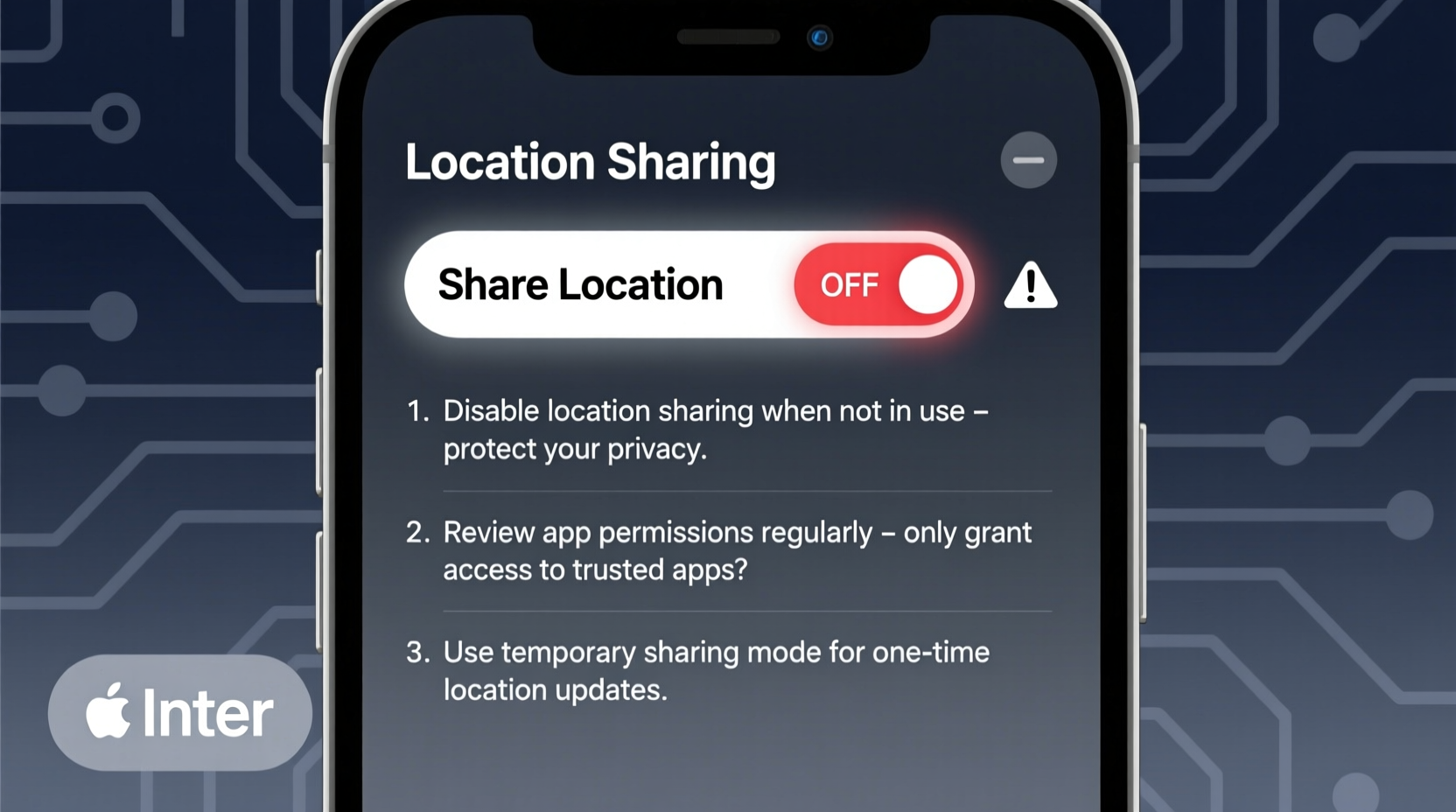
Even when you disable location services, certain features or apps may still access your whereabouts under specific conditions. Modern operating systems like iOS and Android allow granular permissions, but defaults often favor convenience over privacy. For instance, “While Using the App” may still permit brief background checks, and system-level functions like emergency services, network optimization, or ad personalization can bypass standard toggles.
Additionally, some apps use workarounds. Messaging platforms like WhatsApp or Telegram may request location for individual messages, while fitness trackers or navigation tools cache recent coordinates. Cloud syncing across devices—such as Apple’s Find My or Google’s Location History—can also reactivate sharing without direct user input.
Step-by-Step Guide to Regaining Control
Follow this structured approach to diagnose and stop unwanted location sharing across your devices.
- Review Active Permissions: Go to Settings > Privacy > Location Services (iOS) or Settings > Location (Android). Check which apps have access and set them to “Never” unless absolutely necessary.
- Disable System-Level Tracking: Turn off Location History (Google), Significant Locations (iOS), and Ad Personalization. These run independently of app permissions.
- Check Share-Specific Features: Apps like Snapchat, Instagram, or Facebook Messenger have built-in location-sharing tools. Open each app and disable active location broadcasts.
- Restart in Airplane Mode: Temporarily enable Airplane Mode, then re-enable Wi-Fi and Bluetooth manually. This cuts GPS, cellular, and location-based network signals instantly.
- Update Your OS: Security patches often include fixes for location leaks. Ensure your phone is running the latest software version.
- Perform a Privacy Audit: Use built-in tools like Apple’s Privacy Report or Google’s Privacy Checkup to see which services recently accessed your location.
Common Culprits Behind Unwanted Location Sharing
Certain apps and services are notorious for maintaining silent access to your location. Below is a comparison of high-risk categories and their typical behaviors.
| App Category | Common Behavior | How to Stop It |
|---|---|---|
| Social Media | Shares live location in stories or maps (e.g., Snapchat Map, Facebook Check-ins) | Disable location sharing in app settings; log out of location-based features |
| Ride-Sharing & Delivery | Tracks movement during trips or deliveries (Uber, DoorDash) | Close app completely after use; deny background location access |
| Cloud Services | Syncs location history across devices (Google Timeline, iCloud Photos) | Turn off Location History or Location Services for the account |
| Weather & News Apps | Uses approximate location for localized content | Allow only “Approximate Location” or deny access entirely |
| Fitness Trackers | Records GPS routes even when paused | Manually end sessions; disable auto-tracking features |
Mini Case Study: Sarah’s Persistent Location Leak
Sarah, a marketing professional, noticed her partner receiving automatic updates about her commute—even after she disabled location sharing in Messages. After investigation, she discovered that Apple’s “Share My Location” was reactivated through her iCloud Family Sharing group. Her mother had enabled “Find My” to track family members during a vacation months prior, and the setting remained active. By visiting iCloud.com and revoking location access for each family member, Sarah regained full control. The issue wasn’t a bug—it was a forgotten permission buried in shared ecosystem settings.
“Most location leaks aren’t due to malware—they stem from misunderstood permissions and legacy settings.” — Dr. Lena Torres, Cybersecurity Researcher at MIT
Essential Privacy Checklist
Use this checklist monthly to ensure your location data stays private.
- ✅ Disable Location Services for unused apps
- ✅ Turn off Google Location History or iOS Significant Locations
- ✅ Review active location shares in WhatsApp, Snapchat, and Apple Messages
- ✅ Enable “Approximate Location” instead of precise GPS where possible
- ✅ Clear location cache in browser and app histories
- ✅ Audit connected third-party apps via Google Account or Apple ID
- ✅ Use a privacy-focused DNS or firewall app (e.g., Lockdown iOS, NetGuard Android)
FAQ: Common Questions About Location Privacy
Why does my phone show I’m sharing location when I didn’t approve it?
This often happens due to pre-approved settings in family groups, shared accounts, or default app behavior. For example, enabling “Find My iPhone” may automatically allow location sharing with trusted contacts. Always verify sharing status in both device settings and individual apps.
Can someone track me without my knowledge?
Legally, no app or service should track you without explicit permission. However, malicious software or compromised accounts can bypass safeguards. If you suspect unauthorized tracking, perform a factory reset after backing up data securely, and change passwords immediately.
Does turning off GPS fully stop location tracking?
No. Even with GPS disabled, your device can estimate location using Wi-Fi networks, cell towers, and Bluetooth beacons. To fully disable tracking, turn off Location Services entirely and avoid logging into accounts that sync location data.
Protecting Your Digital Footprint Long-Term
Sustained privacy requires ongoing vigilance. Treat location permissions like financial accounts—review them regularly, limit access, and remove unnecessary connections. Consider adopting a “least privilege” mindset: only grant access when the benefit clearly outweighs the risk.
Newer operating systems offer improved transparency. iOS 15+ shows a glowing dot when apps access the camera or mic, and Android 12+ includes a privacy dashboard that logs recent location usage. Leverage these tools to stay informed.
Conclusion
Regaining control over your location data isn’t about rejecting technology—it’s about using it intentionally. With clear settings, disciplined habits, and regular audits, you can enjoy the benefits of smart devices without surrendering your privacy. Start today by reviewing one app or system setting. Small actions compound into lasting protection.




 浙公网安备
33010002000092号
浙公网安备
33010002000092号 浙B2-20120091-4
Comments
No comments yet. Why don't you start the discussion?