
Distractions while driving are among the leading causes of road accidents today. With smartphones constantly buzzing with messages, calls, and social media alerts, manufacturers have introduced “auto modes” designed to minimize interruptions when users are behind the wheel. Apple’s iOS and Google’s Android both offer driving-specific features—iOS has Driving Focus and Do Not Disturb While Driving, while Android relies on Bixby Routines (Samsung), Digital Wellbeing, and third-party integrations. But which system actually does a better job at managing notifications during drives? The answer depends on detection accuracy, customization, automation, and user experience.
Detection Methods: How Phones Know You’re Driving
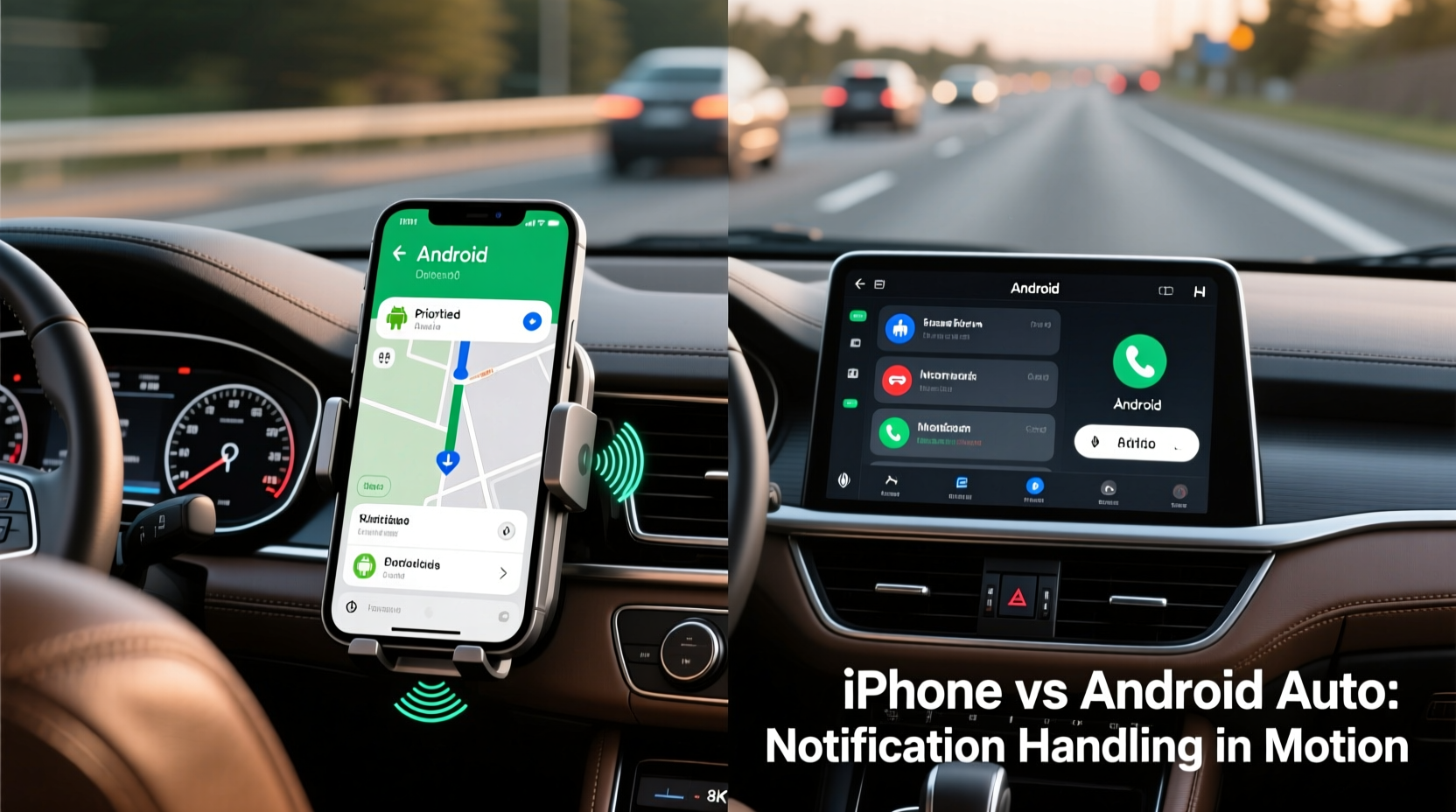
The foundation of any effective driving notification system is accurate detection. If your phone can’t reliably tell you're driving, it won’t activate the right settings at the right time. Both platforms use a combination of motion sensors, GPS, Bluetooth connectivity, and machine learning to infer driving behavior.
- iOS: Uses motion coprocessor data to detect vehicle movement. It activates Do Not Disturb While Driving when significant motion is detected unless the device senses it's in a passenger’s pocket or stationary. iPhones also use Bluetooth pairing with car systems as a trigger.
- Android: Detection varies by manufacturer. Samsung uses accelerometer data combined with Bluetooth and Wi-Fi signals. Google’s Pixel phones leverage on-device AI through the Now Playing feature and motion sensing. Some third-party apps like Drivemode enhance detection but require installation.
Apple’s approach tends to be more consistent across devices due to hardware-software integration. Android offers flexibility but lacks uniformity—what works perfectly on a Galaxy S24 might not function the same way on a budget Pixel model.
Notification Management: What Gets Through and What Doesn’t
The core purpose of auto-driving modes is to reduce distractions by filtering incoming notifications. Both platforms allow users to suppress most alerts, but they differ in how granular control is implemented.
| Feature | iOS (Driving Focus) | Android (Samsung Example) |
|---|---|---|
| Auto-Activation | Yes – via motion & Bluetooth | Yes – via Bixby Routines or Car Mode |
| Customizable Whitelist | Yes – allows specific contacts to bypass DND | Limited – requires third-party tools or SmartThings |
| Auto-Replies | Yes – sends SMS: “I’m driving” | Yes – customizable replies in Messages app |
| Lock Screen Suppression | Full – hides all notifications | Partial – depends on device settings |
| Voice Assistant Integration | Siri supports voice-only interaction | Bixby/Google Assistant available |
iOS takes a stricter, privacy-first approach. When Driving Focus is active, the lock screen remains black unless the user manually interacts, preventing visual temptation. Notifications still arrive silently in the background and can be reviewed after the drive.
Android, particularly Samsung devices, often display muted banners or lock screen previews unless explicitly disabled. While this offers more visibility, it increases distraction risk. However, Samsung’s Bixby Routines allow deeper automation—such as launching Waze, turning on GPS, and muting media upon detecting car connection.
“Effective driving modes should eliminate visual and cognitive load—not just silence sounds.” — Dr. Lena Patel, Human Factors Researcher at MIT Transportation Lab
Automation and Customization: Flexibility vs. Simplicity
Customization determines how well a system adapts to individual habits. Here, Android generally wins on flexibility, while iOS excels in seamless simplicity.
On iPhone, Driving Focus is part of the broader Focus framework introduced in iOS 15. Users can set up:
- Contact-based exceptions (e.g., family members can still reach you).
- HomeScreen pages that appear only when driving.
- Automated replies using iMessage or SMS.
However, automation triggers are limited to motion detection and Bluetooth pairing. There’s no option to trigger Driving Focus based on calendar events (e.g., commute times) without workarounds involving Shortcuts.
Conversely, Samsung’s Bixby Routines allow multi-condition triggers:
- If Bluetooth connects to car audio and
- Time is between 7–9 AM and
- Location is near home,
- Then: Launch Maps, turn on Do Not Disturb, increase volume, disable Wi-Fi.
This level of conditional logic gives Android an edge for power users who want contextual intelligence. Google’s own Digital Wellbeing includes Wind Down and Focus Mode, but lacks native driving-specific automation unless paired with third-party apps like Tasker or IFTTT.
Real-World Performance: A Commuter’s Experience
Consider Sarah, a marketing manager in Chicago who drives 45 minutes each way to work. She recently switched from an iPhone 14 to a Samsung Galaxy S24 Ultra and noticed key differences in how her phone handled driving scenarios.
On her iPhone, Do Not Disturb While Driving activated consistently whenever she started the engine. Her lock screen went dark, and texts from coworkers were met with automatic replies. However, she found the system too rigid—she couldn’t quickly access music controls without disabling the mode entirely.
After switching to Android, Sarah set up a Bixby Routine triggered by Bluetooth pairing with her Lexus. As soon as she entered the car:
- Waze launched automatically.
- Do Not Disturb turned on, allowing only starred contacts.
- Spotify resumed her “Commute Mix.”
- Her smartwatch received a silent vibration alert reminding her to check traffic.
The increased automation saved her time and reduced pre-drive interactions. However, she occasionally received false triggers when riding as a passenger on trains with strong motion patterns. The iPhone, in contrast, never activated accidentally.
Sarah concluded that while Android offered richer functionality, iOS provided greater peace of mind through reliability and restraint.
User Control and Safety: Who Prioritizes Cognitive Load?
A critical factor in evaluating driving modes isn’t just what they do—but what they prevent. Cognitive load refers to the mental effort required to process information. Even glancing at a notification increases reaction time.
iOS minimizes cognitive load by design:
- No lock screen previews.
- No sound or haptic feedback for non-urgent alerts.
- Siri handles voice commands without unlocking.
Android, despite improvements in Digital Wellbeing, often defaults to less restrictive behavior. Unless manually configured, many devices still show message snippets on the lock screen—even in driving mode. This creates a temptation to glance, defeating the purpose of the feature.
Google has made strides with its “Hold for Me” and “Assistant Driving Mode,” which answer calls and read messages aloud. But these features are opt-in and not universally available across all Android devices.
In contrast, Apple’s ecosystem-wide consistency ensures that every iPhone user gets the same baseline protection—no matter the carrier or region.
Checklist: Optimizing Your Phone for Safer Driving
To get the most out of your phone’s driving mode, follow this actionable checklist:
- ✅ Pair your phone with your car via Bluetooth, even if you don’t use hands-free calls.
- ✅ Enable Do Not Disturb While Driving (iOS) or Bixby Routine / Driving Mode (Android).
- ✅ Set up auto-replies so contacts know you’re unavailable.
- ✅ Whitelist emergency contacts who can reach you during drives.
- ✅ Disable lock screen notifications to avoid visual distractions.
- ✅ Use voice assistants (Siri or Google Assistant) for navigation and messaging.
- ✅ Test activation manually before relying on automatic triggers.
Frequently Asked Questions
Can driving mode detect if I’m a passenger?
iOS attempts to differentiate between drivers and passengers by analyzing motion patterns and whether the phone is moving away from a known location (like home). However, accuracy isn’t perfect. Android systems typically don’t distinguish and assume anyone in a moving vehicle is driving. You can manually disable the mode if you're a passenger.
Does Android have a built-in driving focus like iPhone?
Stock Android (on Pixels) includes basic driving features through Digital Wellbeing and Assistant, but lacks a dedicated, fully automated driving mode. Samsung, Motorola, and other OEMs add their own versions—such as Samsung’s Car Mode or Motorola’s Moto Display—but these vary in capability and availability.
Can I customize auto-reply messages?
Yes, both platforms allow customization. On iPhone, go to Settings > Focus > Driving > Auto-Reply To. You can choose Everyone, Contacts Only, or No One, and edit the message text. On Samsung, open Messages > Settings > Driving Mode > Auto reply message to personalize the response.
Conclusion: Choosing the Right System for Your Needs
When comparing iPhone and Android auto modes for handling driving notifications, there’s no single “best” option—it depends on your priorities.
If you value simplicity, reliability, and strong default protections, **iPhone’s Driving Focus** is superior. Its deep integration with hardware and operating system ensures consistent performance across all devices. The strict suppression of visual distractions aligns closely with safety recommendations from transportation authorities.
If you prefer customization, automation, and contextual awareness, **high-end Android devices—especially Samsung models**—offer more powerful tools. Bixby Routines and task automation let you build intelligent workflows that adapt to your daily routines. However, this flexibility comes with setup complexity and potential inconsistency across brands.
Ultimately, both platforms can significantly reduce driving distractions—if properly configured. The most advanced system won’t help if auto-replies are off or notifications still flash on the screen. Safety begins with intentional setup and disciplined usage.




 浙公网安备
33010002000092号
浙公网安备
33010002000092号 浙B2-20120091-4
Comments
No comments yet. Why don't you start the discussion?