
Slow speeds, lag during video calls, or buffering while streaming may not always be due to your internet plan. If your device isn’t connecting to the 5GHz Wi-Fi band, you’re likely stuck on the overcrowded 2.4GHz frequency—slower and more prone to interference. The 5GHz band offers faster data rates, less congestion, and better performance for high-bandwidth tasks. But many users struggle to connect despite having compatible hardware. This guide walks through the most common reasons why your adapter won’t switch to 5GHz and how to resolve them.
Why 5GHz Matters for Modern Connectivity
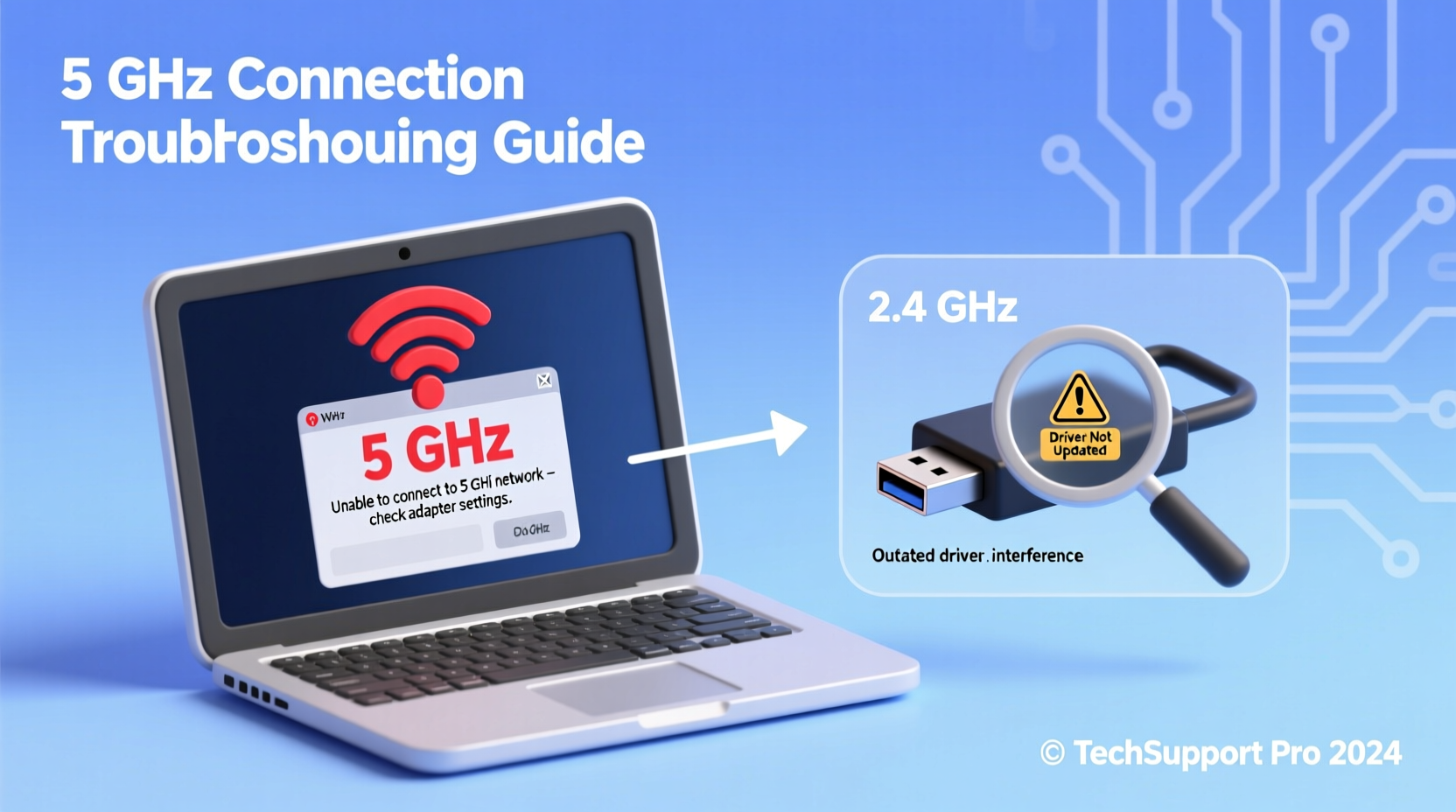
The 5GHz Wi-Fi band operates at a higher frequency than 2.4GHz, allowing for significantly faster transfer speeds and reduced interference from household devices like microwaves, cordless phones, and Bluetooth gadgets. While it has a shorter range and struggles more with walls and obstacles, its advantages in speed and reliability make it ideal for modern use—especially for 4K streaming, online gaming, and large file transfers.
However, simply having a dual-band router doesn’t guarantee that your device will automatically connect to 5GHz. Many factors—from outdated drivers to incorrect settings—can prevent the switch. Identifying the root cause is essential before applying fixes.
“Even with a high-speed fiber connection, being stuck on 2.4GHz can cut your real-world speeds by over 60%.” — Raj Patel, Network Infrastructure Engineer
Troubleshooting Your Wi-Fi Adapter: A Step-by-Step Guide
Follow this logical sequence to determine whether the issue lies with your hardware, software, or network configuration.
- Confirm your router broadcasts a 5GHz network: Log into your router’s admin panel (usually via 192.168.1.1 or 192.168.0.1) and verify that the 5GHz SSID is enabled. Some routers allow you to hide or disable bands individually.
- Check if your Wi-Fi adapter supports 5GHz: Not all wireless adapters do. Older models (pre-802.11n) or budget USB dongles may only support 2.4GHz. Look up your adapter model or check Device Manager (Windows) under “Network adapters.”
- Ensure both bands have unique SSIDs: If your 2.4GHz and 5GHz networks share the same name (SSID), your device may default to 2.4GHz for stability. Rename one of the bands (e.g., “Home-WiFi-5G”) so you can manually select it.
- Forget and reconnect to the 5GHz network: On your device, go to Wi-Fi settings, forget the current network, then reconnect using the 5GHz SSID.
- Update your Wi-Fi driver: Outdated drivers are among the top causes of connectivity issues. Visit your laptop manufacturer’s website or the adapter vendor (e.g., Intel, Realtek) to download the latest driver.
Common Causes and Fixes for 5GHz Connection Failure
Beyond basic setup, deeper technical issues often block access to 5GHz. Here are the most frequent culprits and their solutions:
- Driver conflicts or corruption: Windows sometimes installs generic drivers that lack full functionality. Use Device Manager to uninstall the current driver, then install the manufacturer-specific version.
- Power-saving settings overriding band selection: Some laptops aggressively manage power by disabling advanced Wi-Fi features. In Device Manager, right-click your adapter > Properties > Power Management, and uncheck “Allow the computer to turn off this device to save power.”
- Incorrect adapter band settings: In rare cases, the adapter may be locked to 2.4GHz. Navigate to Device Manager > Wi-Fi adapter > Advanced tab. Look for properties like “Preferred Band,” “Band Steering,” or “802.11a/b/g/n/ac Mode.” Set “Preferred Band” to “5 GHz” if available.
- Firmware issues on the router: An outdated router firmware can misreport capabilities or fail to authenticate properly with certain clients. Check your router manufacturer’s site for updates.
Mini Case Study: Office Laptop Stuck on 2.4GHz
A marketing executive working remotely noticed constant Zoom call drops despite strong signal bars. Speed tests showed 12 Mbps down, far below her 100 Mbps plan. Investigation revealed her company-issued laptop was connected to the 2.4GHz band, even though the router supported 5GHz. After renaming the 5GHz SSID and updating the Intel Dual Band Wireless-AC 8260 driver, she successfully connected to 5GHz. Her speeds jumped to 89 Mbps, and call quality improved instantly. The root cause? A factory driver that didn’t properly handle band steering.
Hardware and Software Compatibility Checklist
Use this checklist to systematically rule out compatibility issues:
- ✅ Is your router dual-band (supports 2.4GHz and 5GHz)?
- ✅ Is the 5GHz network enabled and visible?
- ✅ Does your Wi-Fi adapter support 802.11a/n/ac/ax standards?
- ✅ Are both SSIDs broadcasted separately?
- ✅ Is your Wi-Fi driver up to date?
- ✅ Is power-saving mode disabled for the adapter?
- ✅ Have you restarted both the router and device?
Adapter Comparison: What Works With 5GHz?
| Wi-Fi Standard | Supports 5GHz? | Max Speed (Theoretical) | Common Devices |
|---|---|---|---|
| 802.11b/g | No | 54 Mbps | Older laptops, legacy IoT |
| 802.11n (Wi-Fi 4) | Only if dual-band | 600 Mbps | Mid-2010s notebooks |
| 802.11ac (Wi-Fi 5) | Yes | 1.3 Gbps | Most modern laptops, smartphones |
| 802.11ax (Wi-Fi 6/6E) | Yes (and 6E adds 6GHz) | 9.6 Gbps | Newer PCs, flagship phones |
Note: Even if your adapter supports 5GHz, some operating systems (like older versions of Linux or embedded systems) may lack proper driver support. Always verify OS compatibility when upgrading hardware.
Frequently Asked Questions
Why does my phone connect to 5GHz but my laptop doesn’t?
This usually indicates a hardware or driver limitation on the laptop. Phones generally come with modern, integrated Wi-Fi chips that support both bands. Laptops, especially older models, may have Wi-Fi cards restricted to 2.4GHz or outdated drivers preventing 5GHz detection.
Can I force my PC to use only 5GHz?
You cannot fully \"force\" a connection through standard OS settings, but you can influence it. Rename your 5GHz network to a different SSID, forget the 2.4GHz network, and set the preferred band in your adapter’s advanced properties. Additionally, placing your device closer to the router increases the likelihood of locking onto 5GHz.
Does distance affect 5GHz connectivity?
Yes. 5GHz signals have shorter range and are more easily blocked by walls, floors, and appliances. If you're far from the router or through multiple obstructions, your device may automatically fall back to 2.4GHz for stability. Consider relocating the router or using a mesh system to extend 5GHz coverage.
Conclusion: Take Control of Your Connection
Being unable to switch to 5GHz Wi-Fi isn’t just an inconvenience—it limits what your internet can do. From sluggish downloads to disrupted video conferences, the impact is real. The good news is that most issues are fixable with a methodical approach. Whether it’s updating a driver, adjusting settings, or upgrading outdated hardware, each step brings you closer to unlocking faster, cleaner, and more responsive wireless performance.
Don’t accept subpar speeds as normal. Diagnose your adapter, optimize your network, and reclaim the bandwidth you’re paying for. A few minutes of troubleshooting today can transform your daily digital experience.




 浙公网安备
33010002000092号
浙公网安备
33010002000092号 浙B2-20120091-4
Comments
No comments yet. Why don't you start the discussion?