
If you’ve ever tried to upload an MP4 file to iCloud only to be met with silence, a spinning wheel, or an error message, you’re not alone. Many iPhone, iPad, and Mac users encounter this issue when trying to back up videos or share them across devices. While iCloud is designed for seamless integration with Apple’s ecosystem, certain technical and environmental factors can interfere with MP4 uploads. The good news: most of these problems are fixable with the right approach.
This guide breaks down the most common causes behind failed MP4 uploads to iCloud and provides clear, actionable solutions. Whether you're dealing with storage limits, file compatibility quirks, or syncing glitches, you’ll find what you need to get your videos safely backed up.
Why MP4 Files Fail to Upload to iCloud
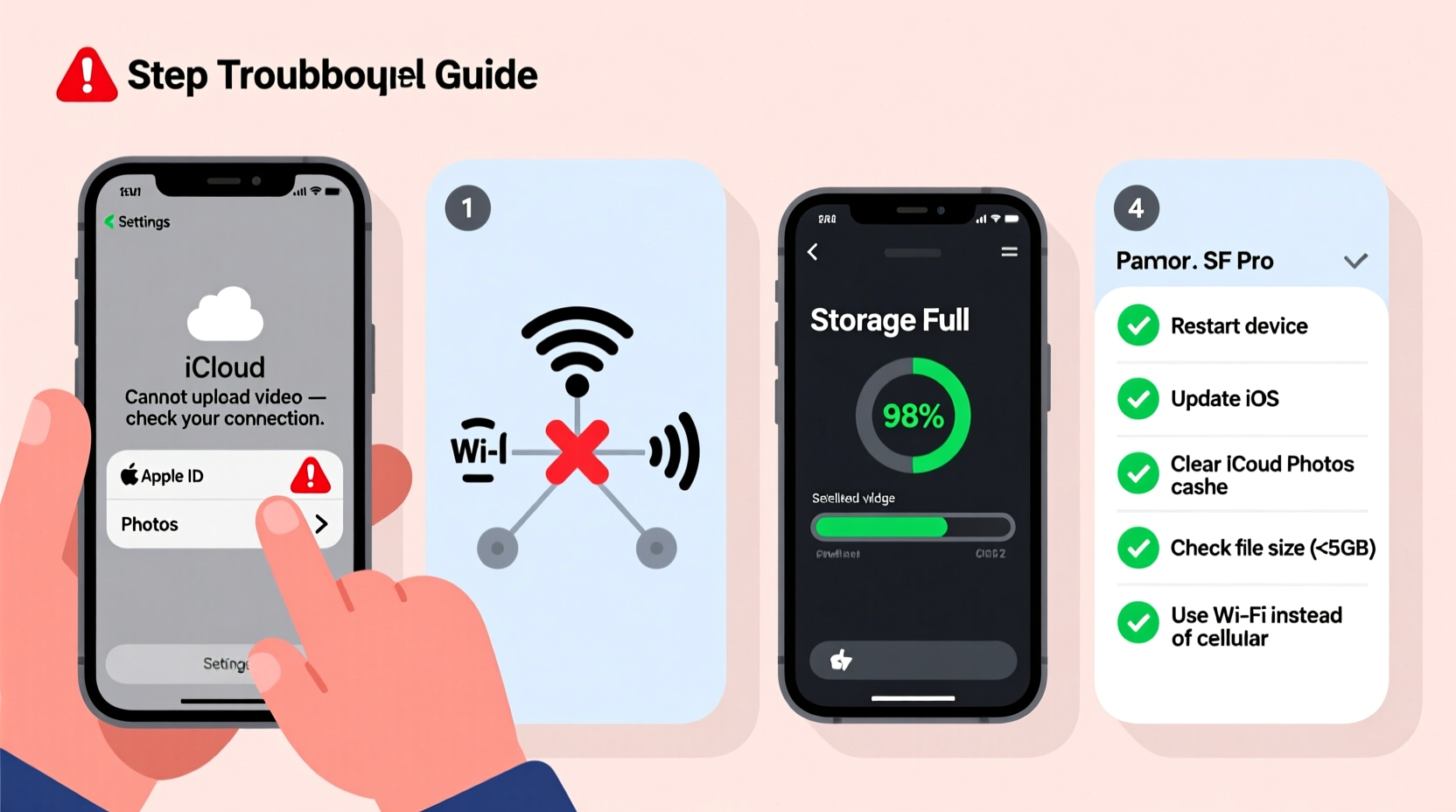
Despite MP4 being one of the most widely supported video formats, iCloud doesn’t treat all MP4s equally. Apple's ecosystem prioritizes specific codecs and container standards optimized for performance and battery efficiency. When your MP4 file deviates from these expectations—either in encoding, resolution, or metadata—it may fail to upload.
Common culprits include:
- Unsupported video codec: Not all MP4s use H.264 or HEVC, which iCloud prefers.
- File size limitations: Large videos (e.g., 4K recordings) may exceed temporary processing thresholds.
- Insufficient iCloud storage: If your account is full, no new uploads will go through.
- Network instability: Weak Wi-Fi or cellular data interruptions halt background uploads.
- iCloud Photos settings misconfigured: Uploads only work if syncing is properly enabled.
Step-by-Step Fix: How to Successfully Upload MP4 to iCloud
Follow this structured troubleshooting process to identify and resolve the root cause of your upload failure.
- Verify iCloud Photos Is Enabled
Navigate to Settings > [Your Name] > iCloud > Photos. Ensure “Sync This Device” or “iCloud Photos” is turned on. Without this toggle active, no local videos will upload automatically.
- Check Available iCloud Storage
Go to Settings > [Your Name] > iCloud. If storage is full or near capacity, delete old backups, messages, or unused apps in the cloud. Alternatively, upgrade your plan via the same menu.
- Confirm File Compatibility
iCloud supports MP4 files encoded with H.264 or HEVC video codecs. Use QuickTime Player (on Mac) or a tool like MediaInfo to inspect your file’s encoding. If it uses MPEG-4 Part 2, DivX, or other less common codecs, conversion is required.
- Convert Incompatible MP4s
Use free tools like HandBrake (cross-platform) or built-in QuickTime Player to re-encode the video:
- Open QuickTime Player.
- Select File > Export As.
- Choose “720p,” “1080p,” or “4K” depending on original quality.
- Save as .mov or .mp4 with H.264 encoding.
- Upload via Photos App (Not Files)
For best results, import the MP4 into the Photos app instead of relying on the Files app. Open Photos, drag and drop the video (Mac), or use Share Sheet (iOS). Once imported, iCloud Photos will sync it automatically.
- Wait Patiently During Upload
Large files take time. Check upload progress by opening the Photos app and looking for a progress bar at the top. A circular icon with upward arrows indicates active syncing.
Do’s and Don’ts: iCloud Video Upload Best Practices
| Do | Don’t |
|---|---|
| Use H.264 or HEVC-encoded MP4s | Upload MP4s with AV1 or VP9 codecs |
| Keep device connected to power and Wi-Fi during upload | Turn off screen or put device to sleep mid-upload |
| Enable iCloud Photos across all devices | Rely solely on the Files app for photo/video backup |
| Compress very large files before uploading | Attempt to upload 8K videos from third-party cameras without testing first |
| Monitor iCloud storage monthly | Ignore low-storage warnings until uploads fail |
Real Example: Sarah’s Wedding Video Upload Failure
Sarah recorded her sister’s wedding on her DSLR camera and saved the footage as MP4 files using the camera’s default AVCHD format. She transferred the clips to her iPhone and tried uploading them to iCloud so family members could access them. Despite multiple attempts, the videos wouldn’t sync.
After checking iCloud settings and confirming she had space, she used a media analyzer tool and discovered the files used an older MPEG-2-based encoding not fully supported by iOS. Using HandBrake, she converted the videos to H.264 MP4s at 1080p resolution. After importing the new versions into the Photos app, they uploaded successfully within 20 minutes over her home Wi-Fi.
Her experience highlights how even standard file extensions like .mp4 can hide underlying compatibility issues that prevent smooth cloud integration.
“Just because a file has an MP4 extension doesn’t mean it meets Apple’s playback and upload standards. Codec matters more than container.” — Jordan Lee, Digital Media Engineer at Apple Support Partner Firm
Quick Checklist: Can’t Upload MP4 to iCloud?
Run through this checklist to quickly isolate and fix the problem:
- ✅ Is iCloud Photos turned on in Settings?
- ✅ Do you have at least 20% free iCloud storage?
- ✅ Is your device connected to a stable Wi-Fi network?
- ✅ Is the MP4 encoded with H.264 or HEVC?
- ✅ Have you restarted your device after making changes?
- ✅ Did you import the video into the Photos app, not just save it in Files?
- ✅ Are your system and apps updated to the latest version?
Frequently Asked Questions
Why does my MP4 show up in Files but not upload to iCloud Photos?
The Files app stores documents but doesn’t trigger automatic iCloud Photos syncing. To back up a video, it must be imported into the Photos library. Open the video in the Files app, tap Share, then select “Add to Photos.” Once added, iCloud Photos will begin syncing if enabled.
Can I upload any size MP4 to iCloud?
Technically, yes—but practically, there are limits. iCloud supports videos up to 15 GB in size, though such large files require excellent Wi-Fi and several hours to upload. For smoother performance, consider compressing videos over 4 GB using QuickTime or another encoder before uploading.
Does converting an MP4 reduce its quality?
It depends on the settings used during conversion. Re-encoding with high bitrate and matching resolution (e.g., 1080p at 20 Mbps) preserves visual quality while ensuring compatibility. Avoid aggressive compression or downscaling unless necessary for storage reasons.
Final Thoughts: Keep Your Memories Safe in iCloud
Being unable to upload an MP4 to iCloud can feel frustrating, especially when the file appears perfectly normal. But in nearly every case, the solution lies in understanding the subtle requirements Apple’s ecosystem places on media files. From codec compatibility to proper syncing setup, small adjustments make a big difference.
By verifying your settings, converting incompatible files, and using the right workflow—Photos app over Files—you can ensure your videos are securely backed up and accessible across all your devices. Don’t let a failed upload discourage you. With the right knowledge, iCloud remains one of the most reliable ways to preserve your digital memories.




 浙公网安备
33010002000092号
浙公网安备
33010002000092号 浙B2-20120091-4
Comments
No comments yet. Why don't you start the discussion?