
Sudden screen flickering on a laptop can be more than just an annoyance—it can disrupt work, strain your eyes, and signal deeper hardware or software issues. Whether the flicker is subtle or severe, intermittent or constant, understanding its root cause is essential for applying the right solution quickly. Unlike gradual screen degradation, sudden flickering often points to specific triggers that can be diagnosed and resolved without professional help in many cases. This guide breaks down the most common causes, offers actionable troubleshooting steps, and provides real-world insights to get your display back to normal—fast.
Common Causes of Sudden Screen Flickering
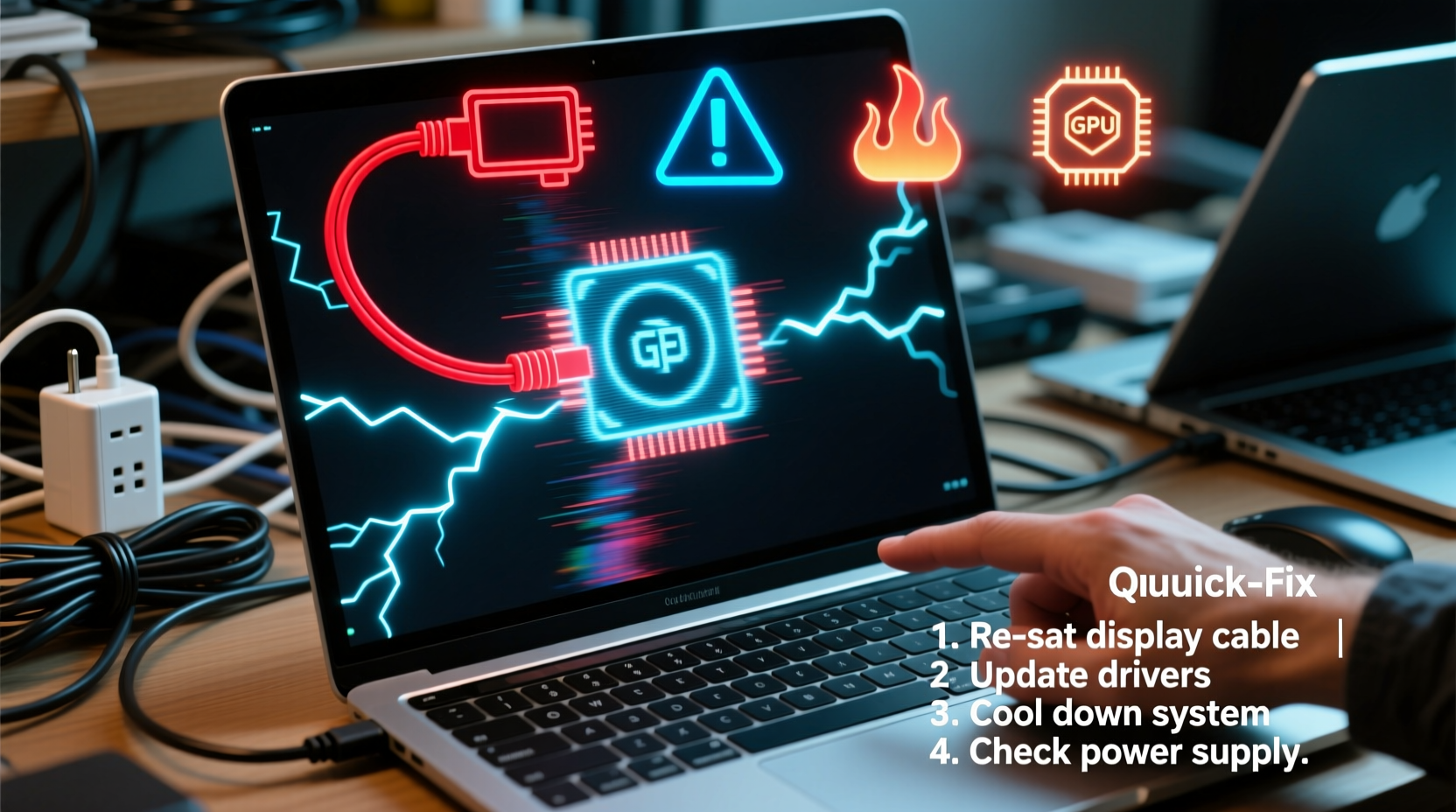
Laptop screen flickering doesn’t happen randomly. It’s typically a symptom of underlying issues ranging from driver conflicts to failing hardware. Identifying the source early prevents further damage and saves time and money.
- Outdated or corrupt graphics drivers: One of the leading causes, especially after system updates or OS upgrades.
- Loose internal display cable: Physical movement or wear over time can disconnect the ribbon cable between the motherboard and screen.
- Power settings and refresh rate mismatches: Aggressive power-saving modes may reduce screen stability.
- Faulty backlight or inverter (older models): In LCD screens with CCFL backlights, inverter failure causes flickering, especially when adjusting brightness.
- Software conflicts or malware: Certain apps, especially those with overlay features (e.g., Discord, Steam), interfere with display rendering.
- Hardware failure: Issues with the GPU, display panel, or motherboard can manifest as flickering.
- External monitor interference: Connecting to external displays can trigger flickering if resolution or refresh rate settings are incompatible.
Step-by-Step Troubleshooting Guide
Before assuming hardware failure, follow this systematic approach to isolate and resolve the issue efficiently. Most flickering problems stem from software or settings and can be fixed in under 30 minutes.
- Restart your laptop. A simple reboot clears temporary glitches and resets display processes.
- Check for external devices. Unplug all peripherals, including USB hubs, docking stations, and external monitors. Reconnect one at a time to identify interference sources.
- Test in Safe Mode. Boot into Safe Mode (hold Shift while clicking Restart in Windows). If the screen stops flickering, the issue is likely software-related.
- Update or roll back graphics drivers. Go to Device Manager > Display adapters, right-click your GPU, and choose “Update driver” or “Roll back driver” if the problem began recently.
- Adjust refresh rate settings. Right-click desktop > Display settings > Advanced display > Refresh rate. Try switching from 60Hz to 59Hz or vice versa—some panels are sensitive to minor mismatches.
- Disable fullscreen optimizations. Right-click the app causing flicker (if consistent), go to Properties > Compatibility, and check “Disable fullscreen optimizations.”
- Scan for malware. Run a full system scan using Windows Defender or a trusted antivirus tool.
Do’s and Don’ts When Dealing with Screen Flicker
| Do’s | Don’ts |
|---|---|
| Check for driver updates regularly | Ignore persistent flickering—early action prevents escalation |
| Use manufacturer-recommended power plans | Apply third-party screen filters unless necessary |
| Keep your OS updated | Open the laptop casing unless experienced—risk of static damage |
| Test with an external monitor | Assume it’s just a software issue if flickering worsens over time |
| Clean boot to rule out app conflicts | Use compressed air near the hinge area—can damage internal cables |
Real-World Example: The Case of the Overheating GPU
A freelance video editor reported sudden screen flickering during rendering sessions. The flicker disappeared when idle but returned under load. Initial checks ruled out drivers and malware. Testing with an external monitor showed no flicker, indicating the internal display was involved. Upon inspection, thermal imaging revealed the GPU was overheating, causing voltage fluctuations that destabilized the display output. Cleaning the cooling vents and repasting the GPU resolved the issue. This case highlights how performance demands can expose latent hardware stress points.
“Display flickering under load often points to thermal throttling or power delivery issues—not just the screen itself.” — Rajiv Mehta, Senior Hardware Engineer at TechDiagnostics Inc.
When to Suspect Hardware Failure
If software fixes don’t resolve the flickering, hardware may be at fault. Key indicators include:
- Flickering persists across operating systems (e.g., Linux live USB)
- Visible lines, discoloration, or dead pixels accompany flicker
- Flickering changes with laptop movement (e.g., opening/closing lid)
- No flicker on external monitors, but internal screen remains unstable
The most common hardware culprits are:
- Loose LVDS/eDP cable: Found along the hinge, this cable connects the motherboard to the display. Frequent opening and closing can loosen it.
- Damaged display panel: Physical pressure, drops, or aging can degrade the LCD matrix.
- Failing backlight (especially in older LCDs): Flickering that worsens at low brightness levels suggests backlight instability.
- GPU soldering defects: In some models, particularly older NVIDIA GPUs, solder joints crack due to thermal cycling, causing intermittent display faults.
For users comfortable with basic disassembly, reseating the display cable can be a quick fix. Power off the laptop, remove the bottom panel, locate the display connector on the motherboard, and gently unplug and reconnect it. However, if you’re unsure, seek professional repair—misalignment can cause permanent damage.
Quick Fix Checklist
Use this checklist to systematically eliminate causes and restore screen stability:
- ✅ Restart the laptop
- ✅ Disconnect all external devices
- ✅ Boot into Safe Mode to test flickering
- ✅ Update or roll back graphics driver
- ✅ Adjust screen refresh rate in Display Settings
- ✅ Disable fullscreen optimizations for problematic apps
- ✅ Run malware scan
- ✅ Test with an external monitor
- ✅ Check for overheating components
- ✅ Reset power plan to “Balanced”
- ✅ Perform a clean boot to disable startup apps
- ✅ Contact manufacturer support if under warranty
Frequently Asked Questions
Can screen flickering damage my eyes?
Yes. Prolonged exposure to flickering screens can cause eye strain, headaches, and fatigue. The human eye may not consciously detect rapid flickers (especially above 70Hz), but subliminal flickering still increases cognitive load. If flickering persists, stop using the device until resolved.
Why does my screen flicker only when I plug in the charger?
This often indicates electrical interference from a faulty charger or grounding issue. Try a different charger or power outlet. If the flicker stops, the original charger is likely defective. Some budget chargers lack proper EMI shielding, which affects display signals.
Is screen flickering covered under warranty?
Generally, yes—if caused by hardware defects. Most manufacturers cover display panels and internal components for at least one year. However, physical damage or liquid exposure voids coverage. Document the issue with videos and contact support before attempting DIY repairs.
Conclusion: Act Fast, Prevent Long-Term Damage
Sudden screen flickering is rarely harmless. While some cases stem from simple driver glitches, others point to deteriorating hardware or thermal stress. The key is swift, methodical troubleshooting. Start with software and settings—these are the fastest and safest fixes. If the problem persists, consider hardware diagnostics or professional service. Ignoring flickering can lead to complete display failure or mask deeper system issues. By acting quickly and using the steps outlined here, you can restore a stable display and extend your laptop’s usable life.




 浙公网安备
33010002000092号
浙公网安备
33010002000092号 浙B2-20120091-4
Comments
No comments yet. Why don't you start the discussion?