
Online chess should be seamless, especially on a platform as popular as Chess.com. Yet, many players regularly face frustrating lag, dropped connections, or delayed moves that disrupt gameplay and affect performance. Whether you're preparing for a tournament or enjoying a casual blitz game, consistent connectivity is essential. The good news: most connection issues are fixable with the right approach. This guide dives into proven methods to diagnose, reduce, and eliminate lag on Chess.com—so you can focus on strategy, not buffering.
Understanding the Causes of Lag on Chess.com
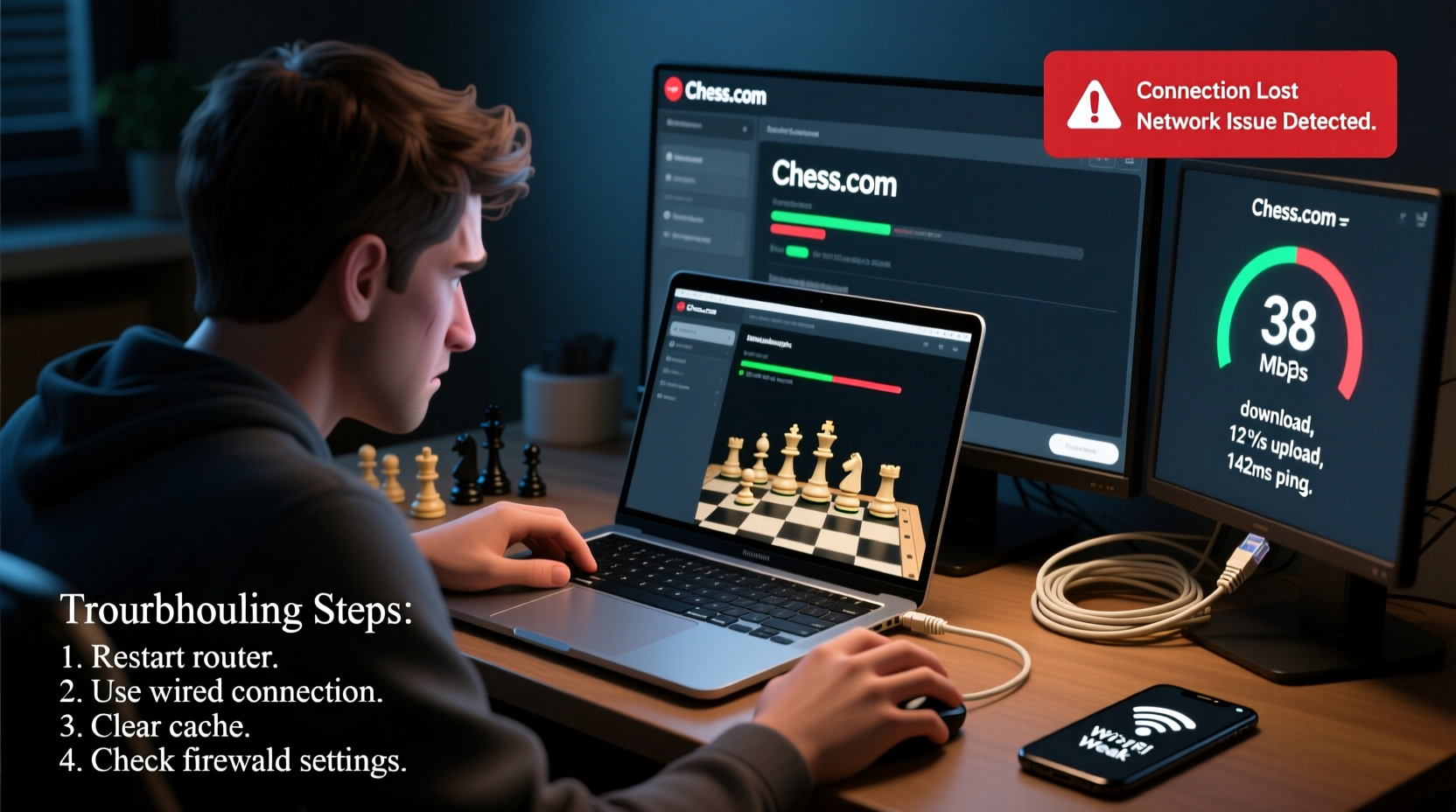
Lag isn’t always about your internet speed. It’s often a combination of network conditions, device performance, browser behavior, and server-side factors. Here’s what typically contributes:
- Unstable internet connection: Packet loss or fluctuating ping can cause move delays.
- Wi-Fi interference: Distance from the router, walls, or competing devices weaken signals.
- Browser overload: Too many tabs or extensions consuming memory and CPU.
- Outdated software: Old browser versions or unpatched operating systems may struggle with real-time web apps.
- Server load: During peak hours, Chess.com servers may experience higher latency globally.
Before assuming the problem lies with Chess.com, rule out local factors first. Most users see improvement after optimizing their setup.
Step-by-Step Guide to Fix Chess.com Lag
Follow this structured troubleshooting sequence to isolate and resolve the root cause of lag.
- Check your internet speed and ping
Visit speedtest.net and run a test. For optimal Chess.com performance:- Download speed: At least 5 Mbps
- Upload speed: At least 2 Mbps
- Ping: Under 50 ms (ideal), under 100 ms (acceptable)
- Switch to a wired connection
If you’re on Wi-Fi, connect your device directly to the router via Ethernet. This minimizes interference and stabilizes latency, especially during long sessions. - Restart your router and device
Power cycle your modem/router by unplugging it for 30 seconds. Restart your computer or mobile device to clear cached processes that might interfere with network performance. - Close background applications
Streaming services, cloud sync tools, downloads, and video conferencing apps consume bandwidth. Shut them down before playing. - Use an optimized browser
Chrome, Firefox, and Edge work well, but ensure they’re updated. Avoid using outdated browsers like Internet Explorer.- Clear cache and cookies for Chess.com.
- Disable unnecessary extensions (especially ad blockers or script managers that interfere with WebSockets).
- Try Chess.com’s mobile app
Sometimes, the native app (iOS/Android) performs better than the browser version due to lower overhead and optimized networking. - Change DNS settings
Use faster DNS resolvers like Google DNS (8.8.8.8, 8.8.4.4) or Cloudflare (1.1.1.1). Slow DNS lookup can add hidden latency.
Do’s and Don’ts When Troubleshooting Connection Issues
| Do’s | Don’ts |
|---|---|
| Use Ethernet over Wi-Fi when possible | Play while downloading large files |
| Keep your browser updated | Run multiple streaming tabs during games |
| Test connectivity during off-peak hours | Ignore repeated disconnections—they signal deeper issues |
| Use incognito/private mode to test without extensions | Assume the problem is always on Chess.com’s end |
| Contact your ISP if ping remains high | Use public Wi-Fi for ranked matches |
Real-World Example: How a Competitive Player Fixed Persistent Lag
Daniel, a 1700-rated player from Toronto, struggled with frequent disconnects during daily tournaments. Despite having 100 Mbps fiber, his games would freeze mid-move. He followed standard advice—restarted his router, cleared cache—but saw no improvement.
The breakthrough came when he tested using a mobile hotspot. No lag. That pointed to local network congestion. Upon checking his home network, he discovered a smart TV and two phones were actively downloading updates during evening play. After setting up Quality of Service (QoS) rules on his router to prioritize his gaming device, his ping stabilized at 28 ms. His win rate in time-sensitive formats improved within a week.
This case illustrates how internal network traffic—not raw speed—is often the invisible culprit.
“Latency in online chess isn’t just annoying—it’s a competitive disadvantage. Even 200ms of delay can cost you a tempo in bullet games.” — Dr. Lena Petrov, Network Performance Analyst at Esports Labs
Advanced Fixes for Persistent Problems
If basic steps don’t resolve the issue, consider these advanced solutions:
Enable QoS on Your Router
Quality of Service prioritizes certain devices or applications. Log into your router settings (usually via 192.168.1.1) and assign higher priority to your PC or phone when playing. This ensures Chess.com packets aren’t delayed by background traffic.
Use a Different Network Path
Sometimes, your ISP routes traffic inefficiently. Try using a lightweight VPN service to see if an alternate path improves ping. Note: avoid heavy encryption or distant servers—choose one geographically close.
Monitor Packet Loss
Open Command Prompt (Windows) or Terminal (Mac) and run:
ping -t chess.com
Let it run for 2 minutes during a game. If more than 2–3% of packets are lost, contact your ISP. Consistent packet loss degrades real-time performance more than low bandwidth.
Update Firmware and Drivers
Ensure your router has the latest firmware. Outdated firmware can cause instability. Similarly, update your network adapter drivers on Windows or macOS for optimal compatibility.
FAQ: Common Questions About Chess.com Lag
Why does Chess.com lag only during live games but not puzzles?
Puzzles are static and load once. Live games use real-time WebSocket connections that require constant data exchange. Any network hiccup affects move transmission instantly.
Does my device matter? Can an old laptop cause lag?
Yes. Older devices with limited RAM or slow processors may struggle to maintain smooth browser performance, especially with animations and sound enabled. Try disabling visual effects in Chess.com settings under “Preferences > Board” to reduce load.
Is Chess.com responsible for server-side lag?
Occasionally. During major events or site-wide updates, server response times may increase. Check status.chess.com for real-time service health. However, 80% of reported lag originates from the user’s side.
Final Checklist Before Every Game
Make this your pre-game ritual to minimize disruptions:
- ✅ Run a speed and ping test
- ✅ Close all non-essential apps and browser tabs
- ✅ Switch to dark theme (reduces GPU load on some devices)
- ✅ Disable sound or reduce volume (lowers processing overhead)
- ✅ Confirm stable connection (look for green indicator on Chess.com)
- ✅ Play a 1-minute game first to test responsiveness
Conclusion: Take Control of Your Chess Experience
Lag on Chess.com doesn’t have to be a regular obstacle. With systematic troubleshooting, most players can achieve near-instant move registration and uninterrupted gameplay. The key is understanding that performance depends on your entire ecosystem—network, device, software, and habits. Small changes, like switching to Ethernet or managing background apps, often deliver dramatic results.




 浙公网安备
33010002000092号
浙公网安备
33010002000092号 浙B2-20120091-4
Comments
No comments yet. Why don't you start the discussion?