
Google Chrome is one of the most widely used web browsers globally, known for its speed, simplicity, and integration with Google services. However, even the most reliable software can encounter issues—especially when performance degrades or the browser crashes unexpectedly. Frequent crashes disrupt workflow, slow down productivity, and erode user confidence. The good news is that most Chrome instability problems stem from identifiable causes and can be resolved with systematic troubleshooting.
This guide provides actionable solutions to diagnose and fix Chrome crashes across Windows, macOS, and Linux systems. Whether you're dealing with constant tab failures, freezes on startup, or random shutdowns, these methods will help restore stability and ensure a smoother browsing experience.
Identify Common Causes of Chrome Crashes
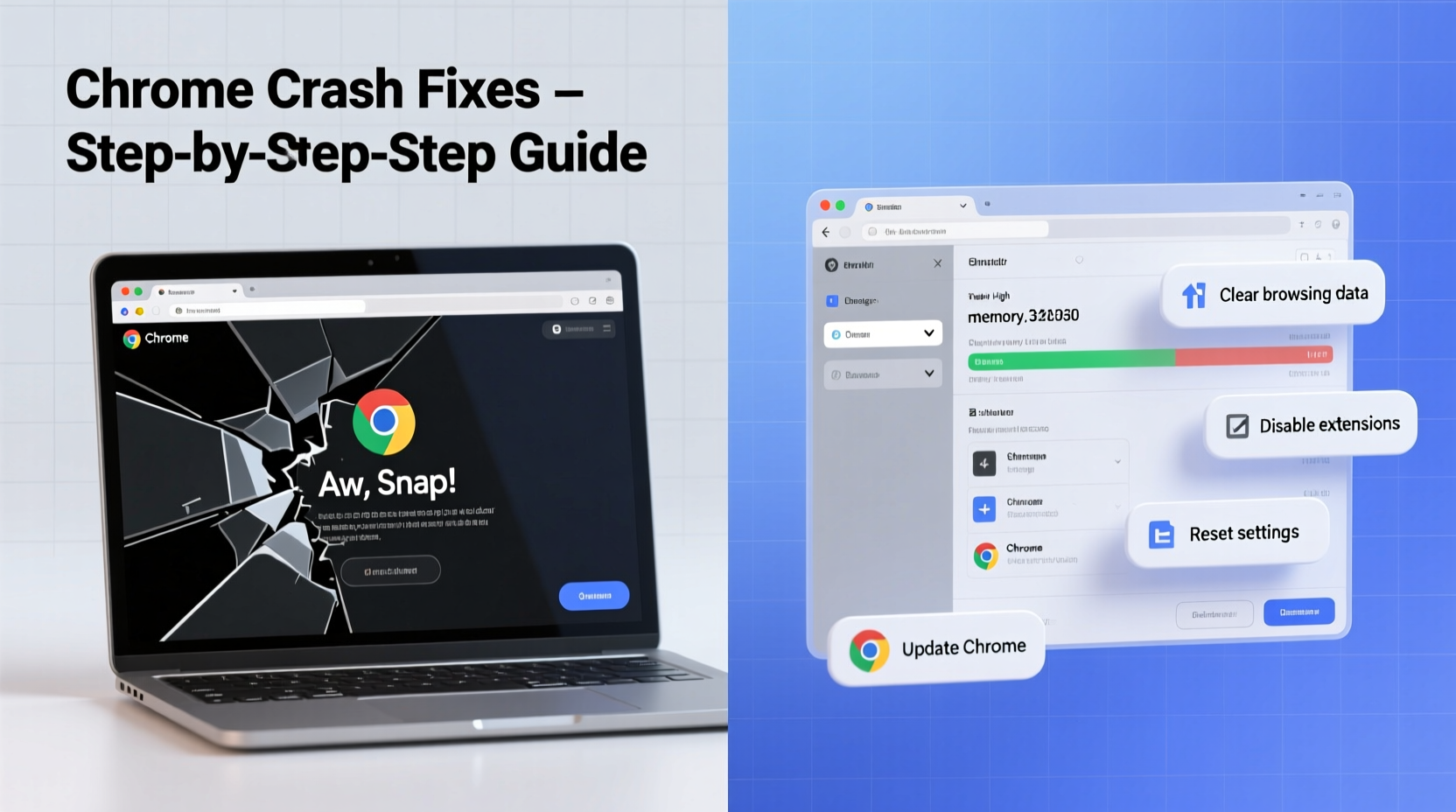
Before diving into fixes, it's essential to understand what typically triggers Chrome instability. Recognizing the root cause streamlines resolution and prevents recurring issues.
- Outdated Browser Version: Running an older version of Chrome may expose you to unresolved bugs or compatibility issues.
- Problematic Extensions: Some third-party extensions interfere with browser processes, leading to memory leaks or script conflicts.
- Hardware Acceleration Conflicts: While designed to improve performance, this feature can cause crashes on incompatible or outdated GPU drivers.
- Corrupted User Profile: Damaged settings or cache files within your Chrome profile can destabilize the browser.
- Insufficient System Resources: Low RAM or high CPU usage from background apps can prevent Chrome from running smoothly.
- Misconfigured Flags or Experimental Features: Tweaking advanced settings (chrome://flags) without proper knowledge can introduce instability.
Step-by-Step Troubleshooting Guide
Follow this structured approach to isolate and resolve the underlying problem causing Chrome to crash.
- Update Chrome to the Latest Version
Navigate tochrome://settings/help. Chrome automatically checks for updates. If available, install them immediately and restart the browser. - Launch Chrome in Safe Mode (Incognito)
Open Chrome in Incognito mode (Ctrl+Shift+N or Cmd+Shift+N). This disables all extensions and uses a clean session. If crashes stop, an extension is likely responsible. - Disable Extensions One by One
Go tochrome://extensions, toggle off each extension individually, and test browser stability after each change. Remove any that trigger crashes. - Clear Browsing Data
Accumulated cache and cookies can corrupt sessions. In Settings > Privacy and Security > Clear Browsing Data, select “All time” and clear cached images, cookies, and site data. - Reset Chrome Settings
If custom configurations are at fault, reset Chrome to default: Settings > Reset Settings > Restore settings to their original defaults. - Check for Malware
Run Chrome’s built-in cleanup tool via Settings > Reset Settings > Clean up computer. It scans for harmful software affecting browser behavior. - Update or Roll Back Graphics Drivers
Outdated GPU drivers often conflict with hardware acceleration. Update through Device Manager (Windows) or System Preferences (macOS), or temporarily disable the feature (see below).
Optimize Chrome Settings for Stability
Adjusting key settings can significantly reduce crash frequency and enhance overall performance.
| Setting | Action | Benefit |
|---|---|---|
| Hardware Acceleration | Settings > System > Use hardware acceleration when available → Toggle Off | Prevents GPU-related crashes on older or unsupported graphics cards |
| Site Isolation | Enable under Privacy and Security > Site Isolation | Improves security and reduces tab crashes by isolating processes |
| Automatic Tab Discarding | Enabled by default; manage via chrome://discards | Frees memory by suspending inactive tabs, reducing resource overload |
| Sandboxing | Ensure enabled via chrome://settings/security | Enhances process isolation, minimizing system-wide impact of tab failures |
Mini Case Study: Resolving Persistent Crashes on a Work Laptop
A marketing analyst using Chrome on a Windows 10 laptop experienced daily crashes during video conferences and multitasking. Initial attempts to clear cache had no effect. Upon testing in Incognito mode, stability improved dramatically. Investigation revealed that a legacy password manager extension was injecting scripts into every page load, consuming excessive memory. Disabling the extension resolved the issue. As a follow-up, the user switched to Chrome’s native password manager, which integrated seamlessly and reduced background strain. This case underscores how seemingly helpful tools can become performance liabilities.
Expert Insight on Browser Reliability
“Modern browsers like Chrome run complex multi-process architectures. A single misbehaving component—especially extensions or GPU drivers—can cascade into full-browser failure. Proactive maintenance and minimal extension use are critical for long-term stability.” — Dr. Alan Reyes, Senior Software Engineer at Chromium Projects
Troubleshooting Checklist
Use this checklist to methodically address Chrome crashes:
- ✅ Update Chrome to the latest version
- ✅ Test browser stability in Incognito mode
- ✅ Disable all extensions, then re-enable one at a time
- ✅ Clear browsing data (cache, cookies, site data)
- ✅ Turn off hardware acceleration temporarily
- ✅ Scan for malware using Chrome Cleanup Tool
- ✅ Reset Chrome settings to default
- ✅ Check for operating system and driver updates
- ✅ Create a new Chrome user profile to rule out corruption
- ✅ Monitor Task Manager (chrome://system) for abnormal memory/CPU spikes
Frequently Asked Questions
Why does Chrome keep crashing on startup?
Startup crashes are often caused by conflicting extensions, corrupted profiles, or outdated software. Try launching Chrome with extensions disabled (--disable-extensions flag) or in safe mode. If the problem stops, gradually reintroduce components to identify the culprit.
Can too many open tabs cause Chrome to crash?
Yes. Each tab runs as a separate process, consuming memory. On systems with limited RAM (e.g., 4GB or less), having more than 10–15 tabs open can exhaust resources. Use tab suspension extensions or rely on Chrome’s built-in discarding feature to mitigate this.
Is it safe to reset Chrome settings?
Yes. Resetting returns Chrome to default configurations but preserves bookmarks, history, and saved passwords. It removes content settings, disabled extensions, and homepage changes. It’s a safe step when other fixes fail.
Final Steps for Long-Term Stability
Maintaining a stable Chrome experience requires ongoing attention. Schedule monthly reviews of installed extensions and remove those no longer needed. Keep your operating system and antivirus software updated to support secure browser operations. Consider using Chrome’s Task Manager (Shift + Esc within Chrome) to monitor individual tab and extension resource consumption.
For enterprise or shared environments, enforce policies through Google Admin Console to restrict unauthorized extensions and enforce auto-updates. These proactive measures drastically reduce instability risks.
“Prevention is more effective than repair. Regular digital hygiene—like updating software and auditing extensions—is the best defense against browser crashes.” — Lisa Tran, IT Support Lead at TechFlow Solutions
Conclusion
Chrome crashing doesn’t have to be a recurring frustration. With the right diagnostic approach and preventive habits, you can achieve a fast, reliable browsing experience. From disabling problematic extensions to optimizing system-level settings, each step brings you closer to seamless performance. Don’t wait for crashes to disrupt your day—apply these fixes now and build a more resilient browser environment.




 浙公网安备
33010002000092号
浙公网安备
33010002000092号 浙B2-20120091-4
Comments
No comments yet. Why don't you start the discussion?