
For students on a tight budget, finding a reliable laptop under $300 can feel like searching for a needle in a haystack. With academic demands ranging from essay writing and research to online classes and collaborative projects, the right device must balance affordability, functionality, and longevity. Two major contenders dominate this price range: Chromebooks and low-cost Windows laptops. While both promise entry-level computing at an accessible price, they serve different needs and come with distinct limitations. Understanding their strengths and weaknesses is crucial before making a purchase that could impact a semester—or even a full degree program.
Understanding the Core Differences
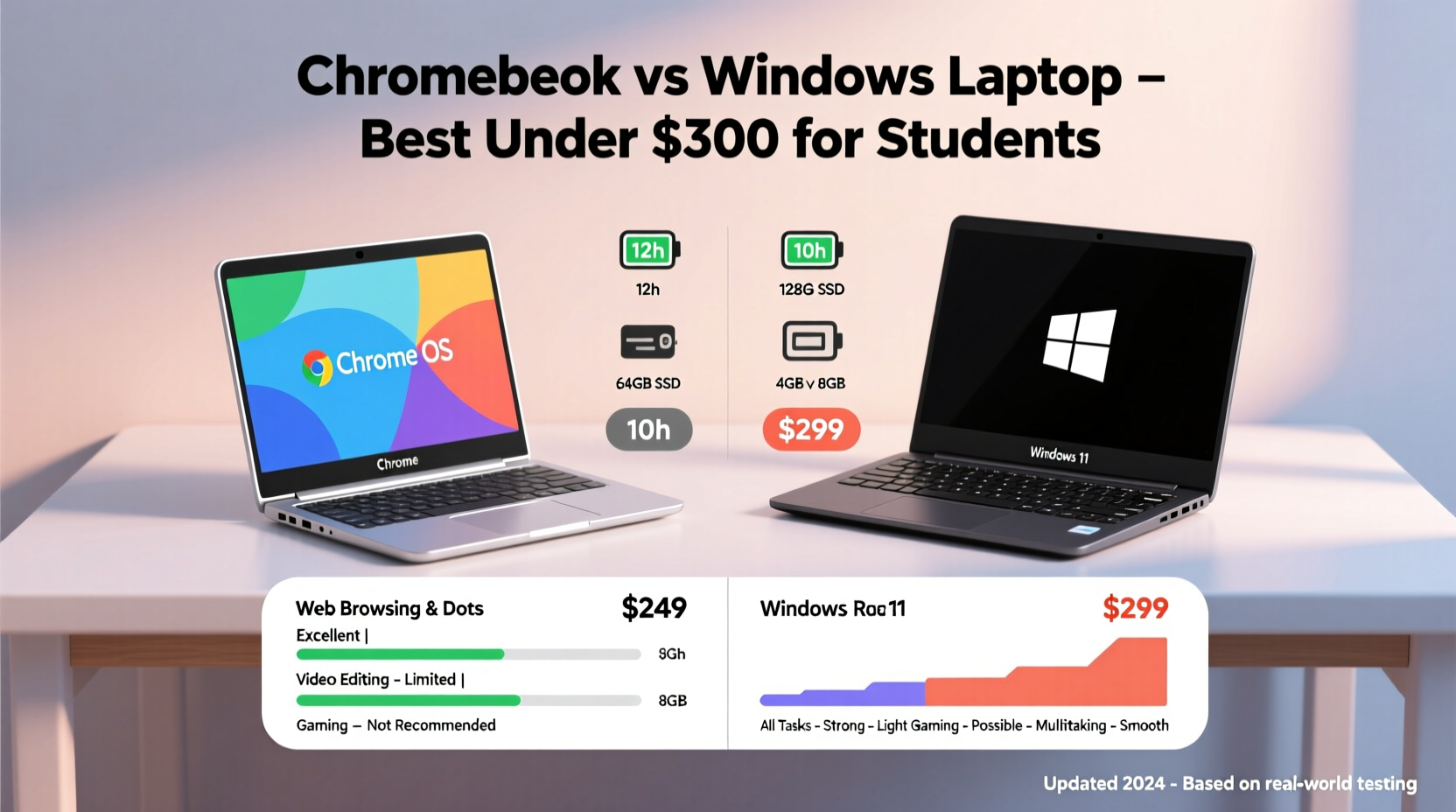
The fundamental distinction between a Chromebook and a Windows laptop lies in their operating systems and underlying design philosophies. Chromebooks run Google’s Chrome OS, a lightweight system built around the Chrome browser and cloud-based applications. They are designed primarily for internet use, relying heavily on Google Workspace (Docs, Sheets, Gmail) and web apps. In contrast, Windows laptops operate on Microsoft’s full desktop OS, capable of running traditional software like Microsoft Office, Adobe programs, and even some games—though not all models can handle them well at this price point.
Under $300, Chromebooks generally offer more consistent performance and reliability than their Windows counterparts. This is because Chrome OS requires fewer system resources, allowing manufacturers to equip these devices with modest hardware—such as Intel Celeron or MediaTek processors, 4GB RAM, and 32GB eMMC storage—while still delivering a responsive user experience for everyday tasks.
Windows laptops in the same range often struggle due to the heavier demands of the operating system. Many come with slower hard drives instead of SSDs, limited RAM, and older-generation processors, leading to sluggish boot times, app delays, and multitasking bottlenecks. While technically more versatile, budget Windows machines frequently compromise usability for compatibility.
Performance and Usability in Academic Settings
Students need devices that can keep up with deadlines, virtual classrooms, and research-heavy workloads. Let’s break down how each platform performs in common academic scenarios.
Web Browsing & Online Research
Both Chromebooks and Windows laptops handle basic browsing adequately. However, Chromebooks have a natural advantage here. Since Chrome OS is optimized for the Chrome browser, pages load faster, tabs remain stable, and memory management is more efficient. Most models support tabbed workflows with multiple research sources open simultaneously without significant lag.
Low-end Windows laptops, especially those with spinning hard drives, may experience delays when loading complex websites or switching between tabs. Additionally, background processes from Windows updates or antivirus scans can interrupt focus during study sessions.
Document Creation and Collaboration
Writing essays, creating presentations, and managing spreadsheets are staples of student life. Chromebooks integrate seamlessly with Google Workspace, offering real-time collaboration, automatic saving to the cloud, and offline access to documents. Formatting is straightforward, and file sharing is intuitive—especially within school ecosystems that use Google Classroom.
While Windows laptops support Microsoft Office natively—a benefit if your institution uses Outlook, OneNote, or advanced Excel features—many sub-$300 models do not include a licensed version of Office. You may need to subscribe to Microsoft 365 separately or rely on free alternatives like LibreOffice, which lack some integration and polish.
Video Conferencing and Remote Learning
With hybrid learning becoming standard, strong video call performance is essential. Most Chromebooks under $300 include front-facing cameras, microphones, and speakers tuned for Google Meet. The OS prioritizes these applications, resulting in smoother audio/video sync and lower latency.
Windows laptops vary widely. Some include decent HD webcams and noise-canceling mics; others ship with grainy 720p cameras and tinny speakers that make lectures difficult to follow. Driver issues or background apps consuming bandwidth can further degrade Zoom or Teams calls.
“Students using Chromebooks report fewer technical disruptions during online classes compared to those on budget Windows devices.” — Dr. Linda Tran, Educational Technology Researcher, University of Illinois
Hardware Comparison: What You Get for $300
At this price point, hardware compromises are inevitable. But the nature of those compromises differs significantly between platforms.
| Feature | Typical Chromebook ($200–$300) | Typical Windows Laptop ($250–$300) |
|---|---|---|
| Processor | Intel Celeron N-series, MediaTek, or AMD A-Series | Intel Celeron, Pentium Silver, or AMD Athlon |
| RAM | 4GB (often sufficient for Chrome OS) | 4GB (can feel constrained with Windows 11) |
| Storage | 32GB eMMC (cloud-focused) | 64GB eMMC or 128GB HDD (slower) |
| Display | 11.6”–14” HD (1366x768), matte finish | 14” HD, often glossy with poor viewing angles |
| Battery Life | 8–10 hours (efficient OS + hardware) | 5–7 hours (higher power draw) |
| Durability | Frequently includes spill-resistant keyboards and reinforced hinges | Plastic build, less rugged; hinges prone to wear |
| Ports | USB-C, USB-A, headphone jack, sometimes HDMI | USB-A, USB-C, HDMI, SD card reader (varies) |
One notable advantage of Chromebooks is their focus on efficiency. Even with lower specs, they often outperform similarly priced Windows laptops in daily use due to minimal background overhead. Updates are fast, secure, and happen in the background without lengthy reboots.
Real-World Example: Maria’s First-Year Experience
Maria, a freshman at a community college in Arizona, had a strict $280 budget for her first laptop. She considered two options: an Acer Chromebook Spin 311 ($279) and a Lenovo IdeaPad 3 with Windows 11 ($299). Both were on sale and met her school’s minimum requirements.
She chose the Chromebook based on campus recommendations and longer battery life. Over the semester, she used it for taking notes in Google Docs, submitting assignments via her LMS (Canvas), attending Zoom lectures, and collaborating on group projects through Google Meet. When she needed to edit PDFs or convert files, she used free web tools. Her device booted in under 8 seconds, lasted through back-to-back classes, and never crashed during exams.
A classmate who bought the Windows laptop struggled with slow startup times, frequent update interruptions, and difficulty installing required software due to insufficient disk space. By midterms, he was borrowing lab computers to complete his work.
Maria’s experience highlights a key truth: for most general education courses, a well-chosen Chromebook provides a smoother, more dependable experience than a low-end Windows machine—even if the latter appears more “powerful” on paper.
When a Windows Laptop Might Be Worth It
Despite Chromebook advantages, there are legitimate reasons a student might need a Windows laptop—even under $300.
- Major-specific software: Engineering, computer science, graphic design, and music production students often require Windows-only applications like AutoCAD, Visual Studio, Adobe Creative Suite, or FL Studio. These cannot run on Chrome OS without workarounds (like Linux containers, which demand technical skill).
- Offline functionality: While Chromebooks support offline modes, full local processing power and file management are stronger in Windows. If you travel frequently or live in areas with unreliable internet, this matters.
- Gaming or multimedia editing: Casual gaming or video editing—even for class projects—is nearly impossible on most Chromebooks. A budget Windows laptop with dedicated graphics (rare under $300) or better CPU performance may be necessary.
In such cases, look for models with solid-state drives (SSD), at least 8GB of RAM (upgradeable), and recent Intel Core i3 or AMD Ryzen 3 processors. Avoid devices with only 32GB or 64GB of storage unless they include expandable microSD slots.
Step-by-Step Guide: Choosing the Right Device
Follow this decision-making process to pick the best laptop for your academic needs:
- Review your course syllabi: Identify required software, submission formats, and collaboration tools.
- List your primary tasks: Will you write papers, code, edit videos, take handwritten notes, or attend virtual labs?
- Check internet access: Do you have reliable Wi-Fi at home, or will you depend on campus networks and mobile hotspots?
- Compare available models: Filter by price, screen size, battery life, and keyboard comfort. Read verified buyer reviews focusing on long-term reliability.
- Test if possible: Visit a store to try typing, open multiple tabs, and assess screen clarity.
- Purchase with warranty: Opt for extended protection if available, especially for Windows laptops prone to mechanical failure.
FAQ
Can I install Microsoft Office on a Chromebook?
You can use the web versions of Word, Excel, and PowerPoint through office.com, or download the Android apps from the Google Play Store (if supported). However, advanced features like macros, add-ins, or desktop-only formatting options may not be available.
Are Chromebooks secure for online exams?
Yes. Many schools use lockdown browsers like Respondus Monitor or Proctorio, which are compatible with Chromebooks. Chrome OS also has built-in virus protection and automatic updates, reducing security risks.
Do Windows laptops last longer than Chromebooks?
Not necessarily. Chromebooks receive automatic OS updates for 8+ years (via Automatic Update Expiration dates), ensuring long-term usability. Budget Windows laptops may become obsolete sooner due to outdated drivers, bloated software, and hardware wear.
Final Recommendation
For the majority of students—especially those in liberal arts, business, social sciences, nursing, or general education—a Chromebook under $300 is the smarter choice. It offers faster performance, longer battery life, greater durability, and seamless integration with modern educational platforms. The reliance on cloud storage encourages good digital habits, and the reduced risk of malware enhances peace of mind.
Only consider a budget Windows laptop if your academic path requires specific desktop software unavailable on Chrome OS. Even then, prioritize models with SSD storage and at least 8GB RAM to avoid frustration within months of purchase.
The goal isn’t to own the most powerful machine, but the one that helps you succeed with minimal friction. In that regard, Chromebooks consistently deliver better value and reliability for students operating under financial constraints.




 浙公网安备
33010002000092号
浙公网安备
33010002000092号 浙B2-20120091-4
Comments
No comments yet. Why don't you start the discussion?