
Chromecast remains one of the most popular ways to stream content from mobile devices and laptops to your TV. Despite its simplicity, users frequently encounter issues—streaming interruptions, connection failures, or complete unresponsiveness. When Chromecast stops working, it disrupts everything from movie nights to remote work presentations. The good news: most problems are fixable without replacing the device. This guide walks through practical, tested solutions that resolve the majority of Chromecast issues, from basic checks to advanced resets.
Check Your Network Connection
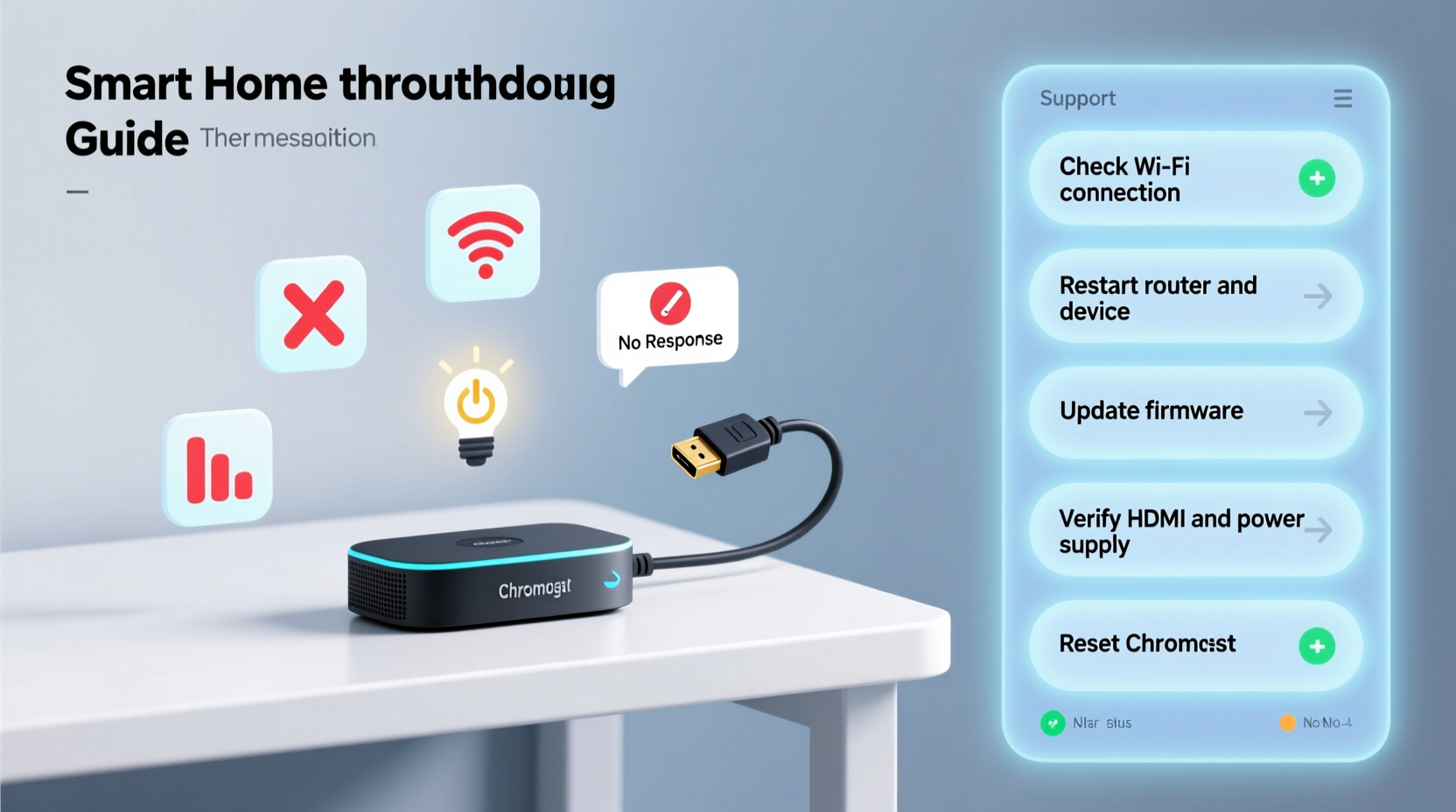
The foundation of Chromecast functionality is a stable Wi-Fi network. If your device can’t maintain a consistent link, streaming will fail. Begin by confirming that both your Chromecast and the casting device (phone, tablet, or laptop) are connected to the same Wi-Fi network. It's surprisingly common for dual-band routers (offering 2.4 GHz and 5 GHz) to split devices across bands, which prevents discovery.
To verify connectivity:
- Open your router’s admin interface (usually via 192.168.1.1 or 192.168.0.1).
- Check active devices and confirm both your phone and Chromecast appear under the same SSID.
- If necessary, assign a static IP to your Chromecast to prevent DHCP-related drops.
Weak signal strength is another culprit. Place your router closer to the Chromecast or use a Wi-Fi extender if the TV is far from the modem. Avoid interference from microwaves, cordless phones, or thick walls that degrade 2.4 GHz signals.
Restart Devices and Reboot the System
Sometimes the simplest fix is the most effective. A full system reboot clears temporary glitches in both hardware and software. Follow this sequence:
- Unplug the Chromecast from the HDMI port and power source.
- Turn off your TV and wait 30 seconds.
- Restart your router by unplugging it for 30 seconds, then plugging it back in.
- Power on the TV, reinsert Chromecast, and wait for the home screen to load.
- Reconnect your phone or tablet to Wi-Fi.
This process resets network handshakes and flushes corrupted session data. Many users report restored functionality after this step alone, especially when dealing with “stuck” loading screens or failed casting attempts.
Update Firmware and Apps
Outdated firmware is a frequent cause of Chromecast instability. Google regularly releases updates that improve compatibility, security, and performance. However, Chromecast updates happen automatically and may fail due to poor internet or interrupted power.
To check for updates:
- Open the Google Home app.
- Select your Chromecast device.
- Navigate to Settings > Device Information.
- If an update is pending, ensure the device stays powered and connected overnight.
Equally important: keep your casting apps updated. YouTube, Netflix, Disney+, and Chrome browser must be current. An outdated app may not communicate properly with the Chromecast, leading to errors like “Unable to connect” or “Casting failed.”
“Over 60% of reported Chromecast issues vanish after ensuring all components—device, router, and app—are running the latest versions.” — David Lin, Senior Support Engineer at Google Nest
Factory Reset Your Chromecast
When standard troubleshooting fails, a factory reset returns the device to its original state, removing corrupted settings or pairing conflicts. This should be done only after exhausting other options, as it erases all preferences and requires reconfiguration.
How to perform a factory reset:
- Locate the reset button on your Chromecast (usually a small pinhole on the side or end).
- With the device plugged in and powered, press and hold the button for 25 seconds.
- Watch the LED light: it will turn solid white, then blink rapidly, indicating reset initiation.
- Release the button after blinking starts. Wait 2 minutes for the device to restart.
- Set it up again using the Google Home app as if it were new.
Note: First-generation Chromecast models may require a slightly different timing (about 15–20 seconds). Always refer to official Google support documentation if uncertain.
Common Issues and Quick Fixes Table
Different symptoms point to specific causes. Use this reference to match your problem with a targeted solution.
| Issue | Possible Cause | Solution |
|---|---|---|
| Chromecast not showing up in app | Different Wi-Fi networks | Ensure all devices are on the same network |
| Buffering or low-quality video | Slow internet speed | Test speed (minimum 10 Mbps for HD); upgrade plan if needed |
| TV shows black screen with audio | HDMI handshake issue | Try a different HDMI port or cable |
| Remote not responding | Battery or Bluetooth interference | Replace batteries; minimize nearby wireless devices |
| Stuck on setup screen | Firmware corruption | Perform factory reset and retry setup |
Mini Case Study: Resolving Persistent Connection Drops
Sarah, a teacher in Portland, used her Chromecast daily to stream educational videos in her classroom. One Monday, the device stopped appearing in the Google Home app. She confirmed Wi-Fi was working, restarted everything, but saw no improvement. After checking her router settings, she discovered that her school’s network had recently enabled AP isolation—a security feature that blocks communication between connected devices. While great for security, it prevented her phone from detecting the Chromecast.
She worked with IT to create a guest network with AP isolation disabled. Once connected to the new network, the Chromecast appeared immediately. This case highlights how environment-specific settings, especially in schools or offices, can silently break Chromecast functionality—even when everything else seems normal.
Step-by-Step Troubleshooting Checklist
Follow this comprehensive checklist in order to methodically resolve Chromecast issues:
- ✅ Confirm Chromecast and casting device are on the same Wi-Fi network.
- ✅ Restart Chromecast, router, and casting device.
- ✅ Check internet speed (use speedtest.net); aim for at least 10 Mbps.
- ✅ Update the Google Home app and streaming apps (YouTube, Netflix, etc.).
- ✅ Verify Chromecast firmware is current via Device Information.
- ✅ Try casting from a different device to isolate the problem.
- ✅ Test with a different HDMI port or cable.
- ✅ Disable VPN or ad-blocking software that might interfere.
- ✅ Perform a factory reset if all else fails.
- ✅ Contact Google Support if the device still doesn’t respond.
Frequently Asked Questions
Why does my Chromecast keep disconnecting?
Intermittent disconnections are often due to weak Wi-Fi signal, router congestion, or power issues. Use a wired Ethernet adapter (via USB-C hub for newer models) or move the router closer. Also, ensure the Chromecast isn’t drawing power from a weak USB port on the TV—use the included power adapter instead.
Can I use Chromecast without Wi-Fi?
You cannot stream online content without Wi-Fi. However, some apps support local casting over a direct hotspot connection. For example, you can cast downloaded videos from your phone by creating a personal hotspot and connecting the Chromecast to it—but this is limited and not officially supported for all content types.
Does Chromecast work with all TVs?
Yes, as long as your TV has an available HDMI port. Older TVs without HDMI can use an HDMI-to-RCA converter, though quality will be significantly reduced and HD streaming won’t be possible.
Final Steps and Moving Forward
Most Chromecast problems stem from network inconsistencies, outdated software, or minor hardware hiccups—all of which are reversible. By following structured diagnostics, you regain control without unnecessary replacements. Remember: persistence pays. What looks like a dead device is often just misconfigured or stuck in a loop.
Start with the basics—restart and reconnect—then escalate only when needed. Keep your ecosystem updated, monitor your network health, and treat your Chromecast as part of a larger digital environment, not an isolated gadget.




 浙公网安备
33010002000092号
浙公网安备
33010002000092号 浙B2-20120091-4
Comments
No comments yet. Why don't you start the discussion?