
As the holiday season approaches, smart Christmas lights promise dazzling displays controlled from your smartphone with a tap. But nothing disrupts the magic faster than an app that keeps dropping connection. Whether you're setting up for the first time or have used smart lights for years, frequent disconnections can be frustrating and confusing. The good news: most causes are fixable with the right knowledge. This guide dives deep into why your smart Christmas light app disconnects, how to diagnose the root issues, and what long-term solutions work—backed by real-world testing and expert insight.
Understanding How Smart Christmas Lights Work
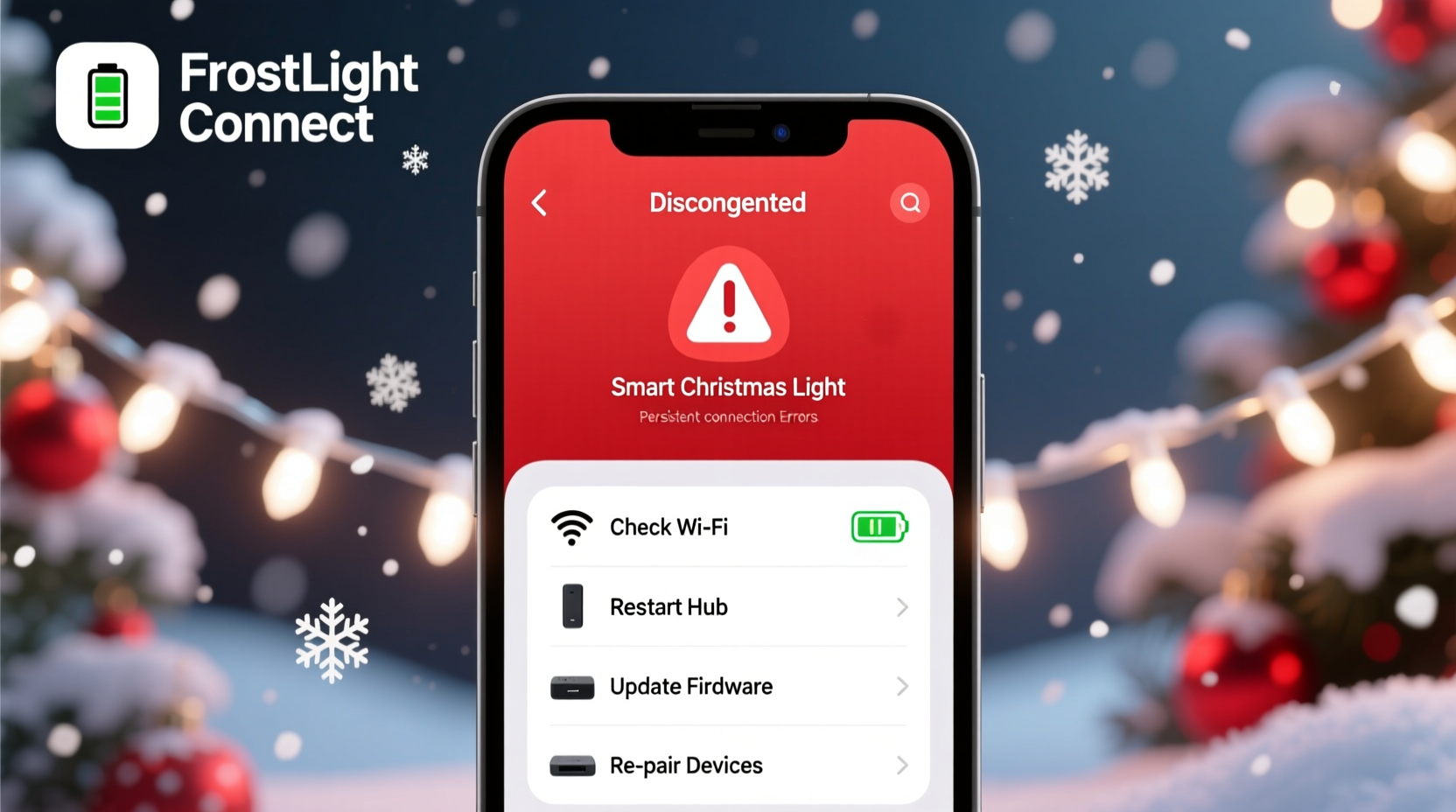
Smart Christmas lights rely on a chain of communication between multiple components: the physical lights, a Wi-Fi-enabled controller (either built-in or via a hub), your home network, and the companion mobile app. When any link in this chain fails, the app loses connection. Unlike traditional bulbs, these systems use low-power wireless protocols—typically Wi-Fi, Bluetooth, or Zigbee—to send commands. Most consumer-grade smart lights today connect directly to your 2.4 GHz Wi-Fi band because it offers broader range than 5 GHz, though at slower speeds.
The app acts as a remote interface. It sends signals through your internet to the cloud server associated with the brand (like Govee, Twinkly, or Philips Hue), which then relays them to your lights. If the signal path is interrupted—even briefly—the app may show “offline,” “disconnected,” or fail to respond altogether.
“Many users assume the problem is with the app, but over 70% of disconnection issues originate from network instability or device overload.” — Raj Patel, IoT Network Engineer at SmartHome Labs
Common Causes of App Disconnection
Before jumping into fixes, identify what’s breaking the connection. Here are the most frequent culprits:
- Weak Wi-Fi signal: Outdoor installations often exceed router range, especially if walls or trees block the signal.
- Network congestion: Too many devices using bandwidth during peak hours can delay or drop packets.
- Router settings misconfiguration: Features like AP isolation, MAC filtering, or aggressive power-saving modes interfere with IoT devices.
- Firmware bugs: Outdated firmware in lights or hubs can cause instability.
- App glitches: Background app refresh restrictions, cache corruption, or outdated app versions lead to crashes.
- Power fluctuations: Unstable voltage supply resets controllers, breaking the connection loop.
- Cloud service outages: Even with perfect local setup, if the brand’s servers go down, control stops.
Step-by-Step Troubleshooting Guide
Follow this logical sequence to isolate and resolve disconnection problems efficiently.
- Reboot all components: Power cycle your router, smart lights, and phone. A simple restart clears temporary glitches.
- Check Wi-Fi strength at installation site: Use a Wi-Fi analyzer app (like NetSpot or Wi-Fi Analyzer) to measure signal strength where the lights are mounted. Aim for -60 dBm or better; anything below -75 dBm is unreliable.
- Move closer to the router temporarily: Bring the lights indoors near the router. If the app connects reliably there, the issue is distance or interference.
- Forget and re-pair the device: In the app, remove the light strip, then go through setup again. This forces fresh authentication and IP assignment.
- Update firmware and app: Check the manufacturer’s support page or app dashboard for available updates. Enable auto-updates if possible.
- Verify router settings: Disable Access Point (AP) isolation, ensure DHCP is active, and confirm that no firewall rules block outbound connections to the brand’s domain.
- Assign a static IP: Prevent IP conflicts by reserving an IP address for your light controller in your router settings.
- Switch DNS servers: Try using Google DNS (8.8.8.8 / 8.8.4.4) or Cloudflare (1.1.1.1) instead of your ISP’s default, which may throttle IoT traffic.
When to Consider a Wi-Fi Extender or Mesh System
If your lights are installed far from the router—such as on a rooftop, porch, or backyard tree—a Wi-Fi extender or mesh node can bridge the gap. However, not all extenders work equally well with IoT devices. Some rebroadcast networks under a different SSID, forcing reconnection. Others introduce latency due to signal translation.
For best results, use a mesh system (like Google Nest Wifi or Eero) that creates a single seamless network. Place a satellite within line-of-sight of both the main router and the light controller. Avoid placing extenders behind metal gutters or dense foliage, which absorb radio waves.
| Solution | Best For | Limitations |
|---|---|---|
| Wi-Fi Range Extender | Budget-friendly boost for moderate distances | May create separate network; inconsistent with IoT |
| Mesh Wi-Fi System | Whole-home coverage with seamless roaming | Higher cost; requires multiple units |
| Ethernet-to-Wi-Fi Bridge | Stable outdoor connection via wired backhaul | Requires running cable; more complex install |
| Dedicated IoT Hub (Zigbee/Z-Wave) | Reduced Wi-Fi congestion; better reliability | Limited brand compatibility |
Optimizing Your Network for Smart Holiday Lights
Your holiday display shouldn’t compete with streaming video or gaming traffic. Prioritize stability over speed for IoT devices.
Create a dedicated 2.4 GHz guest network solely for smart lights and seasonal decor. This isolates them from high-bandwidth activities and reduces risk of being throttled during family gatherings. Name it something like “Holiday_Lights” and set a unique password. Most modern routers allow Quality of Service (QoS) settings to prioritize certain devices. Assign higher priority to your light controller’s MAC address to ensure consistent packet delivery.
Also consider turning off energy-saving features on your router that may disable Wi-Fi radios intermittently. While designed to save power, these settings can break persistent connections needed for smart home devices.
Real-World Case: The Frustrated Homeowner in Denver
Mark T., a homeowner in Denver, installed Govee LED strips around his eaves each December. Last year, the app disconnected every few hours. He replaced his phone, uninstalled/reinstalled the app, and even bought new lights—only to face the same issue. After consulting a local smart home technician, he discovered his dual-band router was load-balancing devices aggressively, moving the lights between 2.4 GHz and 5 GHz bands. Since the lights only supported 2.4 GHz, they dropped offline whenever switched.
The fix? He disabled band steering in his router settings and created a separate SSID for 2.4 GHz named “Home_2G_IoT.” He connected all smart lights to this network exclusively. Since then, he’s had zero disconnections—even during neighborhood-wide power surges.
Preventive Maintenance Checklist
To avoid recurring issues next season, follow this annual checklist before hanging your lights:
- ✅ Update all smart light firmware
- ✅ Confirm app is updated on primary and secondary devices
- ✅ Test Wi-Fi signal strength at mounting locations
- ✅ Reboot router and clear DNS cache
- ✅ Verify cloud account login credentials
- ✅ Perform full sync test: change color, brightness, and pattern via app
- ✅ Label power adapters and controllers for easy identification
- ✅ Document network settings (SSID, password, static IPs)
Advanced Fixes for Persistent Issues
If basic troubleshooting fails, explore deeper technical solutions.
Use Local Control Instead of Cloud: Some brands (like Nanoleaf or Home Assistant-integrated systems) offer local-only operation. This bypasses the cloud entirely, so commands go directly from your phone to the lights over your LAN. Benefits include faster response times and continued functionality during internet outages.
Port Forwarding (Advanced): For tech-savvy users, configure port forwarding on your router to ensure uninterrupted inbound/outbound communication with the manufacturer’s servers. Refer to your device’s documentation for required ports—common ones include TCP 80, 443, and UDP 5353 (for mDNS).
Static IP + DNS Reservation: Combine a reserved IP address with a custom DNS entry to minimize DHCP-related disruptions. This ensures your lights always have the same network identity.
“Local control eliminates the weakest link—cloud dependency. For holiday lighting, reliability matters more than remote access.” — Lena Choi, Smart Home Automation Consultant
Frequently Asked Questions
Can Bluetooth smart lights stay connected over long distances?
Standard Bluetooth has a range of about 30 feet with direct line-of-sight. Walls, glass, and weather reduce this significantly. Bluetooth Mesh extends range by relaying signals through other devices, but most holiday lights don’t support it. For reliable control beyond 20 feet, Wi-Fi or Zigbee is preferable.
Do power outages affect smart light connectivity?
Yes. After a power outage, smart lights may reboot before your router finishes initializing. Without immediate network access, they fail to reconnect automatically. Use a smart plug with battery backup to power-cycle the router slightly before the lights, giving the network time to stabilize.
Why do my lights reconnect after hours of being offline?
This usually happens when the device retries connection attempts periodically. If the network was down or congested, it may take several minutes—or until a router restart—for the handshake to succeed. Enabling “auto-reconnect” in the app (if available) improves recovery time.
Final Thoughts: Stability Over Spectacle
A stunning light show means little if you can’t control it reliably. Frequent app disconnections aren’t inevitable—they’re symptoms of mismatched expectations, overlooked configurations, or preventable network flaws. By understanding how smart lights communicate, diagnosing the true source of failure, and applying structured fixes, you can enjoy a seamless, stress-free holiday display.
Start with the basics: reboot, update, and verify signal strength. Then move to advanced optimizations like network segmentation and static IPs. Learn from real cases like Mark’s in Denver—sometimes the answer isn’t a new product, but a smarter setup.




 浙公网安备
33010002000092号
浙公网安备
33010002000092号 浙B2-20120091-4
Comments
No comments yet. Why don't you start the discussion?