
If you rely on your Comcast email for personal or professional communication, discovering that messages aren’t arriving can be frustrating and disruptive. Whether it's a delayed work update, an important bill reminder, or a note from a loved one, missing emails undermine trust in your digital workflow. The good news is that most issues preventing Comcast emails from coming through are fixable with systematic troubleshooting. This guide walks you through the most common causes—and their solutions—so you can restore reliable email delivery.
Understanding Why Emails Might Not Be Delivered
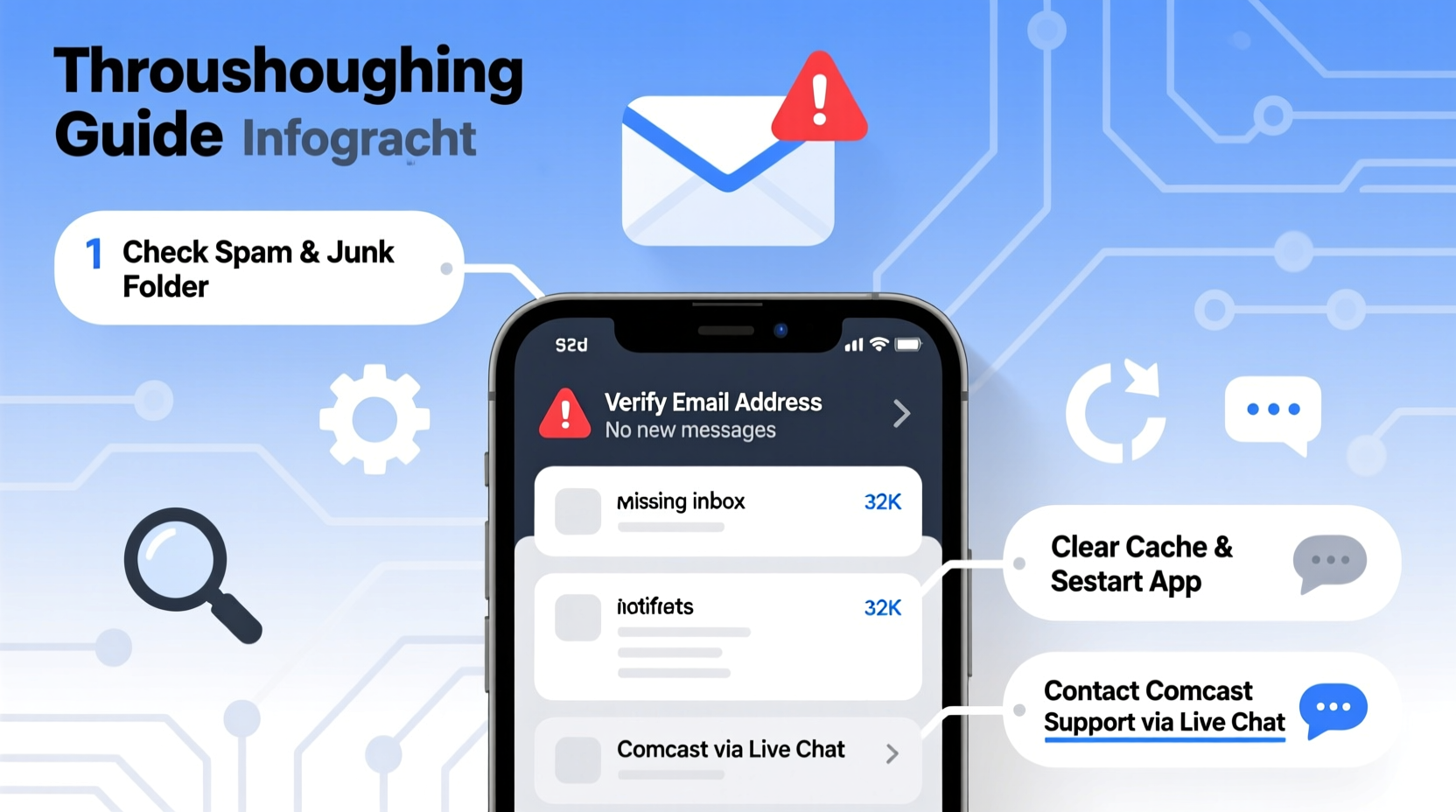
Email delivery involves multiple systems working in harmony: your email client (such as Outlook or Apple Mail), mobile apps, webmail servers, spam filters, and network connections. A failure at any point can interrupt the flow of incoming messages. Common culprits include incorrect settings, full mailboxes, server outages, or aggressive spam filtering. Before assuming the worst, take a structured approach to diagnose where the breakdown is occurring.
Step-by-Step Guide to Restore Incoming Email Flow
Follow this logical sequence to identify and resolve the root cause of missing Comcast emails.
- Verify Internet Connectivity: Ensure your device has stable internet access. Try loading other websites or services to confirm connectivity isn't the bottleneck.
- Check for Service Outages: Visit Xfinity Status Center to see if there’s a known outage affecting email servers.
- Log In via Webmail: Go directly to mail.comcast.net and log in. If emails appear here but not in your app, the issue is local to your device or email client.
- Review Spam Folder: Some legitimate emails may be filtered incorrectly. Check your Spam folder regularly and mark false positives as “Not Spam.”
- Confirm Inbox Isn’t Full: Comcast imposes storage limits (typically 5 GB). If your inbox is full, new messages won’t arrive until space is freed.
Clearing Space in Your Comcast Inbox
To avoid delivery failures due to storage limits:
- Delete old or unnecessary emails, especially those with large attachments.
- Archive non-urgent messages using folders.
- Use the “Bulk Delete” feature to remove dozens of messages at once.
Email Client Configuration: Are Settings Correct?
If you're using a third-party email client like Microsoft Outlook, Apple Mail, or Thunderbird, misconfigured server settings are a frequent source of problems. Incorrect IMAP or SMTP settings prevent proper syncing.
Here are the correct incoming and outgoing server configurations for Comcast email:
| Setting Type | Server | Port | Encryption |
|---|---|---|---|
| Incoming (IMAP) | imap.comcast.net | 993 | SSL/TLS |
| Outgoing (SMTP) | smtp.comcast.net | 587 | STARTTLS |
Ensure your username is your full Comcast email address and your password is current. If you’ve recently changed your Xfinity password, update it in all connected devices and apps.
Common Mistakes That Block Email Delivery
Even small oversights can stop emails cold. Avoid these pitfalls:
- Using outdated POP settings: POP downloads messages and removes them from the server. If enabled across multiple devices, emails may vanish before reaching your primary inbox.
- Ignoring two-factor authentication prompts: If you use enhanced security, failing to approve login attempts can freeze access.
- Leaving filters active that auto-delete or redirect: Custom filters might unintentionally discard incoming mail. Review filter rules under Settings > Mail > Filters.
- Running conflicting antivirus or firewall software: Some security suites block email ports. Temporarily disable them to test if they’re interfering.
“Misconfigured clients account for nearly 60% of reported email delivery issues among ISP users.” — David Lin, Senior Network Engineer at Broadband Support Group
Troubleshooting Across Devices
The behavior of your email varies depending on how you access it. Below is a comparison of common access methods and their vulnerability to sync issues.
| Access Method | Sync Reliability | Common Issues | Solution Frequency |
|---|---|---|---|
| Comcast Webmail | High | Browser cache, session timeouts | Clear cookies, use incognito mode |
| Mobile App (Xfinity My Account) | Moderate | Background refresh disabled | Enable push notifications |
| Third-party Desktop Client | Variable | Incorrect port/encryption settings | Reconfigure IMAP/SMTP |
| Smartphone Native Mail App | Moderate-High | App-specific passwords, sync intervals | Adjust fetch frequency |
Real Example: Resolving Delayed Emails on iPhone
Jamal, a freelance designer in Atlanta, noticed his Comcast emails were arriving hours late. He could send replies without issue, but client messages often didn’t show up until the next day. After checking the web portal and seeing the emails already delivered, he realized the problem was localized to his iPhone. He navigated to Settings > Mail > Accounts > Fetch New Data and found his Comcast account set to “Manually.” Switching to “Push” and confirming IMAP settings resolved the delay immediately. His inbox began syncing in real time.
Essential Checklist: Fix Missing Comcast Emails
Use this checklist to methodically eliminate possible causes:
- ✅ Confirm you can log in to mail.comcast.net
- ✅ Check for service outages via Xfinity Status Page
- ✅ Verify your mailbox isn’t over storage limit
- ✅ Inspect Spam and Trash folders for misrouted messages
- ✅ Review email filters and forwarding rules
- ✅ Confirm IMAP/SMTP settings match official specs
- ✅ Update password in all email clients after a reset
- ✅ Restart devices and relaunch email applications
- ✅ Disable temporary security software to test interference
- ✅ Contact Xfinity support if all else fails
Frequently Asked Questions
Why am I only receiving some of my Comcast emails?
This often points to selective filtering or partial sync. Check if filters are redirecting certain senders to folders or marking them as spam. Also, ensure your email client is set to sync all message dates, not just recent ones.
Can Comcast suspend my email if I don’t use it?
Yes. Comcast reserves the right to deactivate inactive accounts after 12 months of no login activity. To keep your email active, log in at least once per year via the web portal.
How do I contact Comcast email support?
Visit xfinity.com/support/contact-us for live chat, phone, or social media options. For technical email issues, select “Email & Cloud Storage” as your topic.
Final Steps and When to Escalate
If you've completed all troubleshooting steps and still aren’t receiving emails, consider creating a new email profile on your device or switching temporarily to webmail while diagnosing deeper issues. Persistent problems may require direct intervention from Xfinity’s technical team, especially if server-side routing errors are suspected.
Before contacting support, gather key details: the exact error messages, devices affected, when the issue started, and whether others on the same network experience similar delays. This information accelerates resolution.
“Most email issues are resolved within 30 minutes when customers follow a clear diagnostic path.” — Xfinity Customer Experience Report, 2023
Conclusion
Missing Comcast emails don’t have to derail your day. With the right approach—checking storage, verifying settings, reviewing filters, and testing across platforms—you can pinpoint and solve the issue efficiently. Email reliability hinges on both user habits and technical accuracy. By staying proactive and informed, you maintain control over your digital communications.




 浙公网安备
33010002000092号
浙公网安备
33010002000092号 浙B2-20120091-4
Comments
No comments yet. Why don't you start the discussion?