
A wireless mouse offers freedom and flexibility, but nothing disrupts productivity faster than an unresponsive or frequently disconnecting device. Whether you're working on a tight deadline, editing photos, or navigating through a presentation, sudden dropouts can be frustrating. The good news is that most disconnection issues stem from predictable causes—and nearly all are fixable without replacing hardware. Understanding the root causes, from signal interference to outdated drivers, empowers you to troubleshoot effectively and restore seamless control.
Signal Interference and Environmental Factors
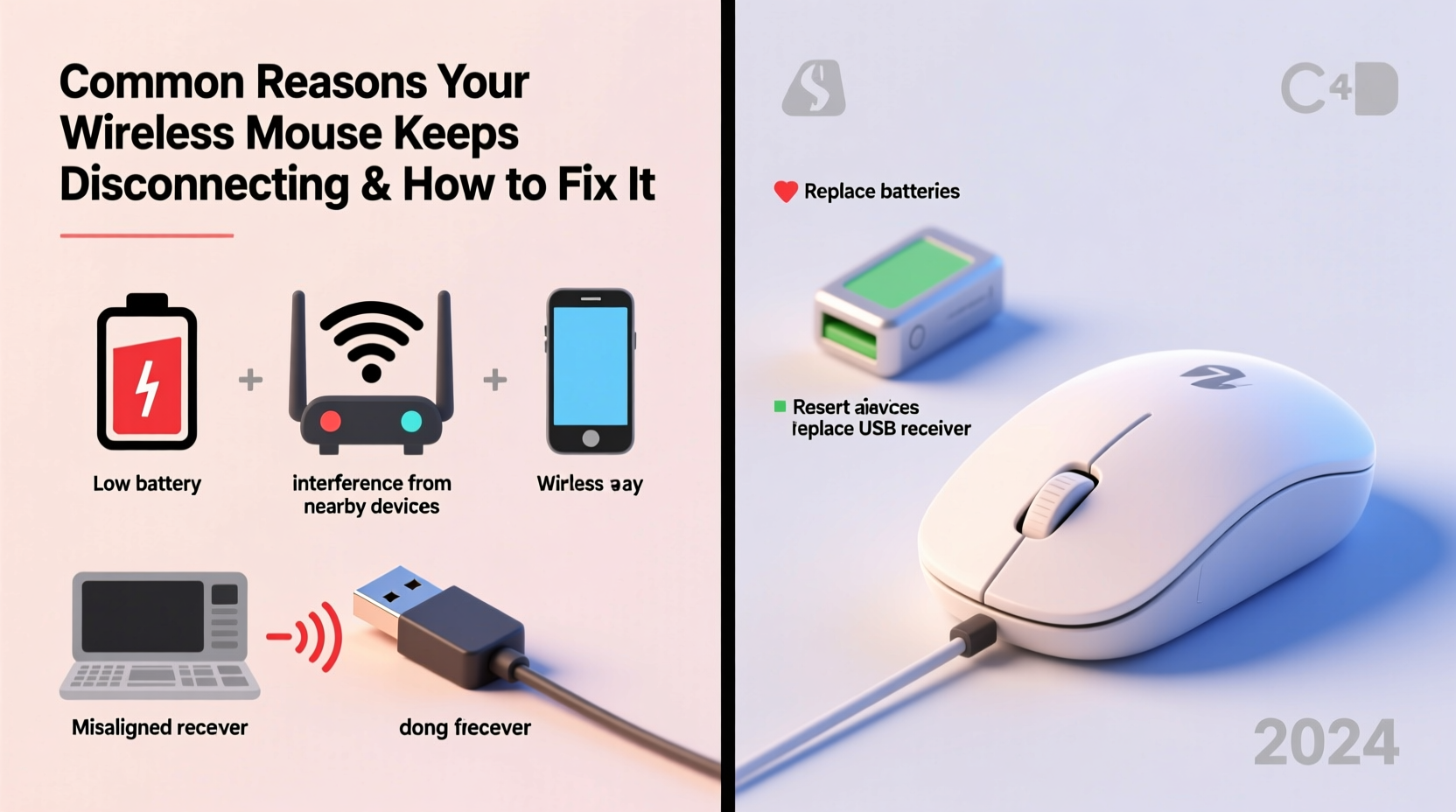
One of the most frequent culprits behind wireless mouse disconnections is electromagnetic or radio frequency interference. Wireless mice typically use either Bluetooth or a 2.4 GHz radio frequency via a USB dongle to communicate with your computer. Both technologies are susceptible to disruption from nearby electronic devices.
Common sources of interference include:
- Wi-Fi routers operating on the same 2.4 GHz band
- Cordless phones and baby monitors
- Microwaves (especially when in use)
- USB 3.0 ports and hubs (which emit RF noise)
- Other wireless peripherals like keyboards or headsets
The physical environment also plays a role. Thick walls, metal desks, or large monitors can block or reflect signals, weakening connectivity. Even the placement of your USB receiver matters—plugging it into a rear port on a desktop may reduce range due to shielding from the case.
Battery and Power Issues
Low battery power is a straightforward yet often overlooked cause of intermittent mouse behavior. As batteries deplete, voltage drops can lead to inconsistent signal transmission, resulting in lag, stuttering, or complete disconnection.
Even if your mouse appears to function normally, weak batteries may not sustain stable communication under continuous use. Some mice provide low-battery warnings, but many do not, making regular replacement essential.
Additionally, poor contact between the battery and terminals inside the mouse can mimic low-power symptoms. Corrosion, dust, or misaligned batteries interrupt current flow and degrade performance.
“Many users assume their mouse is faulty when the real issue is simply degraded battery contact or using off-brand alkaline cells with unstable output.” — David Lin, Peripheral Hardware Engineer
Step-by-Step Battery Check
- Turn off the mouse and remove the battery compartment cover.
- Inspect the batteries for leakage or corrosion. If present, clean gently with a cotton swab and vinegar.
- Check the metal contacts for dirt or bending; straighten if needed with a small tool.
- Replace with high-quality, name-brand alkaline or rechargeable batteries.
- Reassemble and test the mouse at varying distances from the receiver.
Dongle and Connectivity Problems
If your mouse uses a USB dongle, connection stability depends heavily on the quality and placement of that receiver. A loose fit, damaged port, or incompatible USB version can all contribute to dropouts.
Some users report success by switching from a USB 3.0 port (usually blue) to a USB 2.0 port (black), as the higher bandwidth and electrical design of USB 3.0 can generate interference in the 2.4 GHz spectrum.
| USB Port Type | Color Code | Interference Risk | Recommended for Wireless Mice? |
|---|---|---|---|
| USB 2.0 | Black or white | Low | Yes |
| USB 3.0 | Blue | High | No (unless using extension) |
| USB-C (with adapter) | Gray or silver | Variable | Use only with shielded adapters |
Another common oversight is assuming all USB receivers are interchangeable. Most wireless mice use proprietary pairing protocols. Using a different dongle—even from the same brand—will not work unless specifically re-paired through software.
Outdated or Corrupted Drivers and Software
Your operating system relies on drivers to communicate with peripheral devices. When these become outdated, corrupted, or incompatible after a system update, your mouse may behave erratically or disappear from the device list entirely.
Windows and macOS usually install generic HID (Human Interface Device) drivers automatically, but manufacturer-specific drivers offer better performance, customization, and firmware updates. If you’re using a Logitech, Microsoft, or Razer mouse, skipping their official software suite could mean missing critical stability patches.
How to Update Mouse Drivers on Windows
- Press Win + X and select “Device Manager.”
- Expand the “Mice and other pointing devices” section.
- Right-click your wireless mouse and choose “Update driver.”
- Select “Search automatically for updated driver software.”
- If no update is found, visit the manufacturer’s website and download the latest driver manually.
On macOS, go to System Settings > Bluetooth (or Mouse settings) and ensure your device is recognized. Re-pairing via Bluetooth can resolve handshake errors caused by software glitches.
In some cases, uninstalling the device completely and restarting the computer forces a fresh driver installation upon reconnection—a technique known as “driver reset.”
Firmware Bugs and Hardware Limitations
Less commonly discussed but equally impactful are firmware issues. Firmware is the embedded software within the mouse itself that controls its operation. Like any code, it can contain bugs that manifest as disconnections, especially under certain usage patterns.
Manufacturers occasionally release firmware updates to address stability problems. For example, Logitech’s Options+ software and Razer Synapse both include built-in firmware updater tools. If your mouse model supports such features, keeping firmware current prevents known issues.
However, older or budget-oriented models may not support firmware updates at all. In those cases, longevity depends more on environmental optimization and preventive maintenance.
“Firmware updates are often silent heroes. One patch can eliminate random disconnects that users blamed on ‘bad luck’ for months.” — Sarah Nguyen, Senior Support Analyst at Logitech Partner Network
Mini Case Study: The Office Worker’s Intermittent Mouse
Jamie, a financial analyst, experienced daily frustrations with her wireless mouse freezing during spreadsheet reviews. The disconnections occurred every 10–15 minutes, forcing repeated re-pairing. Initial troubleshooting focused on batteries and Bluetooth settings, but the problem persisted.
Upon inspection, it was discovered that Jamie’s desk sat directly above a powerful Wi-Fi router in the room below. The 2.4 GHz signal from the router interfered with her mouse’s frequency band. Moving the router farther away reduced interference significantly. Additionally, she switched from a USB 3.0 hub to a front-panel USB 2.0 port, which further stabilized the connection.
Within one day, the mouse operated flawlessly. This case highlights how environmental factors, often invisible, can override even well-maintained hardware.
Troubleshooting Checklist: Restore Your Wireless Mouse Stability
- ✅ Replace batteries with fresh, high-quality ones
- ✅ Clean battery contacts inside the mouse
- ✅ Move USB receiver closer to the mouse using an extension cable
- ✅ Plug receiver into a USB 2.0 port instead of USB 3.0
- ✅ Eliminate nearby sources of interference (routers, microwaves, etc.)
- ✅ Update mouse drivers via Device Manager or manufacturer software
- ✅ Re-pair the mouse (especially for Bluetooth models)
- ✅ Check for firmware updates using official companion apps
- ✅ Test the mouse on another computer to isolate hardware failure
Frequently Asked Questions
Why does my wireless mouse disconnect when I move it too far from the computer?
Wireless mice have a limited operational range, typically between 6 to 10 feet (2–3 meters). Exceeding this distance weakens the signal. Obstacles like walls or metal objects reduce effective range further. Staying within line-of-sight and close proximity ensures consistent connectivity.
Can a virus cause my wireless mouse to disconnect?
Directly, no. However, malware can consume system resources or interfere with USB drivers, indirectly causing peripheral instability. If your mouse disconnects alongside other odd behaviors (slow performance, pop-ups), run a full antivirus scan to rule out infection.
Is Bluetooth more reliable than a USB dongle for wireless mice?
It depends. Bluetooth avoids the need for a dongle but shares bandwidth with other connected devices (keyboards, headphones, speakers). A dedicated 2.4 GHz dongle often provides lower latency and stronger signal integrity, especially in crowded RF environments. For mission-critical tasks, a dongle-based mouse is generally preferred.
Conclusion: Regain Control with Proactive Maintenance
A disconnecting wireless mouse doesn’t always mean it’s time for a replacement. More often than not, the solution lies in optimizing your setup, updating software, or eliminating hidden interference. By systematically addressing battery health, signal clarity, driver status, and firmware, you can restore smooth, uninterrupted performance.
Technology should serve you—not slow you down. Take a few minutes today to walk through the checklist, apply the tips, and create a stable workspace. Small adjustments yield significant improvements in reliability and user experience. Once resolved, you’ll wonder why you didn’t troubleshoot sooner.




 浙公网安备
33010002000092号
浙公网安备
33010002000092号 浙B2-20120091-4
Comments
No comments yet. Why don't you start the discussion?