
Smartphones store vast amounts of personal data, often without users realizing it. From browsing habits to location trails and app usage patterns, your Samsung device quietly logs activity that could compromise your privacy. Whether you're preparing to sell your phone, sharing it temporarily, or simply want to maintain digital hygiene, knowing how to thoroughly erase different types of history is essential. This guide walks you through every step needed to clear browsing history, search records, location data, app activity, and more—all directly from your Samsung Galaxy device.
Browsing and Search History in Samsung Internet
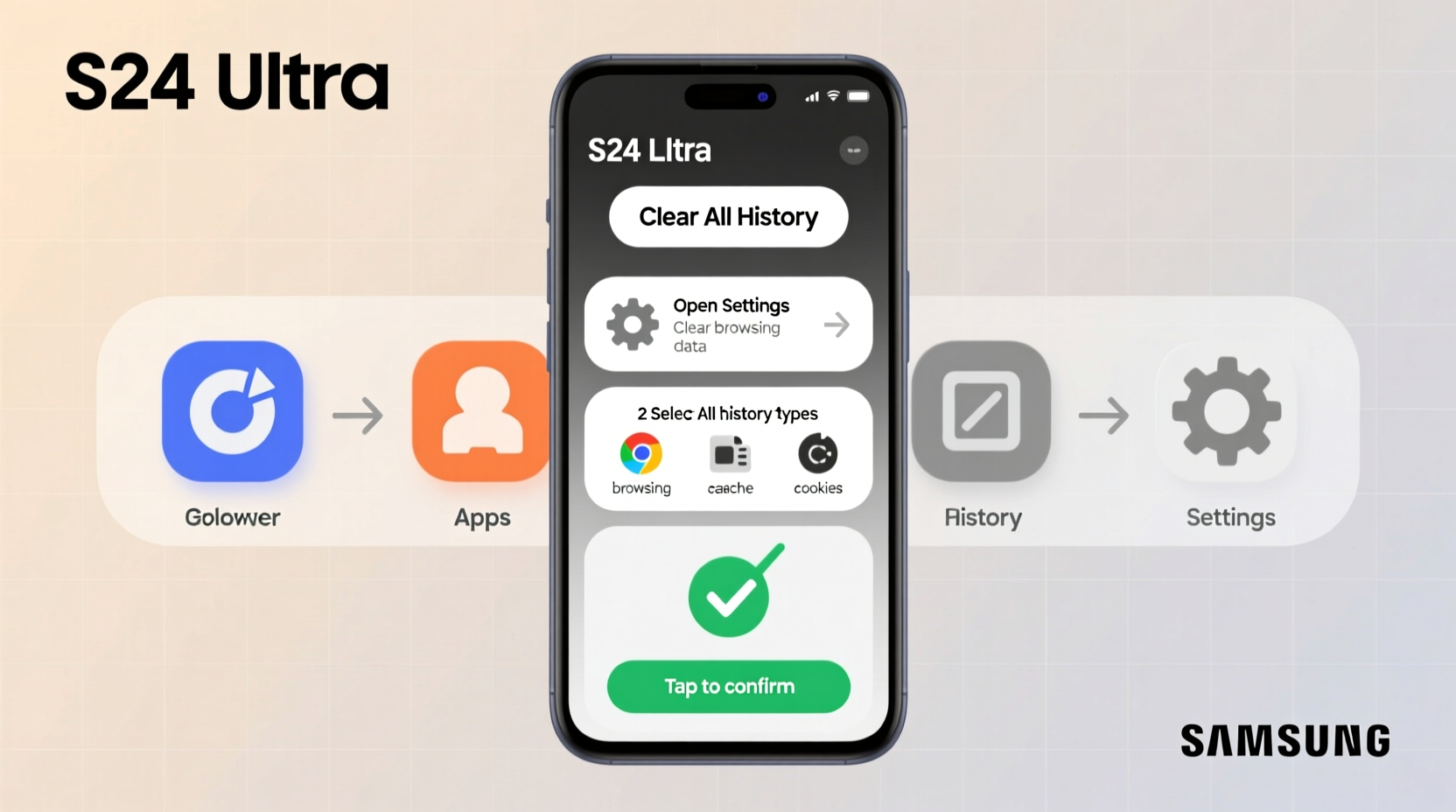
The Samsung Internet browser is the default web application on most Galaxy phones. Over time, it accumulates cookies, cached files, and a detailed record of visited websites. To remove this data:
- Open the Samsung Internet app.
- Tap the three-dot menu icon in the top-right corner.
- Select Settings > Privacy and security.
- Choose Delete browsing data.
- Select the types of data to remove: browsing history, cookies, cache, site data, etc.
- Tap DELETE to confirm.
If you use other browsers like Chrome, similar steps apply within their respective apps. For Chrome, go to Settings > Privacy > Clear browsing data and select the desired categories.
Clearing App Usage and Activity Logs
Android maintains an activity log that tracks which apps you open and when. While not visible in everyday use, this data can be accessed through system features like Digital Wellbeing. To erase app usage history:
- Navigate to Settings > Digital Wellbeing and parental controls.
- Tap the three-dot menu and select Reset Dashboard.
- Confirm to erase all usage statistics and timeline data.
This action removes records of how long you’ve spent in each app, your unlock frequency, and notification history. Note that resetting the dashboard doesn’t uninstall apps or alter their internal data—it only clears the system-level tracking.
Additional App-Specific Histories
Certain apps like YouTube, Google Maps, and voice assistants maintain independent logs. These must be cleared separately:
- YouTube: Open the app, tap your profile > History & privacy > Clear watch history.
- Google Maps: Go to Your Timeline in the app, tap the three-dot menu > Delete activity by > choose date range.
- Google Assistant: Long press the home button > Assistant settings > History > Manage Activity > Delete by date or type.
“Most people don’t realize that app activity isn’t deleted just because they close the app. System logs and cloud backups retain traces unless manually purged.” — Lena Patel, Mobile Security Analyst at TechShield Labs
Removing Location History and GPS Traces
Your Samsung phone may continuously track your movements if location services are enabled. Google’s Location History feature, in particular, creates a detailed map of your travels. To disable and erase this:
- Go to Settings > Location.
- Tap Google Location History (or Location Services).
- Toggle off Location History.
- You’ll be redirected to your Google Account page; confirm the change.
- To delete past data, visit myactivity.google.com, filter by “Location,” and delete entries by date range.
Additionally, within the Samsung device itself, you can clear recent location access:
- In Settings > Location > App location permissions, review which apps have access.
- Tap individual apps and select “Deny” or “Only while using” to limit future tracking.
Deleting Call, Message, and Clipboard History
Communication history is among the most sensitive data stored on any phone. While messages and call logs are visible, clipboard history is often overlooked.
Call and Text Logs
- Open the Phone app and go to call history.
- Tap the three-dot menu and select Delete call history.
- For messages, open Messages, long-press conversations, and tap the trash icon.
Clipboard History
Samsung devices include a clipboard manager that saves recently copied text. To clear it:
- Long-press in any text field to bring up the clipboard option.
- Tap the clipboard icon (usually a square with a line).
- Select Clear all or delete individual entries.
- To prevent future storage, go to Settings > General Management > Clipboard and toggle off “Use clipboard history.”
| Type of History | Where to Clear | Cloud Backup? |
|---|---|---|
| Browsing History | Samsung Internet or Chrome Settings | No (unless synced) |
| Location History | Google Account / Location Settings | Yes (Google servers) |
| App Usage | Digital Wellbeing | No |
| Search History | Google Activity Controls | Yes |
| Clipboard | Keyboard/Clipboard Settings | No |
Factory Reset: The Ultimate Clean Sweep
When selling, donating, or recycling your phone, a factory reset ensures all personal data—including hidden logs—is erased. However, this should be a final step after backing up essential files.
Step-by-Step Factory Reset
- Go to Settings > General Management > Reset.
- Select Factory data reset.
- Review the warning message and tap Reset.
- Enter your PIN, password, or pattern to confirm.
- Wait for the process to complete—this may take several minutes.
A factory reset removes all accounts, apps, settings, and local history. It does not automatically delete data stored in the cloud (e.g., Google or Samsung account activity), so clearing online histories beforehand is critical.
Real-World Example: Securing a Phone Before Sale
Jamal decided to upgrade his Galaxy S21 to a newer model. Before listing his old phone, he followed these steps: First, he backed up photos and contacts to Samsung Cloud. Then, he manually cleared browsing history, disabled location tracking, and deleted Google Activity data going back two years. He reviewed app permissions, removed saved passwords, and wiped clipboard history. Finally, after confirming no sensitive data remained, he performed a factory reset. As a result, the buyer received a clean device, and Jamal avoided any risk of personal information exposure.
Frequently Asked Questions
Does clearing history also delete saved passwords?
Not always. Clearing browsing data typically gives you the option to delete saved passwords. If you want to keep them, uncheck “Passwords” during the deletion process. Otherwise, they will be removed along with cookies and history.
Can someone recover my deleted history?
With standard deletion methods, recovery is unlikely for average users. However, advanced forensic tools may retrieve residual data. A factory reset significantly reduces this risk, especially when combined with encrypted storage (enabled by default on modern Samsung phones).
Will clearing history improve my phone’s performance?
Potentially. Removing cached data and accumulated logs can free up storage space and improve browser responsiveness. However, the impact is usually minor unless the device was nearly full.
Final Checklist: Complete History Cleanup
- ✅ Clear Samsung Internet and Chrome browsing history
- ✅ Delete cookies and cached data
- ✅ Turn off and erase Google Location History
- ✅ Reset Digital Wellbeing dashboard
- ✅ Wipe clipboard history and disable future logging
- ✅ Remove call logs and text messages
- ✅ Delete Google Account activity (My Activity)
- ✅ Perform factory reset (if transferring device)
Take Control of Your Digital Footprint
Your Samsung phone is a powerful tool, but its convenience comes with invisible data accumulation. By regularly reviewing and removing history across apps, browsers, and system logs, you protect your privacy and maintain better control over your digital life. Start today—spend 15 minutes cleaning up your history, and make it a monthly habit. Your future self will thank you for the peace of mind.




 浙公网安备
33010002000092号
浙公网安备
33010002000092号 浙B2-20120091-4
Comments
No comments yet. Why don't you start the discussion?