
Google Home devices have become central to modern smart homes, offering voice control, automation, and seamless integration with other smart technologies. However, like any connected device, their performance depends heavily on consistent software updates. These updates don’t just introduce new features—they patch security vulnerabilities, improve response times, and enhance compatibility with other devices. Failing to keep your Google Home up to date can result in sluggish responses, connectivity issues, or even exposure to cyber threats.
This guide walks you through everything you need to know about maintaining the latest software on your Google Home, from understanding how updates work to proactively managing them across multiple devices in your household.
How Google Home Updates Work
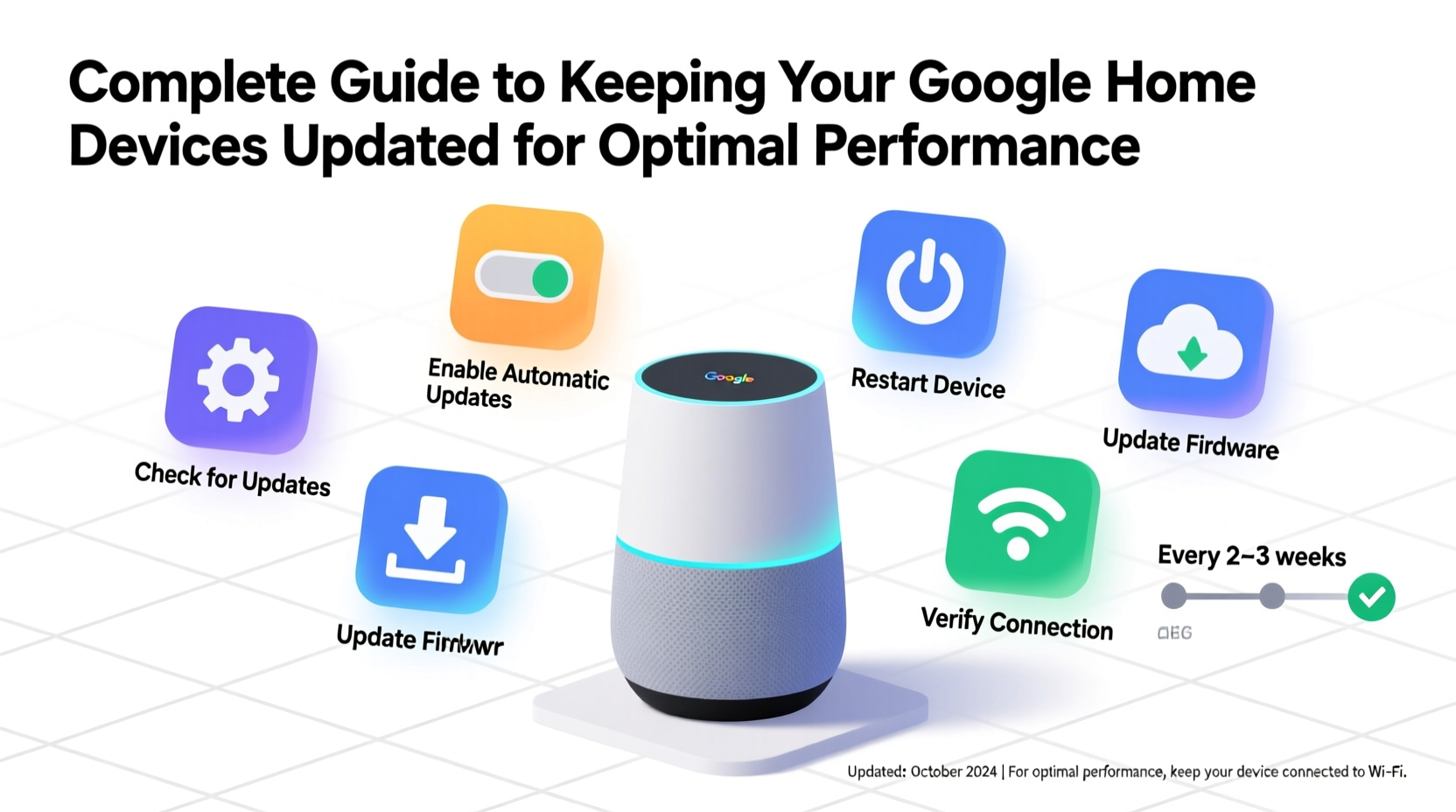
Google Home devices receive updates automatically over the internet. These updates are pushed by Google and installed in the background when your device is idle and connected to Wi-Fi. Unlike smartphones or computers, you don’t manually download or install most updates—Google handles this silently to minimize disruption.
Updates typically include:
- Firmware upgrades – Core system improvements that affect stability and performance.
- Security patches – Fixes for known vulnerabilities.
- New voice recognition models – Improved accuracy in understanding accents and commands.
- Feature enhancements – New routines, integrations, or assistant capabilities.
While automatic updates cover the majority of maintenance, user awareness and occasional intervention are still essential. For instance, if a device loses power during an update, it may fail to restart properly. Similarly, outdated network settings or disabled permissions can block updates entirely.
Step-by-Step: Checking and Forcing Updates
Although updates are automatic, there’s no real-time dashboard showing current firmware versions. However, you can verify whether your device is up to date and prompt a manual check using the Google Home app.
- Open the Google Home app on your smartphone or tablet.
- Select the specific Google Home device you want to check (e.g., “Living Room Mini”).
- Tap the gear icon (Settings) in the top-right corner.
- Scroll down and tap About.
- Look for “Software version” or “Firmware version.” If an update is pending, the app may display a notification or allow you to tap “Check for updates.”
- If available, confirm the update. The device will reboot once installation completes.
Note: Not all devices show a visible “Check for updates” button. In such cases, simply leaving the device online and idle is sufficient for Google to push updates within 24–48 hours.
When Updates Fail: Common Causes and Fixes
Sometimes, despite being connected, a Google Home won’t update. Common reasons include:
- Unstable Wi-Fi connection
- Router firewall blocking Google servers
- Outdated router firmware
- Device stuck in a boot loop
To resolve these:
- Restart your Google Home by unplugging it for 10 seconds and plugging it back in.
- Reboot your router to refresh the network connection.
- Ensure your router allows connections to Google’s domains (e.g., *.google.com, *.gstatic.com).
- Move the device closer to the router or use a Wi-Fi extender if signal strength is weak.
Best Practices for Maintaining Optimal Performance
Keeping your Google Home updated is only one part of ensuring peak performance. A holistic approach includes both software and environmental factors.
| Practice | Benefit | Frequency |
|---|---|---|
| Verify Wi-Fi signal strength | Ensures reliable update delivery | Monthly |
| Restart device | Clears memory and resolves minor glitches | Every 2–4 weeks |
| Review connected services | Removes unused integrations that slow response | Quarterly |
| Update router firmware | Supports stable communication with smart devices | Biannually |
“Smart speakers rely on consistent backend support. Regular updates are as important as physical care for longevity.” — Dr. Alan Reyes, IoT Systems Engineer at Stanford University
Maintaining Multiple Devices: A Household Strategy
If you own several Google Home devices—such as a Nest Hub in the kitchen, a Mini in the bedroom, and a full-sized speaker in the living room—managing updates becomes more complex. While each device updates independently, inconsistencies can arise if some are offline or disconnected.
Mini Case Study: Sarah, a remote worker in Denver, noticed her bedroom Google Nest Mini stopped responding to morning alarms. After troubleshooting, she discovered it had been unplugged during a cleaning session two weeks prior. Because it hadn’t been online long enough to receive the latest update, its alarm functionality was corrupted. Once reconnected and left powered for 24 hours, the update installed automatically, and alarms resumed working flawlessly.
To avoid such issues:
- Label each device clearly in the Google Home app (e.g., “Kitchen,” “Master Bedroom”).
- Set monthly reminders to visually inspect that all devices remain plugged in and lit (indicating active status).
- Use the app’s device list view to scan for any showing “Offline” status.
- Group devices by room and test voice commands weekly to ensure responsiveness.
FAQ: Common Questions About Google Home Updates
Do I need to manually update my Google Home?
No, Google Home devices are designed to update automatically when connected to Wi-Fi and idle. Manual checks are optional but recommended if you suspect performance issues.
Can I delay or skip an update?
There is no official option to delay or skip updates. Google enforces them to maintain security and compatibility. Attempting to block updates via network settings may cause functionality loss.
What happens if my Google Home loses power during an update?
In most cases, the device will resume the update process upon reboot. However, rare corruption can occur. If the device fails to start or responds abnormally, perform a factory reset and reconfigure it through the Google Home app.
Conclusion: Make Updates Part of Your Smart Home Routine
Your Google Home is only as reliable as its last update. Behind the scenes, each patch and upgrade strengthens security, sharpens voice recognition, and expands what your device can do. While Google automates much of this process, passive reliance isn’t enough. Proactive habits—like routine restarts, monitoring connectivity, and verifying device status—ensure your smart assistant remains fast, secure, and fully functional.
Think of updating your Google Home not as a technical chore, but as routine maintenance, much like changing smoke detector batteries or servicing your HVAC system. A few minutes of attention every month can prevent hours of frustration later.




 浙公网安备
33010002000092号
浙公网安备
33010002000092号 浙B2-20120091-4
Comments
No comments yet. Why don't you start the discussion?