
Setting up an iPhone for your child is more than just picking a case and downloading games. It’s a responsibility that involves thoughtful configuration of privacy, security, and digital well-being tools. With rising concerns about online predators, excessive screen time, and inappropriate content, parents need a clear strategy to ensure their child’s device supports learning and connection—without compromising safety. This guide walks through every essential step to configure an iPhone securely, using Apple’s built-in tools effectively and responsibly.
1. Initial Setup: Start with Family Sharing and a Child-Friendly Apple ID
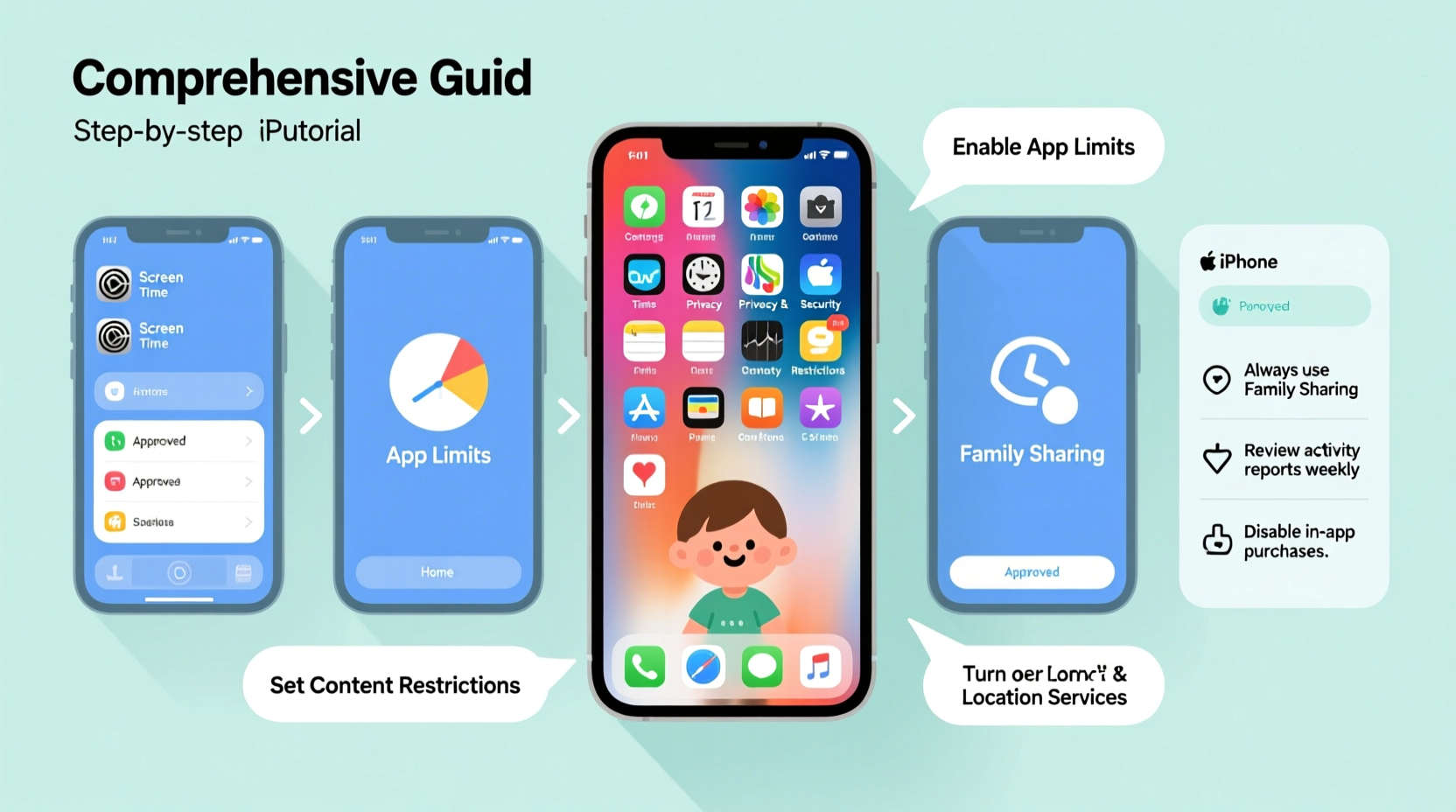
The foundation of safe iPhone use begins before the first app is opened. Apple’s Family Sharing allows you to manage accounts, purchases, and settings across devices—all from your own iPhone. During setup, create a dedicated Apple ID for your child using your device, which automatically enables parental controls.
When creating the account:
- Select “Set Up for a Child” during the sign-in process.
- Enter your child’s date of birth—this determines default content restrictions.
- Use your payment method under Family Sharing, but disable unauthorized purchases.
- Enable Ask to Buy so your child must request app downloads or in-app purchases.
2. Configure Screen Time: Manage Usage and Set Boundaries
Screen Time is Apple’s most powerful tool for managing how your child interacts with their iPhone. Access it via Settings > Screen Time. Enable it immediately after setup, preferably with a passcode only you know.
Key features include:
- Downtime: Schedule hours when only phone calls and approved apps are accessible (e.g., 8 PM to 7 AM).
- App Limits: Set daily time allowances for categories like Games, Social Media, or Entertainment.
- Communication Limits: Control who your child can call or message, especially during downtime.
- Always Allowed: Specify critical apps (e.g., Phone, Messages, Compass) that remain available at all times.
“Parents often underestimate how quickly screen habits form. Setting boundaries early helps children develop self-regulation over time.” — Dr. Lena Patel, Child Digital Wellness Specialist
Step-by-Step: Enabling App Limits
- Open Settings > Screen Time.
- Tap App Limits > Add Limit.
- Select a category (e.g., Social Networking).
- Set a daily time (start with 1 hour).
- Choose whether the limit applies every day or custom days.
- Tap Add and enter your Screen Time passcode.
Once time expires, the app will gray out. Your child can request more time, but approval requires your passcode.
3. Content & Privacy Restrictions: Filter What They See
Navigate to Settings > Screen Time > Content & Privacy Restrictions to control access to mature content. This section is crucial for preventing accidental exposure to harmful material.
| Category | Recommended Setting | Purpose |
|---|---|---|
| Web Content | Limit Adult Websites or Specific Websites Only | Blocks pornographic or violent sites; use “Allowed Websites Only” for younger kids. |
| Content Restrictions | Set age-based limits (e.g., Movies: PG-13, Apps: 9+) | Prevents downloading or viewing mature media. |
| Privacy | Disable Location Services for non-essential apps | Protects real-time tracking and data harvesting. |
| Accounts | Don’t Allow Adding Accounts | Stops creation of new email, social media, or iCloud accounts. |
4. Location Sharing and Emergency Safety Features
Knowing where your child is can provide peace of mind. Apple’s Find My app lets you see your child’s device location—if they’re carrying it. To set this up:
- Ensure both your and your child’s devices are signed into the same Family Sharing group.
- Go to Find My > People and enable sharing between accounts.
- Approve incoming location requests promptly.
Also consider enabling:
- Emergency SOS: Rapidly pressing the side button five times triggers emergency services and notifies your trusted contacts.
- Crash Detection: On newer models, this alerts emergency services if a severe car crash is detected.
Real Example: The Case of Maya, Age 12
Maya received her first iPhone before starting middle school. Her parents enabled strict web filtering and app limits, allowing only educational apps and messaging during homework hours. One evening, she tried accessing a gaming site known for aggressive ads and chat rooms. The filter blocked it instantly. Later, her mom reviewed Screen Time reports and noticed increased attempts to bypass restrictions. This prompted a calm conversation about online risks—turning a technical alert into a teaching moment.
5. Ongoing Monitoring and Communication Strategies
Technology alone isn’t enough. Open dialogue strengthens digital safety. Regular check-ins help you understand your child’s online world and reinforce responsible behavior.
📋 **Parental Control Setup Checklist**- ✅ Create a child Apple ID linked to Family Sharing
- ✅ Enable Screen Time with a secure passcode
- ✅ Set Downtime and App Limits
- ✅ Restrict adult content in Web & App settings
- ✅ Disable Siri explicit content and location sharing for unknown apps
- ✅ Turn on Find My and share location within Family
- ✅ Review weekly Screen Time reports together
- ✅ Discuss online etiquette and reporting tools
Review Screen Time reports weekly. These show which apps are used most, when pickups occur, and how often notifications interrupt focus. Use them as discussion starters—not surveillance tools.
Frequently Asked Questions
Can my child disable Screen Time or change settings?
Only if they know the passcode. Always use a passcode different from the device unlock code. Without it, changes to Screen Time settings, including turning it off, are impossible—even by restarting the phone.
What if my child gets around restrictions using third-party browsers?
Some browsers downloaded from the App Store may bypass filters. To prevent this, restrict app installations entirely or allow only Safari. In Content & Privacy Restrictions > Allowed Apps, disable App Store access or use Ask to Buy.
Is it safe to let my child use FaceTime and Messages?
Yes, but with controls. Under Screen Time, go to Communication Limits and set “During Downtime” or “Always” to allow contact only from people in your child’s favorites list (you define it). This blocks strangers and unapproved contacts.
Final Thoughts: Balance Safety with Trust
Setting up an iPhone for your child isn’t a one-time task—it’s the beginning of an ongoing conversation about digital citizenship. Apple provides robust tools, but their effectiveness depends on consistent oversight and emotional engagement. Avoid treating the phone as a digital babysitter. Instead, use it as a shared platform for learning, creativity, and connection.
Start with tight controls for younger users, then gradually loosen restrictions as responsibility is demonstrated. The goal isn’t to lock down every function, but to guide your child toward making smart choices independently.




 浙公网安备
33010002000092号
浙公网安备
33010002000092号 浙B2-20120091-4
Comments
No comments yet. Why don't you start the discussion?