
A cluttered desk can silently sabotage productivity. While modern workspaces are filled with essential electronics—laptops, monitors, lamps, chargers, docking stations—the real culprit behind visual chaos is often the tangle of cords snaking across surfaces and floors. Most people reach for zip ties as a quick fix, but over time, those plastic straps accumulate, creating a rigid, industrial look that’s far from sleek. The good news? You don’t need zip ties to achieve a clean, organized desk. With thoughtful planning and simple tools, you can manage cords effectively while maintaining an elegant, minimalist aesthetic.
The goal isn't just tidiness—it's sustainability in organization. Solutions should be easy to adjust when devices change, visually unobtrusive, and accessible for maintenance. This guide explores proven, zip-tie-free strategies used by interior designers, remote workers, and tech-savvy professionals who value both function and form.
Why Avoid Zip Ties (Even If They Seem Convenient)
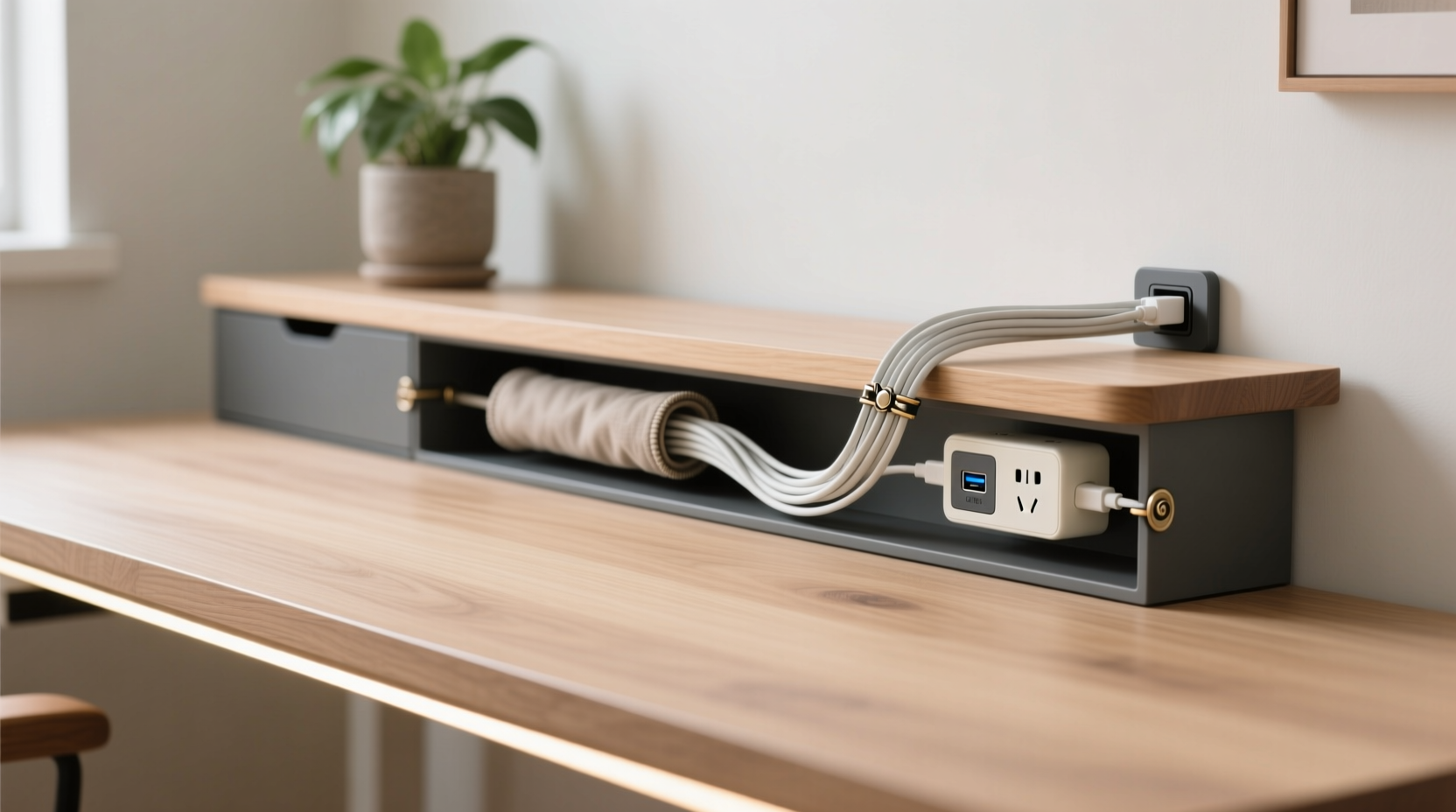
Zip ties have long been the go-to for bundling wires, but they come with significant drawbacks:
- Permanent feel: Once tightened, they’re difficult to remove or adjust without cutting, making future changes frustrating.
- Visual clutter: Even neatly arranged, multiple zip ties draw attention to the wires instead of hiding them.
- Damage risk: Over-tightening can compress insulation, leading to fraying or connection issues over time.
- Lack of flexibility: As your setup evolves—new monitor, different laptop charger—you’re forced to cut and replace rather than adapt.
Professionals in workspace design increasingly advocate for reversible, low-impact solutions. “The best cable management disappears,” says Jordan Lee, an ergonomic consultant specializing in home offices.
“If you can see the solution, it’s probably working too hard. The ideal system supports order without announcing itself.” — Jordan Lee, Ergonomic Workspace Designer
Built-In Desk Features That Simplify Cord Control
Before adding external accessories, assess your desk’s built-in potential. Many modern desks include hidden channels, grommet holes, or under-desk trays designed specifically for cable routing.
For example:
- Grommet ports: These are round openings (usually 1–2 inches in diameter) near the back or sides of a desk. Pass power strips and device cords through them to route everything underneath, out of sight.
- Cable trays: Some desks feature shallow trays mounted beneath the desktop. These act as staging areas for adapters and excess cord length, preventing sagging and tangling.
- Integrated power hubs: Higher-end desks may include built-in USB ports, wireless charging pads, or even concealed outlets—reducing the number of external cords needed.
If your desk lacks these features, consider retrofitting. Adhesive-mounted cable clips or magnetic under-desk trays can mimic built-in functionality without permanent modifications.
Smart Accessories That Replace Zip Ties
Several innovative products offer flexible, reusable alternatives to zip ties. These are favored by interior stylists and tech organizers for their clean appearance and ease of use.
1. Braided Sleeves (Cable Combos)
Braided sleeves are tubular fabric wraps that bundle multiple cords into a single, neat strand. Unlike zip ties, they’re stretchable, removable, and available in neutral colors like gray, black, or beige to blend with decor.
Best uses:
- Grouping monitor power, HDMI, and USB cables running from desk to wall.
- Wrapping laptop charging bricks and cords for travel or storage.
2. Under-Desk Cable Management Trays
These trays mount beneath the desktop using screws or strong adhesive. They hold power strips, adapters, and slack cord length securely, keeping weight off the edge and reducing visible clutter.
Look for models with:
- Ventilation slots to prevent overheating.
- Adjustable dividers to separate types of cables.
- Magnetic backs for tool-free installation.
3. Cord Clips and Adhesive Channels
Small, low-profile clips attach directly to the underside of your desk or along baseboards. They gently guide cords along a set path, preventing dangling and tripping hazards.
Choose silicone or rubber variants—they grip without damaging cables and can be repositioned as needed.
4. Desktop Cable Organizers (Risers and Hubs)
Wooden or metal risers elevate your monitor or laptop, creating hidden space underneath for routing cords. Some include built-in channels or compartments for power strips.
Similarly, centralized charging stations or USB hubs reduce the number of individual plugs. One outlet powers multiple devices via a single, shorter cable run.
| Solution | Best For | Reusability | Visibility |
|---|---|---|---|
| Braided Sleeves | Bundling multiple cords | High – fully removable | Low – blends with setup |
| Under-Desk Tray | Holding power strips & adapters | Medium – requires mounting | Very Low – hidden under desk |
| Adhesive Cord Clips | Guiding cords along edges | High – repositionable | Low – small footprint |
| Desktop Risers | Creating vertical space | Very High – multi-use | Minimal – doubles as decor |
Step-by-Step: Creating a Zip-Tie-Free Cord System
Follow this timeline to transform a tangled desk into a streamlined workspace in under an hour.
- Unplug and Clear (10 minutes): Power down all devices and remove them from the desk. Lay cords out on the floor to assess what you’re working with.
- Identify Essentials: Keep only what’s regularly used. Coil and store backup chargers or rarely used peripherals in a labeled drawer.
- Group by Device Cluster: Group cords that belong to the same device (e.g., monitor + its power + HDMI). Use braided sleeves to wrap each group loosely.
- Route Through Grommets: Feed bundled cords through desk grommets toward your power source. If no grommet exists, use adhesive clips along the back edge to guide cords downward.
- Mount a Power Hub Under Desk: Secure a small tray beneath the desk and place a surge protector inside. Plug all device cords into it.
- Manage Slack: Coil excess length in loose figure-eights and secure with reusable Velcro straps (not zip ties). Avoid tight loops that stress wires.
- Final Check: Power everything back on. Ensure all connections are stable and cords aren’t stretched or pinched.
Real Example: From Chaos to Calm – A Remote Worker’s Setup
Sarah, a freelance graphic designer in Portland, spent years battling a jungle of cords behind her dual-monitor workstation. Her desk sat against a glass wall, making the mess visible on client video calls. Embarrassed, she tried zip ties—but they cracked over time, and new devices required constant re-rigging.
She redesigned her setup using three key changes:
- Installed a wooden monitor riser with a rear cable channel.
- Mounted a magnetic under-desk tray to house her power strip and laptop dock.
- Used gray braided sleeves to combine HDMI, USB-C, and power cords into two clean bundles.
The result? A clean, floating-cable effect where only minimal cords were visible. She could easily swap devices or unplug for cleaning. After sharing a photo in a design forum, several colleagues asked for her setup specs—proof that aesthetics matter even behind the scenes.
Do’s and Don’ts of Cord Management Without Zip Ties
| Do | Don’t |
|---|---|
| Use Velcro straps for adjustable bundling | Over-tighten any fastener |
| Label cords for easy identification | Run cords across high-traffic floor areas |
| Hide power strips under the desk | Plug high-draw devices into daisy-chained extensions |
| Choose neutral-colored organizers | Ignore heat buildup around bundled cords |
| Leave slack in service loops | Use damaged or frayed cords, even if hidden |
Frequently Asked Questions
Can I manage cords effectively on a glass desk?
Absolutely. Glass desks often come with pre-drilled grommets. Use adhesive-backed felt pads or silicone cord clips to route cables cleanly along the underside. Avoid suction mounts, which fail over time. Opt for a low-profile under-desk tray with a matte finish to minimize visibility.
How do I keep pet-chew-prone cords safe without zip ties?
Use rigid spiral wrap tubing or PVC conduit to shield vulnerable sections near the floor. Route these through furniture legs or behind baseboards. Alternatively, install a floor box outlet near your desk to eliminate long cord runs entirely.
Are wireless solutions better for minimizing cords?
Wireless tech helps, but isn’t a full replacement. Wireless keyboards, mice, and charging reduce some clutter, but your laptop, monitor, and internet still require physical connections. Think of wireless as a supplement—not a substitute—for smart cable management.
Checklist: Your Zip-Tie-Free Desk Transformation
Use this checklist to ensure every step is covered:
- ☐ Unplugged all devices and cleared the workspace
- ☐ Identified and removed unused cords
- ☐ Grouped cords by device or function
- ☐ Selected non-permanent bundling method (Velcro, sleeves)
- ☐ Utilized grommets or adhesive clips for routing
- ☐ Installed under-desk tray or power hub
- ☐ Managed slack with loose coils and reusable straps
- ☐ Tested all connections post-setup
- ☐ Labeled critical cords for future access
- ☐ Reviewed overall look from seated and standing angles
Conclusion: A Tidy Desk Is a Sustainable Habit
Managing cords without zip ties isn’t about perfection—it’s about creating a system that lasts, adapts, and supports your daily workflow. The most effective setups aren’t the ones with the fewest wires, but the ones where wires stop being a distraction. By choosing reusable, low-impact solutions, you invest in long-term clarity rather than temporary fixes.
Your desk is more than a surface—it’s the center of your focus, creativity, and professional presence. Treat it with intention. Start today: unplug, regroup, and rebuild your cord strategy with elegance and ease. You’ll spend less time untangling and more time doing what matters.




 浙公网安备
33010002000092号
浙公网安备
33010002000092号 浙B2-20120091-4
Comments
No comments yet. Why don't you start the discussion?