
In a world where nearly everyone owns an iPhone, standing out visually can be as meaningful as having the latest tech. While Apple’s sleek design is timeless, personalizing your device transforms it from a mass-produced gadget into a reflection of your personality, taste, and creativity. From custom cases to curated home screen layouts, there are countless ways to make your iPhone uniquely yours—without voiding warranties or compromising functionality.
Personalization isn’t just about aesthetics; it enhances usability and emotional connection. When your phone feels like an extension of you, interacting with it becomes more intuitive and enjoyable. Below are powerful, creative strategies to help you craft a one-of-a-kind iPhone experience.
1. Design a Custom Case That Tells Your Story
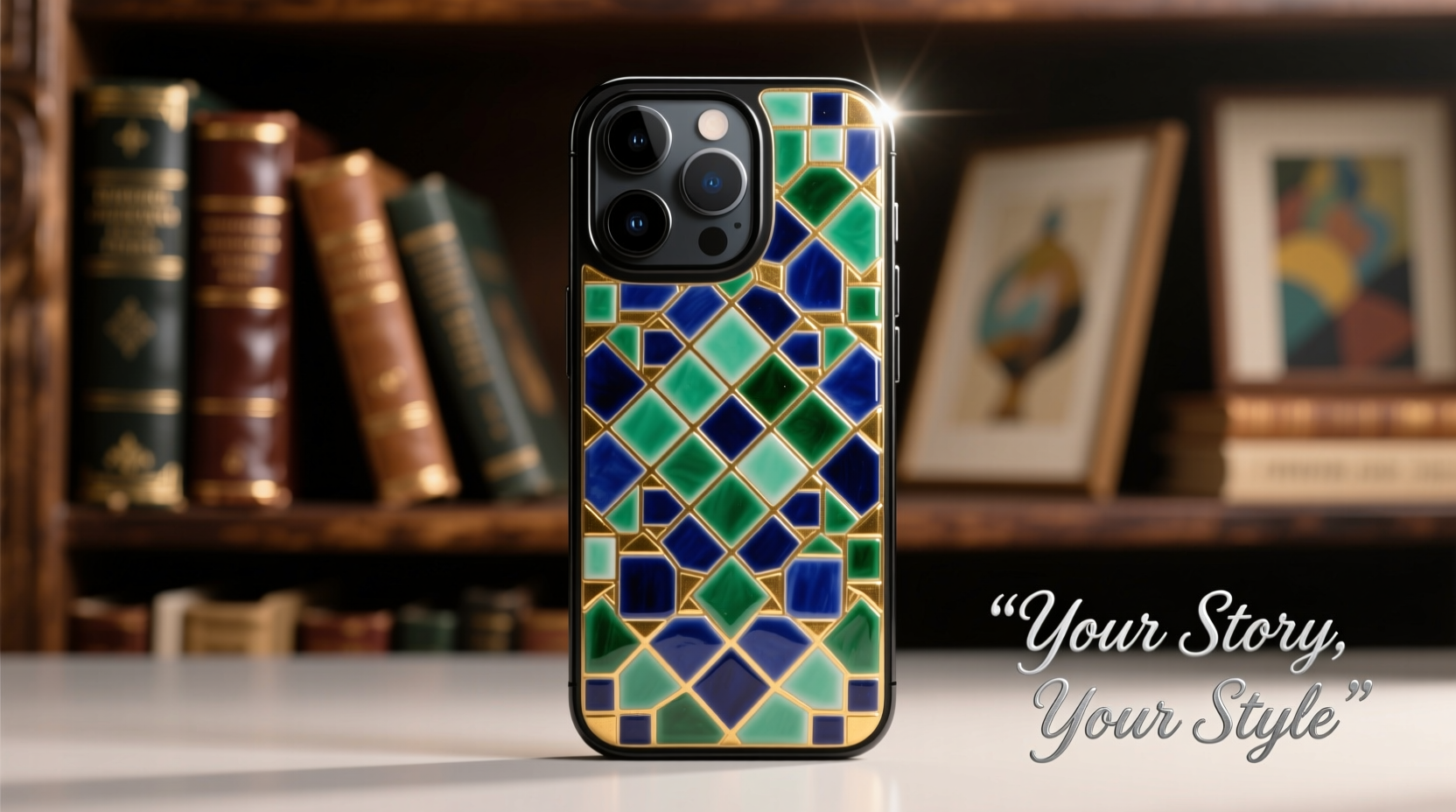
The case is the most visible element of your iPhone and often the first thing noticed. Instead of choosing a generic silicone or clear shell, consider designing a case that reflects your interests, artistry, or memories.
Many online services allow you to upload photos, artwork, or text to create fully customized hard or soft cases. Whether it’s a favorite quote in elegant typography, a childhood photo, or a digital illustration you created, this simple upgrade makes your phone instantly distinctive.
For the artistically inclined, hand-painted cases offer total originality. You can purchase blank matte cases and use acrylic paint pens to draw patterns, abstract shapes, or even miniature portraits. Seal the design with a clear varnish to protect against wear.
“Your phone case is a canvas. Treat it like wearable art.” — Jordan Lee, Product Designer at Studio Forma
2. Craft a Cohesive Home Screen Layout
Your home screen is where you spend most of your time. A well-designed layout improves both visual appeal and efficiency. The key is consistency: choose a theme and stick to it across icons, wallpaper, and widget arrangement.
Start by selecting a color palette—three colors maximum—to unify your look. Then, customize app icons using shortcuts or third-party apps like “Shortcuts” and “Widgetsmith.” Replace default icons with minimalist versions or ones that match your aesthetic. For example, turn the Notes app into a leather journal icon or transform Calendar into a retro planner graphic.
Organize apps into folders with clever labels (“Social,” “Finance,” “Creative Tools”) and apply matching folder backgrounds. Align icons precisely using invisible grid guides for a clean, magazine-like appearance.
| Layout Style | Best For | Tips |
|---|---|---|
| Minimalist Monochrome | Clean, distraction-free look | Use black/white icons with neutral wallpaper |
| Vibrant & Playful | Expressive personalities | Mix bright colors with fun emoji labels |
| Retro Aesthetic | Nostalgic themes (90s, Y2K) | Use CRT-style fonts and vintage gradients |
| Functional Grid | Productivity-focused users | Group apps by daily workflow, not category |
3. Create Dynamic Wallpapers That Change With Time
A static wallpaper gets old quickly. Take advantage of iOS’s dynamic wallpaper feature or set up multiple wallpapers that shift based on context—time of day, location, or mood.
You can use the built-in “Perspective” or “Aurora” dynamic wallpapers, or create your own using GIFs converted into live wallpapers via apps like “IntoLive” or “Live Photos.” Turn a favorite travel video, pet footage, or animated artwork into a looping background that comes alive when unlocked.
Another advanced option: use Shortcuts automation to change your wallpaper automatically. For instance, rotate to a calming ocean scene every morning, switch to a motivational quote at noon, and display a starry night sky after sunset.
Step-by-Step: Automate Wallpaper Changes
- Open the Shortcuts app and tap the “+” to create a new shortcut.
- Add action: “Set Wallpaper.”
- Select a photo or live image from your library.
- Tap “Next,” then “Add Automation.”
- Choose “Time of Day” and set your preferred schedule (e.g., 7:00 AM).
- Disable “Ask Before Running” to make it seamless.
- Repeat for different times and moods.
4. Personalize Widgets with Purpose and Style
iOS widgets do more than display information—they can become artistic elements of your home screen. Use Widgetsmith or similar tools to design custom widgets that blend utility with visual flair.
Create a “Daily Affirmation” widget that pulls from a list of uplifting quotes. Design a minimalist weather widget with only temperature and a tiny sun/cloud icon. Build a habit tracker with colored bars that update throughout the week.
Align widgets vertically along the left edge of your screen for a dashboard effect, or scatter small ones among icons for a playful collage look. Match font styles and colors to your overall theme for cohesion.
“The best personalized interface doesn’t shout—it whispers your identity through subtle details.” — Dr. Lena Patel, Human-Computer Interaction Researcher
5. Integrate Real-Life Elements Through Accessories
Go beyond software and explore physical accessories that enhance both protection and expression. Attach charms, lanyards, or magnetic grips in colors and shapes that resonate with your style.
Clear cases with interchangeable backdrops let you swap designs weekly—print tiny zines, postcards, or polaroids to slide behind the phone. Some creators even use transparent cases as mini galleries for seasonal art rotations.
Magnetic accessories open new possibilities. Use MagSafe-compatible rings, wallets, or mounts with engraved initials or unique textures. Leather add-ons age beautifully, developing a patina that tells the story of your daily life.
Checklist: Personalize Your iPhone Like a Pro
- ✅ Choose a consistent color scheme or theme
- ✅ Design or order a custom case with personal imagery
- ✅ Customize app icons using Shortcuts or third-party tools
- ✅ Align icons and widgets using a grid layout
- ✅ Set dynamic or automated wallpapers
- ✅ Add expressive widgets for weather, time, or motivation
- ✅ Incorporate tactile accessories like charms or textured grips
- ✅ Backup your setup before making major changes
Mini Case Study: Emma’s Artistic iPhone Transformation
Emma, a freelance illustrator from Portland, wanted her iPhone to reflect her vibrant creative identity. She started with a blank clear case and printed a series of her watercolor sketches on adhesive paper. Each month, she swaps the insert to match the season—cherry blossoms in spring, bold geometric patterns in summer.
On her home screen, she uses hand-drawn app icons styled like comic book covers. Her wallpaper rotates daily via automation: one day it’s a sketch of her cat, the next a neon-lit cityscape she painted digitally. She even designed a widget showing her current art project with a progress bar.
“People always ask if I made my phone from scratch,” she says. “It’s not just a device anymore—it’s part of my portfolio.”
Frequently Asked Questions
Will customizing my iPhone void the warranty?
No. Software personalization through wallpapers, widgets, and shortcuts does not affect your warranty. Physical modifications like painting or engraving may impact coverage if they cause damage, so proceed carefully with non-removable alterations.
Can I revert to default settings if I don’t like the changes?
Absolutely. Resetting app icons is as simple as deleting and reinstalling apps. You can restore default wallpapers and remove widgets anytime. Always keep a screenshot of your original layout as a reference.
Are third-party customization apps safe to use?
Most reputable apps like Widgetsmith or Shortcuts are safe and widely used. Avoid downloading apps from untrusted sources or those requesting excessive permissions. Stick to the App Store for reliability.
Make Your iPhone Unmistakably Yours
Your iPhone doesn’t have to look like everyone else’s. With thoughtful customization, it can become a true extension of your identity—a blend of function, art, and personal narrative. Whether you prefer subtle elegance or bold self-expression, the tools are already in your pocket.




 浙公网安备
33010002000092号
浙公网安备
33010002000092号 浙B2-20120091-4
Comments
No comments yet. Why don't you start the discussion?