
One of the most frustrating experiences while using a laptop is suddenly losing sight of the cursor. Whether it vanishes completely, freezes in place, or becomes intermittently visible, a missing cursor disrupts productivity and can make basic navigation nearly impossible. The good news is that in most cases, the issue isn’t permanent and can be resolved quickly with the right troubleshooting steps. From accidental touchpad deactivation to driver glitches and software conflicts, several factors can cause this problem. Understanding the root causes and knowing how to respond efficiently can save time and prevent unnecessary service visits.
Common Causes of a Missing Cursor
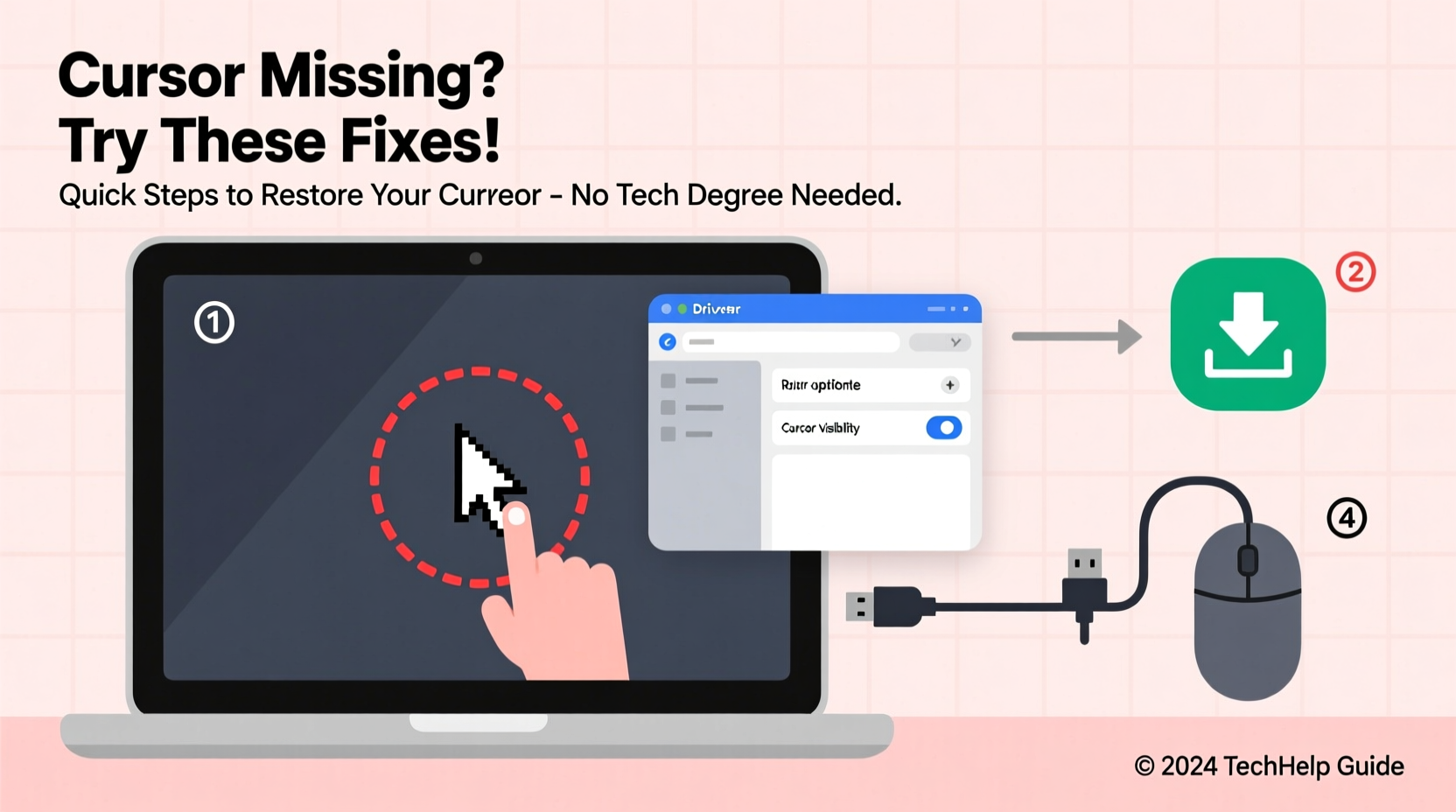
The disappearance of a cursor isn’t always due to hardware failure. More often than not, it stems from simple user actions or system-level issues that are easy to overlook. Identifying the underlying cause is the first step toward resolution.
- Accidental touchpad disable: Many laptops have a function key (often F6, F7, or F9) that toggles the touchpad on and off. Pressing it by mistake disables cursor movement.
- Driver malfunction: Outdated, corrupted, or incompatible mouse or touchpad drivers can prevent the cursor from appearing or responding.
- External mouse interference: A connected USB or Bluetooth mouse with low battery or connection issues may conflict with the built-in touchpad.
- Display scaling or resolution changes: After adjusting screen resolution or connecting to an external monitor, the cursor can become invisible or stuck off-screen.
- Sticky or unresponsive keys: If the Fn key or touchpad toggle key is physically stuck, it can block input signals.
- Operating system bugs: Windows, macOS, or Linux updates sometimes introduce temporary glitches affecting input devices.
Step-by-Step Quick Fixes
When your cursor disappears, follow this structured approach to diagnose and fix the issue without panic.
- Check the touchpad toggle: Press the designated function key (look for a touchpad icon on F5–F9) combined with the Fn key. On some models, tapping the top-left corner of the touchpad also disables it—tap again to re-enable.
- Connect an external mouse: Plug in a USB mouse or pair a Bluetooth one. If the cursor appears, the issue lies with the internal touchpad or its settings.
- Restart the laptop: A reboot clears temporary software conflicts and reloads input drivers.
- Check device manager (Windows): Press Win + X → Device Manager → expand “Mice and other pointing devices.” Right-click your touchpad, select “Uninstall device,” then restart to reinstall automatically.
- Update or roll back drivers: In Device Manager, choose “Update driver” or “Roll back driver” if the issue started after a recent update.
- Adjust pointer settings: Go to Settings > Devices > Touchpad and ensure the touchpad is enabled. Also check \"Additional mouse options\" to verify pointer visibility and scheme.
- Test in Safe Mode: Boot into Safe Mode to determine if third-party software is interfering. If the cursor works there, a background app is likely the culprit.
Do’s and Don’ts When Dealing With Cursor Issues
| Do’s | Don’ts |
|---|---|
| Restart your laptop at the first sign of cursor trouble. | Ignore firmware or driver update notifications—they often contain critical fixes. |
| Use keyboard shortcuts like Tab, arrow keys, and Enter to navigate when the cursor is gone. | Panic and assume hardware failure—most issues are software-related. |
| Keep your OS and drivers updated regularly. | Spill liquids near the touchpad or press down forcefully on it. |
| Test with an external mouse to isolate the problem. | Disassemble the laptop yourself unless you’re trained. |
Real-World Example: Remote Worker Recovers Lost Cursor Before Meeting
Sarah, a project manager working remotely, joined a client Zoom call only to find her cursor completely vanished. She couldn’t switch tabs or share her screen. Remaining calm, she used Alt + Tab to navigate away from Zoom, pressed Fn + F6 (her laptop’s touchpad toggle), and instantly saw the cursor return. It turned out she had brushed the function key while typing. By knowing her shortcut keys and staying composed, she avoided a technical delay and maintained professionalism during the meeting.
“Over 70% of ‘missing cursor’ cases we see in tech support are due to accidental touchpad disable or driver hiccups. Most users can resolve it in under two minutes with the right knowledge.” — James Reed, Senior Helpdesk Technician at TechAid Solutions
Preventive Checklist for Long-Term Cursor Stability
To minimize future disruptions, adopt these habits as part of your regular device maintenance routine.
- ✅ Familiarize yourself with your laptop’s touchpad toggle key combination.
- ✅ Install OS and driver updates promptly.
- ✅ Clean the touchpad surface weekly with a microfiber cloth to prevent dust buildup.
- ✅ Avoid placing heavy objects on the laptop lid or keyboard that could damage internal connections.
- ✅ Use keyboard shortcuts to navigate when the cursor acts up (e.g., Win + D for desktop, Ctrl + Shift + Esc for Task Manager).
- ✅ Disable conflicting third-party mouse acceleration or pointer enhancement tools.
Frequently Asked Questions
Why does my cursor disappear randomly even after I fix it?
Recurring disappearance often points to unstable drivers or power management settings. In Device Manager, go to your touchpad properties > Power Management and uncheck “Allow the computer to turn off this device to save power.” This prevents Windows from disabling the device intermittently.
My cursor is frozen but visible—what should I do?
A frozen cursor usually indicates a system overload or unresponsive application. Press Ctrl + Shift + Esc to open Task Manager and end any high-resource processes. If that fails, a forced restart may be necessary. Consider scanning for malware if freezing happens frequently.
Can a virus cause the cursor to disappear?
While rare, certain malware can interfere with system processes, including input devices. If standard fixes fail and unusual behavior persists (pop-ups, slow performance, unknown processes), run a full antivirus scan using trusted software like Windows Defender or Malwarebytes.
Conclusion: Regain Control Fast and Stay Prepared
Losing your cursor doesn’t have to derail your workday. Most causes are simple, reversible, and rooted in common usage patterns rather than hardware defects. By understanding the typical triggers—from accidental key presses to driver issues—you empower yourself to act swiftly and confidently. Building familiarity with your laptop’s function keys, keeping software updated, and maintaining a few troubleshooting steps in memory can turn a potentially stressful situation into a 30-second fix. Don’t wait for the next outage—review your settings today and ensure your touchpad is functioning optimally.




 浙公网安备
33010002000092号
浙公网安备
33010002000092号 浙B2-20120091-4
Comments
No comments yet. Why don't you start the discussion?