
If you've noticed that your images on Discord are no longer appearing inline but instead show up as downloadable attachments, you're not alone. This issue affects users across desktop, mobile, and web versions of the platform. While it might seem like a technical flaw, the cause is often related to user settings, file properties, or server configurations. Understanding why this happens—and how to resolve it—can restore seamless media sharing in your communities and conversations.
Why Images Appear as Files Instead of Previews
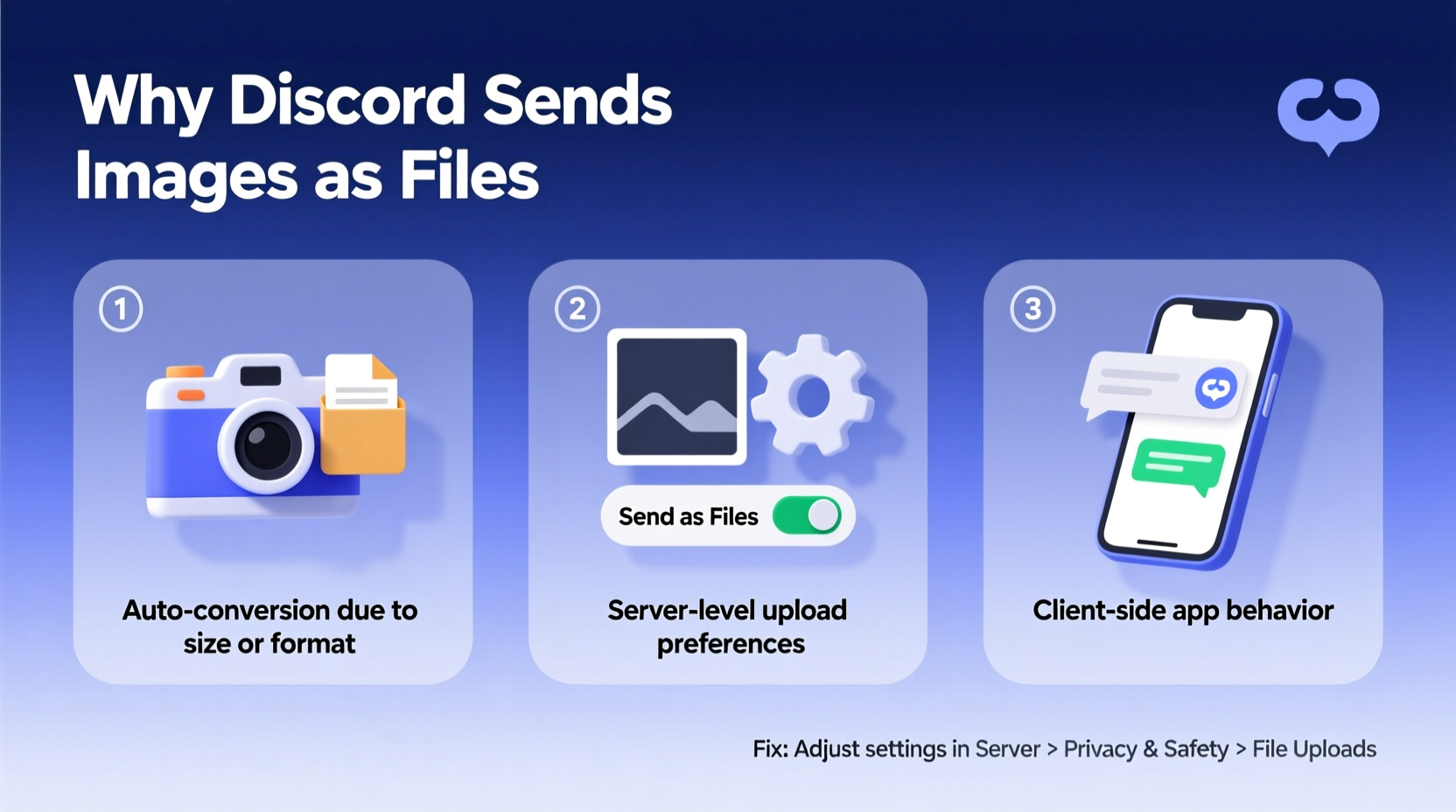
Discord is designed to automatically generate image previews when supported file types are uploaded. However, certain conditions prevent this from happening. When an image sends as a file, it means Discord isn't recognizing it as a displayable image. Several factors contribute to this behavior:
- File size limits: Images over 8MB (for non-Nitro users) or 50MB (Nitro) may fail to render as previews.
- Unsupported formats: While JPEG, PNG, GIF, and WEBP are supported, formats like BMP or TIFF may upload as files without preview.
- Compression or corruption: Poorly encoded or damaged image files can break rendering.
- App settings: Image auto-play or media preview settings might be disabled.
- Server-level restrictions: Some servers disable embedded media for moderation or bandwidth reasons.
It’s also possible that Discord misclassifies a file due to incorrect metadata—even if the extension is .jpg, improper encoding can make the system treat it as a generic file.
Step-by-Step Guide to Fix Image Preview Issues
Follow this structured approach to diagnose and correct the problem:
- Check the file size: Open your image properties. If it exceeds 8MB (or 50MB for Nitro), compress it using free online tools or image editors.
- Verify the file extension: Ensure the file ends in .jpg, .jpeg, .png, .gif, or .webp. Renaming a file doesn’t change its actual format—use conversion software if needed.
- Test with another image: Upload a known working image (e.g., a small PNG from your phone). If it previews correctly, the original file is likely the issue.
- Inspect Discord settings: Go to User Settings > Text & Images. Confirm “Link Preview” and “Show Media That May Contain Sensitive Content” are enabled.
- Clear app cache (mobile): On Android/iOS, go to app settings and clear Discord’s cache. Restart the app afterward.
- Try a different device: Test uploading the same image from desktop or web. If it works elsewhere, the issue is local to one device.
- Check server permissions: Server admins should verify that roles have permission to embed links and view media. Navigate to Server Settings > Roles > [Your Role] > Permissions.
This sequence isolates variables and identifies whether the root cause is client-side, server-side, or file-specific.
Common Settings That Block Image Previews
Many users overlook built-in privacy and performance settings that suppress media rendering. These are especially common among those concerned about data usage or accidental exposure to sensitive content.
| Setting | Location | Recommended State |
|---|---|---|
| Show link embeds | User Settings > Text & Images | Enabled |
| Auto-play GIFs and videos | User Settings > Text & Images | Optional (disable for data saving) |
| Display images from unknown users | User Settings > Privacy & Safety | Depends on preference |
| Reduce motion | Accessibility Settings | No impact on image previews |
If “Show link embeds” is turned off, even properly formatted images will appear as file attachments. Re-enable this option to restore previews.
“Over 70% of reported 'broken image' issues on Discord stem from disabled embed settings or oversized files—not server outages.” — Lin Zhao, Community Platform Analyst at NetMetrics Group
Mini Case Study: Resolving a Persistent Preview Issue
Samantha, a moderator in a gaming community, began receiving complaints that member-uploaded screenshots were appearing as files. The team suspected a server-wide glitch. After investigation, she discovered that a recent role update had inadvertently removed “Embed Links” permission for the default @everyone role. Members could still upload images, but Discord wouldn’t generate previews due to restricted permissions.
Samantha navigated to Server Settings > Roles > @everyone, edited permissions, and re-enabled “Embed Links.” Within seconds, new image uploads began displaying thumbnails. She then educated other moderators on permission hierarchies, preventing future disruptions. The fix took less than three minutes but resolved a weeks-long confusion.
Troubleshooting Checklist
Use this checklist to quickly resolve image-as-file issues:
- ✅ Confirm image is under size limit (8MB standard, 50MB Nitro)
- ✅ Verify file extension matches actual format (.png, .jpg, etc.)
- ✅ Enable “Show link embeds” in User Settings > Text & Images
- ✅ Check that server roles allow “Embed Links” permission
- ✅ Try uploading from a different device or browser
- ✅ Clear Discord cache on mobile devices
- ✅ Test with a known good image to isolate the problem
- ✅ Ensure the image isn’t corrupted (open it locally first)
Going through each item systematically eliminates guesswork and leads to faster resolution.
Frequently Asked Questions
Why do some of my images preview but others don’t?
This typically depends on file size, format, or source. Images taken directly from smartphones usually work, while screenshots from certain apps or edited files may exceed size limits or use unsupported compression. Convert large or unusual files to standard JPEG or PNG before uploading.
Does enabling “Privacy Mode” affect image previews?
Yes. If you’ve enabled strict privacy settings—such as blocking media from unknown users—you may not see previews from members outside your friend list. Adjust these in User Settings > Privacy & Safety based on your comfort level.
Can server boosts or region affect image rendering?
No. Server boosting improves audio quality and uptime but does not influence media embedding. Similarly, server region has no effect on how images are processed or displayed. The issue lies in file properties, permissions, or client settings.
Conclusion: Restore Seamless Sharing Today
Images sending as files on Discord is rarely a permanent bug—it’s usually a solvable mismatch between expectations and settings. By verifying file specifications, adjusting user preferences, and confirming server permissions, most users can restore full image preview functionality within minutes. Don’t let technical hiccups disrupt your community engagement or personal chats. Apply these fixes proactively, and consider sharing this knowledge with fellow members who might be struggling silently.




 浙公网安备
33010002000092号
浙公网安备
33010002000092号 浙B2-20120091-4
Comments
No comments yet. Why don't you start the discussion?