
Disney Plus has become a go-to streaming platform for millions of fans of Marvel, Star Wars, Pixar, and classic Disney content. But even the most reliable services can run into technical hiccups. Whether you're facing endless loading screens, sudden crashes, or login failures, knowing how to troubleshoot these problems quickly can save hours of frustration. This guide dives deep into the most common Disney Plus issues and delivers clear, actionable solutions that work across devices — from smart TVs to smartphones and tablets.
Common Signs Disney Plus Isn’t Working
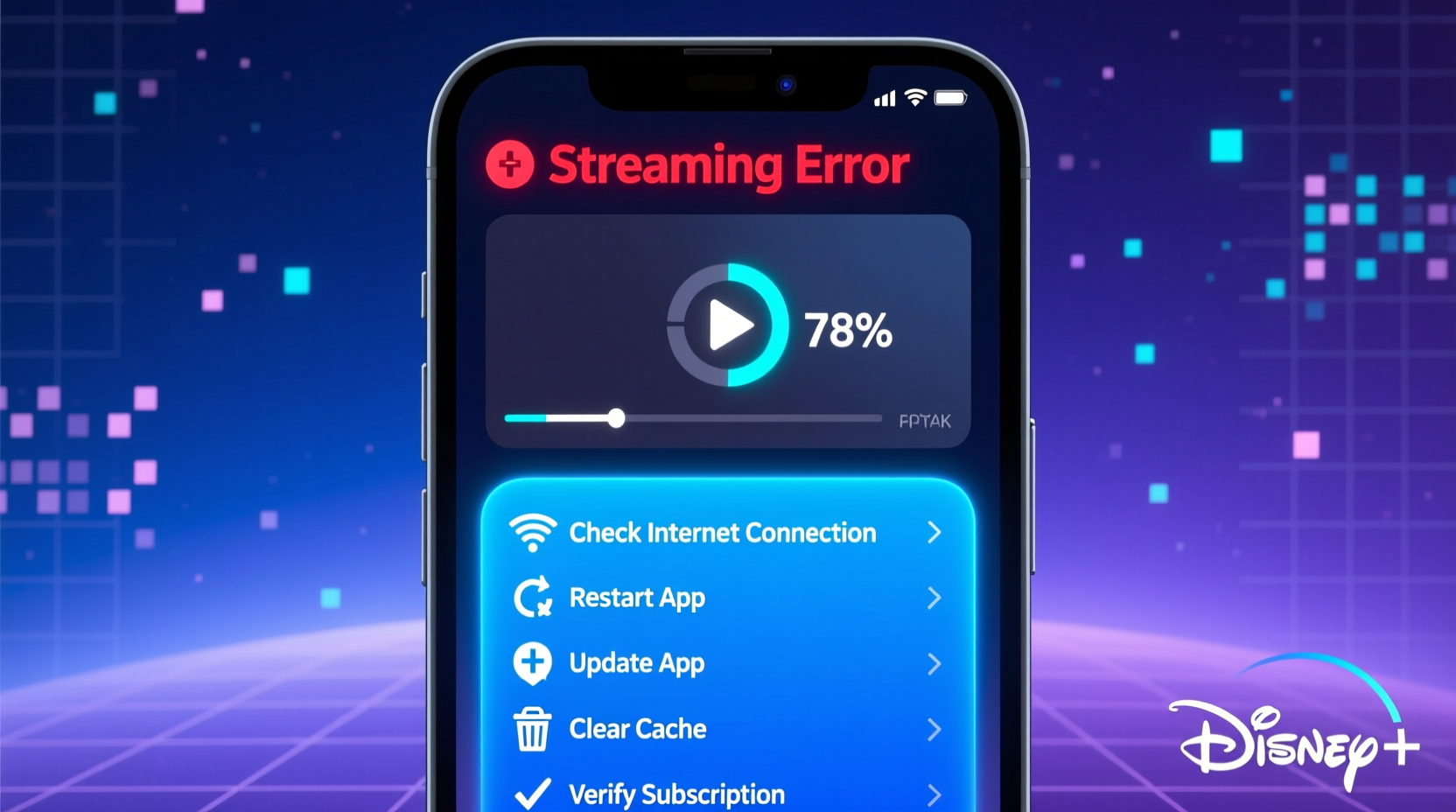
Before jumping into fixes, it’s important to identify what “not working” actually means in your case. Symptoms vary widely:
- The app fails to launch or crashes immediately
- Videos buffer endlessly or stop mid-playback
- You receive an error message like “We’re having trouble playing this video”
- Login attempts fail despite correct credentials
- The screen shows a black or frozen image during playback
Each symptom points to different underlying causes — ranging from network instability to outdated software or account-specific glitches.
Step-by-Step Troubleshooting Guide
Follow this logical sequence to isolate and resolve the issue efficiently. Start simple and escalate only if needed.
- Check Disney Plus Service Status
Before troubleshooting your device, verify if the problem is on Disney’s end. Visit help.disneyplus.com or third-party status sites like Downdetector to see if others are reporting outages in your region. - Restart Your Device
A surprising number of streaming issues vanish after a reboot. Turn off your phone, tablet, smart TV, or streaming box completely, wait 30 seconds, then power it back on. - Close and Reopen the App
Force-close the Disney Plus app and relaunch it. On iOS, swipe up and hold; on Android, go to Settings > Apps > Disney Plus > Force Stop. For smart TVs, use the remote to close the app via the task manager. - Check Internet Connection Speed
Disney Plus requires at least 5 Mbps for HD streaming and 25 Mbps for 4K. Run a speed test using tools like Fast.com or Speedtest.net. If speeds are low, restart your router or move closer to it if using Wi-Fi. - Switch Between Wi-Fi and Mobile Data
If Wi-Fi is unstable, try switching to mobile data (on phones/tablets). Conversely, if mobile data struggles, connect to a strong Wi-Fi network. - Clear Cache and Data (Android & Fire Stick)
Go to Settings > Apps > Disney Plus > Storage > Clear Cache. If the problem persists, tap \"Clear Data\" — note this will log you out. - Update the App and Operating System
Outdated apps often cause compatibility issues. Check your device’s app store for updates. Also ensure your OS (iOS, Android, tvOS) is current. - Reinstall the Disney Plus App
Uninstall the app completely, restart the device, then download and install it again from the official store. - Sign Out and Back Into Your Account
Sometimes authentication tokens expire silently. Log out from all devices via your Disney account settings online, then log back in. - Try a Different Network or Location
If possible, test Disney Plus on another network. This helps determine if the issue is ISP-related or geo-restricted.
Understanding Common Error Codes
Disney Plus uses numeric error codes to help users diagnose issues. Here's a breakdown of the most frequent ones:
| Error Code | Meaning | Solution |
|---|---|---|
| Code 3 | Network connection lost | Check internet stability, restart router, switch networks |
| Code 83 | General playback failure | Restart device, update app, reinstall if needed |
| Code 73 | App cannot communicate with servers | Check firewall settings, disable VPNs, reset DNS |
| Code 115 | Video cannot be streamed due to device or network | Improve bandwidth, reduce other network usage, check device compatibility |
| Code 42 | Too many devices logged in | Log out of inactive devices via account management page |
“Error codes are not random — they’re diagnostic tools. Always report them when contacting support.” — Tech Support Lead, Streaming Solutions Group
Device-Specific Fixes
Different platforms have unique quirks. Tailor your approach based on your device:
Smart TVs (Samsung, LG, Roku)
- Ensure firmware is updated through the TV’s settings menu.
- On Samsung TVs, go to Apps > Disney Plus > Reset App.
- For Roku, unplug the player for 60 seconds to perform a hard reset.
Mobile Devices (iOS/Android)
- Disable battery saver mode — it can throttle background processes.
- Turn off Low Data Mode (iOS) or Data Saver (Android).
- Make sure location services are enabled if using parental controls.
Gaming Consoles (Xbox, PlayStation)
- Clear persistent storage: On Xbox, go to Settings > System > Storage > Clear Persistent Storage.
- Rebuild database (PS4/PS5): Boot in safe mode and select “Rebuild Database.”
Mini Case Study: Resolving Persistent Buffering on a Roku TV
Sarah, a subscriber in Austin, Texas, reported constant buffering every time she tried to watch *The Mandalorian*. She had a 100 Mbps internet plan, so bandwidth shouldn’t have been an issue. After checking her router and restarting the Roku, the problem persisted. She ran a speed test directly on the TV and found upload/download speeds dropped below 3 Mbps during peak evening hours.
The root cause? Her neighbor was using her Wi-Fi without permission. Sarah changed her Wi-Fi password, set up a guest network, and switched her Roku to a 5 GHz band. The buffering stopped immediately. This case highlights how external network factors — not just the app or device — can disrupt streaming.
Preventive Checklist for Smooth Streaming
To avoid future disruptions, follow this maintenance checklist monthly:
- ✅ Restart your router and streaming devices
- ✅ Update all apps and system software
- ✅ Run a network speed test
- ✅ Review active devices on your Disney account
- ✅ Clear app cache on Android/Fire devices
- ✅ Ensure your subscription is active and payment method is valid
Frequently Asked Questions
Why does Disney Plus keep logging me out?
This often happens when too many devices are logged in simultaneously (maximum 10), or after a security update. Log out of unused devices via your Disney account dashboard under “Devices.” Also, ensure your device’s date and time settings are automatic — incorrect clocks can break authentication.
Can I watch Disney Plus without Wi-Fi?
Yes. Disney Plus supports offline downloads on mobile and tablet apps. Tap the download icon next to eligible titles. Downloads require app updates and sufficient storage space, and they expire after 30 days or when the license changes.
Why is Disney Plus not available in my country?
Content licensing restricts availability. While Disney Plus operates in over 60 countries, some regions still lack access. Using a VPN to bypass geo-blocks violates Disney’s Terms of Service and may result in account suspension.
Final Thoughts: Stay Ahead of Streaming Issues
Disney Plus not working doesn’t have to mean lost weekends or interrupted movie nights. Most problems stem from easily fixable causes — weak signals, outdated software, or temporary server blips. By following structured troubleshooting steps and understanding what error messages mean, you regain control quickly.
Streaming services will continue evolving, and with them, new challenges will emerge. Staying informed, maintaining your devices, and knowing where to look for solutions empowers you to enjoy seamless entertainment. Don’t wait for issues to resolve themselves — act early, act wisely.




 浙公网安备
33010002000092号
浙公网安备
33010002000092号 浙B2-20120091-4
Comments
No comments yet. Why don't you start the discussion?