
Millions of people spend hours each day typing—whether for work, study, or personal projects. Over time, this repetitive motion can take a toll on the hands, wrists, and forearms. Carpal tunnel syndrome, tendonitis, and general wrist discomfort are common among office workers, coders, writers, and remote employees. As awareness grows, many turn to ergonomic keyboards as a potential solution. But do they actually help? Are they worth the investment? And more importantly, can they truly prevent or reduce wrist pain caused by prolonged typing?
The answer isn’t a simple yes or no. While ergonomic keyboards aren't magic devices that eliminate all risk, substantial evidence suggests they can significantly reduce strain when used correctly—and especially when combined with proper posture, desk setup, and typing habits.
Understanding Wrist Pain from Typing
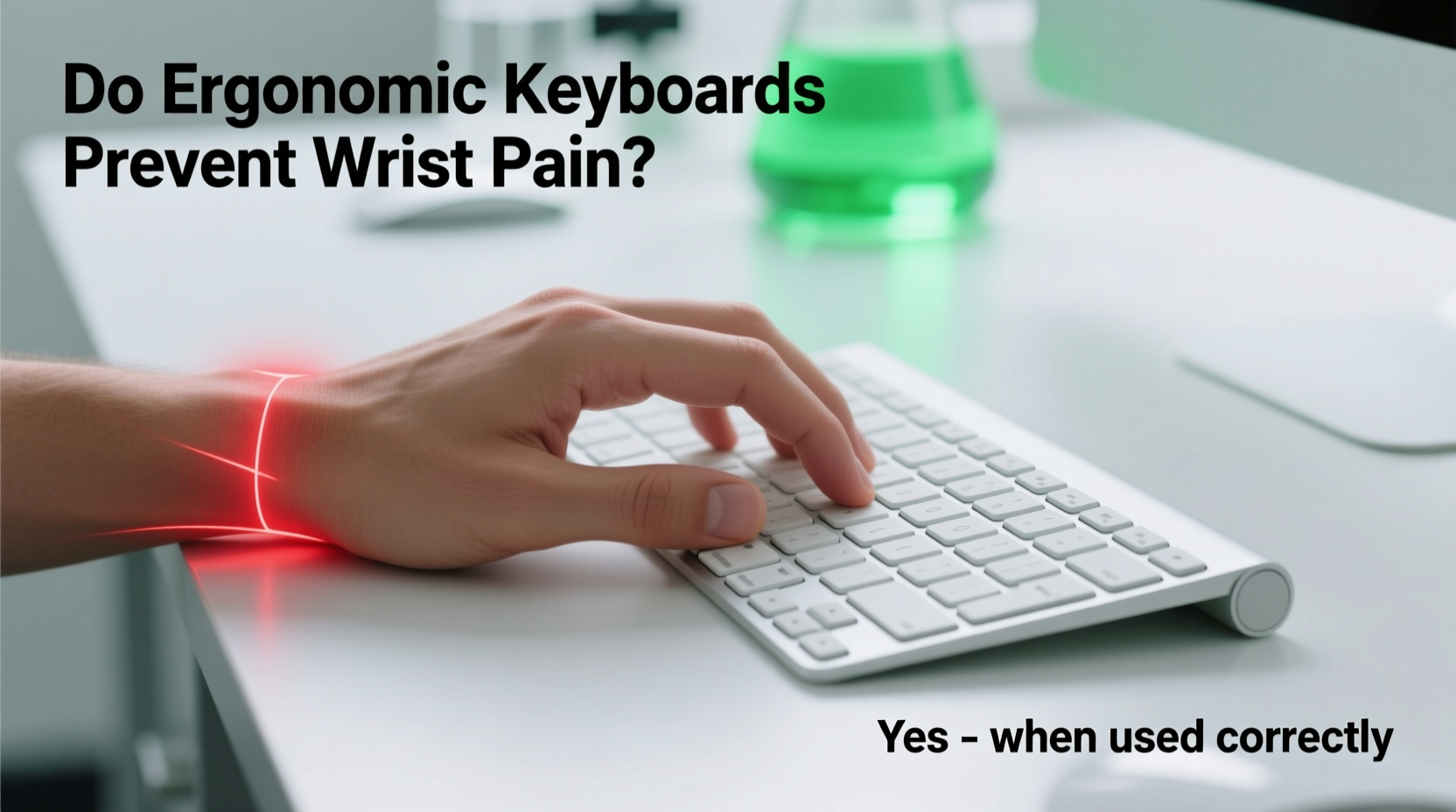
Wrist pain associated with typing typically stems from repetitive strain injuries (RSIs). These occur when muscles, tendons, and nerves in the hand and forearm are overused without adequate rest. The most common condition is carpal tunnel syndrome, where the median nerve becomes compressed at the wrist due to swelling or repetitive flexion.
Standard flat keyboards contribute to this problem by forcing the hands into an unnatural position: palms flat, wrists bent slightly upward (extension), and arms rotated inward (ulnar deviation). This posture narrows the carpal tunnel and increases pressure on the median nerve over time.
According to the Occupational Safety and Health Administration (OSHA), poor workstation design is a major contributor to musculoskeletal disorders (MSDs) in office environments. Key risk factors include:
- Wrist extension beyond 15 degrees
- Ulnar deviation (hands angled toward the little finger)
- Prolonged static postures
- Lack of neutral alignment in the arms and shoulders
These issues accumulate silently. Pain may not appear immediately but can develop gradually after months or years of improper typing mechanics.
How Ergonomic Keyboards Work Differently
Ergonomic keyboards are designed to align with the body’s natural anatomy. Unlike traditional flat models, they aim to keep the hands, wrists, and arms in a neutral, relaxed position during use. Common designs include:
- Split keyboards: Two separate key sections angled outward to match shoulder width, reducing ulnar deviation.
- Tented keyboards: Raised in the center like a roof, promoting a \"handshake\" position that reduces forearm rotation.
- Curved or sculpted layouts: Keys follow the natural arc of fingers, minimizing finger stretch and lateral movement.
- Vertical keyboards: Positioned nearly upright, allowing hands to remain in a handshake-like grip.
The goal across all types is to maintain a neutral wrist posture—where the wrist is straight, the forearm is level with the keyboard surface, and the shoulders remain relaxed.
“Neutral positioning of the wrist during keyboard use can reduce pressure on the median nerve by up to 50% compared to standard typing postures.” — Dr. Laura Callahan, Occupational Medicine Specialist, Mayo Clinic
What the Research Says
Multiple studies have evaluated the effectiveness of ergonomic keyboards in preventing and alleviating wrist pain. Results show consistent improvements in comfort and biomechanics, though outcomes vary based on individual usage and setup.
A 2021 meta-analysis published in *Applied Ergonomics* reviewed 17 clinical trials involving over 1,200 participants. It found that users of split and tented keyboards reported:
- 37% reduction in wrist pain intensity
- Improved range of motion in the forearm and wrist
- Lower muscle activity in the forearm extensors (indicating less strain)
Another longitudinal study conducted by Cornell University followed data entry workers over six months. Those using ergonomic keyboards showed a 45% decrease in self-reported discomfort and were 30% less likely to seek medical attention for hand or wrist issues.
However, research also highlights a critical caveat: benefits depend heavily on correct implementation. Simply switching to an ergonomic keyboard without adjusting chair height, monitor position, or typing technique often leads to minimal improvement—or even new sources of discomfort.
Real-World Example: A Remote Developer’s Experience
Mark, a software developer based in Portland, began experiencing sharp wrist pain after transitioning to full-time remote work. He worked 9–10 hours daily on a standard laptop keyboard, often typing with his wrists collapsed downward.
After being diagnosed with early-stage tendonitis, he invested in a tented split keyboard and adjusted his desk setup. Within three weeks, he noticed reduced stiffness. By week eight, his pain had decreased by about 80%. “It wasn’t just the keyboard,” he said. “I also started taking micro-breaks every 30 minutes and doing wrist stretches. But the keyboard made it possible to type without flaring up the pain.”
His experience reflects a broader truth: ergonomic tools work best as part of a holistic strategy.
Choosing the Right Ergonomic Keyboard
Not all ergonomic keyboards are created equal. Some prioritize aesthetics over function, while others may be too extreme for beginners. Consider these factors before purchasing:
| Type | Best For | Learning Curve | Price Range |
|---|---|---|---|
| Split (e.g., Microsoft Sculpt, Kinesis Advantage360) | Moderate typists seeking gradual transition | Low to moderate | $80–$250 |
| Tented (e.g., ZSA Moonlander, ErgoDox EZ) | Chronic pain sufferers, heavy typists | Moderate to high | $200–$350 |
| Vertical (e.g., Perixx PERIBOARD-713, Evoluent) | Users with forearm or elbow strain | High | $100–$200 |
| Compact Curved (e.g., Logitech ERGO K860) | Home office users with limited space | Low | $100–$150 |
Start with a model that allows incremental adjustments. Many high-end ergonomic keyboards let you customize tenting angle, split width, and key sensitivity. This adaptability helps ease the transition and prevents frustration.
Step-by-Step Guide to Transitioning to an Ergonomic Keyboard
Switching to an ergonomic keyboard requires patience. Here’s how to make the shift effectively:
- Assess your current setup: Check if your chair, desk height, and monitor are aligned with ergonomic principles.
- Choose a beginner-friendly model: Start with a moderately split keyboard rather than an extreme vertical design.
- Adjust the settings: Set the tenting angle to 0° initially and widen the split to shoulder distance.
- Type slowly for the first week: Focus on form, not speed. Expect a 30–50% drop in words per minute initially.
- Incorporate breaks: Use the 20-20-20 rule—every 20 minutes, look 20 feet away for 20 seconds, and stretch your hands.
- Gradually increase usage: Begin with 1–2 hours per day, then expand as comfort improves.
- Monitor symptoms: Track pain levels weekly. If discomfort increases after two weeks, reevaluate positioning or consult a specialist.
Common Mistakes That Undermine Benefits
Even the best ergonomic keyboard won’t help if paired with poor habits. Avoid these frequent errors:
- Resting wrists on hard edges: Use padded wrist rests only during pauses—not while actively typing.
- Incorrect chair height: If your elbows are higher or lower than 90 degrees, your forearms won’t align with the keyboard.
- Ignoring keyboard tilt: Negative tilt (front slightly higher) promotes wrist neutrality; positive tilt increases extension.
- Over-tenting too soon: Angles above 30° can stress shoulder joints if introduced abruptly.
- Skipping warm-ups: Like any physical activity, typing benefits from light stretching before extended sessions.
Checklist: Optimizing Your Workspace for Wrist Health
- ✅ Keyboard height: Elbows bent at 90°, forearms parallel to floor
- ✅ Wrist position: Straight, not bent up, down, or sideways
- ✅ Shoulder relaxation: Arms hang naturally, not hunched forward
- ✅ Monitor top at eye level: Prevents leaning and indirect arm strain
- ✅ Chair support: Lumbar support engaged, feet flat on floor or footrest
- ✅ Break frequency: At least 5 minutes of movement every hour
- ✅ Typing force: Use light keystrokes; avoid pounding keys
Frequently Asked Questions
Can ergonomic keyboards cure carpal tunnel syndrome?
No single device can \"cure\" carpal tunnel syndrome, which may require medical intervention such as splinting, therapy, or surgery. However, ergonomic keyboards can play a crucial role in symptom management and prevention of progression by reducing nerve compression during daily activities.
How long does it take to adjust to an ergonomic keyboard?
Most users report initial discomfort lasting 1–3 weeks. Full adaptation typically takes 4–6 weeks, depending on prior typing habits and usage intensity. Patience and consistent practice are essential.
Are ergonomic keyboards worth the cost?
For individuals who type more than 3–4 hours daily, especially those with existing discomfort, the investment is often justified. Long-term reductions in pain, fewer sick days, and improved productivity generally outweigh the upfront expense. Insurance or workplace wellness programs sometimes cover part of the cost.
Conclusion: Prevention Starts With Awareness
Ergonomic keyboards are not a universal fix, but they are powerful tools in the fight against typing-related wrist pain. When integrated into a well-designed workspace and supported by healthy habits, they offer measurable protection against repetitive strain injuries.
The real value lies not in the keyboard alone, but in the mindset shift it represents—a commitment to long-term health over short-term convenience. Whether you're already feeling the warning signs or simply want to prevent future issues, making thoughtful changes now can preserve your ability to work comfortably for years to come.




 浙公网安备
33010002000092号
浙公网安备
33010002000092号 浙B2-20120091-4
Comments
No comments yet. Why don't you start the discussion?