
It’s a habit many iPhone users swear by: double-pressing the Home button or swiping up from the bottom to close out apps after use. The logic seems sound—fewer apps running, less power used. But does this actually extend your iPhone’s battery life? The answer, backed by Apple engineers and battery experts, is more nuanced than most assume. In fact, for the majority of users, force-closing apps not only fails to save battery—it can sometimes do the opposite.
iOS manages background processes with a sophisticated system designed to optimize performance and energy efficiency. Unlike older mobile operating systems, modern iPhones don’t keep every open app actively running in the background. Instead, they suspend apps almost instantly when you switch away, preserving state while minimizing CPU and battery usage. Understanding how this works is key to making informed decisions about battery conservation.
How iOS Manages Background Apps
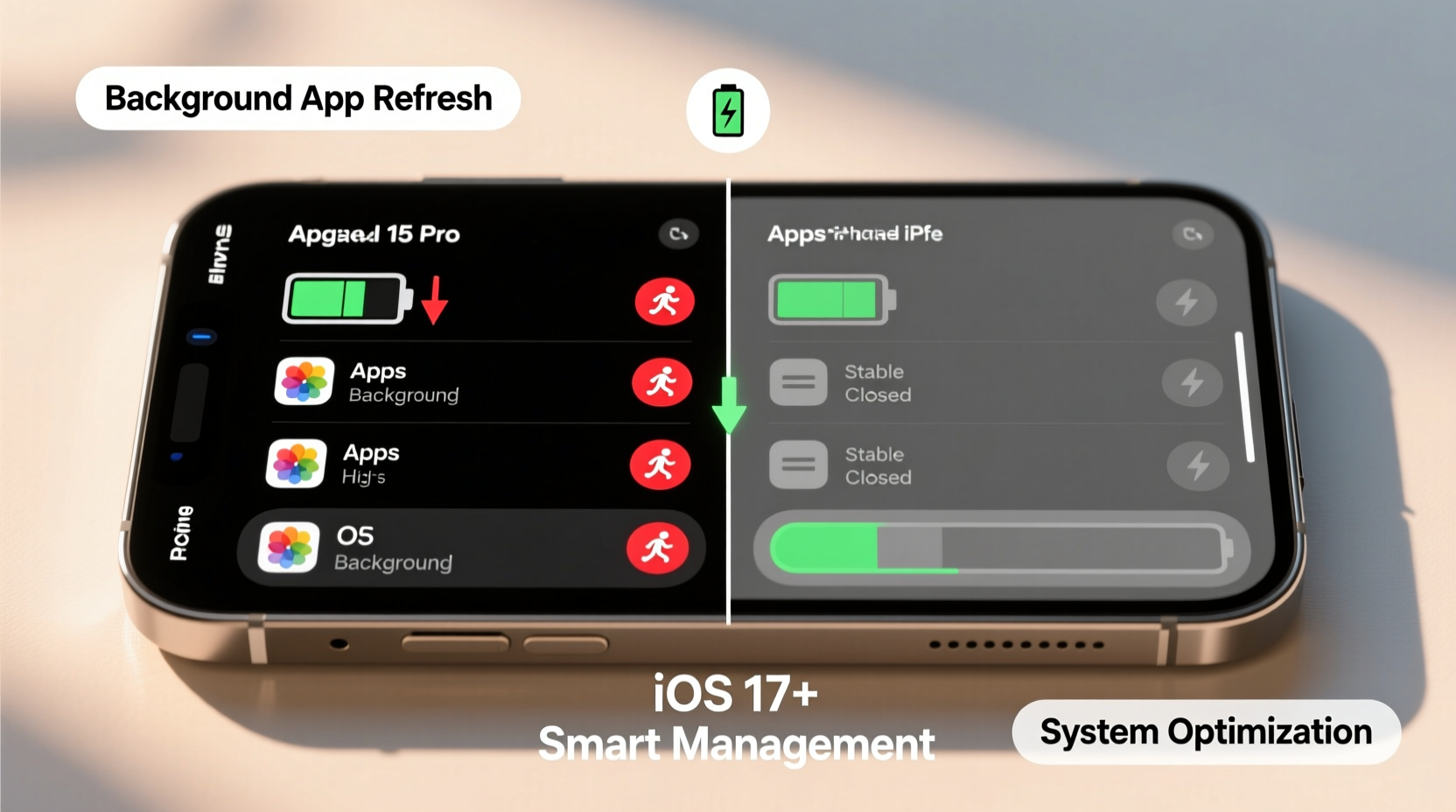
When you press the Home button or swipe to return to the home screen, the app you were using doesn’t continue running in the traditional sense. iOS places it into a “suspended” state. In this mode, the app remains in memory but uses virtually no CPU power or battery. It’s akin to pausing a movie—you can resume exactly where you left off without restarting.
This suspension model is central to iOS’s energy-efficient design. Rather than killing apps immediately, iOS keeps them in RAM because reloading an app from scratch requires more processing power than resuming it from a suspended state. Relaunching forces the device to reload assets, re-authenticate sessions, and rebuild the user interface—all of which consume more energy than simply leaving the app in the background.
Apple has long emphasized this principle. Greg Joswiak, Apple’s Senior Vice President of Worldwide Marketing, stated in a 2020 interview:
“Closing apps manually doesn’t help battery life. In fact, it can hurt it. Our system is designed to manage app states efficiently so users don’t have to.”
The operating system automatically clears suspended apps from memory when more RAM is needed. This cleanup happens silently and efficiently, prioritizing active tasks. Users don’t need to intervene—iOS handles resource allocation dynamically based on usage patterns, hardware capacity, and power availability.
The Myth of “Running” Apps
A common misconception stems from interpreting the app switcher as a list of “running” apps. What you see are actually snapshots of recently used apps, some of which may be suspended, some purged, and a very few actively refreshing in the background. Most are inactive and consuming negligible power.
Only specific types of apps are permitted to perform limited background activity, such as:
- Music streaming services (e.g., Spotify, Apple Music)
- Navigation apps (e.g., Google Maps, Waze)
- Background fetch for email or messaging updates
- Location-based reminders or fitness tracking
- VoIP calls (e.g., WhatsApp, FaceTime)
Even these activities are tightly regulated by iOS. The system throttles background refresh frequency, limits location polling, and suspends tasks when battery is low. Users can control these settings under Settings > General > Background App Refresh, allowing selective permissions rather than blanket closures.
When Closing Apps Might Help (Rare Cases)
While force-closing apps generally doesn’t improve battery life, there are narrow scenarios where it may be beneficial:
- Unresponsive or frozen apps: If an app is malfunctioning, crashing, or visibly draining battery (as seen in Settings > Battery), closing it can stop excessive CPU usage.
- Apps with known bugs: Poorly optimized third-party apps might fail to suspend properly, leading to background activity. Closing these temporarily resolves the issue until an update is released.
- After software updates: Occasionally, iOS updates cause temporary glitches. Restarting problematic apps can restore normal behavior.
In these cases, the benefit comes not from routine closure, but from troubleshooting. It’s analogous to rebooting a computer when a program misbehaves—not a maintenance habit, but a corrective action.
Real Battery Savers: What Actually Works
If closing apps isn’t the solution, what truly extends iPhone battery life? The answer lies in managing high-energy components: display, connectivity, and background processes governed by user settings.
| Feature | Impact on Battery | Recommended Action |
|---|---|---|
| Screen brightness & timeout | High — display is the largest power consumer | Lower brightness; set auto-lock to 30 seconds |
| Background App Refresh | Medium — varies by app | Disable for non-essential apps |
| Location Services | High — continuous GPS use drains quickly | Set to “While Using” or “Never” for non-critical apps |
| Push Email & Notifications | Low to Medium — frequent checks add up | Use Fetch manually or less frequently |
| Wi-Fi & Bluetooth | Low when idle, high if searching | Turn off if not in use; prefer Wi-Fi over cellular |
Another often-overlooked factor is temperature. iPhones reduce performance and charging efficiency in extreme heat or cold. Keeping your device within the recommended range (0° to 35°C) ensures optimal battery function.
“The biggest battery drain on any smartphone is the screen. After that, it’s connectivity and unoptimized background tasks—not suspended apps.” — Dr. Lena Torres, Mobile Energy Researcher at Stanford University
Step-by-Step: Optimize iPhone Battery Without Closing Apps
Follow this sequence to maximize battery life using scientifically sound methods:
- Review Battery Usage: Go to Settings > Battery and examine which apps consume the most power. Focus on active usage time versus background activity.
- Adjust Screen Settings: Reduce brightness, enable Auto-Brightness, and shorten Auto-Lock duration under Settings > Display & Brightness.
- Manage Background App Refresh: Disable it for social media, shopping, or rarely used apps via Settings > General > Background App Refresh.
- Control Location Access: For apps that don’t need constant location access, change permission to “While Using the App” in Settings > Privacy > Location Services.
- Limit Push Notifications: Disable non-essential alerts in Settings > Notifications. Fewer interruptions mean less screen waking and processor activation.
- Enable Low Power Mode: Activated automatically at 20%, or manually in Settings > Battery. This reduces background activity, mail fetching, and visual effects.
- Update iOS and Apps: Software updates often include battery optimizations and bug fixes that improve efficiency.
Mini Case Study: Sarah’s Battery Anxiety
Sarah, a freelance designer in Portland, noticed her iPhone 13 was dying by mid-afternoon. She closed every app after use, believing it would conserve power. Still, her battery drained faster than her colleague’s identical phone.
After checking her Battery settings, she discovered that Instagram and TikTok were responsible for nearly 40% of her background usage. Both had Background App Refresh enabled and unrestricted location access. By disabling refresh for these apps and setting location to “Never,” her daily battery consumption dropped significantly. She stopped closing apps altogether and found her phone lasted two hours longer per charge.
The real issue wasn’t too many “open” apps—it was poorly configured permissions allowing unnecessary background activity. Once corrected, her iPhone operated more efficiently without manual intervention.
Checklist: Healthy iPhone Battery Habits
Adopt these practices instead of routinely closing apps:
- ✅ Check Battery usage weekly to identify energy-hungry apps
- ✅ Disable Background App Refresh for non-essential apps
- ✅ Use “While Using” for location permissions unless required otherwise
- ✅ Keep screen brightness moderate and auto-lock under 1 minute
- ✅ Enable Low Power Mode during heavy travel or long workdays
- ✅ Avoid letting battery drop below 20% regularly; aim to recharge between 20–80%
- ✅ Update iOS and apps to benefit from performance improvements
- ❌ Stop force-closing apps as a routine practice
Frequently Asked Questions
Why does my battery drain even when I’m not using the phone?
Some background processes like email fetching, cloud syncing, and location updates occur periodically. While minimal, they add up over time. Check Settings > Battery to see if specific apps are overactive. Also, ensure your iPhone isn’t stuck in a restart loop due to a software glitch.
Does having many apps in the switcher slow down my iPhone?
No. The app switcher shows recent apps, not currently running ones. iOS automatically removes suspended apps from memory when space is needed. Having 10 or 20 apps in the switcher has no impact on speed or battery.
Should I restart my iPhone regularly to save battery?
Restarting occasionally (once a week) can clear temporary system files and resolve minor bugs, which may indirectly improve efficiency. However, it’s not necessary for battery preservation and shouldn’t replace proper settings optimization.
Conclusion: Trust the System, Optimize the Settings
The belief that closing background apps saves battery persists because it feels proactive. But on iPhones, this habit contradicts the operating system’s intelligent resource management. iOS is engineered to suspend apps efficiently, preserve memory, and minimize energy use—all without user input.
True battery savings come not from swiping away apps, but from adjusting settings that govern display, connectivity, and background permissions. These changes address actual sources of drain, not perceived ones. By focusing on evidence-based strategies, users gain longer battery life, smoother performance, and less digital fatigue.




 浙公网安备
33010002000092号
浙公网安备
33010002000092号 浙B2-20120091-4
Comments
No comments yet. Why don't you start the discussion?