
When your Android phone’s battery dips below 20%, the instinctive reaction is often to close apps, disable Bluetooth, or switch to power-saving mode. But what if the real culprit behind rapid battery drain isn’t your multitasking habits — but the very screen you’re staring at? Screen brightness has long been suspected as a major energy consumer, but so are resource-heavy apps like social media, video streaming, and navigation tools. So which one actually uses more power? The answer isn’t as straightforward as it seems, but understanding the dynamics between display technology, brightness levels, and app behavior can help you make smarter choices.
Battery longevity depends on a complex interplay of hardware efficiency, software optimization, and user behavior. While app usage contributes significantly to background processing and CPU load, the display remains the single largest power draw in most smartphones. To determine which factor dominates, we need to examine how modern Android devices allocate energy across components.
The Power Profile of an Android Phone
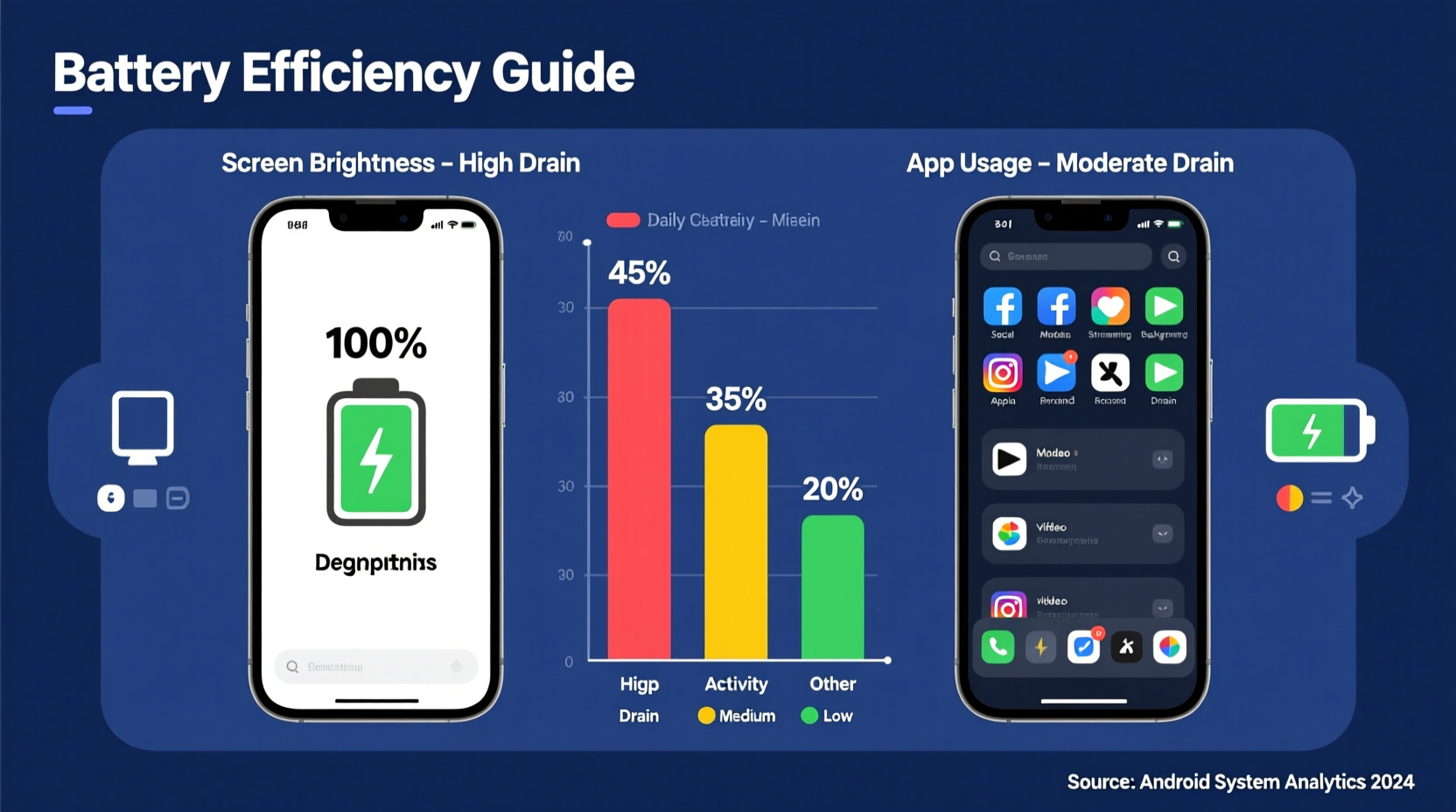
A typical smartphone divides its power consumption among several subsystems: the display, processor (CPU/GPU), cellular and Wi-Fi radios, sensors, and audio components. According to data from Google’s Android Battery Historian and independent lab tests conducted by organizations like GSMArena and PCMag, the display consistently ranks as the top energy consumer — especially under high brightness settings.
In OLED-equipped Android phones, which include most flagship and mid-range models today, individual pixels emit their own light. This means black pixels consume almost no power, while white or bright-colored pixels use significantly more. On LCD screens, a constant backlight illuminates the entire panel regardless of content, making them less efficient in dark scenes but more consistent in power draw.
Meanwhile, apps vary widely in their energy impact. A lightweight calculator app may use negligible power, while YouTube, TikTok, or Google Maps running with GPS and network access can keep the CPU active, refresh the screen continuously, and maintain wireless connections — all of which compound energy use.
Screen Brightness: How Much Power Does It Really Use?
Studies show that screen brightness directly correlates with power consumption. At maximum brightness, the display can account for up to 60% of total battery drain during active use. Even at moderate levels (around 50%), it still consumes 30–40% of system power.
To illustrate this, consider a test conducted by Android Authority using a Pixel 6 with an OLED display:
| Brightness Level | Average Power Draw (Watts) | Estimated Screen Contribution to Drain |
|---|---|---|
| Auto (Indoor) | 0.8 W | ~35% |
| 50% | 1.1 W | ~42% |
| 100% | 2.3 W | ~58% |
| 100% + HDR Video | 3.0 W | ~65% |
As brightness increases, so does the energy required to illuminate pixels — especially on OLED panels where bright whites and full-screen content demand higher current. In direct sunlight, automatic brightness can spike to 100% or beyond, drastically accelerating battery depletion.
App Usage: The Hidden Energy Culprits
While the screen dominates during active use, apps can be just as damaging over time — particularly those that run in the background. Social media platforms, messaging apps, email clients, and location-based services frequently poll servers, update notifications, and track your position, all of which wake the CPU and maintain network connections.
For example, Facebook and Instagram have historically been criticized for aggressive background activity. Even when not actively opened, these apps can consume significant power by syncing data, preloading content, and running analytics scripts. Similarly, navigation apps like Waze or Google Maps continue using GPS, Wi-Fi scanning, and screen refreshes even when minimized.
However, app-related drain is typically spread across multiple subsystems. A video streaming app doesn’t just use the CPU — it also keeps the screen on, plays audio, downloads data via cellular or Wi-Fi, and may adjust brightness dynamically. This makes isolating \"app-only\" consumption difficult, but overall, heavy-use apps amplify every other power draw.
“The screen is the biggest battery hog, but poorly optimized apps can make it worse by forcing longer screen-on time and unnecessary processing.” — Dr. Linus Zhang, Mobile Systems Researcher at MIT
Comparing Real-World Scenarios
To understand which factor matters more, let’s compare two realistic situations:
Scenario 1: High Brightness, Light App Use
- User browses articles for 30 minutes
- Screen brightness set to 100%
- No background apps running
- Wi-Fi connected, no GPS
Result: Approximately 25% battery consumed. Over 60% of that drain came from the display alone.
Scenario 2: Moderate Brightness, Heavy App Use
- User watches YouTube for 30 minutes
- Screen brightness at 50%
- Background music app syncing playlists
- Location services active
Result: Around 22% battery used. Display accounted for ~40%, but combined CPU, network, and sensor usage pushed total app-related drain to nearly 50%.
This shows that while screen brightness is the dominant single factor, intensive app usage can rival or even surpass it when multiple systems are engaged simultaneously.
Optimization Strategies: Balancing Brightness and App Behavior
You don’t have to choose between seeing your screen and preserving battery life. With smart adjustments, you can reduce drain from both sources without sacrificing usability.
1. Leverage Adaptive Brightness and Dark Mode
Modern Android versions include advanced ambient light sensors and AI-driven brightness prediction. Enabling adaptive brightness ensures your screen only uses as much power as needed for visibility.
Pair this with Dark Mode, especially on OLED devices. Since black pixels are turned off, displaying dark interfaces reduces average pixel brightness and cuts display energy by up to 60% in some cases.
2. Manage Background App Activity
Android provides built-in tools to limit background processes. Go to Settings > Apps & notifications > Special app access > Battery optimization and ensure non-essential apps are restricted.
You can also manually check battery usage per app in Settings > Battery > Battery usage. If an app appears high on the list despite minimal use, consider uninstalling it or switching to a lighter alternative.
3. Reduce Screen Timeout and Auto-Lock
Set your screen timeout to 30 seconds or less. Every extra second the display stays on adds up over the day. Combine this with a strong auto-lock method (PIN, pattern, biometrics) for security and convenience.
Step-by-Step Guide to Minimize Battery Drain
- Enable Adaptive Brightness: Settings > Display > Brightness level > Toggle on “Adaptive brightness”
- Activate Dark Theme: Settings > Display > Dark theme > Turn on
- Shorten Screen Timeout: Settings > Display > Screen timeout > Select 30 seconds
- Optimize App Battery Usage: Settings > Battery > Battery usage > Tap menu > Show system > Identify top consumers and restrict background activity
- Use Battery Saver Mode Strategically: Enable during low-battery periods; it caps brightness and limits background sync
- Disable Always-On Display (if applicable): Found in Display settings; saves noticeable power on OLED phones
- Update Apps Regularly: Developers often release efficiency improvements in updates
Checklist: Daily Battery Health Routine
- ✅ Check battery usage breakdown weekly
- ✅ Keep brightness below 70% unless outdoors
- ✅ Close unused tabs in Chrome or web apps
- ✅ Disable location services for non-critical apps
- ✅ Restart your phone once a week to clear memory leaks
- ✅ Avoid charging to 100% daily; aim for 20–80% for longevity
Frequently Asked Questions
Does lowering brightness extend battery life significantly?
Yes. Reducing brightness from 100% to 50% can extend screen-on time by 30–50%, depending on display type and usage. On OLED phones, combining lower brightness with dark themes yields even greater gains.
Are some apps inherently worse for battery life?
Yes. Apps that rely on continuous data syncing, GPS tracking, or high frame-rate rendering (like games or video platforms) tend to be the worst offenders. Examples include Facebook, Snapchat, Uber, and live sports apps. Consider using lite versions (e.g., Facebook Lite) or web-based alternatives when possible.
Is it better to turn off the screen or let it dim automatically?
Turning it off is always better. Even at minimum brightness, a lit screen consumes more power than a powered-down one. Set a short auto-sleep timer and get into the habit of pressing the power button after use.
Mini Case Study: Sarah’s Commute Transformation
Sarah, a digital marketer in Seattle, noticed her Samsung Galaxy S23 draining from 100% to 25% during her morning commute — despite not doing much besides checking emails and news. After reviewing her battery stats, she discovered that screen usage accounted for 55% of the drain, followed by Gmail (18%) and Chrome (12%).
She made three changes:
- Lowered max brightness from 100% to 60%
- Enabled Dark Mode in Chrome and Gmail
- Restricted background data for non-essential apps
The next day, her phone ended the same commute at 60% battery — a 35% improvement. She maintained this gain by sticking to her new settings, proving that small tweaks yield measurable results.
Conclusion: Brightness vs. Apps — Who Wins?
Screen brightness generally has a larger immediate impact on battery drain than app usage — especially at high levels. However, app behavior shapes how long the screen stays on and how hard other components work. In essence, brightness is the primary driver, but inefficient apps act as accelerants.
The most effective battery-saving strategy combines intelligent display management with disciplined app hygiene. You don’t need to live in perpetual power-saving mode. Instead, adopt subtle, sustainable habits: embrace adaptive brightness, leverage Dark Mode, audit background apps monthly, and be mindful of screen-on time.




 浙公网安备
33010002000092号
浙公网安备
33010002000092号 浙B2-20120091-4
Comments
No comments yet. Why don't you start the discussion?