
Drag and drop is one of the most intuitive features in modern computing—until it stops working. Whether you're moving files between folders, rearranging browser tabs, or uploading images on a website, a broken drag-and-drop function can bring productivity to a halt. The issue can stem from software conflicts, outdated drivers, system settings, or even browser extensions. Fortunately, most problems have straightforward solutions. This guide breaks down the root causes and provides tested troubleshooting steps to restore seamless functionality across operating systems and applications.
Why Drag and Drop Fails: Common Root Causes
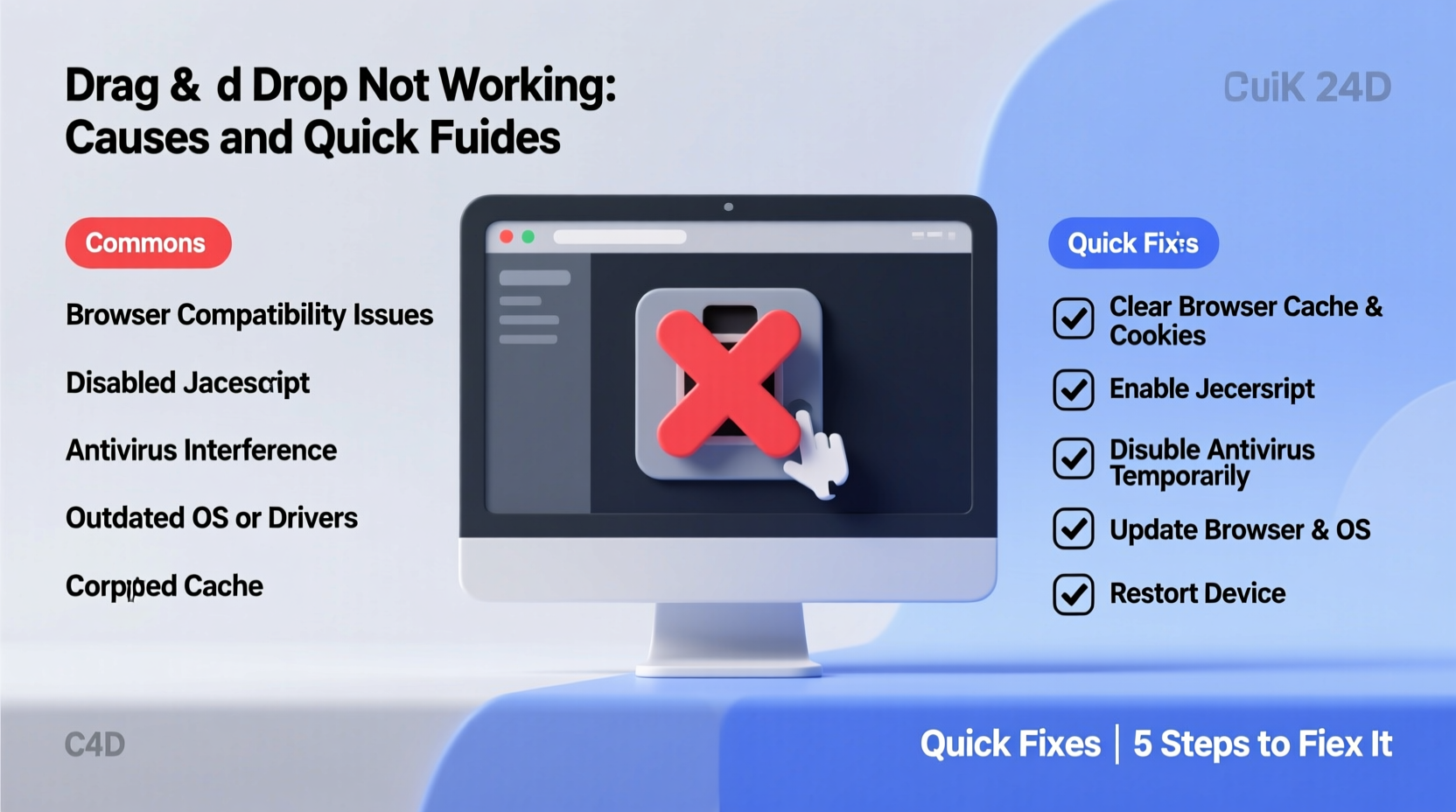
The convenience of dragging an item with your cursor and dropping it into a new location masks a surprisingly complex behind-the-scenes process. It involves coordination between the operating system, input devices (like mouse or touchpad), graphical interface elements, and sometimes third-party applications. When any part of this chain fails, the entire feature can stop working.
Common culprits include:
- Outdated or corrupt mouse/touchpad drivers – Especially after OS updates.
- Conflicting software – Antivirus tools, clipboard managers, or screen recording apps may interfere.
- Browser-specific issues – Extensions or cached data disrupting web-based drag operations.
- Corrupted user profile settings – System preferences related to pointer behavior or accessibility features.
- Hardware limitations – Faulty mice, unresponsive touchpads, or USB connectivity issues.
Before assuming hardware failure, it's worth systematically ruling out software-related triggers. Many users resolve the issue without replacing equipment.
Step-by-Step Fixes for Windows Users
Windows users often experience drag-and-drop failures in File Explorer or within applications like Outlook or Photoshop. Follow this sequence to isolate and fix the problem:
- Check your mouse or touchpad – Test with another pointing device. If drag works with a different mouse, the original device may be faulty.
- Update or reinstall mouse drivers – Open Device Manager, expand “Mice and other pointing devices,” right-click your device, and choose “Update driver.” If that fails, uninstall and restart to trigger automatic reinstallation.
- Disable conflicting software – Temporarily turn off antivirus, clipboard tools (e.g., Ditto), or remote desktop utilities.
- Run System File Checker – Open Command Prompt as admin and run
sfc /scannow. This repairs corrupted system files that might affect GUI functions. - Create a new user profile – Corrupted user settings can break UI interactions. Create a test account and check if drag and drop works there.
- Adjust registry settings (advanced) – In rare cases, a misconfigured registry key disables drag operations. Navigate to
HKEY_CURRENT_USER\\Control Panel\\Desktopand ensureDragHeightandDragWidthare set to 4.
Note: Editing the registry should only be done with caution and after creating a backup.
Troubleshooting macOS Drag-and-Drop Issues
macOS generally handles drag and drop smoothly, but problems arise after system updates or when using external peripherals. Here’s how to diagnose and fix them:
- Reset NVRAM/PRAM – Shut down, then power on while holding Option+Command+P+R for about 20 seconds. This resets low-level settings that can affect input devices.
- Check Accessibility settings – Go to System Settings > Accessibility > Pointer Control. Ensure no assistive features like “Enable Mouse Keys” are interfering.
- Test in Safe Mode – Boot while holding Shift. Safe Mode disables third-party extensions. If drag works here, a login item is likely the culprit.
- Reset SMC (for Intel Macs) – For persistent hardware-related issues, resetting the System Management Controller can help stabilize peripheral communication.
- Use an alternative mouse or trackpad – Bluetooth interference or driver bugs in third-party devices (especially gaming mice) can cause erratic behavior.
“Over 60% of reported drag-and-drop failures on macOS are resolved by disabling third-party mouse enhancement software.” — Jordan Lee, Apple Support Specialist
Web Browser Drag Problems: What You Can Do
Many users encounter drag-and-drop issues on websites—uploading files, organizing lists, or moving calendar events. These are typically browser-side problems.
| Issue | Possible Cause | Solution |
|---|---|---|
| Can’t upload files via drag | Browser permissions or cache | Clear site data; allow file access in site settings |
| Dragging text or images fails | Extensions blocking scripts | Disable ad blockers or script managers temporarily |
| Drag works in one browser but not another | Inconsistent JavaScript support | Update browser or test in latest Chrome/Firefox |
Quick Browser Checklist
- Update your browser to the latest version.
- Disable all extensions and retest.
- Clear cookies and cached files for the site.
- Try incognito/private mode to rule out plugin conflicts.
- Ensure JavaScript is enabled in browser settings.
Real-World Example: Fixing Drag Failure in a Design Workflow
A freelance graphic designer using Adobe Illustrator on Windows 10 suddenly lost the ability to drag layers or assets between documents. Right-click functions worked, but drag actions registered no response. Initial checks ruled out the mouse—movement and clicks were normal.
The issue persisted across Illustrator and File Explorer. After testing in a new user profile and finding drag operations functional, the root cause was traced to a corrupted preference file under the original user’s AppData folder. Deleting the C:\\Users\\[Username]\\AppData\\Roaming\\Microsoft\\Windows\\Explorer advanced settings resolved the issue upon reboot.
This case highlights how user-specific configurations—not system-wide faults—can disable fundamental UI behaviors. Always test across profiles before diving into deeper diagnostics.
Frequently Asked Questions
Why does drag and drop work in some apps but not others?
Different applications implement drag-and-drop functionality independently. A system-level issue might only affect certain frameworks (e.g., .NET or Electron-based apps). Alternatively, the app itself may have bugs or disabled features in its current version.
Can a virus cause drag-and-drop to stop working?
Rarely, but possible. Malware that injects into system processes or hooks into GUI rendering could disrupt input handling. If standard fixes fail and unusual behavior persists (e.g., random cursor movement), run a full antivirus scan.
Does touchpad sensitivity affect drag performance?
Yes. If the touchpad is too sensitive, small movements during a press can be interpreted as taps instead of drags. Adjust tracking speed in system settings—slower speeds often improve drag accuracy.
Conclusion: Regain Control with Targeted Fixes
Drag and drop may seem like a minor feature, but its absence disrupts workflows across design, organization, and daily computing. The good news is that most issues are solvable with methodical troubleshooting. Start with the simplest explanations—restarting, testing hardware, updating drivers—before moving to advanced system repairs.
Understanding whether the problem is isolated to one application, browser, or system-wide helps narrow down the solution path. With the right approach, you can restore smooth, intuitive interaction in minutes—not hours.




 浙公网安备
33010002000092号
浙公网安备
33010002000092号 浙B2-20120091-4
Comments
No comments yet. Why don't you start the discussion?