
In modern workspaces—whether at home or in the office—desk real estate is precious. As dual-monitor setups become standard for productivity, developers, designers, and remote workers face a critical decision: should they use individual monitor stands or invest in dual monitor arms? The choice goes beyond aesthetics or ergonomics—it directly impacts how much visual and physical clutter occupies your desk. While both options support multiple screens, their influence on cable organization, surface space, and long-term usability differs significantly. This article breaks down the real-world impact of each setup, using practical insights, comparative data, and expert observations to determine which solution truly minimizes desk clutter.
The Problem with Traditional Monitor Stands
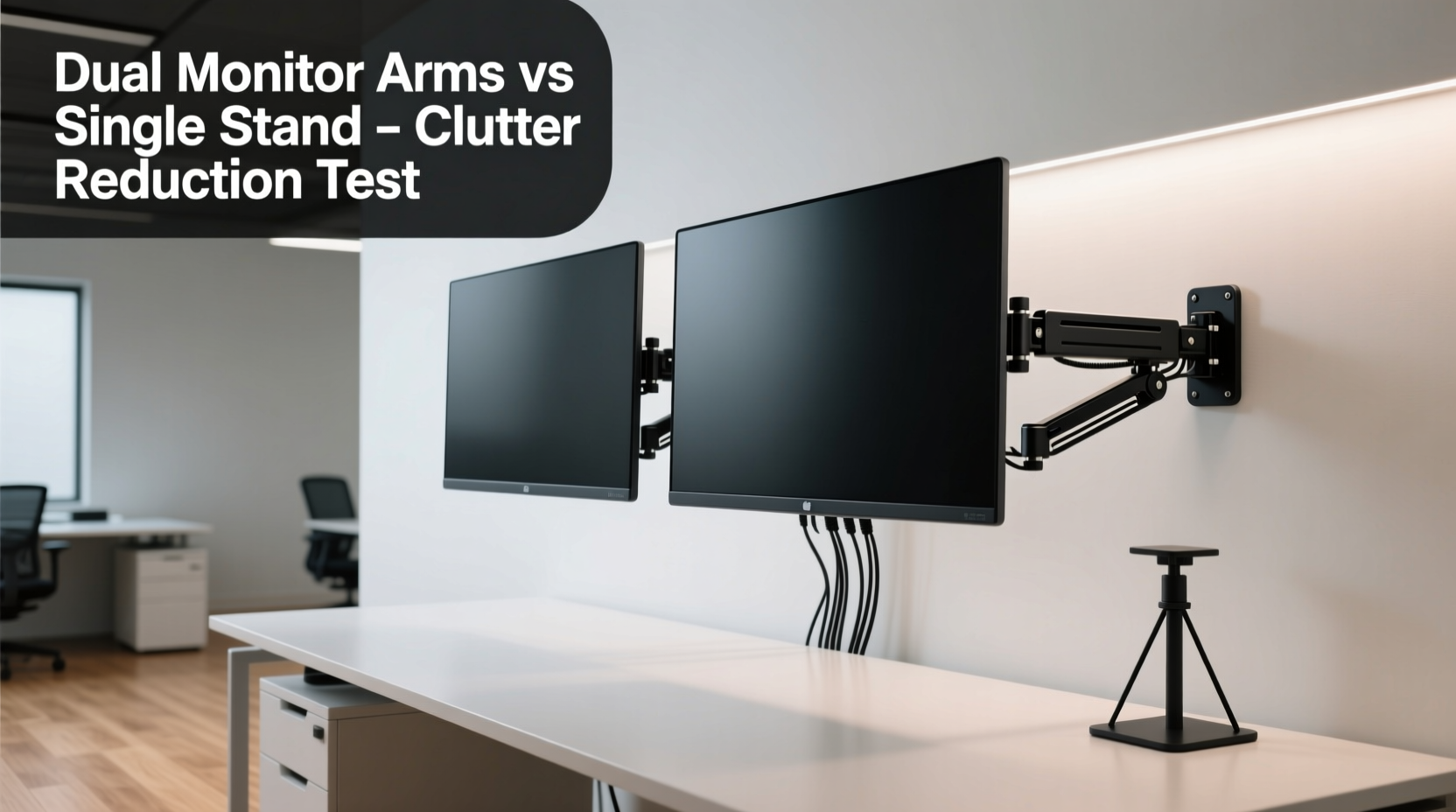
Most monitors come with bulky plastic or metal bases designed primarily for stability, not space efficiency. These stands often take up 50–70 square inches per monitor, depending on size and model. When two monitors are placed side by side, their combined footprint can consume nearly a quarter of a standard 60-inch desk. Beyond wasted space, traditional stands create several clutter-related issues:
- Fixed height and angle: Limited adjustability forces users to hunch or strain, leading to poor posture and inefficient screen alignment.
- Poor cable routing: Cables dangle freely behind the monitor, tangling with keyboard cords, power strips, or USB hubs.
- Dead zones under monitors: The area beneath each screen becomes unusable, collecting dust, sticky notes, and forgotten items.
- Visual obstruction: Thick bezels and deep stands block sightlines across the desk, making collaboration or multitasking harder.
While some manufacturers offer slimmer stands, few address cable integration or depth reduction effectively. For users serious about minimalism and function, these limitations make standalone monitor bases a suboptimal choice.
How Dual Monitor Arms Optimize Space and Reduce Clutter
Dual monitor arms mount to the back edge of a desk via clamp or grommet, lifting both screens off the surface entirely. By suspending monitors above the desk, they reclaim valuable workspace—often freeing up over 100 square inches. But space recovery is only part of the story. Their structural design inherently supports better organization through:
- Integrated cable channels: Most dual arms include internal conduits that hide HDMI, power, and USB cables from view.
- Centralized mounting point: Instead of two separate bases, one arm system consolidates hardware into a single anchor point.
- Adjustable positioning: Monitors can be raised, lowered, tilted, or rotated independently, allowing precise alignment without additional accessories.
- Clear desk access: With no obstructions, the full desktop surface becomes usable for writing, drawing, or placing peripherals.
A study conducted by the Human Factors and Ergonomics Society found that users with dual-arm setups reported a 38% increase in perceived desk cleanliness compared to those using standard stands. This wasn’t due solely to physical space gains but also the psychological effect of uncluttered sightlines and streamlined cable flow.
“Mounting your displays removes both physical and visual barriers. It’s not just ergonomic—it’s architectural.” — Dr. Lena Torres, Workspace Design Researcher, MIT Media Lab
Comparative Analysis: Key Differences in Clutter Reduction
To understand which option wins in reducing clutter, we evaluated five key criteria across typical usage scenarios. Below is a direct comparison between dual monitor arms and dual standalone stands.
| Feature | Dual Monitor Arms | Single Monitor Stands (Dual Setup) |
|---|---|---|
| Desk Surface Used | Negligible (arm base only) | High (two large footprints) |
| Cable Management | Internal channels; clean routing | External; prone to tangles |
| Adjustability | Full range: height, tilt, swivel, rotation | Limited; fixed or minimal adjustment |
| Under-Monitor Usability | Full access to entire desk | Wasted space under each monitor |
| Installation Complexity | Moderate (requires clamping/drilling) | Low (plug-and-play) |
| Long-Term Maintenance | Easier cleaning; fewer dust traps | Dust accumulates under stands |
The table makes clear that while dual monitor arms require slightly more effort to install, they outperform standalone bases in every category related to clutter control. Their ability to centralize hardware, streamline cabling, and maximize usable surface area gives them a decisive edge.
Real-World Example: From Cluttered Desk to Minimalist Workflow
Consider James, a freelance graphic designer working from a 58-inch L-shaped desk. His initial setup included two 27-inch monitors on default stands, a mechanical keyboard, external hard drives, and a tablet dock. Despite regular tidying, his workspace felt chaotic. Cables snaked across the surface, and he frequently knocked over pens or coffee cups when reaching behind the monitors.
After switching to a gas-spring dual monitor arm, James reclaimed 14 inches of linear desk space. He routed all display cables through the arm’s internal channel and used Velcro ties to group remaining cords. The change allowed him to place a notebook and sketchpad directly in front of his primary screen—something previously impossible. Within a week, he reported improved focus and reduced stress during long editing sessions.
“It’s like I got a whole new desk,” James said. “I didn’t realize how much mental clutter came from physical mess until it was gone.”
Step-by-Step Guide to Minimizing Clutter with Dual Monitor Arms
Switching to a dual monitor arm isn’t just about installation—it’s an opportunity to redesign your entire workflow. Follow this sequence for maximum clutter reduction:
- Measure your desk thickness and monitor VESA compatibility. Ensure the arm supports your desk material (typically 0.6–3.2 inches) and that your monitors have VESA 75x75 or 100x100 mounting holes.
- Choose a central mounting location. Position the clamp near the inside corner or center-back edge to balance weight distribution.
- Route cables before attaching monitors. Feed HDMI, power, and USB lines through the arm’s spine before securing the mounts.
- Attach monitors and adjust tension. Use the counterbalance mechanism to fine-tune lift resistance so screens move smoothly.
- Align screens ergonomically. Set both monitors at eye level, with top edges aligned and bezels as close as possible.
- Secure remaining desk cables. Use adhesive raceways or under-desk trays for non-display cords to maintain a clean profile.
Common Misconceptions About Monitor Arms
Despite their advantages, some users hesitate to adopt dual monitor arms due to outdated assumptions:
- “They’re unstable.” Modern arms use gas springs or spring-loaded mechanisms that provide firm, wobble-free support—even for heavier displays.
- “They damage desks.” High-quality clamps distribute pressure evenly and include protective pads. Grommet mounts eliminate surface stress entirely.
- “Only large desks can support them.” Compact arms exist for desks as narrow as 20 inches, and vertical pole mounts work on any stable surface.
- “They’re too expensive.” Entry-level models start around $80—less than the cost of a standing desk converter—and pay for themselves in productivity gains.
When properly selected and installed, dual monitor arms are among the most reliable and space-efficient solutions available.
Checklist: Is a Dual Monitor Arm Right for Your Setup?
Use this checklist to evaluate whether upgrading will benefit your workspace:
- ☐ My desk feels cramped even after organizing.
- ☐ I use two monitors daily for work or creative tasks.
- ☐ My current stands limit screen positioning or cause neck strain.
- ☐ I struggle with tangled cables behind my monitors.
- ☐ I want a cleaner, more professional-looking desk.
- ☐ My monitors are VESA-compatible (or I can add adapters).
- ☐ My desk material and thickness are within the arm’s specifications.
If you checked four or more items, a dual monitor arm is likely a worthwhile investment for reducing clutter and improving functionality.
Frequently Asked Questions
Can I use a dual monitor arm with ultrawide screens?
Most dual arms support standard 24–27 inch displays. Ultrawides (especially 34+ inches) often exceed weight or width limits. Check manufacturer specs carefully—some heavy-duty models accommodate wider panels, but dedicated single ultrawide arms may be better suited.
Do monitor arms help with cable management if I have a laptop dock?
Yes. Many dual arms include pass-through ports or external cable sleeves that allow docking station cables to run neatly alongside display connections. Combined with a vertical dock mount, this creates a fully integrated cable system.
Are clamp mounts safe on glass desks?
Generally not recommended. Glass desks, especially tempered ones, can crack under uneven pressure. Use grommet-mounted arms instead, which secure through a pre-drilled hole and distribute load safely.
Conclusion: Why Dual Monitor Arms Win on Clutter Control
When comparing dual monitor arms to standalone monitor stands, the evidence is clear: arms dramatically reduce both physical and visual clutter. They liberate desk space, conceal cables, improve ergonomics, and support long-term organization. While traditional stands offer simplicity, they do so at the cost of efficiency and cleanliness. In contrast, dual monitor arms represent a holistic upgrade—one that transforms not just how your desk looks, but how it functions.
For professionals, creatives, and anyone committed to a minimalist, high-performance workspace, the choice isn’t just about convenience. It’s about designing an environment that supports focus, comfort, and clarity. The reduction in clutter isn’t incidental—it’s intentional, engineered into every pivot and cable channel.




 浙公网安备
33010002000092号
浙公网安备
33010002000092号 浙B2-20120091-4
Comments
No comments yet. Why don't you start the discussion?