
Working with a single laptop screen can feel limiting, especially when managing multiple applications, spreadsheets, or design tools. A dual monitor setup transforms your workflow by giving you more visual real estate, reducing the need to constantly switch windows, and improving focus. Whether you're a remote worker, creative professional, or student juggling research and writing, extending your screen across two monitors is one of the most effective upgrades you can make—without buying a new laptop.
The good news? Setting up dual monitors with a laptop is straightforward and often requires no special technical skills. With the right hardware, correct settings, and a few optimization tips, you can create a seamless multi-monitor environment that feels natural and efficient.
Why a Dual Monitor Setup Matters
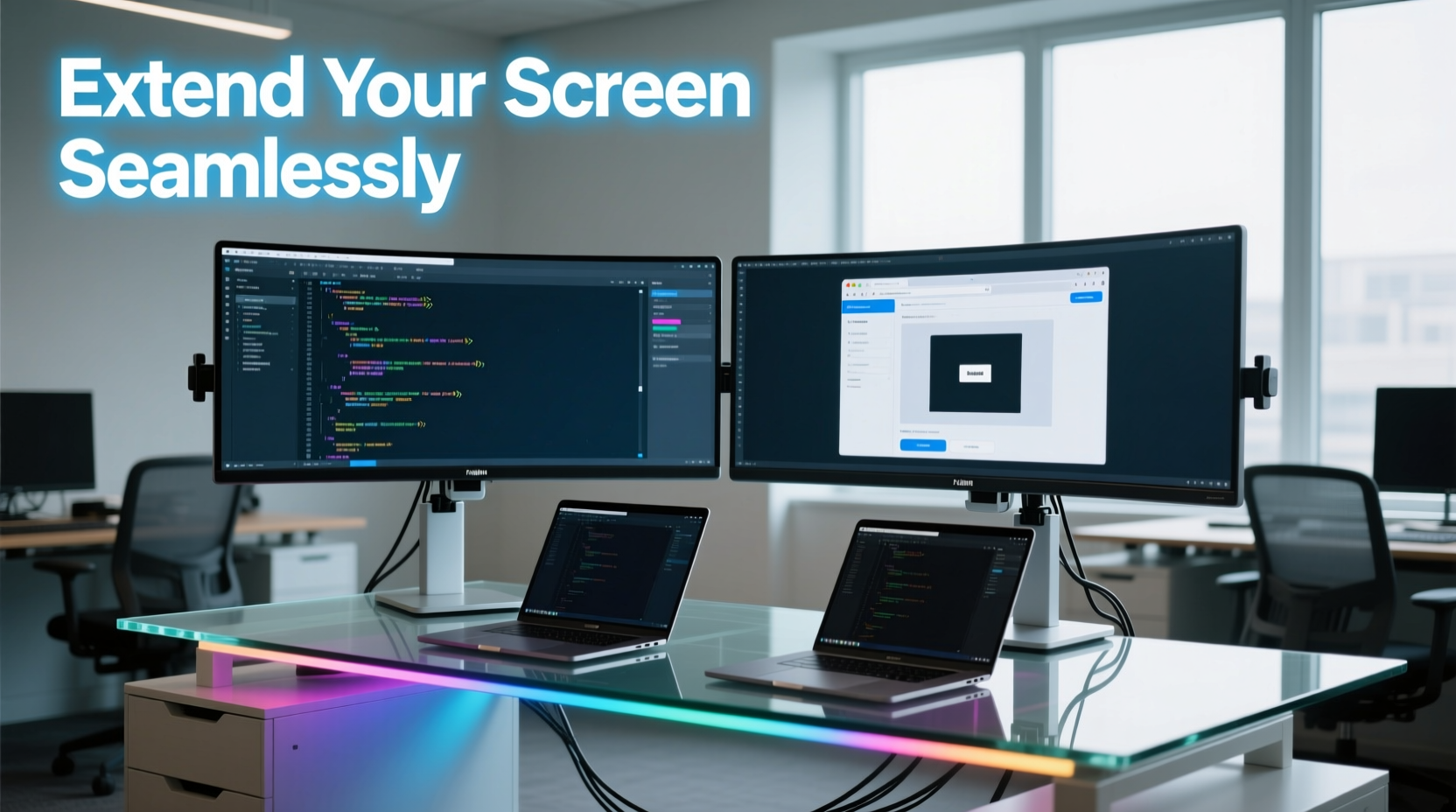
Digital workspaces are evolving, and screen space has become as valuable as desk space. According to a study by the University of Utah commissioned by NEC, productivity increases by up to 42% when using dual monitors compared to a single display. This isn’t just about having more room—it’s about working smarter.
With two screens, you can keep communication apps like Slack or email open on one side while focusing on documents, coding, or video editing on the other. Designers preview layouts alongside asset libraries. Programmers write code on one screen and test it in real time on another. The flexibility reduces mental load and minimizes context switching, which drains energy and focus.
“Extending your workspace beyond the laptop screen isn’t a luxury—it’s a strategic advantage in today’s multitasking-heavy environments.” — Dr. Lisa Tran, Human-Computer Interaction Researcher, MIT Media Lab
Hardware Requirements: What You Need to Get Started
Before diving into software settings, ensure your hardware supports a dual monitor configuration. Most modern laptops can handle at least one external display, but capabilities vary based on graphics processing, ports, and operating system.
Essential Components
- Laptop with available video output port(s): HDMI, DisplayPort, USB-C (with DisplayPort Alt Mode), or Thunderbolt.
- Two external monitors (or one external plus the laptop screen).
- Compatible cables or adapters: HDMI-to-HDMI, USB-C to HDMI, DisplayPort cable, etc.
- Optional docking station: Simplifies connection if you frequently plug in/out.
Understanding Port Capabilities
Not all ports support dual monitors. Here’s a quick reference:
| Port Type | Dual Monitor Support? | Notes |
|---|---|---|
| HDMI | Single stream per port | You’ll need a second port or adapter for a second monitor. |
| USB-C (with DP Alt Mode) | Yes, often supports daisy-chaining | Check manufacturer specs; some allow two 4K displays. |
| Thunderbolt 3/4 | Yes, robust support | Can drive two 4K monitors or one 8K display. |
| VGA | Limited | Older standard; avoid if possible due to lower resolution and quality. |
If your laptop lacks sufficient ports, consider a universal docking station. These devices connect via a single USB-C or Thunderbolt cable and provide multiple HDMI, USB, and Ethernet outputs—ideal for hybrid workers who move between home and office.
Step-by-Step Guide to Extending Your Screen
Once your hardware is connected, configuring the display settings is simple. The process differs slightly between Windows and macOS, but both offer intuitive interfaces.
For Windows 10 & 11
- Connect both monitors to your laptop using appropriate cables.
- Right-click on the desktop and select Display settings.
- Windows will detect all connected displays. Click “Identify” to see which number corresponds to each screen.
- Scroll down to the Multiple displays dropdown menu and select Extend these displays.
- Drag and drop the display icons to match their physical arrangement on your desk (e.g., left, center, right).
- Adjust resolution and orientation for each monitor under the respective display section.
- Click Apply to save changes.
For macOS
- Connect your external monitors.
- Open System Settings (or System Preferences on older versions).
- Navigate to Displays.
- Click Arrangement tab.
- Uncheck Mirror Displays to enable extension.
- Drag the white menu bar to the screen you want as your primary display.
- Arrange the display thumbnails to reflect your physical layout.
Optimizing Your Extended Workspace
Getting the screens to work together is just the beginning. True seamlessness comes from thoughtful customization and usage habits.
Match Resolution and Scaling
When monitors have different resolutions (e.g., 1080p and 4K), windows may appear oddly sized when dragged between them. In Windows, go to Display settings and adjust scaling (e.g., 100%, 150%) per monitor to balance text size. On Mac, use the \"Scaled\" option in Display settings to choose a consistent appearance.
Positioning for Ergonomics
A poorly arranged setup causes neck strain. Follow these guidelines:
- Center your primary monitor directly in front of you.
- Angle secondary monitors slightly inward (30°) to reduce head turning.
- Top of the screen should be at or slightly below eye level.
- Keep monitors within an arm’s length.
Use Taskbar and Dock Features
On Windows, enable “Show taskbar on all displays” in Taskbar settings to access pinned apps from either screen. On Mac, Mission Control lets you assign Spaces (virtual desktops) to specific monitors, keeping workflows separated.
Leverage Keyboard Shortcuts
Move windows efficiently:
- Win + Shift + Left/Right Arrow: Move window between monitors.
- Ctrl + Alt + Up/Down Arrow: Maximize or restore window (if enabled).
- Cmd + Option + Right/Left Arrow (macOS): Move window between displays with third-party tools like Rectangle.
Real-World Example: Remote Developer Workflow
Consider Alex, a freelance web developer working from a home office. His 13-inch MacBook Air felt cramped when coding in VS Code while testing on Chrome and attending Zoom calls. He added two 24-inch 1080p monitors using a Thunderbolt dock.
He positioned the laptop in the center, used the left screen for code, the right for browser previews and documentation, and kept Zoom on the laptop screen. By extending rather than mirroring, he gained dedicated zones for each task. Within a week, he reported faster debugging, fewer missed messages, and reduced eye fatigue.
“It’s like upgrading my mental bandwidth,” Alex said. “I don’t lose focus every time I switch tabs anymore.”
Troubleshooting Common Issues
Even with proper setup, issues can arise. Here’s how to resolve frequent problems:
Monitor Not Detected
- Ensure the cable is securely connected and powered.
- Restart the laptop with the monitor plugged in.
- Update graphics drivers (Intel, AMD, or NVIDIA) through Device Manager or manufacturer website.
Blurry Text or Incorrect Resolution
This often stems from incorrect scaling. In Windows, right-click the app shortcut > Properties > Compatibility > Change high DPI settings > Override scaling. On Mac, check if the app supports native resolution in its preferences.
Performance Lag or Refresh Rate Drops
Using multiple high-resolution displays can strain integrated graphics. Lower the refresh rate to 60Hz or reduce resolution if animations feel sluggish. Close background GPU-heavy apps like video editors or games.
Do’s and Don’ts of Dual Monitor Setup
| Do’s | Don’ts |
|---|---|
| Align monitors to eye level and minimize glare. | Place monitors too far apart or at awkward angles. |
| Use matching monitors for uniform color and scaling. | Mix vastly different panel types (e.g., TN and IPS) without calibration. |
| Label cables or use color-coded tags for easy identification. | Overload power strips with multiple high-draw devices. |
| Enable Night Light or Blue Light filters after sunset. | Work for hours without taking screen breaks. |
Frequently Asked Questions
Can I use two different monitor sizes or brands?
Yes. While mismatched sizes or brands work, differences in resolution, color accuracy, and brightness may affect visual continuity. Calibrate both monitors using built-in tools or third-party software like DisplayCAL for consistency.
Does a dual monitor setup drain my laptop battery faster?
Yes, especially if the laptop screen remains on. For maximum battery life, close the laptop lid and use only external monitors (ensure the laptop is plugged in to avoid shutdown). Adjust power settings to prevent sleep mode when lid is closed.
Can I extend my screen to a TV as a second monitor?
Absolutely. If your TV has HDMI input, connect it like any monitor. In Display settings, select “Extend” instead of “Duplicate.” Note that TVs may have higher input lag, making them less ideal for fast-paced tasks like gaming or video editing.
Final Checklist Before You Begin
- Verify your laptop supports multiple displays (check manufacturer specs).
- Gather necessary cables or a docking station.
- Position monitors ergonomically on your desk.
- Update your operating system and graphics drivers.
- Test connections and configure display settings.
- Customize taskbars, shortcuts, and scaling for comfort.
- Take breaks and adjust brightness to reduce eye strain.
Conclusion: Transform Your Digital Workspace Today
A dual monitor setup with your laptop isn’t just a productivity hack—it’s a fundamental upgrade to how you interact with digital information. With minimal investment and a few minutes of configuration, you gain a broader, more organized, and intuitive workspace. Whether you’re analyzing data, designing visuals, or managing communications, extended screen real estate gives you the breathing room to think clearly and act efficiently.
Start small if needed—one external monitor makes a difference. Then refine your layout, experiment with arrangements, and tailor the experience to your workflow. The goal isn’t just more screens, but better ones—aligned, optimized, and fully yours.




 浙公网安备
33010002000092号
浙公网安备
33010002000092号 浙B2-20120091-4
Comments
No comments yet. Why don't you start the discussion?