
Splitting a PDF into individual pages or smaller sections is a common need for professionals, students, and creatives alike. Whether you're extracting specific pages for a report, separating forms, or archiving documents, maintaining the original quality is non-negotiable. Poorly split files can result in blurry text, distorted images, or broken formatting—undermining their usability. The good news is that breaking up PDF pages doesn’t have to compromise clarity. With the right tools and techniques, you can extract, divide, and reorganize PDFs while preserving resolution, fonts, and layout integrity.
Why Quality Matters When Splitting PDFs
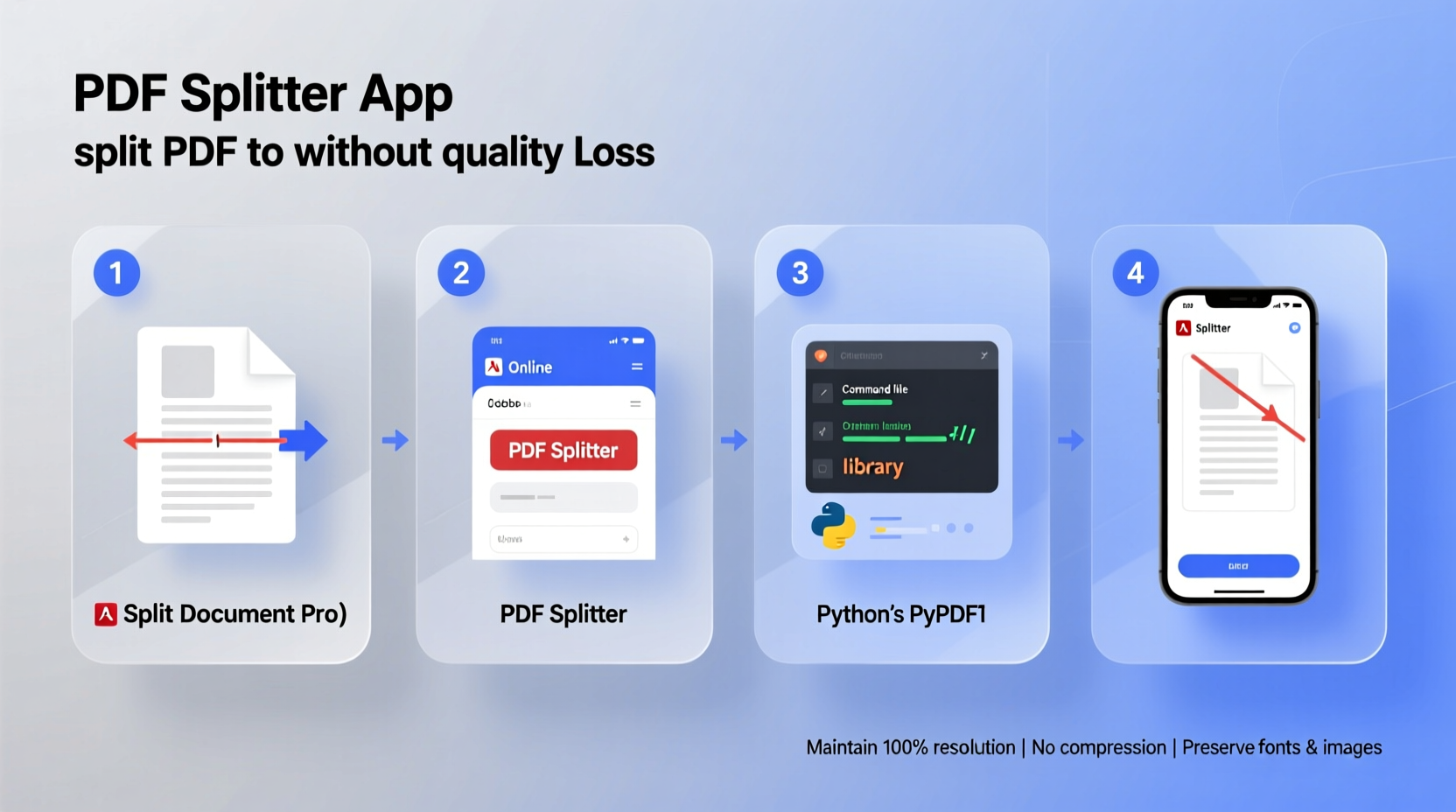
A high-quality PDF retains sharp text, accurate colors, and proper scaling—especially important when dealing with scanned documents, design portfolios, or legal contracts. Many online tools compress files aggressively to reduce size, leading to pixelation or loss of metadata. When splitting pages, avoid solutions that rasterize vector elements or downsample images. Instead, prioritize tools that work at the document structure level, preserving original vectors, embedded fonts, and hyperlinks.
“Preserving PDF fidelity during manipulation ensures professional-grade output, especially in legal, academic, and publishing environments.” — Dr. Alan Reyes, Digital Document Archivist
Step-by-Step Guide: How to Split PDF Pages Without Quality Loss
The safest way to split a PDF without degrading its quality is to use tools that extract pages directly from the source file rather than converting or re-rendering them. Follow this sequence for optimal results:
- Identify the pages to split: Determine which pages you want to separate—single pages, ranges, or every page individually.
- Choose a non-destructive tool: Use software that supports native PDF extraction without re-encoding.
- Extract pages in original format: Ensure the output retains the same resolution, color profile, and compression as the input.
- Verify the output: Open the new files and inspect text clarity, image sharpness, and link functionality.
- Store appropriately: Save files with descriptive names and back up originals.
Top Tools for High-Fidelity PDF Splitting
Not all PDF tools are created equal. Some reprocess the entire document, while others simply isolate existing page objects. Below is a comparison of reliable options known for preserving quality.
| Tool | Type | Quality Preservation | Cost | Best For |
|---|---|---|---|---|
| Adobe Acrobat Pro DC | Desktop Software | Excellent – extracts natively | Paid | Professional use, batch processing |
| PDFsam Basic | Open-Source Desktop App | Very Good – no recompression | Free | Students, everyday users |
| Preview (macOS) | Built-in Application | Excellent – direct export | Free | Mac users needing quick splits |
| Smallpdf (Online) | Web-Based Tool | Fair – may compress images | Freemium | Light, occasional use |
| PDFtk Server | Command-Line Tool | Exceptional – raw extraction | Free | Developers, automation |
For zero quality loss, desktop applications like Adobe Acrobat and PDFsam are preferred because they access the internal structure of the PDF without altering visual components. Web tools, while convenient, often involve uploading files to remote servers that may automatically compress data.
Using Built-In OS Features: macOS Preview Method
If you're on a Mac, you already have a powerful, underused tool: Preview. It allows you to split PDFs without installing additional software, and it maintains full quality because it exports pages as-is.
- Open the PDF in Preview.
- Click “Thumbnails” in the sidebar to view all pages.
- Select the page(s) you want to extract by clicking and dragging or holding Command.
- Drag the selected thumbnails to your desktop or Finder window.
- Each dropped page becomes a standalone, high-quality PDF.
This method avoids any rendering or conversion process, making it one of the cleanest ways to break up a PDF. You can also manually delete unwanted pages and save the remainder as a new file.
Mini Case Study: Academic Researcher’s Workflow
Lena, a doctoral candidate in history, regularly receives 200+ page archival scans from libraries. She needs to extract specific chapters for annotation but must retain legible text and image detail for citation purposes. Initially, she used an online PDF splitter, only to find that her exported pages had blurred footnotes and washed-out photographs.
After switching to PDFsam Basic, she began extracting pages using the “Split” function with “Extract pages” mode. Because PDFsam does not re-encode content, Lena’s excerpts retained the original scan quality. She now processes large documents in batches, labels each segment clearly, and stores them in a structured digital archive. Her workflow is faster, and her references remain publication-ready.
Checklist: Ensuring Quality During PDF Splitting
- ✅ Back up the original PDF before editing
- ✅ Use desktop software over web tools when possible
- ✅ Avoid tools that require conversion to other formats (e.g., Word or image)
- ✅ Verify that text remains selectable and searchable after splitting
- ✅ Check image clarity and color accuracy in the output
- ✅ Confirm that metadata (author, title) is preserved if needed
- ✅ Test the file on multiple devices or viewers (Adobe Reader, Preview, etc.)
Common Mistakes That Degrade PDF Quality
Even with the right intentions, users often unknowingly damage PDF quality during splitting. These pitfalls should be avoided:
- Converting to images first: Saving PDF pages as JPEG or PNG before reassembling introduces compression artifacts.
- Using OCR-heavy tools: Some services apply optical character recognition unnecessarily, which can alter fonts and spacing.
- Over-relying on mobile apps: Many smartphone PDF tools prioritize speed over fidelity, reducing DPI behind the scenes.
- Editing in word processors: Importing a PDF into Word and resaving as PDF often distorts layout and reduces image resolution.
Stick to direct extraction methods. If OCR is required—for scanned documents—apply it only once and preserve the enhanced version before splitting.
FAQ
Will splitting a PDF reduce its file size?
Not necessarily. Each extracted page retains the compression and resources of the original. However, removing unused fonts or images in advanced tools can slightly reduce size. The main factor affecting size is whether the tool re-compresses images.
Can I split password-protected PDFs without quality loss?
Yes, but you must first enter the correct password. Tools like Adobe Acrobat and PDFtk allow you to decrypt and extract pages while preserving quality. Never use unauthorized cracking tools, as they may corrupt the file structure.
Is it safe to use online PDF splitters for sensitive documents?
No. Uploading confidential files to third-party websites poses privacy risks. Even if files are deleted post-processing, some services retain logs. For sensitive material, always use offline tools like PDFsam or desktop software.
Conclusion: Take Control of Your PDFs
Breaking up PDF pages doesn’t have to mean sacrificing quality. By choosing the right tools—like Adobe Acrobat, PDFsam, or macOS Preview—you maintain the integrity of text, images, and formatting. Whether you're a student extracting research papers, a designer sharing portfolio samples, or an office worker managing reports, high-fidelity splitting ensures your documents remain professional and usable. Apply the checklist, avoid common traps, and leverage built-in features to streamline your workflow.




 浙公网安备
33010002000092号
浙公网安备
33010002000092号 浙B2-20120091-4
Comments
No comments yet. Why don't you start the discussion?