
Bringing a Google Home device into your home opens the door to hands-free convenience, smart automation, and seamless access to information. Whether you're using it to control lights, check the weather, or play music, getting started is simple—if you know the right steps. This guide walks you through powering on your Google Home, completing setup, and using key features without confusion.
Step-by-Step: Powering On Your Google Home Device
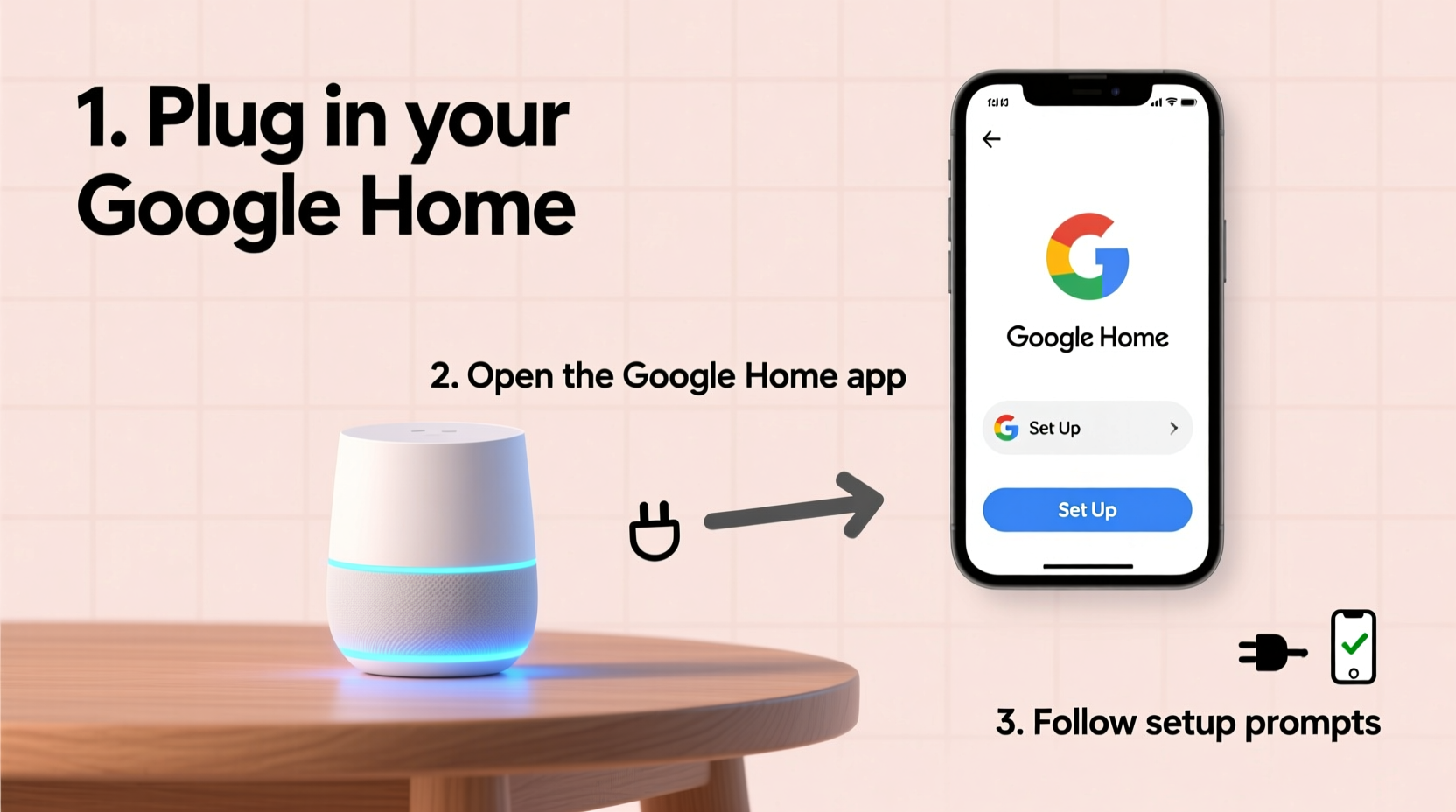
The first step in using your Google Home is straightforward: connect it to power. Unlike smartphones or tablets, Google Home doesn’t have an on/off switch—power delivery automatically triggers startup.
- Locate the power adapter: Your Google Home comes with a dedicated power cable and adapter. Use only the provided or certified replacement to ensure safety and performance.
- Plug into a wall outlet: Connect the adapter to a standard electrical outlet. Avoid power strips with surge protection that may intermittently cut power, as this can disrupt connectivity.
- Attach the cable to your device: Gently insert the USB-C (or micro-USB, depending on model) end into the port at the base of your Google Home.
- Wait for the startup sequence: Within seconds, you’ll see colored lights circling the top of the device. A soft chime indicates it’s booting up.
- Listen for voice prompt: Once initialized, Google Assistant will say, “Hello, I’m ready,” signaling it’s online and awaiting configuration.
Setting Up Google Home Using the Google Home App
After powering on, your Google Home needs to be linked to your Wi-Fi network and Google account. This is done through the Google Home app, available for Android and iOS.
Required Before You Begin:
- A smartphone or tablet with Bluetooth enabled
- Your home Wi-Fi network name and password
- An active Google account (e.g., Gmail)
Setup Process:
- Download the Google Home app: Search for “Google Home” in the Apple App Store or Google Play Store and install it.
- Open the app and sign in: Use the same Google account you want associated with the device.
- Tap “Add” > “Set up device” > “New devices”: The app will search for nearby devices via Bluetooth.
- Select your Google Home: When it appears, tap to begin pairing.
- Follow in-app prompts: Assign the device to a room (e.g., kitchen, bedroom), then connect it to your Wi-Fi.
- Complete account linking: Grant permissions for services like Calendar, YouTube, or third-party apps if desired.
- Update firmware if prompted: Most devices download minor updates automatically during setup.
Once complete, your Google Home will confirm setup with a tone. It’s now ready to respond to “Hey Google” or “OK Google.”
Essential First Actions After Setup
Getting your Google Home online is just the beginning. To unlock its full potential, take these immediate steps:
1. Customize Voice Match
Voice Match allows Google Assistant to recognize individual users and provide personalized responses—like reading your calendar or playing your preferred music service.
- In the Google Home app, go to Device Settings > Voice Match.
- Follow prompts to record your voice saying “Hey Google” multiple times.
- Link your accounts (Gmail, YouTube Music, etc.) for tailored results.
2. Name Your Device
If you have multiple speakers, naming them avoids confusion. For example, “Kitchen Mini” or “Living Room Max.”
- Navigate to the device in the app.
- Edit the name under Settings > Device name.
3. Link Smart Home Devices
Google Home shines when integrated with other smart products. During setup—or later—you can connect:
- Smart lights (Philips Hue, LIFX)
- Thermostats (Nest, Ecobee)
- Plugs and switches (TP-Link Kasa, Wemo)
- Security cameras and doorbells
To link: Open the Google Home app > Add > Set up device > Works with Google > Choose brand > Follow login instructions.
“Over 70% of smart speaker owners use their devices daily for tasks beyond music—like setting timers, checking traffic, or controlling lights. Proper initial setup ensures reliability.” — Dr. Lisa Tran, IoT Usability Researcher, Stanford University
Common Issues and Quick Fixes
Even with careful setup, minor hiccups can occur. Here’s how to troubleshoot common post-power-on problems:
| Issue | Possible Cause | Solution |
|---|---|---|
| No light or sound after plugging in | Defective cable, outlet issue | Try a different outlet or test cable with another device |
| Flashing orange light | Wi-Fi connection failed | Reboot router, re-enter password, move closer to modem |
| Assistant not responding to voice | Mic muted or poor audio pickup | Check mute switch on back; ensure no background noise |
| App won’t detect device | Bluetooth disabled or interference | Enable Bluetooth, restart phone, close/reopen app |
Real-Life Example: Getting Started in a Busy Household
Sarah, a working parent of two, purchased a Google Home Mini for her kitchen to help manage daily routines. She plugged it in one evening while making dinner. Within five minutes, she downloaded the app, connected the device to her Wi-Fi, and named it “Kitchen Helper.”
Next, she used Voice Match to train the assistant to recognize her voice. She linked her calendar and set up routines: “Good morning” turned on the lights, read the day’s schedule, and started a news briefing. Her kids loved asking for jokes or bedtime stories.
Within a week, Sarah added a smart plug for her coffee maker. Now, “Hey Google, start my morning” powers on the coffee machine, reads the forecast, and plays gentle wake-up music. What began as a simple power-on process evolved into a central part of her family’s routine.
Frequently Asked Questions
Can I use Google Home without the app?
No. The Google Home app is required for initial setup, Wi-Fi connection, and device management. After setup, you can use voice commands exclusively if preferred.
What does a solid blue light mean?
A solid blue light rotating clockwise indicates the device is starting up. A pulsing blue light during setup means it’s in pairing mode. A steady blue ring during voice response means Google Assistant is actively listening or speaking.
Is it safe to leave Google Home plugged in all the time?
Yes. Google Home is designed for continuous operation. It uses minimal power and enters low-energy states when idle. However, unplug it during electrical storms or prolonged absences for safety.
Final Checklist: Did You Complete These Steps?
- ✅ Powered on the device with the correct adapter
- Ensure stable power source and visible startup lights.
- ✅ Installed and opened the Google Home app
- Available on iOS and Android. Sign in with your Google account.
- ✅ Connected to Wi-Fi and completed device registration
- Double-check network credentials if connection fails.
- ✅ Configured Voice Match and personalization
- Enables personalized responses and calendar access.
- ✅ Linked at least one smart home device or music service
- Start small—try connecting a light or speaker group.
Conclusion: Start Simple, Build Smarter
Powering on your Google Home is just the first beat in a rhythm of growing convenience. With a few quick steps—plugging in, pairing via app, and personalizing settings—you’ve activated a powerful hub for information, entertainment, and home control. The real magic unfolds over time as you teach it your habits, link more devices, and discover new voice commands.




 浙公网安备
33010002000092号
浙公网安备
33010002000092号 浙B2-20120091-4
Comments
No comments yet. Why don't you start the discussion?