
Most people assume their phone number is readily visible on their smartphone’s home screen or lock screen—but it’s often buried deep within settings. Whether you're setting up a new device, verifying an account, or simply can’t recall your digits, knowing how to retrieve your number without calling someone or using third-party apps saves time and privacy. The good news: every major smartphone operating system includes built-in tools to help you locate your number in seconds. This guide walks through the fastest, most reliable methods across iOS and Android devices, with step-by-step instructions, expert insights, and real-world tips to make the process effortless.
Why You Should Know How to Find Your Number On-Device
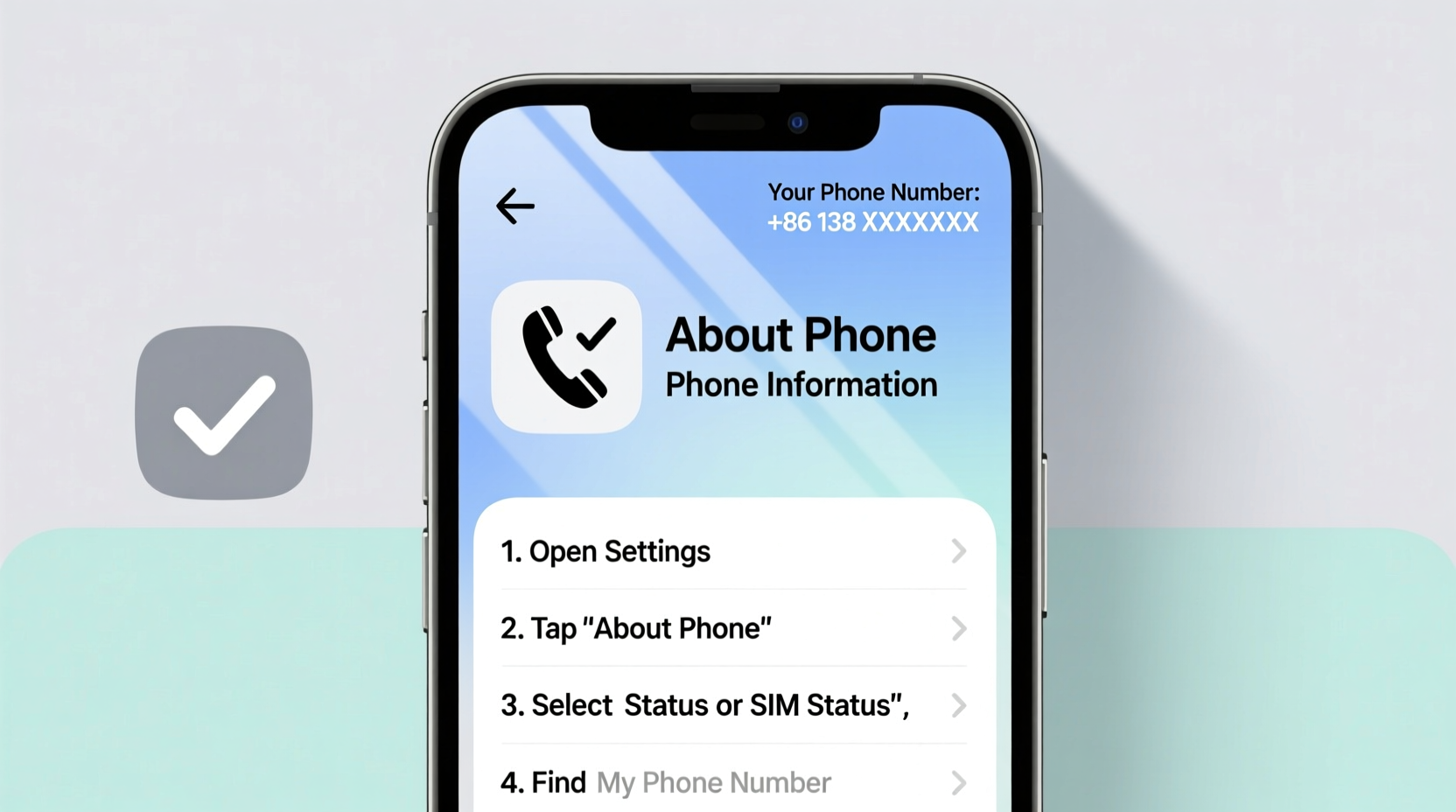
Your phone number is essential for account verification, two-factor authentication, and emergency contacts. Yet surprisingly, many users don’t know it by heart. Relying on memory or asking friends isn't practical—and sharing your number via text just to see it defeats the purpose. Accessing it directly from your device ensures accuracy and avoids unnecessary data sharing. Plus, if you’ve recently switched carriers or use a secondary line (like an eSIM), the number listed in your contacts may be outdated. Built-in system menus provide the most authoritative source because they pull directly from your SIM or carrier profile.
How to Find Your Phone Number on iPhone (iOS 15–17)
Apple makes it relatively straightforward to locate your number through the Settings app, though the path isn’t always intuitive. Here's how to do it:
- Open the Settings app.
- Tap your name at the top (Apple ID banner).
- Select Phone from the list.
- Tap My Number.
If your number is correctly synced with your SIM and carrier, it will display here. In some cases, especially with older iOS versions or dual-SIM models, you may need to go to:
- Settings > Phone > SIM Cards
- Select the line (Primary or Secondary)
- Your number will be listed under “Your Number”
Note: On certain carrier-locked devices, Apple may not auto-fill this field. In such cases, contact your provider to confirm your number and request that it be pushed to your device.
“Carriers have full control over what subscriber information is displayed on-device. While iPhones support self-reporting of numbers, inconsistencies arise when carrier systems don’t sync properly.” — Jordan Lee, Mobile Network Analyst at TechSignal Insights
How to Find Your Phone Number on Android (All Major Brands)
Unlike iOS, Android does not have a universal standard for displaying phone numbers, so the process varies slightly depending on your manufacturer and OS version. However, there are several consistent entry points across devices.
Method 1: Via Settings (Google Pixel & Stock Android)
- Go to Settings.
- Tap Network & internet > Mobile network.
- Select your SIM card (if multiple).
- Look for “Phone number” or “MSISDN” (Mobile Station International Subscriber Directory Number).
Method 2: Using Device Info (Samsung, Motorola, LG)
- Navigate to Settings.
- Scroll to About phone.
- Select Status or Phone identity.
- Tap My phone number (availability depends on carrier support).
Method 3: Carrier Apps (Verizon, AT&T, T-Mobile)
Many U.S. carriers offer branded apps that display your number even when settings don’t:
- Verizon: Open the My Verizon app → Account tab → See your mobile number.
- AT&T: Use the AT&T Mobile app → Profile section.
- T-Mobile: Open the T-Mobile app → Account overview.
These apps often show additional details like plan type, billing cycle, and line status—making them useful beyond just retrieving your number.
| Android Brand | Path to Phone Number | Reliability |
|---|---|---|
| Google Pixel | Settings > Network & Internet > SIMs > Phone Number | High |
| Samsung Galaxy | Settings > About phone > Status > My phone number | Medium (depends on carrier) |
| Motorola | Settings > About phone > Status > My phone number | Medium |
| Xiaomi (MIUI) | Settings > About phone > All specs > SIM status | Low (often blank) |
Alternative Quick Methods Without Digging Through Menus
If navigating settings feels too slow, try these faster workarounds:
Use USSD Codes (Works on Most Networks)
Dial a universal code to prompt your carrier to send your number via SMS:
- *#06# – Displays IMEI, not number (common misconception)
- *#100#, *#123#, or *888# – Varies by carrier; may return balance or number
For example:
- AT&T: Dial *#225# to view account info including number.
- T-Mobile: Try *#225# or *225#.
- Verizon: No universal USSD, but the My Verizon app remains the best alternative.
Check WhatsApp or Other Messaging Apps
Apps like WhatsApp register using your number and display it during setup:
- Open WhatsApp.
- Tap your profile icon.
- View your registered number under \"Account.\"
This method assumes you’re logged in and verified, but it’s one of the quickest visual confirmations available.
Mini Case Study: Recovering a Forgotten Number Abroad
During a business trip to Berlin, Sarah realized her German eSIM wasn’t showing her local number anywhere on her iPhone. She needed to share it with a client but didn’t want to call her U.S. number and incur roaming fees. After checking Settings > Phone > My Number (which showed only her primary line), she opened the carrier’s app (Vodafone Germany) and found her temporary number listed under \"Active Lines.\" Within seconds, she copied it and sent it via email. This experience prompted her to create a contact card titled “Local Travel Numbers” where she now stores temporary digits during international trips.
Step-by-Step Checklist to Always Know Your Number
Follow this simple checklist to ensure you can access your number anytime, anywhere:
- ✅ Check your phone’s settings using the correct path for your OS.
- ✅ Verify the number matches your known digits—if not, contact your carrier.
- ✅ Use a carrier-specific app as a backup reference.
- ✅ Store your number in a secure notes app or contact entry labeled “Personal Number.”
- ✅ Test USSD codes relevant to your provider and save the working one.
- ✅ Repeat this process after switching carriers or adding a second line.
Frequently Asked Questions
Why doesn’t my phone show my number in settings?
Some carriers do not push the subscriber number to the device automatically. This is common with MVNOs (Mobile Virtual Network Operators) like Mint Mobile or Cricket. Contact customer service to confirm your number and ask them to update your profile.
Can I find my number without a SIM card?
No. Your phone number is tied to your SIM or eSIM profile. Without one, the device has no associated number. Wi-Fi-only devices (like iPads) rely on linked iPhone numbers for calling but cannot display standalone cellular numbers.
Is it safe to store my number in a note or app?
Yes, as long as the device is secured with a passcode, Face ID, or fingerprint lock. Avoid storing it in unencrypted cloud documents or public forums. For added security, consider using a password manager’s secure notes feature.
Final Thoughts and Action Steps
Finding your phone number should never require calling a friend or searching old bills. Modern smartphones are designed to give you instant access to personal information—including your own digits. By understanding where to look on your specific device and leveraging carrier tools, you can retrieve your number in under a minute. Don’t wait until you’re in a rush or traveling abroad to discover it’s missing. Take five minutes today to locate your number using the steps above, then save it securely. Knowledge of your own contact details is a small but powerful form of digital self-reliance.




 浙公网安备
33010002000092号
浙公网安备
33010002000092号 浙B2-20120091-4
Comments
No comments yet. Why don't you start the discussion?