
If your ecobee thermostat is adjusting the temperature without your input, it can be frustrating—and even costly. You set a comfortable 72°F at night, only to wake up shivering because the system dropped to 65°F. Or perhaps your home heats up unexpectedly during the day despite being programmed for energy savings. These aren't random glitches; they're symptoms of specific, often fixable issues. Understanding why your ecobee changes temperature autonomously is the first step toward restoring reliable climate control.
Modern smart thermostats like ecobee are designed to optimize comfort and efficiency using occupancy sensors, scheduling logic, and adaptive algorithms. But when those features misfire or are misconfigured, they can create the illusion of malfunction. The good news: most causes are diagnosable and resolvable from your smartphone or directly through the device interface.
Why Your ecobee Might Be Changing Temperature Automatically
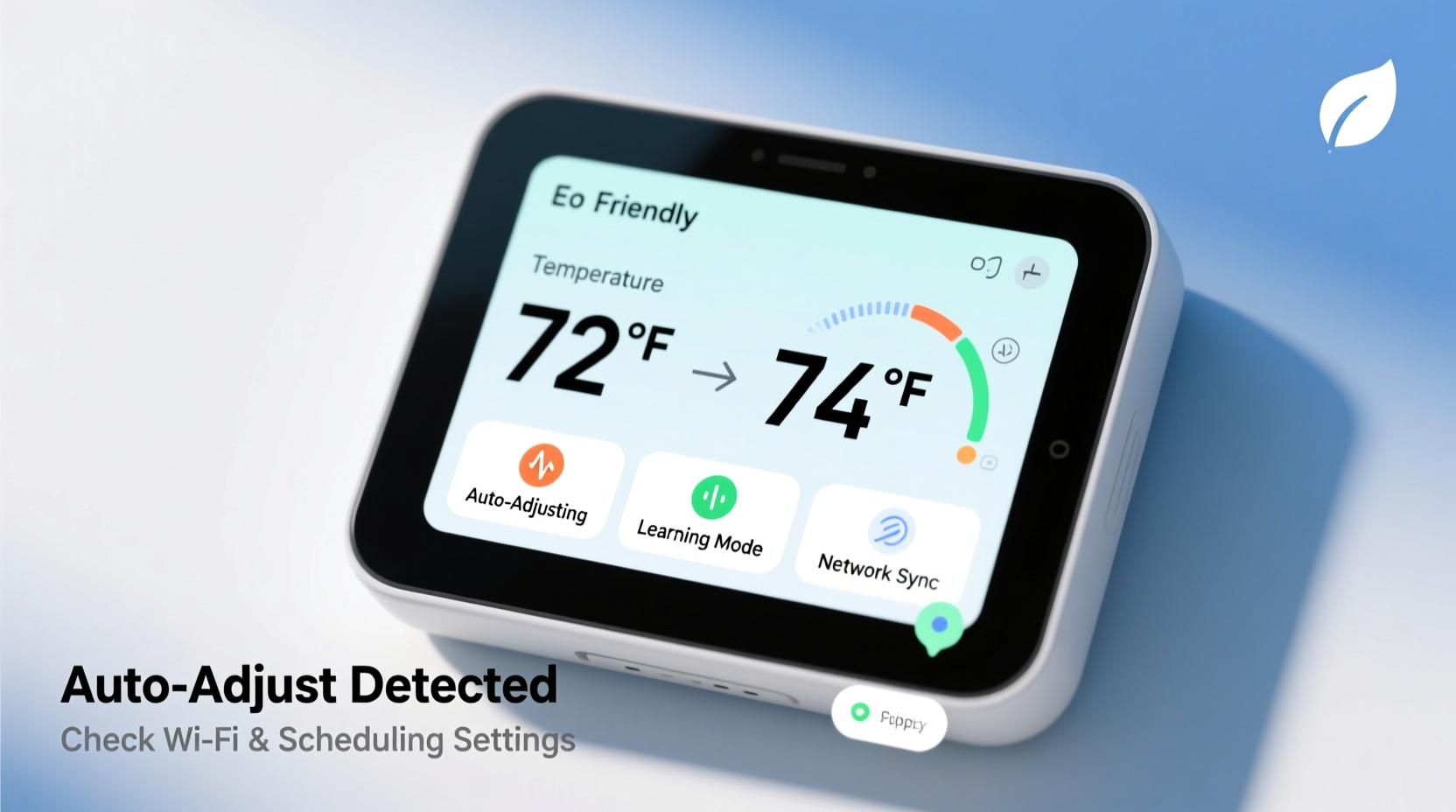
The ecobee doesn’t act randomly. Every adjustment stems from a rule, sensor input, or automation setting. Common triggers include:
- Sensor-based occupancy detection: Room sensors detect motion (or lack thereof) and adjust temperatures based on whether someone is present.
- Scheduled programs: Pre-set schedules may override manual adjustments after a certain time.
- Smart Recovery mode: ecobee learns how long your HVAC takes to reach target temps and starts early to hit scheduled temperatures precisely.
- Follow Me feature: Prioritizes the temperature of the room where occupancy is detected, potentially overriding other zones.
- Vacation or Away modes: Activated manually or via geofencing, these trigger preset eco-friendly settings.
- Firmware bugs or sync errors: Rare, but possible after updates or internet outages.
Before assuming hardware failure, verify that the behavior aligns with one of these intelligent functions. Often, what seems like a glitch is actually the thermostat working exactly as intended—just not as expected.
Troubleshooting Checklist: Step-by-Step Diagnosis
- Review active schedules: Go to Settings > Programs and confirm your heating/cooling schedule matches your preferences. Look for conflicting periods or unintended overrides.
- Disable Follow Me temporarily: If you don’t want room prioritization, turn this off under Sensors > Settings > Follow Me. This stops the thermostat from shifting focus based on motion.
- Check Away Mode triggers: Open the app and see if geofencing is enabled. Multiple users with inconsistent phone signals can cause erratic Away/Home transitions.
- Inspect individual sensor status: A malfunctioning remote sensor (e.g., stuck in “occupied” state) can skew system behavior. Replace batteries or recalibrate if needed.
- Verify Smart Recovery settings: Found under Installation Settings > Smart Recovery, ensure it’s not causing premature cycling that feels like an unapproved change.
- Reboot the thermostat: Power down by removing it from the wall plate for 30 seconds, then reattach. This clears temporary software hiccups.
- Update firmware: Outdated firmware can introduce instability. Ensure your device is running the latest version via Menu > About > Software Version.
Common Configuration Pitfalls and How to Fix Them
Many users unknowingly enable features that lead to automatic temperature shifts. Below is a breakdown of frequent misconfigurations and their solutions:
| Issue | What Happens | Solution |
|---|---|---|
| Follow Me Enabled | Thermostat adjusts to match the warmest or coolest occupied room | Turn off in Sensor Settings or adjust room priorities |
| Geofencing Inconsistencies | Phone location errors trigger false “Away” mode | Adjust sensitivity in Preferences > Home/Away Assist or disable for specific users |
| Multiple Active Schedules | Conflicting programs cause unpredictable changes | Delete unused programs; use one primary schedule |
| Stale Sensor Data | A sensor reports incorrect occupancy due to dead battery | Replace batteries every 6–12 months; check signal strength |
| Smart Home/Away Overactive | System goes into Eco mode too quickly | Increase the delay before activating (e.g., from 15 to 30 minutes) |
Mini Case Study: The Office That Wouldn’t Warm Up
A homeowner in Toronto reported that their basement office remained cold each morning, even though the thermostat showed a daytime setting of 70°F. Upon review, the ecobee logs revealed that the system had entered “Away” mode overnight and failed to switch back to “Home” until mid-morning. The culprit? Geofencing was only tied to the spouse’s phone, who left later. Once both devices were added to the HomeSense network and location accuracy improved, the system resumed correct timing. Additionally, enabling “Smart Away” with a 30-minute delay prevented premature activation. Within two days, the office warmed up on schedule.
“Many ecobee 'glitches' are actually advanced features operating without user awareness. The key is visibility—knowing where to look in the app makes all the difference.” — Daniel Reeves, Smart HVAC Systems Technician
Advanced Fixes for Persistent Issues
If basic troubleshooting fails, consider deeper interventions:
Reset and Re-pair Sensors
Navigate to Menu > Sensors, select each remote sensor, and choose “Forget.” Then re-add them through the setup wizard. This resolves communication lags or calibration drift.
Factory Reset (Last Resort)
If erratic behavior persists:
- Go to Menu > Settings > Reset > Factory Reset.
- Confirm the action. The device will wipe all settings and restart.
- Reconnect to Wi-Fi and reconfigure your schedule and sensors carefully.
Note: This erases custom settings, so document your preferred configurations beforehand.
Check for External Integrations
If you use Amazon Alexa, Google Assistant, or Apple HomeKit, voice commands or automations might be triggering changes. Review routines in those platforms. For example, a voice command like “Set house to Eco mode” could activate unintentionally via background noise.
Frequently Asked Questions
Why does my ecobee go into Eco mode when I’m home?
This usually happens due to inaccurate occupancy detection. Check if your phone’s location services are disabled or if geofencing has poor GPS signal. Also, ensure all household members are included in the Home/Away Assist list. Increasing the “time to consider away” setting can prevent premature switches.
Can a power outage cause my ecobee to change settings?
Not permanently. ecobee retains settings after outages, but it may revert to a default schedule or fail to resume Smart Recovery properly until connectivity is restored. After a blackout, verify that Wi-Fi and programming are functioning normally.
Does ecobee learn my habits over time?
Yes, ecobee uses machine learning to refine when to start heating or cooling (Smart Recovery), but it doesn’t alter your defined schedule. Any perceived “learning” beyond that likely stems from sensor inputs or connected automations, not autonomous decision-making.
Regain Control of Your Comfort
Your ecobee is built to enhance convenience, not undermine it. Unwanted temperature shifts are rarely signs of hardware defects—they’re typically the result of misunderstood features or subtle configuration errors. By methodically reviewing schedules, sensor behavior, and automation rules, you can eliminate surprises and enjoy consistent, intelligent climate control.
Start by auditing your current settings today. Check the Events log, disable non-essential automations temporarily, and ensure all family members’ devices are correctly linked. Small adjustments often yield immediate improvements in reliability.




 浙公网安备
33010002000092号
浙公网安备
33010002000092号 浙B2-20120091-4
Comments
No comments yet. Why don't you start the discussion?