
In today’s connected world, unwanted calls from telemarketers, scammers, or persistent contacts are more than just a nuisance—they can disrupt your focus, invade your privacy, and even pose security risks. If you're using a Wiko smartphone, you have several reliable options to regain control over who reaches you. Unlike high-end brands that often spotlight advanced call management features, Wiko devices—while affordable and user-friendly—may not always make these tools immediately obvious. This guide walks you through proven, practical methods to block unwanted numbers directly from your Wiko device, ensuring peace of mind and uninterrupted daily use.
Why Blocking Numbers Matters on Your Wiko Phone
Wiko phones run on Android, which means they inherit core functionalities from the operating system while offering manufacturer-specific interfaces. Although Wiko doesn’t develop its own OS, it customizes stock Android with its launcher and settings layout. As a result, accessing call-blocking features may vary slightly depending on your model and Android version. Whether you're dealing with spam, harassment, or simply need digital boundaries, blocking numbers is an essential skill for maintaining mental clarity and personal security.
“Call filtering isn't just about convenience—it's a critical part of digital self-defense in an era of rising phone scams.” — Lena Patel, Cybersecurity Analyst at MobileShield Labs
Step-by-Step: How to Block a Number Using the Phone App
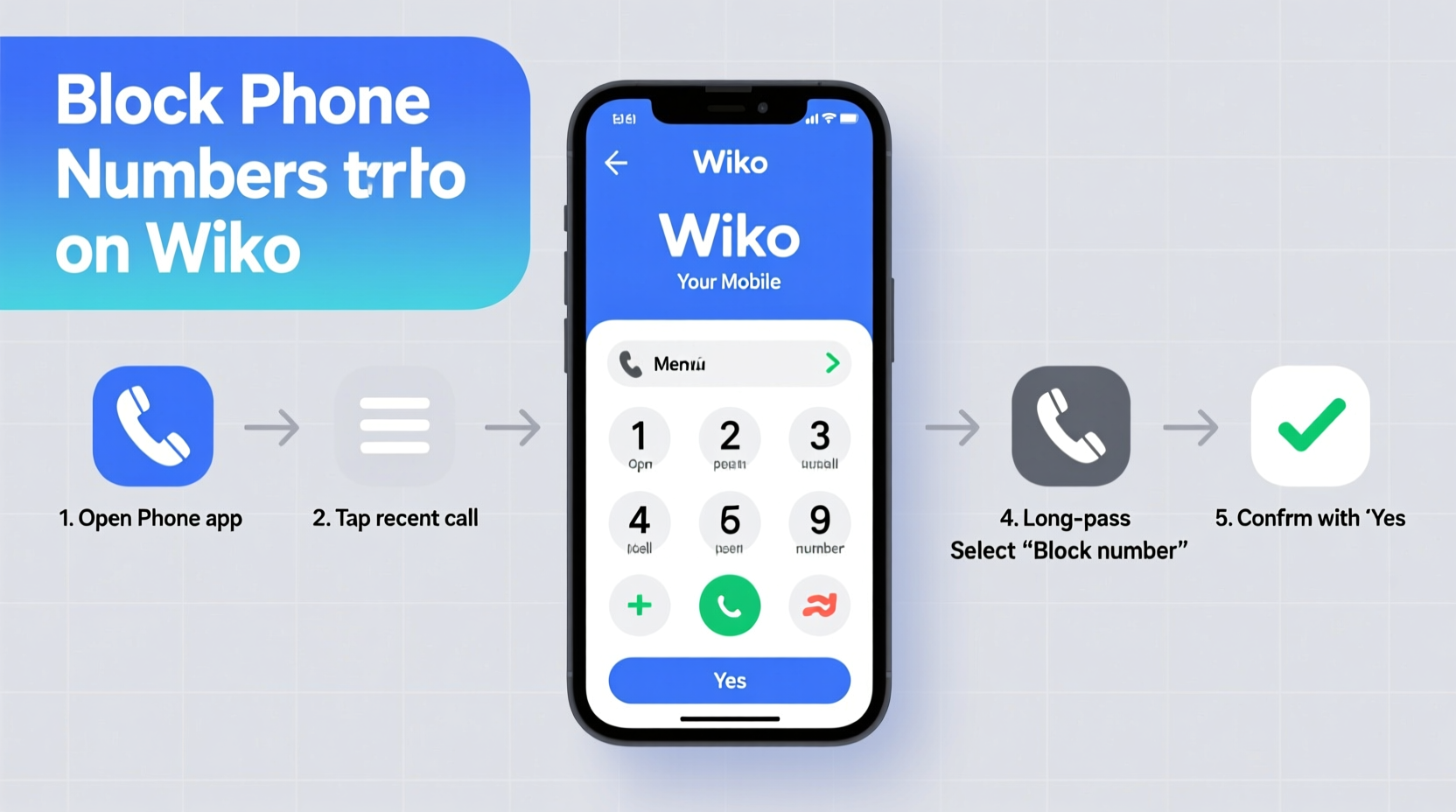
The most straightforward method to block a number on your Wiko phone uses the default Phone app. This built-in feature requires no third-party apps and works across most Wiko models (such as the Wiko View, Cink, Sunny, or Rainbow series).
- Open the Phone app from your home screen or app drawer.
- Navigate to the Recent Calls tab (usually represented by a clock icon).
- Locate the number you wish to block. Tap and hold it until a menu appears.
- Select Block number or Add to blocked contacts.
- Confirm your choice when prompted.
Once blocked, the number will no longer be able to reach you via calls or SMS. Incoming attempts will go directly to voicemail (if enabled) without ringing your phone.
Using Messaging App to Block SMS Senders
Spam texts are increasingly common, and many come from automated bots or phishing campaigns. While blocking calls also blocks SMS from the same number in most cases, some Wiko models separate these functions. To specifically block text messages:
- Open the Messaging app.
- Open the conversation with the unwanted sender.
- Tap the three-dot menu (⋮) in the top-right corner.
- Select Details or Conversation info.
- Choose Block number or Report spam and block.
This prevents future messages from appearing in your inbox. Blocked messages are typically stored in a hidden folder or deleted automatically, depending on your messaging app version.
Advanced Method: Using Google Voice for Enhanced Control
If your Wiko phone runs Android 8.0 or higher, integrating Google Voice offers superior call and message filtering. Google Voice allows you to set up a secondary number, apply AI-powered spam detection, and manage blocks across devices.
Setting Up Google Voice on Your Wiko
- Download the Google Voice app from the Play Store.
- Sign in with your Google account.
- Follow prompts to link a phone number (your current Wiko number).
- Enable Spam protection in Settings > Spam & Call Screen.
- Manually add numbers to your block list under Blocked numbers.
With Google Voice active, suspicious calls are flagged in real time, and you can choose to answer, send to voicemail, or block permanently—all from your Wiko device.
| Method | Best For | Limits |
|---|---|---|
| Phone App Blocking | Quick one-number blocks | No bulk blocking; limited logging |
| Messaging App Block | Stopping spam texts | May not sync with call block list |
| Google Voice | Comprehensive spam filtering | Requires internet; U.S.-based number preferred |
| Third-Party Apps | Advanced analytics and global blacklists | Potential data privacy concerns |
Recommended Third-Party Apps for Maximum Protection
For users facing persistent spam or international scam calls, third-party apps enhance native capabilities. These tools use crowd-sourced databases to identify and block known fraud numbers before they even ring.
Top Apps Compatible with Wiko Devices
- Truecaller: Identifies unknown callers, filters spam, and allows community reporting.
- Hiya: Offers real-time caller ID and automatic scam blocking.
- Call Blocker – Blacklist: Lightweight app focused solely on blocking with minimal permissions.
To install any of these:
- Go to the Google Play Store.
- Search for the app name.
- Install and open it.
- Grant necessary permissions (Call Log, Phone, SMS).
- Sync contacts and enable auto-block for detected spam.
Mini Case Study: Maria’s Experience with Persistent Scam Calls
Maria, a freelance designer in Marseille, began receiving daily automated calls claiming her bank account was compromised. The numbers varied, but the script was identical. After manually blocking several, she realized the pattern: new numbers each day, all from different area codes. Frustrated, she installed Truecaller on her Wiko Y71. Within days, the app identified and silenced incoming scam attempts using its global database. She now receives fewer than one suspicious call per week, compared to nearly ten daily. “It felt like regaining control of my phone,” she said. “I didn’t know how much stress those fake alerts were causing until they stopped.”
Do’s and Don’ts of Call Blocking on Wiko Phones
| Do | Don’t |
|---|---|
| Verify the number before blocking to avoid mistakes | Block numbers in anger without confirming identity |
| Use Google Voice if you frequently receive international spam | Assume all blocked calls go to voicemail (some may fail silently) |
| Update your Phone and Messaging apps regularly | Grant excessive permissions to untrusted call-blocking apps |
| Check blocked lists monthly for false positives | Ignore system updates that may improve spam detection |
FAQ
Can I unblock a number later?
Yes. Go to your Phone app > Settings > Blocked numbers. Tap the number and select “Unblock.” The same process applies in Messaging and third-party apps.
Will the person know I’ve blocked them?
No. When blocked, callers typically hear one ring before being diverted to voicemail or disconnected. There is no notification sent to them.
Does blocking work when my phone is off?
Yes. Once a number is added to your block list, the restriction is stored locally. When your phone powers back on, the block remains active.
Final Checklist: Securing Your Wiko Against Unwanted Calls
- Immediate Actions
- ✅ Block recent spam numbers via Phone and Messaging apps
- ✅ Enable spam protection in Google Voice (if available)
- Ongoing Maintenance
- ✅ Install a trusted third-party app like Truecaller or Hiya
- ✅ Review blocked contacts weekly
- ✅ Keep your operating system and apps updated
- Preventive Measures
- ✅ Avoid sharing your number publicly online
- ✅ Use a secondary number for registrations via Google Voice or Burner apps
Take Control of Your Communication
Your smartphone should serve you—not stress you. With the right techniques, your Wiko device can become a more secure, distraction-free tool. From built-in blocking features to powerful integrations like Google Voice and trusted third-party apps, you have multiple layers of defense at your fingertips. Start by cleaning up your recent calls list, then build long-term protection with proactive filtering. Privacy isn’t a luxury—it’s a necessity. Implement these steps today, and reclaim the quiet confidence of knowing exactly who can reach you.




 浙公网安备
33010002000092号
浙公网安备
33010002000092号 浙B2-20120091-4
Comments
No comments yet. Why don't you start the discussion?