
In an age where constant connectivity is the norm, regaining control over your digital environment starts with intentional disconnection. The internet on your cell phone provides convenience but also exposes you to data tracking, distractions, and unnecessary surveillance. Whether you're aiming to protect personal privacy, reduce screen time, or create a focused work environment, disabling internet access—even temporarily—can be a powerful tool. This guide outlines practical, effective strategies across different devices and scenarios to help you take back control.
Why Disable Internet Access?
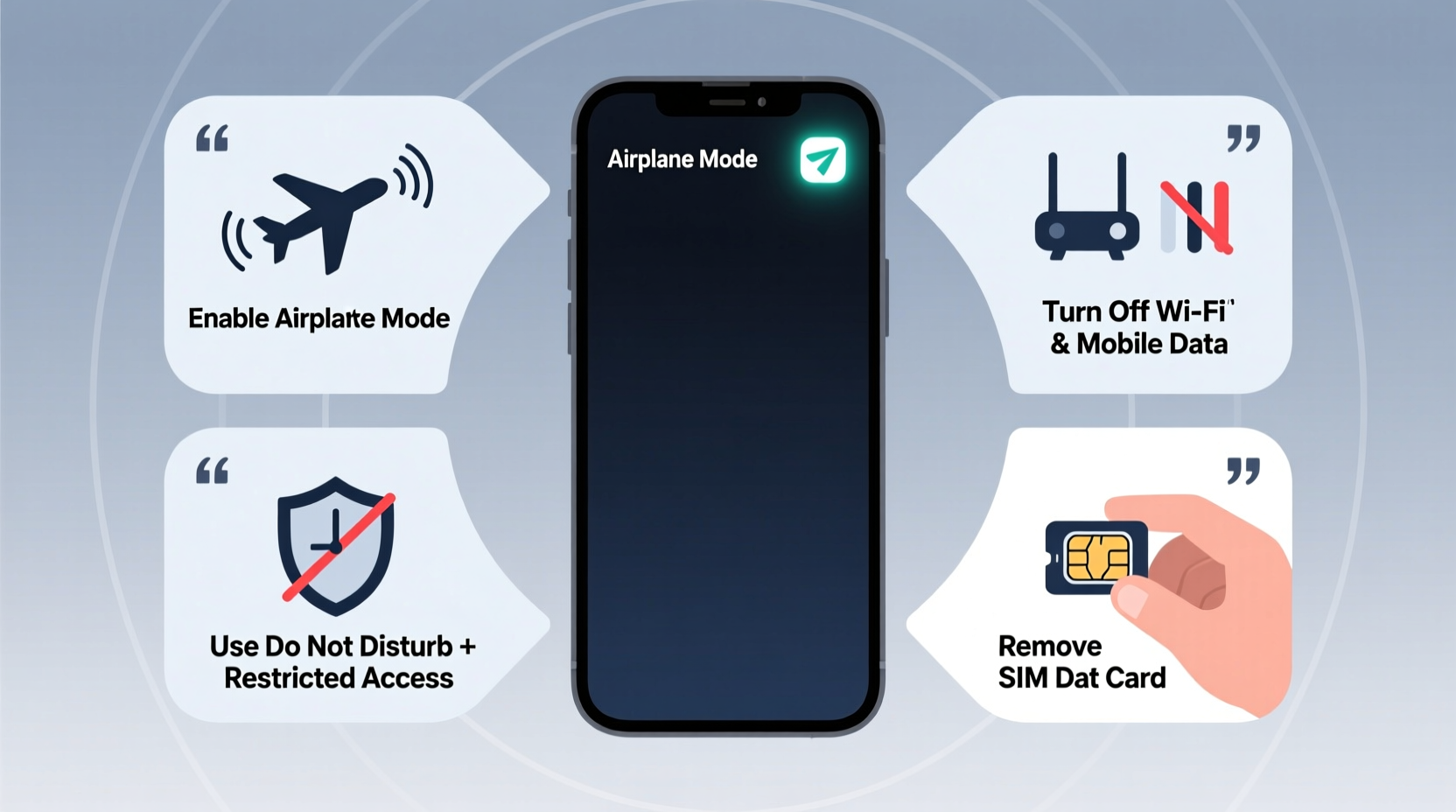
Limiting or cutting off internet access on your smartphone isn't about rejecting technology—it's about reclaiming agency. Many users underestimate how much personal data is collected every time an app connects to the cloud. From location tracking to behavioral profiling, background data usage persists even when apps appear idle.
Beyond privacy, constant connectivity fragments attention. Studies show that notifications and automatic syncs contribute to reduced productivity and increased stress. By disabling internet access selectively or entirely, you create space for deep work, meaningful interactions, and digital minimalism.
“Disconnection is not a retreat from modern life—it’s a strategic pause to prevent information overload and reclaim cognitive autonomy.” — Dr. Lena Torres, Digital Wellbeing Researcher
Step-by-Step: How to Disable Internet Access by Method
There are multiple ways to cut off internet access depending on your device, needs, and duration of disconnection. Below are seven reliable methods ranked by ease and effectiveness.
1. Activate Airplane Mode
Airplane mode disables all wireless communications, including cellular data, Wi-Fi, and Bluetooth. It’s the fastest way to go completely offline.
- Open the Quick Settings panel (swipe down from the top of the screen).
- Tap the airplane icon.
- Wait a few seconds for signals to disconnect.
On iOS and Android, you can re-enable Wi-Fi or Bluetooth manually while keeping cellular data off, allowing selective connectivity.
2. Turn Off Cellular Data
This method keeps Wi-Fi active but disables mobile internet, which prevents background syncing when outside trusted networks.
- iOS: Go to Settings > Cellular > Cellular Data → Toggle off.
- Android: Settings > Network & Internet > Mobile Network → Disable Mobile Data.
This is ideal if you want to allow Wi-Fi at home or work but block data usage elsewhere.
3. Disable Wi-Fi Manually
To prevent automatic connection to known networks, turn off Wi-Fi directly.
- Swipe down and tap the Wi-Fi icon to disable it.
- Alternatively, go to Settings > Wi-Fi and toggle it off.
For stronger control, forget saved networks to prevent auto-reconnection.
4. Use Built-in Digital Wellbeing Features
Both major operating systems offer tools to manage connectivity with precision.
| Feature | iOS | Android |
|---|---|---|
| Focused Mode | Focus Mode (Settings > Focus) | Focus Mode (Digital Wellbeing) |
| App Limits | Screen Time > App Limits | Digital Wellbeing > Dashboard |
| Internet Scheduling | Yes (Downtime + Communication Limits) | Yes (Wind Down + Focus Mode) |
These features allow scheduled internet blackouts, app-specific restrictions, and automatic activation based on time or location.
5. Block Internet via Router-Level Controls
If you control your home network, use your router settings to block internet access for specific devices.
- Log into your router’s admin interface (usually via 192.168.1.1).
- Navigate to Device Management or Parental Controls.
- Select your phone by MAC address and block its internet access.
This method ensures that even if Wi-Fi is on, no data passes through. Useful for enforcing digital boundaries in shared households.
6. Install Third-Party Firewall Apps (Android Only)
Apps like NetGuard or NoRoot Firewall let you block internet access per app without requiring root access.
- Download and install a firewall app from the Google Play Store.
- Grant necessary permissions (no root needed).
- Toggle off internet access for specific apps (e.g., social media, email).
Note: iOS does not support third-party firewalls due to system-level restrictions.
7. Use a Secondary Offline Device
For maximum control, consider using a secondary phone with no SIM card and Wi-Fi permanently disabled. This “dumb phone” or minimalist smartphone can handle calls and texts while eliminating temptation to browse.
“I switched to a basic phone for weekdays. My anxiety dropped, and I read three books in two weeks—something I hadn’t done in years.” — Marcus R., software developer and digital detox advocate
Checklist: Preparing for a Controlled Disconnection
Before cutting off internet access, ensure critical functions remain operational. Use this checklist to prepare:
- ✅ Download maps for offline navigation (Google Maps, Citymapper)
- ✅ Save important documents, emails, or tickets locally
- ✅ Enable offline modes in music and reading apps (Spotify, Kindle)
- ✅ Inform contacts if you’ll be unreachable
- ✅ Backup essential data before making network changes
- ✅ Test emergency calling capability without data
Do’s and Don’ts of Disabling Internet Access
| Do’s | Don’ts |
|---|---|
| Use airplane mode for quick, full disconnection | Assume airplane mode disables GPS (it may still track via other means) |
| Schedule regular offline periods for mental clarity | Forget to download offline content beforehand |
| Leverage router controls for household-wide limits | Rely solely on willpower without technical safeguards |
| Use app-specific blocking to maintain essential services | Disable emergency alerts or safety features accidentally |
Frequently Asked Questions
Can I still receive calls and texts without internet access?
Yes. Voice calls and SMS operate over cellular networks independently of data. However, iMessage, WhatsApp, and other messaging apps require internet to function.
Will turning off internet stop all tracking?
Most third-party tracking requires internet transmission, so disabling connectivity halts real-time data harvesting. However, some local logging may still occur. For full privacy, combine internet blocking with app permission reviews and regular cache clearing.
Is it safe to disable internet on my primary phone long-term?
It depends on your lifestyle. While extended disconnection enhances focus and privacy, it may delay software updates and security patches. Balance is key—consider partial or scheduled disconnections rather than permanent removal unless necessary.
Conclusion: Reclaim Your Digital Autonomy
Disabling internet access on your cell phone is more than a technical adjustment—it’s an act of self-determination. In a world optimized for constant engagement, choosing when and how to connect becomes a radical form of self-care. Whether you’re protecting sensitive data, minimizing distractions, or simply creating breathing room from digital noise, these methods empower you to define your relationship with technology.
Start small: try one hour of airplane mode each evening. Gradually expand to full-day resets or app-specific blocks. Over time, you’ll notice sharper focus, improved sleep, and a renewed sense of control. Your phone should serve you—not the other way around.




 浙公网安备
33010002000092号
浙公网安备
33010002000092号 浙B2-20120091-4
Comments
No comments yet. Why don't you start the discussion?