
Discord has become a staple communication tool for gamers, remote teams, and online communities. While its real-time messaging and voice features are powerful, many users find the application's default behavior intrusive—particularly its tendency to launch at startup and update without warning. These automatic updates can interrupt gameplay, consume bandwidth, or introduce unwanted interface changes. For users who prefer stability, performance control, or specific client versions, preventing Discord from auto-updating and auto-launching is essential. This guide provides tested, practical solutions across multiple operating systems and configurations.
Understanding Discord’s Auto-Update Mechanism
Discord uses an internal updater service called Update.exe, located in the application directory (typically under C:\\Users\\[User]\\AppData\\Local\\Discord on Windows). Unlike traditional software that relies on system-level services, Discord runs its updater as part of the main process. When the app launches, it checks for updates in the background and downloads them silently. Once downloaded, it applies the update the next time the app restarts.
The auto-launch feature is tied to Windows startup settings and macOS login items. By default, Discord adds itself to these during installation. While convenient for regular users, this behavior undermines control for those managing system resources or maintaining customized client builds.
“Applications that self-update without explicit user consent can compromise system predictability, especially in controlled environments.” — Jordan Lee, Systems Administrator & DevOps Engineer
Step-by-Step: Disable Auto-Launch on Windows and macOS
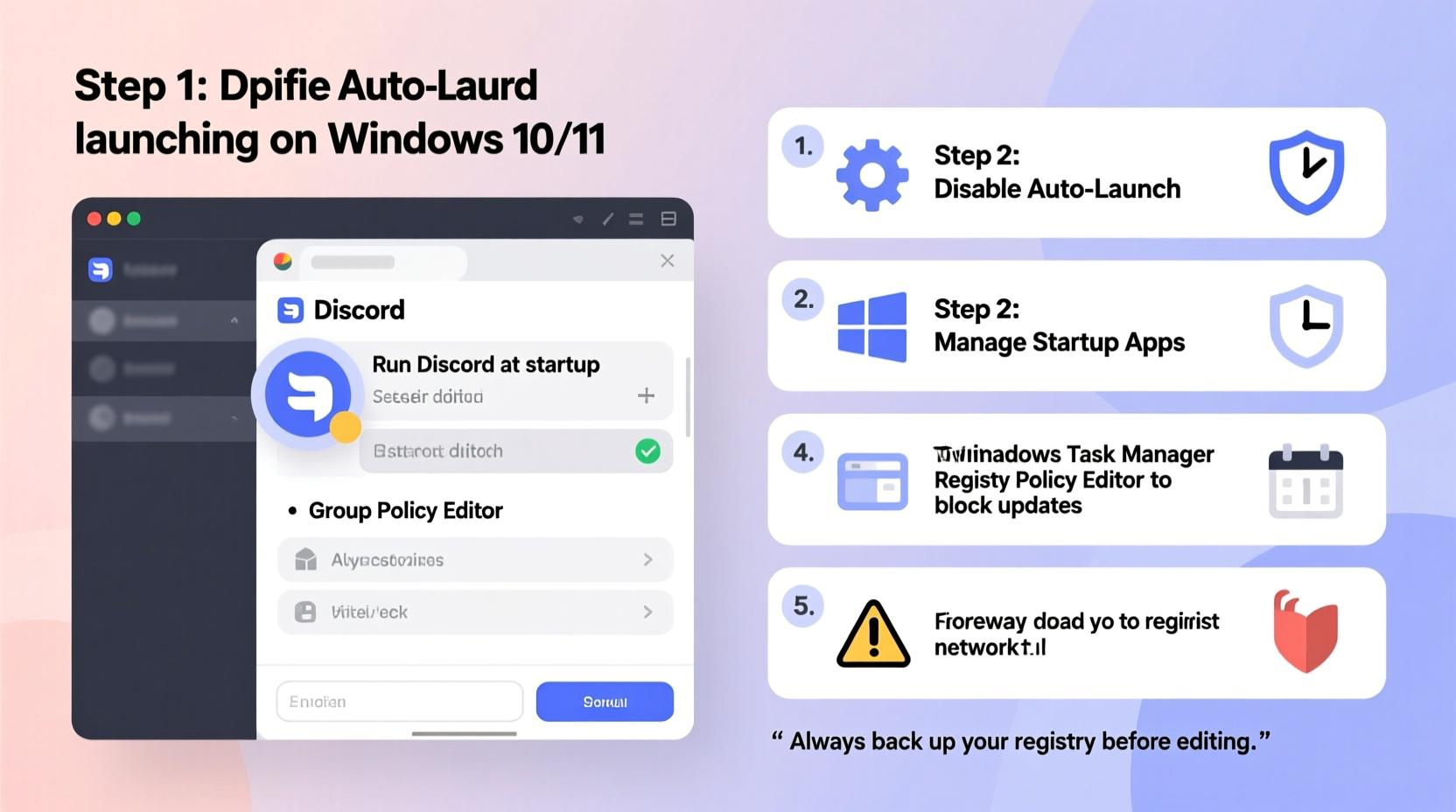
Preventing Discord from launching at startup is the first step toward regaining control. The process differs slightly between operating systems but is straightforward.
On Windows:
- Open the Discord application.
- Navigate to User Settings (gear icon near your profile).
- Go to Windows Settings under the App Settings section.
- Toggle off Open Discord when you log into Windows.
This disables the built-in startup option. However, for added assurance, verify via Task Manager:
- Press Ctrl + Shift + Esc to open Task Manager.
- Switch to the Startup tab.
- Locate Discord in the list and ensure its status is Disabled.
On macOS:
- Launch Discord.
- Click the gear icon to access User Settings.
- Under App Settings, go to General.
- Uncheck Automatically start Discord when logging in.
If the option persists, manually remove it from login items:
- Open System Settings (or System Preferences on older versions).
- Go to General > Login Items.
- Find Discord in the list and click the minus (–) button to remove it.
Blocking Automatic Updates: File Permissions and Read-Only Attributes
One of the most reliable ways to stop Discord from updating is by restricting write access to its installation directory. Without permission to modify files, the updater cannot download or replace components.
Using File Properties (Windows):
- Navigate to
C:\\Users\\[YourUsername]\\AppData\\Local\\Discord. - Right-click the Discord folder and select Properties.
- Check the Read-only attribute box.
- Click Apply. When prompted, choose “Apply changes to this folder, subfolders, and files.”
This method prevents the updater from modifying any files. If you later wish to update manually, simply reverse the process.
Using Terminal Commands (macOS):
On macOS, file permissions can be adjusted via Terminal:
sudo chmod -R 555 /Applications/Discord.app
sudo chown -R root:wheel /Applications/Discord.app
These commands set the Discord app to read-only mode and change ownership to the root user, which prevents the standard user account from altering it. To revert:
sudo chmod -R 755 /Applications/Discord.app
sudo chown -R $USER:staff /Applications/Discord.app
Alternative: Rename the Update Executable
Another effective technique is renaming the updater binary so Discord cannot execute it:
- On Windows: Navigate to
Discord\\update.exeand rename it toupdate.exe.bak. - On macOS: The updater is inside the app bundle at
/Applications/Discord.app/Contents/MacOS/Discord Updater. Rename it toDiscord Updater.bak.
This method is reversible and does not affect current functionality.
Network-Level Blocking via Hosts File
For advanced users, blocking Discord’s update domains at the network level ensures no connection can be made to download updates.
Edit the hosts file to redirect update servers to localhost:
On Windows:
Open Notepad as Administrator and open C:\\Windows\\System32\\drivers\\etc\\hosts.
On macOS/Linux:
Use Terminal: sudo nano /etc/hosts
Add the following lines:
127.0.0.1 discordapp.com
127.0.0.1 discord.com
127.0.0.1 dl.discordapp.net
127.0.0.1 updates.discordapp.net
Save the file. This prevents the app from reaching its update servers. Note: Some features may degrade over time if API endpoints are also blocked, so monitor functionality.
“Blocking update domains is a nuclear option—it works, but be aware of potential side effects on media loading or feature availability.” — Alex Rivera, Network Security Analyst
Mini Case Study: Maintaining a Stable Client for Streaming
Mark, a full-time Twitch streamer, relied on a modified version of Discord with custom themes and layout tweaks to match his overlay design. After a routine auto-update, the new UI broke his theme compatibility and disrupted chat monitoring during live sessions. Frustrated, he sought a permanent solution.
He applied two methods: setting the Discord folder to read-only and renaming update.exe. He also disabled startup launch via Task Manager. These steps stabilized his setup for over six months without unintended changes. When he eventually chose to update, he temporarily reversed the changes, performed the update manually, and reapplied restrictions afterward.
By taking control of the update cycle, Mark improved both reliability and workflow consistency—critical for professional streaming.
Comparison Table: Methods to Prevent Auto-Updates
| Method | Effectiveness | Reversibility | Technical Level |
|---|---|---|---|
| Disable startup in settings | Medium (stops launch only) | High | Beginner |
| File read-only attribute | High | High | Intermediate |
| Rename update executable | Very High | High | Intermediate |
| Hosts file blocking | Very High | Medium | Advanced |
| Third-party firewall rules | High | High | Advanced |
Checklist: Secure Your Discord Installation
- ✅ Disable auto-start in Discord settings
- ✅ Confirm Discord is disabled in Task Manager (Windows) or Login Items (macOS)
- ✅ Set the Discord installation folder to read-only
- ✅ Rename the update executable (
update.exeorDiscord Updater) - ✅ Optionally block update domains via hosts file
- ✅ Test Discord functionality after applying restrictions
- ✅ Document your changes for future reference or rollback
Frequently Asked Questions
Will blocking updates break Discord completely?
No, Discord will continue to function normally in the short term. However, prolonged use without updates may lead to compatibility issues with new features, security vulnerabilities, or API deprecations. Use this approach only if you have a specific need and plan periodic manual updates.
Can I still update Discord manually later?
Yes. You can temporarily lift restrictions (e.g., uncheck read-only, restore the updater name), launch Discord to trigger an update, then reapply protections. Alternatively, download the latest installer from the official site and reinstall.
Does this violate Discord’s Terms of Service?
While Discord’s Terms of Service discourage reverse engineering or modification, simply preventing auto-updates is not explicitly prohibited. It falls under user control of software behavior. However, using patched or third-party clients may breach terms, so stick to official builds with update prevention.
Conclusion: Regain Control Over Your Experience
Discord’s convenience comes at the cost of autonomy for some users. Whether you're a streamer, developer, or privacy-conscious individual, the ability to manage when and how applications update is a fundamental aspect of digital control. The methods outlined—ranging from simple setting toggles to deep system modifications—empower you to maintain a stable, predictable environment.
Start with basic steps like disabling startup launch, then layer in file permissions or executable renaming as needed. Always document your changes and test functionality. Technology should serve you, not dictate your workflow. Take back control today and keep Discord working exactly how you want it.




 浙公网安备
33010002000092号
浙公网安备
33010002000092号 浙B2-20120091-4
Comments
No comments yet. Why don't you start the discussion?