
Losing access to personal photos can be distressing, especially when they capture irreplaceable moments. Fortunately, Apple’s iCloud service provides robust tools for storing and retrieving your photo library. When photos are accidentally deleted or lost during device transitions, many users assume they’re gone for good. However, with the right approach, you can often recover and restore your photos from iCloud—safely and efficiently. This guide walks through proven recovery strategies, essential precautions, and best practices to ensure your digital memories remain secure.
Understanding iCloud Photo Recovery Options
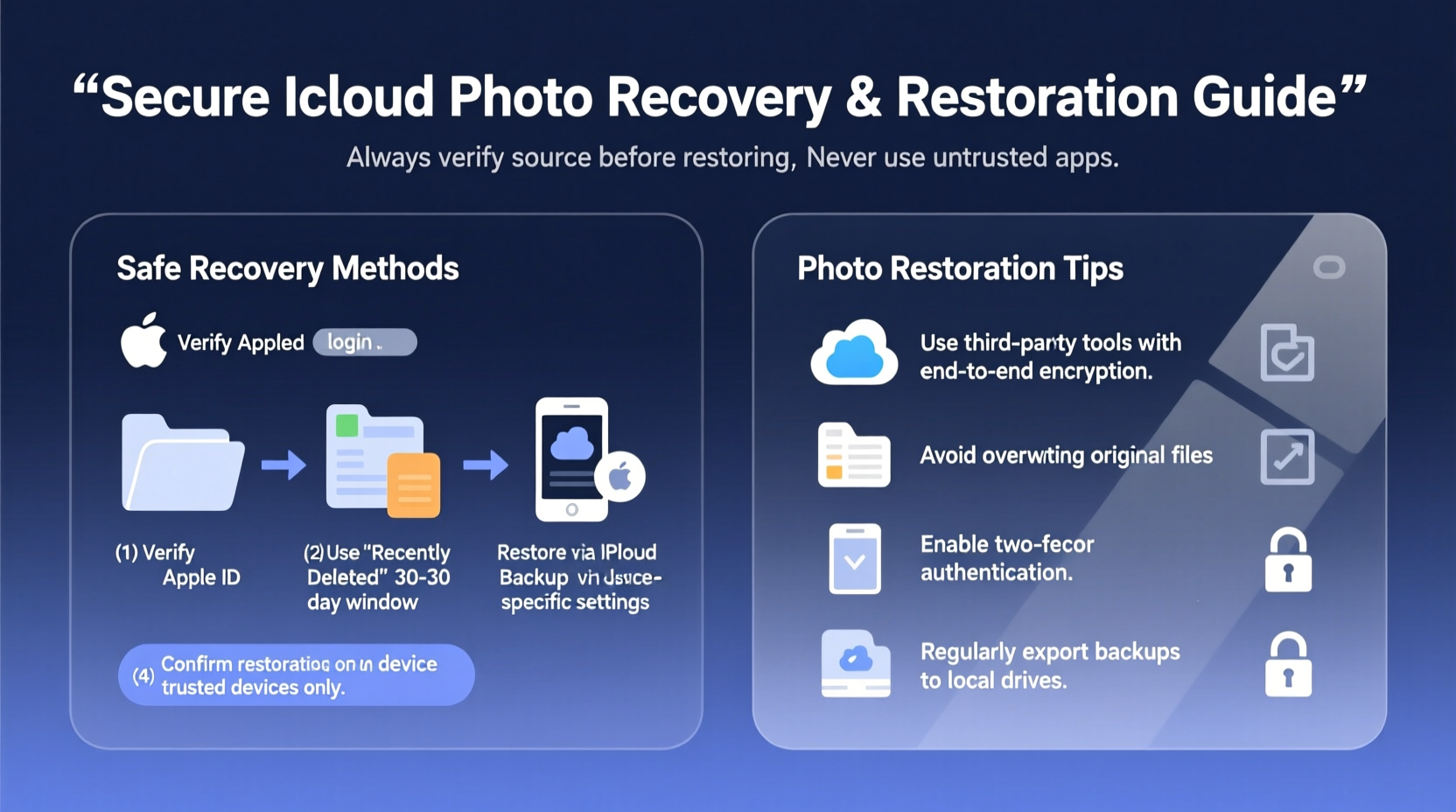
iCloud automatically backs up your iPhone, iPad, or Mac photos if iCloud Photos is enabled. When you delete a photo, it doesn’t vanish immediately. Instead, it moves to the “Recently Deleted” album, where it remains for up to 30 days before permanent removal. This grace period is critical for recovery.
Beyond accidental deletions, photos may become inaccessible due to device malfunctions, software updates gone wrong, or account issues. iCloud offers multiple pathways to retrieve them, depending on how and when the loss occurred.
Step-by-Step Guide to Restore Deleted Photos from iCloud
If you’ve recently deleted photos and need to recover them, follow this sequence:
- Open the Photos app on your iPhone, iPad, or Mac.
- Navigate to the Albums tab.
- Scroll down and select Recently Deleted.
- You’ll see all photos removed in the past 30 days.
- Select the images you want to restore.
- Tap or click Recover.
The restored photos will reappear in your main library and sync across all devices linked to your iCloud account. This method works only within the 30-day window. After that, recovery becomes more complex but not always impossible.
What If You Missed the 30-Day Window?
If the deletion occurred over a month ago, check whether you have an older iCloud backup that includes your photo library. This requires restoring your entire device from a previous backup—a step that should be approached carefully.
“Time is your biggest ally in photo recovery. The sooner you act after deletion, the higher your chances of full restoration.” — Daniel Kim, Data Recovery Specialist at SecureDigital Labs
Restoring Your Device from an iCloud Backup
When individual photo recovery isn’t possible, restoring your device from an iCloud backup may be the most reliable option. This method recovers your entire device state—including photos—at the time the backup was created.
Steps to Restore via iCloud Backup:
- Erase your current device: Go to Settings > General > Transfer or Reset iPhone > Erase All Content and Settings.
- Restart the device and follow setup prompts until you reach the “Apps & Data” screen.
- Select Restore from iCloud Backup.
- Sign in with your Apple ID.
- Choose a backup date that predates the photo loss.
- Wait for the restore process to complete—this may take several hours depending on file size and internet speed.
Note: This method replaces all current data on your device with the backup. Any new content created after the backup date will be lost unless separately backed up.
Alternative Recovery Methods and Tools
In cases where no usable iCloud backup exists, third-party data recovery tools can sometimes extract remnants of deleted photos from device storage. These tools scan your iPhone’s internal memory for residual image files that haven’t been overwritten.
Popular options include:
- Drs. Fone – Data Recovery (iOS): Offers deep scanning and preview features.
- iMyFone D-Back: Supports selective recovery and works even without a backup.
- PhoneRescue by Tenorshare: Compatible with both Windows and macOS.
While these tools can be effective, exercise caution. Only use reputable software from trusted developers to avoid malware or privacy breaches. Never grant unnecessary permissions, and avoid entering your Apple ID credentials into third-party apps.
Do’s and Don’ts of iCloud Photo Recovery
| Do’s | Don’ts |
|---|---|
| Check Recently Deleted album immediately after noticing missing photos | Don’t delay recovery—deleted files risk permanent overwrite |
| Enable iCloud Photos on all devices to maintain synchronized backups | Don’t disable iCloud Photos without first downloading a local copy |
| Regularly review and manage your iCloud storage to prevent backup failures | Don’t rely solely on one backup method—use iCloud and local backups together |
| Use encrypted backups to protect sensitive photo content | Don’t share your Apple ID with others or use untrusted recovery services |
Real Example: Recovering Family Photos After a Failed Update
Sarah, a freelance photographer from Portland, updated her iPhone to the latest iOS version, only to find her entire photo library missing upon restart. Panicked, she realized iCloud Photos was enabled, but recent changes hadn’t synced properly.
She immediately checked her “Recently Deleted” album—no luck. Then, she accessed iCloud.com on her laptop and confirmed that the latest photos were absent from the cloud. Remembering she had backed up her phone two weeks prior, she opted to restore her device from that iCloud backup. Though she lost two weeks of new photos, the majority of her family gallery was recovered. She now maintains weekly manual backups and uses a secondary cloud service as redundancy.
Sarah’s experience highlights the importance of verifying sync status and maintaining multiple layers of protection.
Essential Checklist for Safe Photo Recovery
Before attempting any recovery, follow this checklist to minimize risk:
- ✅ Confirm iCloud Photos is enabled on your device
- ✅ Check the “Recently Deleted” album on all synced devices
- ✅ Identify the earliest date when photos went missing
- ✅ Locate the most recent iCloud backup that contains your photos
- ✅ Back up any new data before restoring from an old backup
- ✅ Use a stable Wi-Fi connection and ensure your device is charged
- ✅ Avoid installing unknown recovery apps without researching their credibility
Frequently Asked Questions
Can I recover photos if I’ve already emptied the Recently Deleted folder?
Yes, but only if those photos were included in a previous iCloud backup. Once a backup containing the photos is identified, restoring your device from that point may retrieve them. Without a backup, recovery depends on third-party tools, which offer no guarantee.
Will restoring from iCloud delete everything on my current phone?
Yes. Restoring from an iCloud backup replaces all current data with the data from the backup. Any photos, messages, or apps created after the backup date will be erased unless previously saved elsewhere.
How can I prevent future photo loss?
Enable iCloud Photos, regularly verify your backups, and consider using additional cloud services like Google Photos or external hard drives for redundant storage. Also, avoid disabling iCloud Photos without first downloading your library locally.
Final Thoughts and Action Steps
Recovering photos from iCloud is often straightforward—if you act quickly and understand your options. The key lies in preparation: consistent backups, awareness of iCloud’s features, and prompt action after data loss. While Apple’s ecosystem provides strong safeguards, human habits ultimately determine data safety.
Take a moment today to review your iCloud settings, check your storage, and confirm that your photos are backing up correctly. A five-minute audit could save you hours of stress later. Digital memories deserve the same care as physical ones.




 浙公网安备
33010002000092号
浙公网安备
33010002000092号 浙B2-20120091-4
Comments
No comments yet. Why don't you start the discussion?