
Losing important contacts—whether accidentally or due to a system glitch—can be more than just inconvenient; it can disrupt personal and professional communication. Fortunately, Android devices offer multiple pathways to restore lost data. Unlike physical damage or permanent deletion in some cases, deleted contacts often remain recoverable thanks to cloud backups, synchronization features, and third-party tools. Understanding the right approach at the right time increases the chances of full restoration. This guide outlines practical, tested methods to recover deleted contacts from Android phones, including built-in solutions, account-based recovery, and advanced tools.
Understanding How Contacts Are Stored on Android
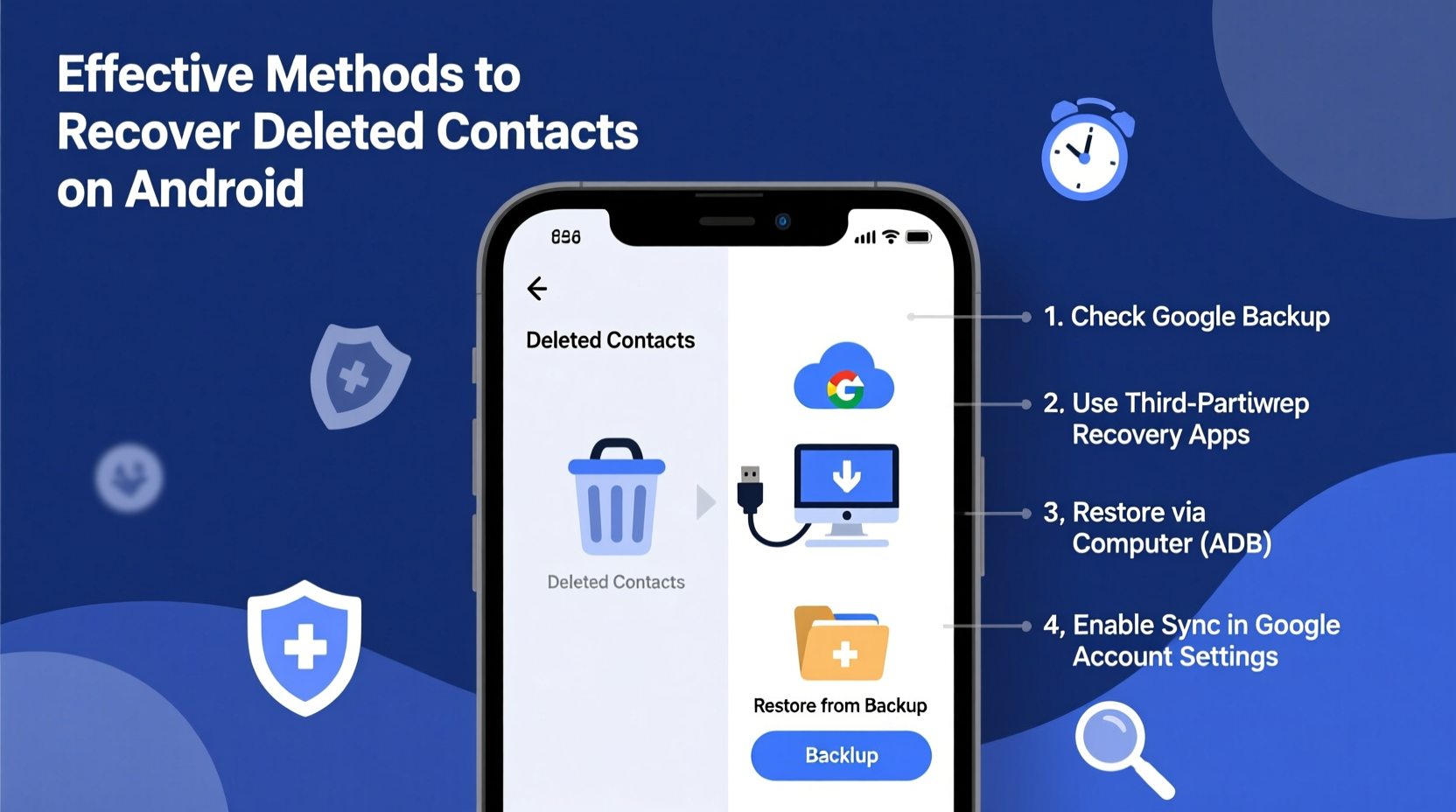
Before attempting recovery, it’s essential to understand where your contacts are stored. Android allows users to save contacts in several locations: Google Account, SIM card, device memory, or third-party accounts like Outlook or Samsung Cloud. The storage location determines the recovery method.
Most users sync their contacts with their Google Account by default. When enabled, this means every contact is automatically backed up to Google’s servers. If you’ve turned off syncing or saved contacts locally, recovery becomes more complex. Always check your current contact storage settings under Settings > Accounts > Google > Sync Contacts.
Method 1: Restore from Google Account Backup
The most reliable way to recover deleted contacts is through Google’s automatic backup system. If your phone was set to sync contacts with your Google account, those entries are preserved online—even after local deletion.
- Open a web browser and go to contacts.google.com.
- Log in using the same Google account linked to your Android device.
- Check if the missing contacts appear in the list. If they do, they were synced and are still available.
- If recently deleted, use the “Undo” option that appears briefly after deletion, or proceed to restore via Google Takeout or version history (if available).
Note: Google does not maintain a traditional “trash” folder for contacts permanently, but short-term recovery options exist. For older deletions, consider restoring from a previous backup exported via Google Takeout.
Using Google Takeout for Full Contact Export/Restore
Google Takeout allows you to download a complete archive of your Google data, including historical contact snapshots.
- Navigate to takeout.google.com.
- Deselect all services, then scroll down and select only “Contacts.”
- Choose file type (e.g., vCard) and delivery method.
- Request the export. Once received, import the vCard file back into your Google Contacts.
This method works best if you previously exported data before the deletion occurred.
Method 2: Check Device-Specific Cloud Services
Manufacturers like Samsung, Huawei, and Xiaomi offer proprietary cloud ecosystems. If you use a branded device, your contacts might be backed up independently of Google.
- Samsung Users: Access Samsung Cloud via Settings > Accounts and Backup > Samsung Cloud. Look for Contacts and tap “Restore.”
- Xiaomi Devices: Go to Mi Account > Mi Cloud > Contacts and choose “Restore.”
- Huawei Phones: Use Huawei ID > Cloud > Contact Sync to retrieve past versions.
These services typically keep multiple restore points, allowing rollback to earlier states.
| Service | Sync Enabled? | Max Restore Window | Access Method |
|---|---|---|---|
| Google Contacts | Yes (default) | Up to 30 days (limited) | contacts.google.com |
| Samsung Cloud | Optional | Up to 6 months | Device Settings or website |
| Mi Cloud | Optional | Indefinite (with active account) | mi.com or app |
| Local Storage | No sync | Not applicable | Requires third-party recovery tool |
Method 3: Utilize Third-Party Recovery Tools
When no backup exists, data recovery software may help retrieve contacts directly from device memory. These tools scan internal storage for residual traces of deleted entries.
Popular Android recovery apps include:
- DiskDigger Pro: Scans deep into system partitions to recover various file types, including contacts.
- FonePaw Android Data Recovery: Offers guided interface and high success rate for rooted devices.
- Dr.Fone – Data Recovery (Android): Supports contact recovery without root in some cases.
To maximize success:
- Stop using the phone immediately after realizing the loss.
- Avoid installing new apps or saving files, which could overwrite deleted data.
- Use a computer-based recovery tool connected via USB.
- Follow prompts carefully and preview recoverable contacts before restoring.
“Data isn’t truly gone until overwritten. Immediate action after deletion significantly improves recovery odds.” — Alex Turner, Mobile Forensics Analyst
Mini Case Study: Recovering a Business Network After Accidental Deletion
Jamal, a sales manager, accidentally cleared his contacts while troubleshooting app issues. His entire client list—over 200 entries—vanished. Panicked, he tried rebooting, but the contacts didn’t return.
He followed these steps:
- Verified that contact sync was active under his Google Account settings.
- Visited contacts.google.com and found most entries already restored online.
- Realized his phone hadn’t synced in two days due to disabled background data.
- Enabled sync, waited 10 minutes, and confirmed all contacts reappeared on his device.
The key lesson: even when contacts disappear locally, cloud copies often persist. Patience and verification of sync status resolved the crisis within an hour.
Prevention Checklist: Avoid Future Contact Loss
Recovery isn’t always guaranteed. Implement these habits to safeguard your contact list:
- ✅ Enable automatic contact sync with Google or your device manufacturer’s cloud.
- ✅ Periodically export your contacts as a vCard (.vcf) file and store it securely.
- ✅ Label critical contacts with multiple identifiers (email, address, notes) for easier reconstruction.
- ✅ Avoid saving contacts solely to device memory unless absolutely necessary.
- ✅ Review backup status monthly under Account settings.
Frequently Asked Questions
Can I recover contacts deleted more than a month ago?
Yes, if they were synced to Google or another cloud service. As long as the sync was active when the contact existed, it remains on the server. However, if you deleted the entire account or disabled sync long ago, recovery may not be possible without a prior export.
Do I need root access to recover deleted contacts?
Not always. Cloud-based recovery doesn’t require root. However, direct file system scanning using recovery tools often requires root privileges for full access. Some tools offer limited functionality without rooting.
Why don’t my restored contacts show up on my phone?
This usually happens because the restored contacts are saved to the wrong account or location. After restoration, go to Google Contacts, select the contacts, and ensure they’re assigned to the correct account. Then force a sync on your device via Settings > Accounts > [Your Account] > Sync Now.
Conclusion: Act Fast and Stay Prepared
Recovering deleted contacts on Android is feasible in most scenarios, especially when cloud synchronization is active. The sooner you act after deletion, the better your chances. Whether relying on Google’s ecosystem, manufacturer-specific backups, or advanced recovery tools, understanding your options empowers quick resolution.
But the real victory lies in prevention. Make regular backups part of your digital hygiene routine. A few taps today can save hours of stress tomorrow. Don’t wait for a crisis—secure your connections now.




 浙公网安备
33010002000092号
浙公网安备
33010002000092号 浙B2-20120091-4
Comments
No comments yet. Why don't you start the discussion?