
Losing contact information—especially critical phone numbers—can be more than an inconvenience. It disrupts communication, delays business operations, and severs personal connections. Whether due to a factory reset, accidental deletion, or device malfunction, the disappearance of saved numbers is a common but solvable issue. Fortunately, modern smartphones and cloud ecosystems offer multiple recovery pathways. Understanding these options empowers users to act quickly and effectively when data vanishes.
Understanding How Phone Numbers Are Stored
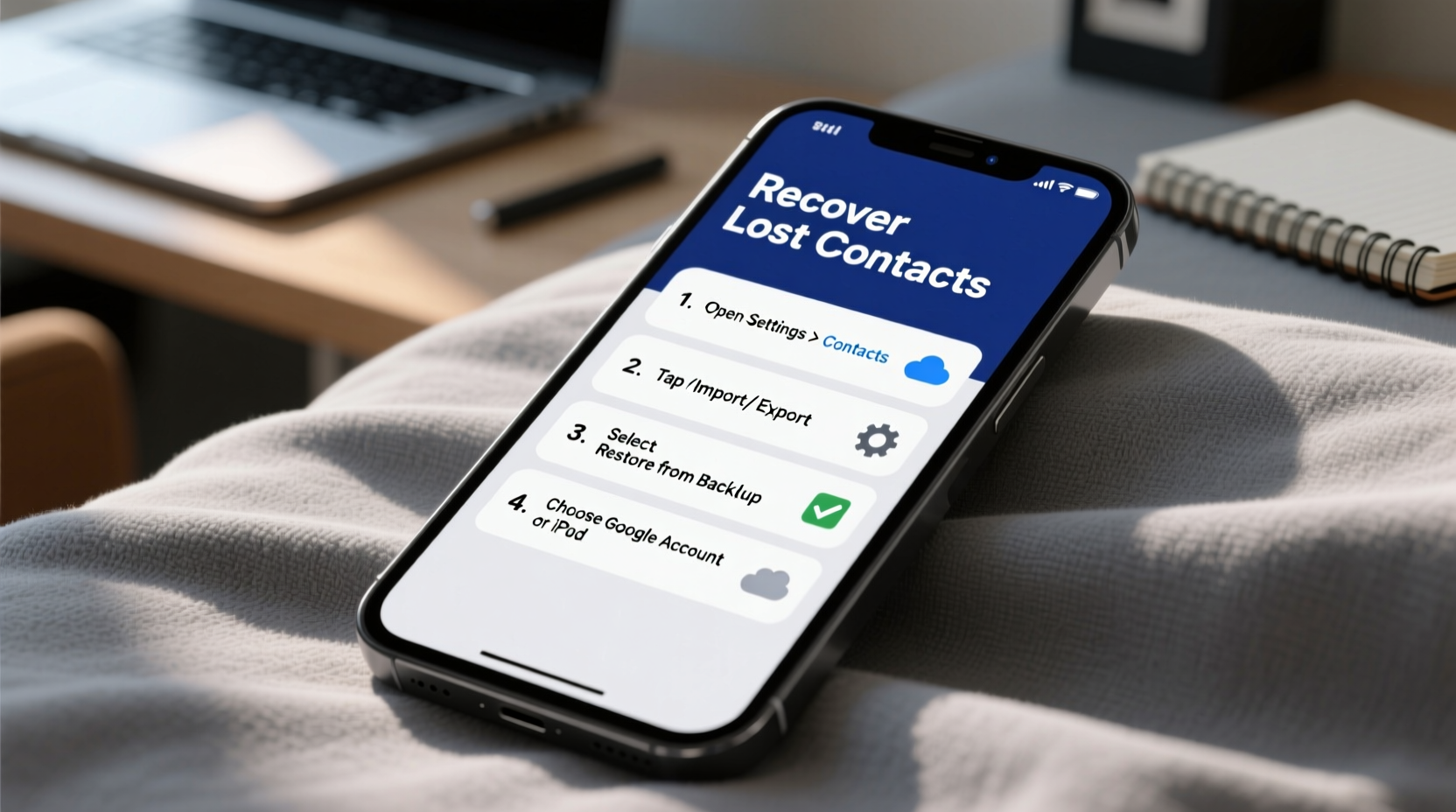
Before attempting recovery, it’s essential to know where your phone numbers are actually stored. Many users assume contacts live permanently on their device, but this isn’t always true. Contacts can reside in several locations:
- Device memory: Saved locally on your phone, not backed up automatically.
- SIM card: Limited storage for basic contact info; rarely used as primary storage today.
- Cloud services: Google (Android), iCloud (iPhone), or third-party accounts that sync across devices.
- Third-party apps: WhatsApp, Telegram, or CRM tools may retain numbers independently.
Recovery success depends heavily on whether automatic syncing was enabled before the loss occurred. If your contacts were linked to a cloud account and regularly synced, retrieval becomes significantly easier.
Step-by-Step Guide to Recover Lost Phone Numbers
The following sequence outlines the most reliable actions to take immediately after realizing contacts are missing. Follow these steps in order for optimal results.
- Check recent deletions: Some phones allow you to restore recently deleted contacts within a grace period. On Android, open Google Contacts, click “Trash” in the left menu, and restore entries within 30 days. On iPhone, go to iCloud.com, sign in, navigate to Contacts, click the gear icon, and select “Restore Contacts” if available.
- Verify cloud sync status: Ensure your device is connected to the correct account. For Android, go to Settings > Accounts > Google and confirm contact sync is toggled on. For iPhone, check Settings > [Your Name] > iCloud > Contacts to ensure syncing is active.
- Force a sync: Manually trigger synchronization. On Android, go to Settings > Accounts > Google > Account Sync > Sync Now. On iPhone, toggle iCloud Contacts off and on again to initiate a refresh.
- Access web-based contact managers: Visit Google Contacts or iCloud.com using a computer or another device. Log in with the same account used on your phone. If contacts appear online but not on your device, syncing may have failed rather than data being lost.
- Restore from backup: If no recent sync exists, use a local or cloud backup. Android users with Samsung devices can use Samsung Cloud or Smart Switch. iPhone users should restore from an iTunes or iCloud backup—if one was created before the loss.
Comparison of Recovery Methods by Platform
| Method | Android | iOS (iPhone) | Success Likelihood |
|---|---|---|---|
| Google/iCloud Trash Restore | Yes (within 30 days) | Yes (if enabled) | High |
| Automatic Cloud Sync | Google Account sync | iCloud sync | High (if previously active) |
| Local Backup (Computer) | Using Samsung Smart Switch or third-party tools | iTunes backup | Moderate |
| SIM Card Import | Possible, limited capacity | Limited support | Low |
| Third-Party Recovery Tools | Dr.Fone, DiskDigger (root required) | Tenorshare UltData (risky) | Variable (use with caution) |
Real-World Example: Recovering After a Failed Update
Sarah, a small business owner, updated her Android phone to the latest OS version. Upon reboot, all her client contacts had disappeared. Panicked, she tried searching through settings but found nothing. She then accessed contacts.google.com from her laptop and discovered that her contacts were still visible online. The issue wasn’t data loss—it was a sync failure post-update. By going into her phone’s Settings > Accounts > Google and manually enabling contact sync, her entire list reappeared within minutes. Her experience underscores the importance of checking cloud sources before assuming permanent loss.
“We’ve seen a surge in ‘lost contact’ cases after major software updates. In over 70% of them, the data was intact in the cloud—the device just stopped syncing.” — Raj Mehta, Senior Support Analyst at MobileCare Solutions
Preventive Measures and Best Practices
Recovery is helpful, but prevention is far more effective. Implementing routine safeguards reduces the risk of future data loss.
- Enable automatic backups: Turn on Google Backup (Android) or iCloud Backup (iPhone) to ensure regular snapshots of your data.
- Use multiple sync sources: Link contacts to both Google and a secondary service like Outlook for redundancy.
- Avoid storing contacts only on-device: Local-only storage offers no protection against hardware failure.
- Test recovery periodically: Export your contacts to a .vcf file every few months and verify it opens correctly.
- Label important contacts: Use tags or groups (e.g., “Family,” “Clients”) to make restoration easier if filtering is needed.
Essential Checklist for Contact Recovery & Protection
Keep this checklist handy for immediate action or routine maintenance:
- Confirm internet connection on your device
- Log in to your Google or Apple ID from a browser
- Check Google Contacts or iCloud for existing entries
- Look in the Trash/Recently Deleted section
- Ensure contact sync is enabled in device settings
- Perform a manual sync
- If no cloud backup exists, attempt local recovery via desktop software
- Once recovered, export and store a backup file offline
- Set up recurring calendar reminders to verify sync status monthly
Frequently Asked Questions
Can I recover contacts without a backup?
Direct recovery without any form of backup (cloud or local) is extremely difficult. If contacts were never synced and no export was made, built-in tools won’t help. Some advanced data recovery apps claim to retrieve deleted entries from device cache, but they often require root or jailbreak access and carry privacy risks. Prevention remains the best strategy.
Why did my contacts disappear after switching SIM cards?
SIM cards store minimal contact data and are not designed for full contact management. When you insert a new SIM, the phone may default to displaying only SIM-stored numbers or switch sync accounts. Check your contact view settings—ensure you’re viewing contacts under your Google or iCloud account, not just the SIM.
How long are deleted contacts kept in Google’s trash?
Google retains deleted contacts in the Trash for 30 days before permanent removal. During this window, you can restore them via contacts.google.com by clicking “Trash” in the left sidebar and selecting “Restore.” After 30 days, recovery is no longer possible unless a separate backup exists.
Final Steps and Ongoing Vigilance
Recovering lost phone numbers is often possible—but only if the right systems were in place beforehand. The real lesson lies not in recovery techniques alone, but in consistent digital hygiene. Treat your contact list as valuable data, not disposable information. Enable syncing, verify backups, and stay informed about your device’s behavior after updates or resets.
Technology evolves, but human error and system glitches remain constant. By adopting proactive habits today, you ensure that tomorrow’s emergency doesn’t mean losing years of professional and personal connections.




 浙公网安备
33010002000092号
浙公网安备
33010002000092号 浙B2-20120091-4
Comments
No comments yet. Why don't you start the discussion?