
Microsoft Word is a powerful tool for creating professional documents, but it sometimes introduces blank or unwanted pages that disrupt formatting and make files look unpolished. Whether you're finalizing a report, cleaning up a resume, or preparing a manuscript, removing these stray pages efficiently is essential. Unlike physical paper, digital pages can't simply be torn out—instead, they require precise navigation of formatting elements hidden beneath the surface. This guide reveals practical, tested techniques to eliminate unwanted pages quickly, regardless of their cause.
Understanding Why Unwanted Pages Appear
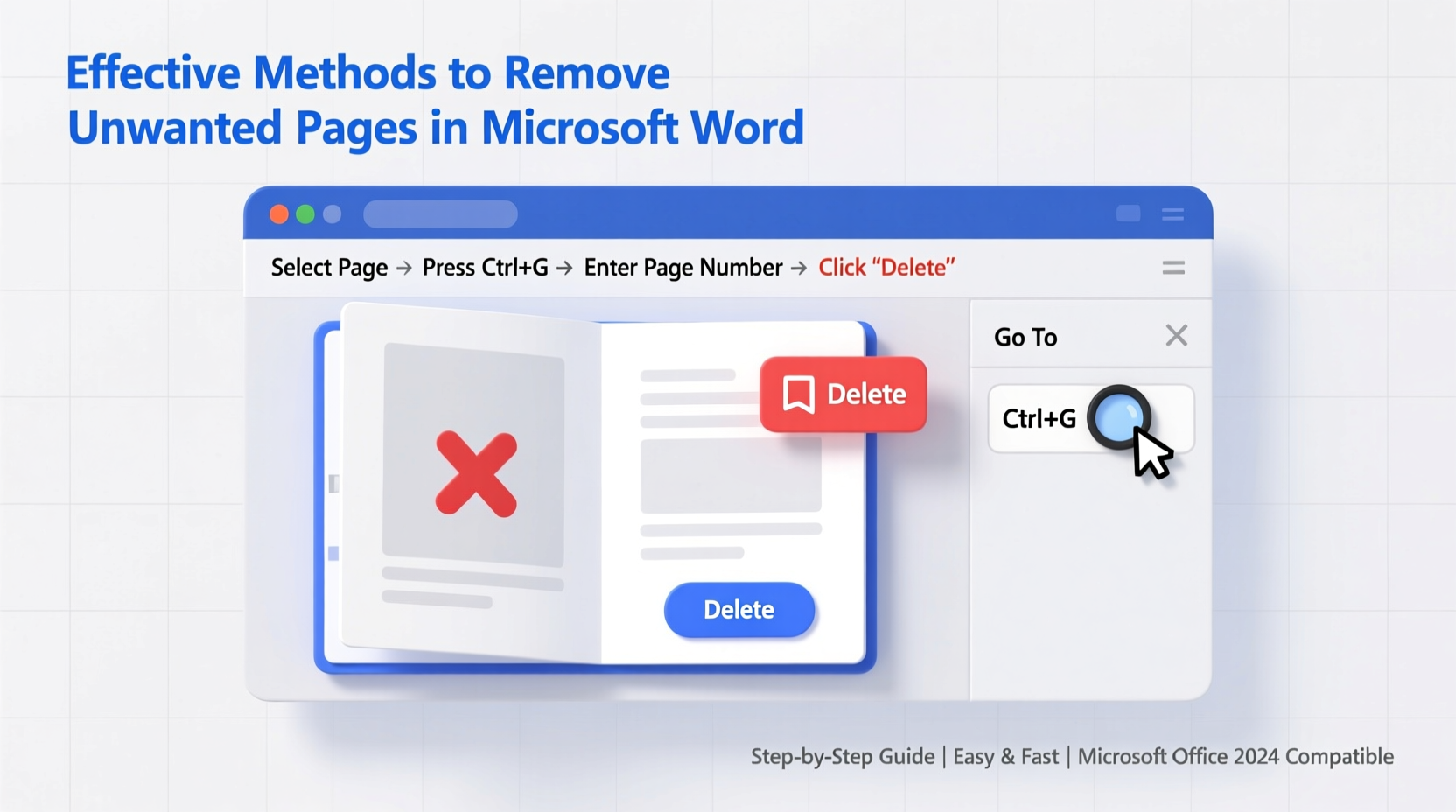
Before attempting removal, it's important to recognize why extra pages appear in Word. Most are not truly \"blank\" but contain invisible characters such as paragraph marks, page breaks, section breaks, or spacing from tables and images. Common causes include:
- Manual page breaks inserted intentionally or accidentally.
- Extra paragraph marks at the end of a document pushing content to a new page.
- Tables extending beyond content, forcing an additional page.
- Section breaks used for formatting changes that linger after edits.
- Excess spacing before or after paragraphs set too high.
Because Word treats these elements as content, they occupy space even when invisible. To remove them effectively, you must first reveal what’s causing the issue.
Step-by-Step Guide to Remove Blank Pages
The method you use depends on what’s generating the unwanted page. Follow this structured approach based on common scenarios.
1. Delete Extra Paragraph Marks at Document End
- Scroll to the end of your document.
- Press Ctrl + Shift + 8 to display paragraph marks (¶).
- If you see multiple ¶ symbols stacked at the end, place your cursor just before the last one.
- Press Delete repeatedly until all excess marks are gone.
- Turn off paragraph marks to confirm the blank page has disappeared.
This fixes the most frequent cause of trailing blank pages—extra line breaks automatically generated during editing.
2. Remove Manual Page Breaks
- Enable paragraph marks (Ctrl + Shift + 8).
- Locate the phrase “Page Break” between paragraphs where the blank page begins.
- Click directly before the break indicator.
- Press Delete to remove it.
If the page break was inserted using Ctrl + Enter, this will eliminate it instantly.
3. Eliminate Section Breaks Without Losing Formatting
Section breaks often persist after restructuring a document. They cannot always be deleted with Delete if different headers or footers exist on subsequent sections.
- Show formatting marks.
- Find the section break (labeled “Section Break (Next Page)” or similar).
- Double-click the header or footer area on the unwanted page.
- Look for the “Link to Previous” option in the Header & Footer Tools tab and disable it.
- Close the header/footer editor.
- Select the section break and press Delete.
This prevents Word from preserving layout dependencies that block deletion.
4. Fix Table-Induced Blank Pages
A table that ends near the bottom of a page can force an entire blank page because Word requires a paragraph mark after the table—which occupies its own line. If that mark lands on a new page, so does the page.
- Place your cursor in the last cell of the table.
- Press Tab to move outside the table into the trailing paragraph.
- Select the paragraph mark after the table.
- Reduce the font size to 1 pt and change line spacing to Exactly under Paragraph Settings.
- Set spacing to 0 pt before and after.
This minimizes the space needed for the mandatory paragraph, pulling it back onto the previous page.
Do’s and Don’ts When Removing Pages
| Do’s | Don’ts |
|---|---|
| Always enable paragraph marks before troubleshooting layout issues. | Don’t rely solely on visual inspection—hidden formatting causes most problems. |
| Use Find and Replace (Ctrl + H) to locate and delete specific breaks. | Don’t delete section breaks without unlinking headers/footers first. |
| Adjust paragraph spacing instead of inserting manual breaks. | Don’t press Enter repeatedly to create space—it leads to formatting bloat. |
| Save a backup before making bulk deletions. | Don’t resize margins drastically just to avoid a blank page. |
Real Example: Cleaning Up a Finalized Report
Sarah, a project manager, prepared a 12-page quarterly report in Word. After sending it for review, her colleague pointed out a blank page before the appendix. Confused, Sarah opened the file, pressed Ctrl + Shift + 8, and discovered a “Section Break (Next Page)” followed by several paragraph marks. She had copied content from another document and pasted it without realizing the embedded break remained. By unlinking the header and deleting the break, she removed the blank page in under a minute. The revised version printed cleanly, avoiding confusion in the board meeting.
This scenario underscores how easily formatting artifacts accumulate—and how quickly they can be resolved with the right knowledge.
“Most blank pages in Word aren’t empty—they’re filled with invisible formatting. The key is learning to see what Word hides.” — James Reed, Technical Documentation Specialist
Alternative Methods Using Find and Replace
For documents with multiple unwanted breaks, manually hunting each one is inefficient. Use Word’s Find and Replace feature to target breaks globally.
To Remove All Manual Page Breaks:
- Press Ctrl + H to open Find and Replace.
- Click “More >>” and select “Special”.
- Choose “Manual Page Break” (which inserts ^p into the field).
- Leave the “Replace with” box empty.
- Click “Replace All”.
To Remove Section Breaks:
- In the same dialog, choose “Section Break” under Special.
- Ensure headers/footers won’t be disrupted.
- Replace all instances carefully, reviewing layout afterward.
This method saves time in long documents with repetitive break usage.
FAQ
Why does a blank page appear after a table in Word?
Word requires a paragraph mark after the last row of a table. If the table ends at the bottom of a page, that mark forces a new page. Reducing the font size and line spacing of the trailing paragraph can pull it back onto the previous page.
Can I prevent unwanted pages when copying content?
Yes. When pasting from external sources, use “Keep Text Only” (Ctrl + Shift + V) or paste using “Merge Formatting” to avoid importing hidden breaks and styles. Alternatively, paste into Notepad first to strip formatting, then copy into Word.
Why can’t I delete a section break?
You may not be able to delete a section break if the following section’s header or footer is linked to the previous one. Double-click the header/footer, turn off “Link to Previous,” exit the editor, and try deleting the break again.
Final Checklist: Eliminating Unwanted Pages
- ✅ Turn on paragraph marks (¶) to see hidden formatting.
- ✅ Scroll to the unwanted page and identify the cause (break, table, or paragraph).
- ✅ Delete manual page breaks or section breaks as needed.
- ✅ Reduce spacing in trailing paragraphs, especially after tables.
- ✅ Use Find and Replace to remove multiple breaks at once.
- ✅ Save a copy before making large-scale deletions.
- ✅ Preview in Print Layout view to confirm the fix.
Conclusion
Unwanted pages in Microsoft Word are more than a minor annoyance—they reflect deeper formatting inefficiencies that affect professionalism and readability. With the right tools and understanding, eliminating them becomes second nature. From revealing hidden characters to mastering section breaks and optimizing table spacing, these strategies empower you to maintain clean, concise documents every time. Don’t let phantom pages undermine your work. Apply these techniques today and produce polished, print-ready files with confidence.




 浙公网安备
33010002000092号
浙公网安备
33010002000092号 浙B2-20120091-4
Comments
No comments yet. Why don't you start the discussion?