
The Kindle White, a sleek and lightweight e-reader, is designed for uninterrupted reading pleasure. However, even the most reliable devices can encounter glitches—such as frozen screens, slow performance, Wi-Fi disconnections, or unresponsive touch controls. When standard troubleshooting doesn’t work, a proper reset can restore functionality and bring your device back to optimal condition. Understanding the different types of resets and when to use them is essential for maintaining your Kindle’s longevity and usability.
Understanding When to Reset Your Kindle White
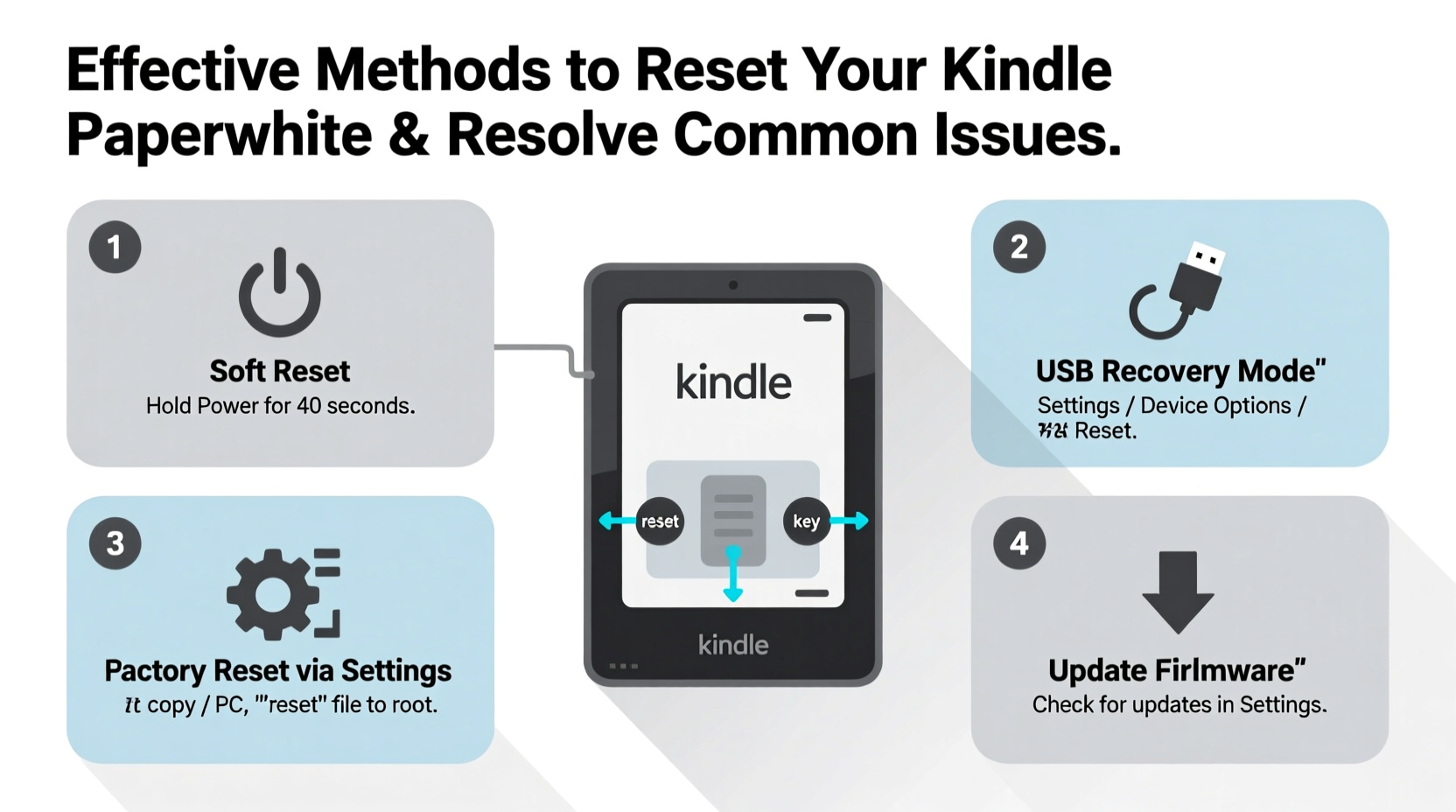
A reset should not be your first action when encountering an issue, but it becomes necessary when simpler fixes fail. Common signs that your Kindle White may need a reset include:
- The screen freezes during page turns or menu navigation.
- The device doesn’t respond to taps or button presses.
- Wi-Fi connects intermittently or fails to stay connected.
- Battery drains unusually fast despite minimal usage.
- The home screen fails to load or gets stuck on the Amazon logo.
Before proceeding with a full reset, try restarting the device by holding the power button for 45 seconds. If the problem persists, consider one of the more structured reset methods outlined below.
Step-by-Step Guide: Soft Reset vs. Hard Reset vs. Factory Reset
There are three primary levels of resetting a Kindle White, each serving a different purpose and level of intervention. It’s crucial to understand the differences to avoid unnecessary data loss.
- Soft Reset (Restart): This is the gentlest method, equivalent to rebooting a computer. It clears temporary memory without affecting personal data.
- Hard Reset (Force Restart): Used when the device is completely unresponsive. This forces the system to shut down and restart, often resolving deeper software hiccups.
- Factory Reset (Master Reset): Erases all user data, settings, and downloaded content, returning the Kindle to its original out-of-the-box state. Use only when other methods fail or before selling/gifting the device.
How to Perform a Soft Reset
This is the first step in troubleshooting minor issues:
- Press and hold the power button for 5–10 seconds.
- Wait for the screen to dim and the progress bar to appear.
- Release the button and allow the device to restart automatically.
- Once rebooted, check if the issue has been resolved.
How to Perform a Hard Reset
Use this when the soft reset doesn’t work:
- Press and hold the power button for 45 seconds—do not release it early.
- Even if the screen flickers or goes black, continue holding.
- After 45 seconds, release the button.
- Wait 30 seconds, then press the power button normally to turn the device back on.
How to Perform a Factory Reset
Proceed with caution—this will erase all books, notes, and settings unless backed up:
- Go to Settings > Device Options > Reset.
- Select Factory Reset.
- Confirm the action when prompted.
- The Kindle will reboot and display the initial setup screen.
If you cannot access the menu, perform a factory reset using hardware buttons:
- Hold the power button and the center of the touchscreen simultaneously for 45 seconds.
- Release both after the screen flashes or the device vibrates.
- Follow on-screen instructions to reconfigure your Kindle.
Troubleshooting Common Issues After Reset
Even after a successful reset, some issues may persist or reappear. Below is a guide to diagnosing and resolving frequent post-reset problems.
| Issue | Possible Cause | Solution |
|---|---|---|
| Wi-Fi won’t connect | Network settings corrupted | Forget network in Settings and reconnect; restart router if needed. |
| Books disappeared | Sync disabled after reset | Sign in to your Amazon account and enable Whispersync. |
| Touchscreen still unresponsive | Hardware malfunction or firmware bug | Contact Amazon Support; may require repair or replacement. |
| Slow page turns | Too many items in Home library | Archive unused books via Cloud to improve performance. |
“Many Kindle issues stem from cached data conflicts. A hard reset clears volatile memory and often resolves what appears to be a major malfunction.” — David Lin, Senior Device Support Analyst at Amazon
Mini Case Study: Resolving a Frozen Kindle After Software Update
Sarah, a university student, updated her Kindle White to the latest firmware before an exam period. After the update, the device froze on the home screen and became unresponsive to taps. She tried charging it and pressing the power button briefly, but nothing worked.
Following online advice, she performed a hard reset by holding the power button for 45 seconds. The Kindle shut down and restarted successfully. Upon reboot, it synced her library automatically, and all features resumed normal operation. Sarah learned that firmware updates occasionally cause temporary instability, and a forced restart is often the fastest fix.
Essential Checklist Before and After Resetting
To ensure a smooth reset process and prevent data loss, follow this checklist:
- ✅ Charge your Kindle to at least 40% battery.
- ✅ Back up personal documents to your computer or cloud storage.
- ✅ Note down Wi-Fi passwords and preferred settings.
- ✅ Sign out of any third-party apps (if applicable).
- ✅ After reset: Reconnect to Wi-Fi and sign in to your Amazon account.
- ✅ Enable automatic syncing for books and highlights.
- ✅ Restore archived books from the Cloud as needed.
Frequently Asked Questions
Will a factory reset delete my purchased books?
No. All books purchased through your Amazon account are stored in the Cloud. After resetting and signing back in, you can re-download them at no cost. Only personal documents not backed up will be lost.
How often should I reset my Kindle?
Resets are not routine maintenance tasks. Most users never need a factory reset. A soft or hard reset may be required once every few years if performance issues arise. Regular reboots (once a month) help maintain responsiveness.
What should I do if my Kindle doesn’t turn on after a reset?
Try charging the device for at least 30 minutes using the original cable and adapter. If it still doesn’t respond, attempt a hard reset again. If unsuccessful, contact Amazon Customer Service for diagnostics or replacement options.
Conclusion: Regain Control of Your Reading Experience
Your Kindle White is built for durability and ease of use, but occasional technical hiccups are part of owning any electronic device. Knowing how to properly reset it—whether through a quick restart or a full factory restoration—empowers you to solve problems independently and minimize downtime. By following the correct procedures and backing up critical data, you preserve both your reading progress and device performance.




 浙公网安备
33010002000092号
浙公网安备
33010002000092号 浙B2-20120091-4
Comments
No comments yet. Why don't you start the discussion?