
Expanding your screen real estate with dual monitors transforms the way you work on a MacBook. Whether you're editing video, managing spreadsheets, coding, or juggling communication tools, two external displays dramatically improve efficiency, reduce context switching, and enhance focus. Modern MacBooks support multiple external displays, but setting them up correctly requires attention to hardware compatibility, connection types, display arrangement, and macOS settings. This guide walks through everything you need to know to create a smooth, productive dual-monitor setup that feels like a natural extension of your workflow.
Understanding Your MacBook’s Display Capabilities
Before connecting any monitors, it's essential to know what your MacBook can handle. Apple has gradually improved multi-display support across its lineup, but limitations still exist depending on the model and macOS version.
For example:
- MacBook Air (M1 and later): Supports one external display up to 6K at 60Hz in addition to the built-in display.
- MacBook Pro 13-inch (M1, M2): Same as the Air—only one external display supported.
- MacBook Pro 14-inch and 16-inch (M1 Pro, M1 Max, M2 Pro, M2 Max): Support up to two external displays at high resolutions, with the M1/M2 Max supporting up to four.
This means only higher-end MacBook Pro models can drive two external monitors simultaneously while keeping the laptop screen active. If you own a MacBook Air or base 13-inch Pro, you’ll need to close the lid and use only the external displays—or accept working with just one external monitor.
“Dual monitors aren’t just about more space—they’re about reducing cognitive load by minimizing window switching.” — Dr. Lena Torres, Human-Computer Interaction Researcher, Stanford University
Choosing the Right Cables and Adapters
Connection type matters. Most modern monitors use HDMI or DisplayPort, while MacBooks exclusively feature Thunderbolt/USB-C ports. You’ll likely need adapters or cables that bridge this gap.
Here’s a breakdown of common options:
| Cable/Adapter Type | Best For | Max Resolution Support | Notes |
|---|---|---|---|
| USB-C to HDMI | HDMI monitors | 4K @ 60Hz | Inexpensive; widely available |
| USB-C to DisplayPort | High-refresh or high-res monitors | 6K @ 60Hz (M1 Max), 5K @ 60Hz (others) | Better performance than HDMI for pro workflows |
| Thunderbolt Dock | Multiple devices + dual monitors | Dual 4K @ 60Hz or better | Centralizes power, data, and video; ideal for desks |
| HDMI to HDMI (via adapter) | Older setups | 4K @ 30Hz (if passive adapter) | Avoid unless necessary; quality varies |
For dual monitors, using a **Thunderbolt dock** is often the cleanest solution. It allows you to connect both displays, power your MacBook, and attach peripherals like keyboards and drives—all through a single cable. Popular models include the CalDigit TS4, Belkin Thunderbolt Dock, and Anker 776.
Step-by-Step Setup Process
Follow this sequence to ensure a stable and optimized dual-monitor configuration.
- Power down your MacBook. While not always required, starting fresh avoids handshake issues between devices.
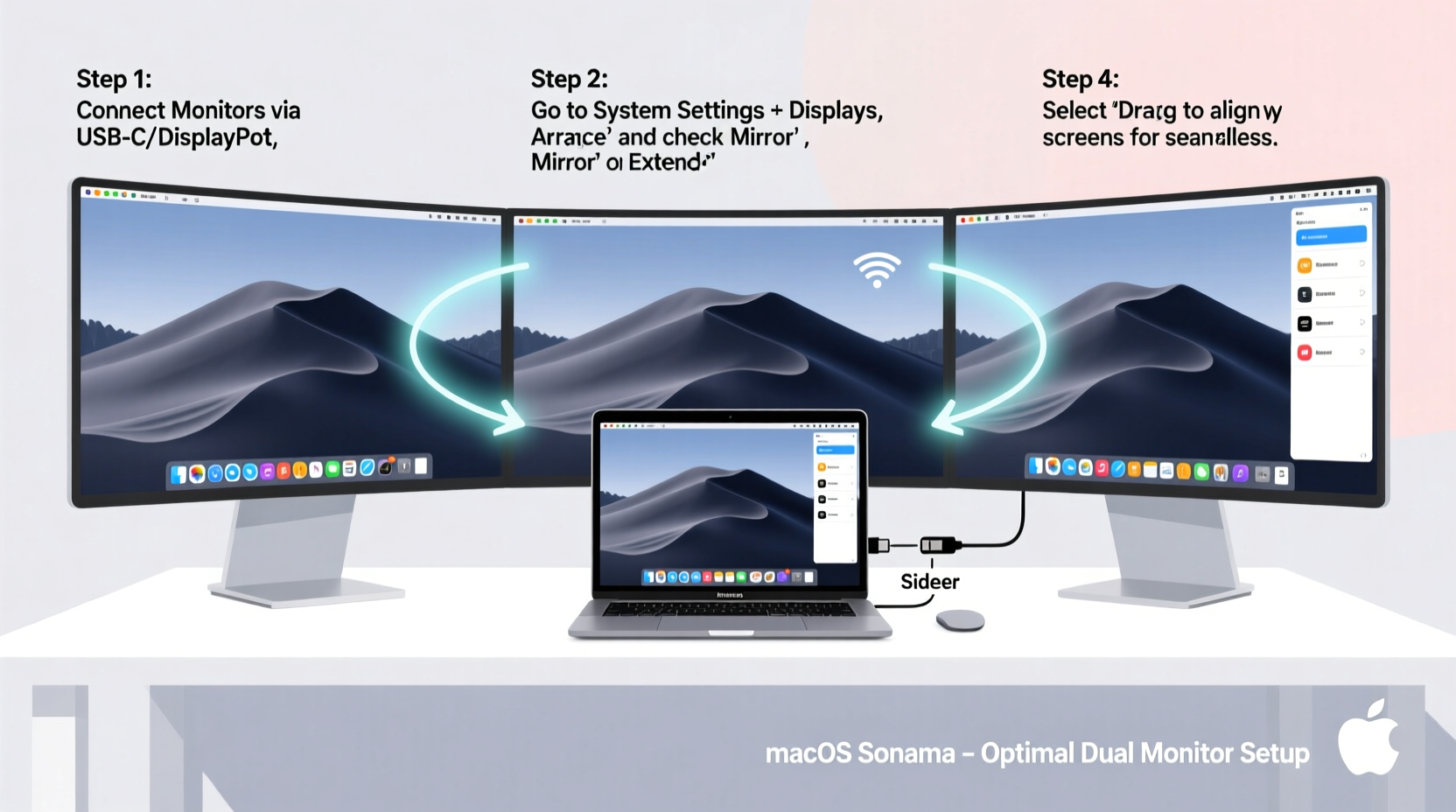
- Connect both monitors. Use appropriate cables or a dock to link each display to a Thunderbolt port. If using a dock, connect it first, then attach monitors to the dock’s video outputs.
- Power on the monitors. Ensure they are set to the correct input source (e.g., HDMI 1, DisplayPort).
- Turn on your MacBook. Wait for it to boot and detect the displays.
- Open System Settings > Displays. You’ll see thumbnails representing each screen, including the MacBook’s built-in display.
- Arrange displays visually. Drag the display icons to match their physical layout on your desk. This ensures smooth cursor movement between screens.
- Set resolution and scaling. Click on each display and choose “Default for display” or adjust scaling under “Display Settings” for clarity.
- Select a primary display. The menu bar and Dock appear on the primary screen. Drag the white menu bar to the display where you want it.
- Adjust brightness and color. Use Night Shift, True Tone, or manual calibration under Display settings for visual consistency.
- Test the setup. Open multiple windows and drag them across screens to confirm seamless transition.
If one monitor isn’t detected, try disconnecting and reconnecting it, checking the cable, or restarting the MacBook with displays already powered on.
Optimizing Your Dual-Monitor Workflow
Once connected, the real benefit comes from organizing your workspace for maximum productivity.
Consider dedicating each monitor to a specific function:
- Left Screen: Communication apps (Mail, Messages, Slack, Calendar)
- Right Screen: Primary work (coding IDE, design software, writing)
- Laptop Screen (if open): Reference material, notes, or video calls
Use macOS features like Mission Control, Spaces, and Split View to manage windows efficiently. For example:
- Swipe up with three fingers to enter Mission Control and view all open windows.
- Create separate Desktops for different projects via System Settings > Desktop & Dock > Mission Control.
- Drag a window to the edge of a screen to activate Split View and snap two apps side by side.
You can also assign apps to specific displays using third-party tools like Moom or Rectangle, which allow keyboard-driven window positioning and saved layouts.
“With dual monitors, I keep my research on one side and writing on the other. It cuts my drafting time in half.” — Sarah Lin, Technical Writer, San Francisco
Troubleshooting Common Issues
Even with careful setup, problems can arise. Here are frequent issues and how to resolve them:
No Signal on One Monitor
Check the cable connection and ensure the monitor is set to the correct input. Try swapping cables between monitors to isolate the issue. Restart the MacBook while displays are connected and powered on.
Monitors Flickering or Dropping Connection
This often indicates an underpowered adapter or incompatible cable. Use active Thunderbolt cables for long runs (>2m). Avoid daisy-chaining displays unless explicitly supported (rare on MacBooks).
Blurry Text or Incorrect Scaling
If text appears fuzzy, ensure the monitor is running at its native resolution. Avoid “scaled” modes that don’t match pixel density. For Retina-like clarity, use “Looks like 1440x900” or similar high-DPI presets.
Overheating or Performance Drop
Driving two high-resolution displays increases GPU load. Close unused apps, disable transparency effects (Accessibility > Display > Reduce motion), and ensure proper ventilation. Consider lowering resolution temporarily if fans run constantly.
Real-World Example: A Developer’s Dual-Screen Setup
Jamal, a full-stack developer in Austin, upgraded his 14-inch MacBook Pro M1 Pro to a dual-monitor setup after months of cramped coding sessions. He purchased two 27-inch 4K monitors—one for his code editor (VS Code), the other for browser testing and terminal logs.
Using a CalDigit TS3 Plus dock, he connects both monitors via DisplayPort, powers his MacBook, and links his mechanical keyboard and trackpad. In macOS, he arranged the right monitor as primary with the menu bar, placed the left screen to the left of the laptop, and disabled the internal display when docked.
The result? He reports a 40% reduction in task-switching time and fewer errors due to constant context shifts. “I used to toggle between eight windows. Now everything’s visible at once. It’s changed how I work,” he says.
Frequently Asked Questions
Can I use two different monitor sizes or brands?
Yes. macOS handles mixed resolutions and aspect ratios seamlessly. Just arrange them correctly in Display settings so the cursor moves naturally between screens.
Why can’t my MacBook Air support two external monitors?
Due to hardware limitations in the M1 and M2 chips used in the Air and base 13-inch Pro, Apple restricted external display output to one. Only M1 Pro, M1 Max, M2 Pro, and M2 Max chips support multiple external displays.
Do I need to calibrate the colors on both monitors?
For design or photo editing, yes. Use System Settings > Displays > Color Calibration to align both screens. Alternatively, use a hardware calibrator like the X-Rite i1Display for professional accuracy.
Essential Setup Checklist
Before declaring your dual-monitor setup complete, run through this checklist:
- ✅ Confirm MacBook model supports dual external displays
- ✅ Acquire correct cables or Thunderbolt dock
- ✅ Connect both monitors and power them on
- ✅ Boot MacBook and verify detection in System Settings > Displays
- ✅ Arrange display layout to match physical setup
- ✅ Set primary display and adjust resolution/scaling
- ✅ Test window dragging and app placement across screens
- ✅ Optimize workflow with dedicated screen roles
- ✅ Calibrate brightness and color if doing visual work
- ✅ Install window management tools (optional but recommended)
Conclusion: Unlock Your MacBook’s Full Potential
Dual monitors are not a luxury—they’re a strategic upgrade for anyone serious about productivity. With the right hardware and configuration, your MacBook becomes the centerpiece of a powerful, distraction-free workspace. Whether you're analyzing data, editing media, or managing complex projects, having more screen space reduces friction and keeps your mind focused on the task, not the tool.
The initial setup takes less than 30 minutes, but the long-term gains in efficiency and comfort are significant. Don’t let outdated assumptions about MacBook limitations hold you back. If you have a Pro model with M1 Pro or better, you already have everything you need to build a professional-grade dual-display environment.




 浙公网安备
33010002000092号
浙公网安备
33010002000092号 浙B2-20120091-4
Comments
No comments yet. Why don't you start the discussion?