
Forgetting your phone’s unlock pattern is a common yet stressful experience. Whether you’ve recently changed your pattern or haven’t used the device in days, being locked out can feel like losing access to your digital life. The good news: you don’t have to resort to a factory reset in most cases. With the right approach, it's possible to regain access to your Android device—complete with all your photos, messages, contacts, and app data intact.
This guide explores proven, non-destructive techniques to bypass or recover your Android lock screen pattern. These methods prioritize data preservation while complying with security best practices. If you're locked out and want to avoid losing everything, read on.
Understanding Android Lock Screen Security
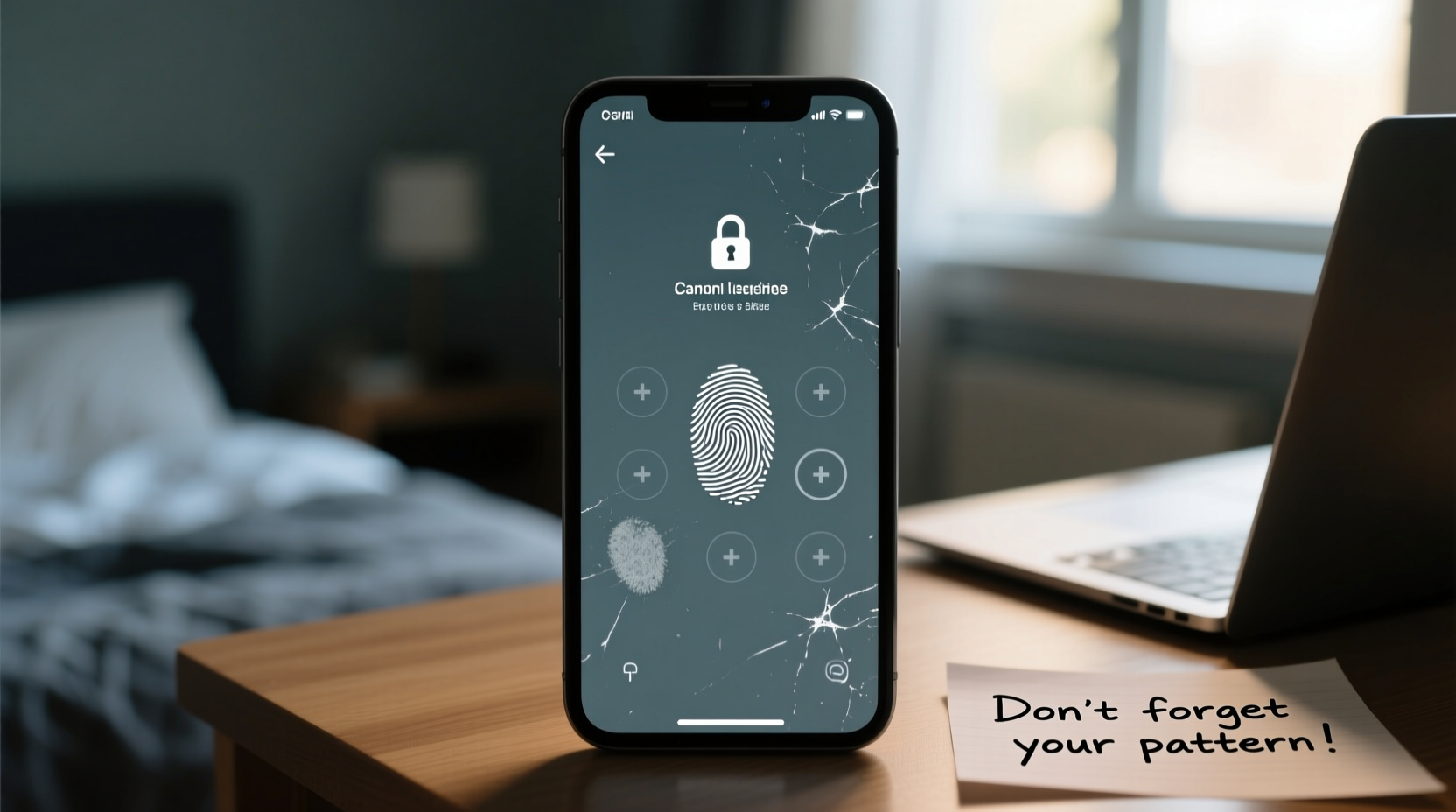
Android devices use multiple layers of security to protect user data. The pattern lock is one of the most accessible but still effective methods. After several failed attempts, the system may temporarily lock you out or prompt for additional verification, such as your Google account credentials. This built-in recovery mechanism is key to regaining access without data loss.
Modern Android versions (6.0 and above) employ encryption tied to your lock method. A factory reset would erase this encryption key, making stored data irrecoverable. That’s why alternative, secure unlocking methods are essential when preserving data is a priority.
Method 1: Use Google Find My Device
If you've enabled \"Find My Device\" and are signed into a Google account on the phone, this is one of the most reliable ways to reset your lock screen remotely.
- Open a web browser on another device and go to google.com/android/find.
- Sign in with the same Google account linked to your locked phone.
- Select your device from the list.
- Choose the “Secure Device” option.
- You’ll be prompted to set a temporary password. Enter a new one and confirm.
- On your locked phone, enter the new password. You should now be able to access your device.
- Once inside, go to Settings > Security > Screen Lock and change back to your preferred method, including pattern.
This method doesn’t erase any data and works seamlessly on most Samsung, Google, and other Android OEM devices.
Method 2: Google Account Recovery Prompt
After five incorrect pattern attempts, many Android phones display a “Forgot pattern?” or “Forgot password?” option. Tap it to proceed with account-based recovery.
- Enter your correct Google email address and password associated with the device.
- Complete any two-factor authentication steps if prompted.
- Once verified, you’ll be allowed to set a new screen lock method.
This only works if:
- The device was previously synced with a Google account.
- You remember the login credentials.
- Your device has an active internet connection.
“Over 70% of lockout issues can be resolved using Google Account recovery—provided users have proper backups and account access.” — Dr. Lena Patel, Mobile Security Researcher at SecureMobile Lab
Method 3: Safe Mode Bypass (For Third-Party Lock Apps)
If you’re using a third-party lock screen app (not the default Android pattern), booting into Safe Mode can disable third-party apps temporarily, allowing you to remove or reconfigure the lock.
- Press and hold the Power button until the power menu appears.
- Long-press the “Power off” option until you see “Reboot to safe mode.”
- Tap OK. The device will restart in Safe Mode (you’ll see “Safe Mode” in the bottom corner).
- Once booted, go to Settings > Apps.
- Locate the third-party lock screen app and uninstall it.
- Restart the device normally. The lock screen should now be gone.
Method 4: Using ADB (Android Debug Bridge) – Advanced Option
If USB Debugging was enabled prior to the lockout, you can use a computer to remove the pattern via ADB commands. This method requires technical familiarity but preserves all data.
Requirements:
- A computer (Windows, Mac, or Linux)
- USB cable
- ADB tools installed
- USB Debugging enabled on the phone (must have been done earlier)
Steps:
- Download and install ADB on your computer.
- Boot your phone and connect it to the computer via USB.
- Open a command prompt or terminal window.
- Type
adb devicesand press Enter. If your device is listed, proceed. - Run:
adb shell rm /data/system/gesture.key - Disconnect the phone and restart it.
After rebooting, the pattern requirement will be removed, and you can set a new one. Note: This only removes the gesture file; no user data is affected.
What Doesn’t Work (And Can Cause Data Loss)
Avoid these commonly suggested but risky approaches:
| Method | Why It’s Risky | Alternative |
|---|---|---|
| Factory Reset via Recovery Mode | Erases all data including photos, messages, and apps | Try Google Account recovery first |
| Third-Party Unlocking Software | Often contains malware; may brick your device | Use official Google tools instead |
| Calling Carrier for Unlock Code | Carriers unlock SIMs, not screen locks | Contact device manufacturer support |
Mini Case Study: Recovering a Locked Family Phone
Sarah, a mother of two, accidentally locked herself out of her Samsung Galaxy S10 after her youngest child played with the screen. She had tried random patterns and triggered a lockout. Panicked about losing irreplaceable family photos, she searched online for solutions.
Remembering she’d once set up “Find My Mobile,” she visited Samsung’s Find My Mobile site and logged in. After verifying her identity, she used the “Unlock” feature remotely. Within minutes, her phone unlocked, and all data remained intact. She immediately backed up her photos and set up biometric authentication to prevent future issues.
Sarah’s experience highlights the importance of pre-setup recovery options and avoiding panic-driven factory resets.
Prevention Checklist: Avoid Future Lockouts
To minimize the risk of being locked out again, follow this checklist:
- ✅ Enable biometric unlock (fingerprint or face recognition) alongside your pattern
- ✅ Ensure your Google account is active and recoverable
- ✅ Regularly back up your data to Google Drive or a trusted cloud service
- ✅ Write down your Google credentials and store them securely
- ✅ Test your lock screen recovery process periodically
- ✅ Avoid installing untrusted lock screen apps
Frequently Asked Questions
Can I unlock my phone pattern without a Google account?
It’s extremely difficult. Most official bypass methods rely on Google Account verification. If you never added an account or don’t remember the details, your options are limited. Contacting the manufacturer may help, but data recovery isn't guaranteed.
Will using ADB delete my data?
No—if USB Debugging was already enabled, using ADB to remove the pattern file (gesture.key) does not affect personal data. However, improper commands can cause damage. Proceed with caution and follow instructions precisely.
What if none of these methods work?
If all software-based recovery fails and data preservation is critical, consult a professional mobile data recovery service. Some specialize in forensic-level access without erasing data, though this can be costly. As a last resort, a factory reset will unlock the device but erase everything.
Final Thoughts
Being locked out of your phone doesn’t mean saying goodbye to your data. With preparation and knowledge, you can bypass a forgotten pattern safely and effectively. The key lies in leveraging built-in recovery features like Google Account verification or remote find-and-unlock tools. Avoid quick-fix software that promises miracles but often delivers malware or permanent data loss.
Take action today: verify your Google account settings, enable Find My Device, and consider switching to a more reliable unlock method like fingerprint or PIN with backup options. Your future self—and your precious memories—will thank you.




 浙公网安备
33010002000092号
浙公网安备
33010002000092号 浙B2-20120091-4
Comments
No comments yet. Why don't you start the discussion?