
Dual monitors have become a staple in modern workspaces, whether for coding, content creation, financial analysis, or multitasking across applications. When set up correctly, they can dramatically improve workflow efficiency, reduce eye strain, and enhance overall comfort. Yet, many users simply place two screens side by side without considering ergonomics, cable management, or software integration—missing out on the full benefits. The best way to setup dual monitors on desk goes beyond plug-and-play; it involves thoughtful planning of hardware, positioning, and digital configuration.
Ergonomic Principles for Dual Monitor Placement
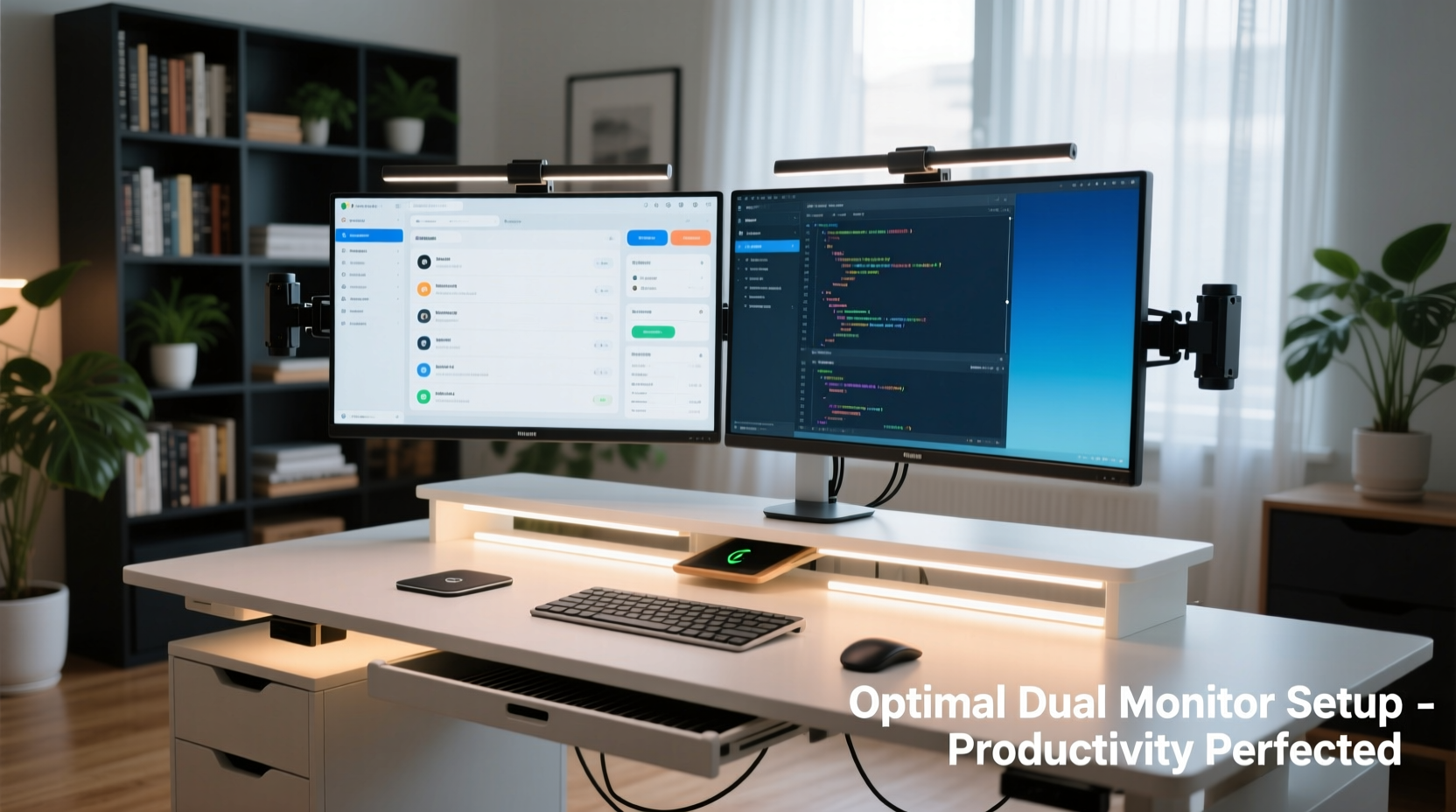
The physical arrangement of your monitors plays a critical role in long-term comfort and productivity. Poor positioning can lead to neck pain, shoulder tension, and reduced focus. The ideal setup supports natural posture and minimizes head movement.
According to the Occupational Safety and Health Administration (OSHA), the top of your primary monitor should be at or slightly below eye level when you're seated. This prevents upward gaze, which strains the neck over time. For dual setups, align both screens so their top edges are level with each other and match this guideline.
Position the monitors at an arm’s length (about 20–30 inches) from your eyes. If you use both screens equally, angle them inward slightly—around 30 degrees—so that their inner edges face each other, forming a gentle curve. This reduces lateral head turning and keeps content within your central field of vision.
Hardware Requirements and Connectivity Options
Before arranging your monitors, ensure your system supports dual output. Most modern laptops and desktops come with multiple video ports such as HDMI, DisplayPort, USB-C (with DisplayPort Alt Mode), or Thunderbolt. Check your graphics card specifications to confirm how many displays it can drive simultaneously.
If your computer lacks sufficient ports, consider using a docking station or a USB-to-HDMI adapter. While adapters work well for secondary tasks, professionals handling high-resolution content should prioritize native video outputs for better performance and lower latency.
| Connection Type | Max Resolution Support | Best For |
|---|---|---|
| HDMI 2.0 | 4K @ 60Hz | General office use, media playback |
| DisplayPort 1.4 | 8K @ 60Hz or 4K @ 120Hz | Graphic design, video editing |
| USB-C / Thunderbolt 3+ | 5K @ 60Hz (daisy-chained) | Laptops, minimalist setups |
| VGA / DVI | 1080p @ 60Hz (max) | Legacy systems only – avoid if possible |
Avoid mixing connection types unless necessary, as differences in refresh rates or color calibration may create visual inconsistency between screens.
Step-by-Step Guide to Assembling Your Dual Monitor Setup
- Clear your workspace: Remove all items from your desk to allow full access for cable routing and monitor placement.
- Choose mounting method: Decide between standalone bases, VESA mounts, or articulating arms. Arms offer superior flexibility.
- Install mounts or arms: Securely attach to the desk edge or wall, ensuring load capacity matches your monitors’ weight.
- Attach monitors: Mount each screen and adjust tilt, swivel, and height according to ergonomic guidelines.
- Connect cables: Plug in power and video cables. Route them neatly using clips or sleeves to prevent clutter.
- Power on and detect: Turn on monitors and access display settings via your operating system to detect both screens.
- Configure display settings: Arrange screens logically, set resolution, orientation, and choose primary/secondary roles.
- Test usability: Open apps across both screens to verify smooth cursor movement and consistent brightness.
“An optimized dual-monitor layout isn’t just about screen real estate—it’s about reducing cognitive load through intuitive spatial organization.” — Dr. Lena Torres, Human Factors Engineer
Optimizing Software and Display Settings
Once physically installed, configure your operating system to make the most of your dual displays. On Windows, right-click the desktop and select “Display settings.” Drag the screen icons to mirror their physical arrangement on your desk. Misalignment here causes disorientation when moving the mouse between monitors.
Designate your main monitor—typically the one directly in front of you—for core tasks like email, browsing, or document editing. Set this as the primary display to host the taskbar, start menu, and default app windows.
For macOS users, go to System Settings > Displays > Arrangement. Drag the white menu bar to the screen you want as primary. Avoid enabling “Mirror Displays” unless presenting, as it defeats the purpose of extended desktop space.
Consider customizing per-monitor scaling if using different resolutions (e.g., one 4K and one 1080p). However, mismatched DPI settings can cause window size jumps when dragged between screens—test thoroughly before finalizing.
Real-World Example: A Developer’s Dual Monitor Workflow
Mark, a backend developer working remotely, upgraded from a single 24-inch monitor to a dual 27-inch ultrawide + standard setup. He placed the ultrawide horizontally on the left for code editors and terminal windows, and the standard monitor on the right for documentation, Slack, and browser tabs.
Using a VESA arm, he aligned both screens at eye level and angled them inward. He connected the ultrawide via DisplayPort and the second monitor via HDMI through a docking station. After configuring Windows to extend the display, he adjusted font scaling to prevent text distortion.
The result? A 40% reduction in context switching, fewer instances of misplaced windows, and noticeably less neck fatigue after full-day coding sessions. His carefully planned setup turned fragmented workflows into a seamless environment.
Common Mistakes and How to Avoid Them
- Mismatched screen heights: Causes constant head tilting. Use adjustable stands or risers to level both monitors.
- Ignoring bezel gaps: Large bezels disrupt visual continuity, especially for spreadsheets or timelines. Consider thinner-bezel models or curved screens.
- Poor cable management: Loose wires increase tripping hazards and dust accumulation. Use adhesive clips or under-desk trays.
- Overlooking ambient lighting: Glare on screens forces squinting. Position monitors perpendicular to windows and use matte finishes or anti-glare filters.
- Setting up in a cramped space: Ensure at least 48 inches of desk width for comfortable dual placement without crowding peripherals.
Checklist: Finalizing Your Dual Monitor Setup
- ✅ Monitors are at or slightly below eye level
- ✅ Screens are positioned an arm’s length away
- ✅ Inner edges angled toward user (30° total)
- ✅ Both monitors securely mounted and stable
- ✅ Cables routed and secured out of sight
- ✅ Operating system detects both displays correctly
- ✅ Screen arrangement in OS matches physical layout
- ✅ Primary monitor assigned for main tasks
- ✅ Brightness and color calibrated across both screens
- ✅ Test application windows move smoothly between monitors
Frequently Asked Questions
Can I use two different monitor sizes or brands together?
Yes, but expect some visual inconsistency in color, brightness, and sharpness. Calibrate both screens manually or with a colorimeter for better harmony. Avoid extreme size mismatches (e.g., 22\" and 34\") to maintain ergonomic balance.
Why does my mouse jump between screens awkwardly?
This usually happens when the on-screen display arrangement doesn’t match your physical layout. Go to display settings and drag the monitor icons to reflect their actual positions on your desk.
Should both monitors have the same resolution?
Ideal, but not mandatory. Using different resolutions works if you manage scaling properly. However, frequent dragging of windows between mismatched DPI screens can cause resizing issues and frustration.
Conclusion: Elevate Your Workspace Today
The best way to setup dual monitors on desk combines technical precision with ergonomic intelligence. It's not merely about adding another screen—it's about creating a cohesive, efficient, and sustainable workspace that supports how you work, think, and create. From choosing the right mounts to calibrating software settings, every detail contributes to a smoother, healthier experience.




 浙公网安备
33010002000092号
浙公网安备
33010002000092号 浙B2-20120091-4
Comments
No comments yet. Why don't you start the discussion?