
In today’s fast-paced digital world, every second counts. For most people, the first stop after opening a browser is Google—whether to search for information, check the weather, or navigate to another site. Yet, many users still go through multiple clicks or type out “google.com” manually each time. A smarter approach? Customize your browser homepage so that Google loads instantly with one click. This small change can save time, reduce friction, and streamline your online routine.
Customizing your homepage isn’t just about convenience—it’s about designing a digital environment that supports efficiency. Whether you're using Chrome, Firefox, Safari, or Edge, setting Google as your default homepage is straightforward. But beyond basic setup, there are advanced customization options that can make your homepage even more functional and personalized.
Why Your Homepage Matters More Than You Think
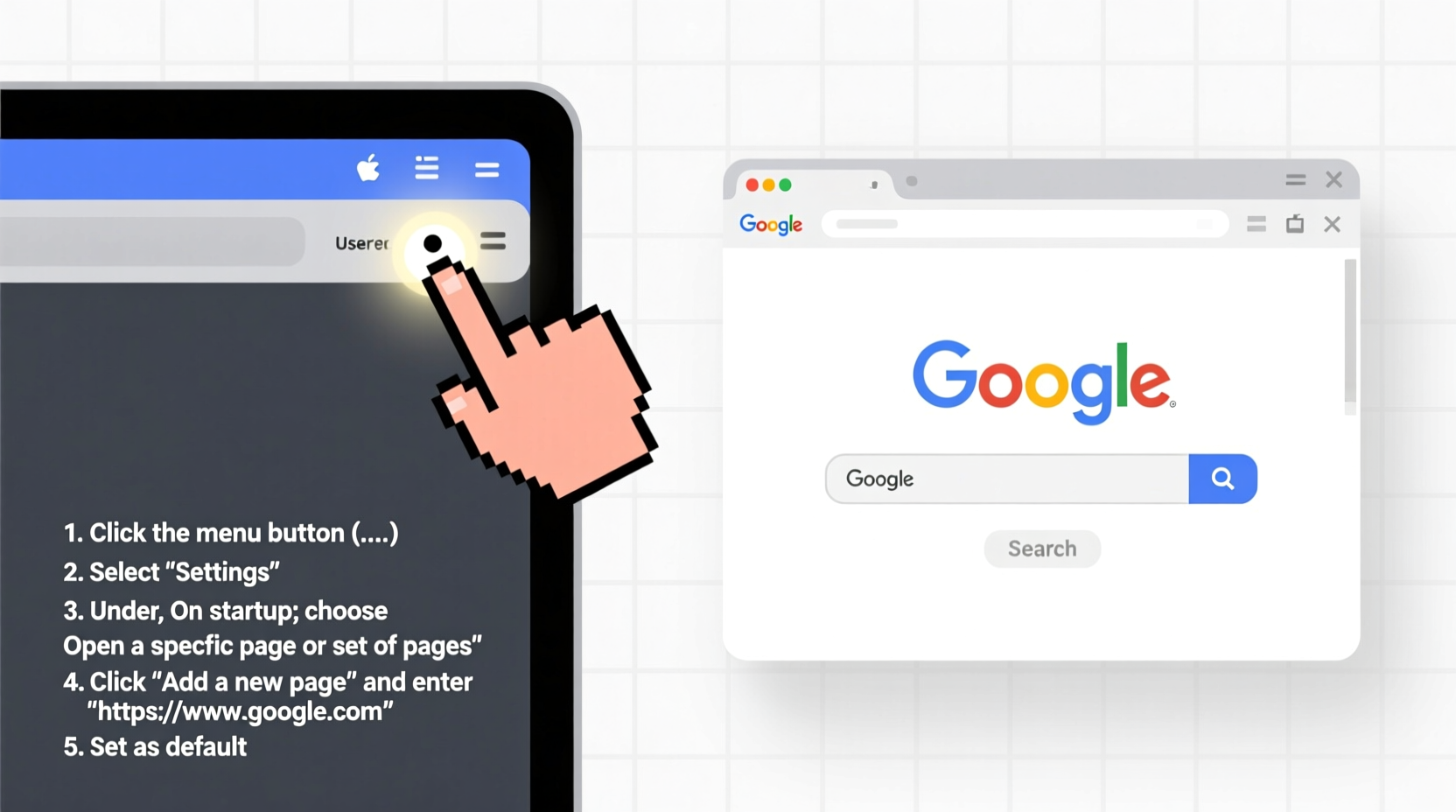
Your browser homepage is the gateway to your internet experience. It's the first thing you see when launching your browser or opening a new tab. If it's cluttered, slow, or misconfigured, it sets a sluggish tone for your entire session. On the other hand, a clean, purpose-built homepage featuring immediate access to Google can enhance focus and speed up task initiation.
According to usability studies conducted by the Nielsen Norman Group, reducing the number of steps required to perform common tasks significantly improves user satisfaction and efficiency. By eliminating unnecessary navigation and placing Google front and center, you cut down on cognitive load and mechanical effort alike.
“Designing your digital workspace around frequent actions—like searching—is a form of micro-productivity optimization.” — Dr. Lena Patel, Human-Computer Interaction Researcher
Step-by-Step Guide to Setting Google as Your Homepage
Regardless of which browser you use, the process of setting Google as your homepage follows a similar logic: access settings, locate the homepage option, input the URL, and save. Below is a detailed walkthrough for the four most popular browsers.
- Google Chrome
- Open Chrome and click the three-dot menu (top-right corner).
- Select “Settings.”
- Scroll down to “Appearance” and toggle on “Show Home button.”
- Next to “Change,” enter
https://www.google.com. - Close and reopen the browser to test.
- Mozilla Firefox
- Click the menu button (three horizontal lines) and choose “Settings.”
- Navigate to “Home” under the “General” tab.
- In the “Homepage and new windows” section, select “Custom URLs” and add
https://www.google.com. - Ensure “New tabs” also point to your desired homepage if needed.
- Microsoft Edge
- Click the three-dot menu and go to “Settings.”
- Under “Startup and home,” find “Homepage.”
- Set the address to
https://www.google.com. - Optionally configure new tabs to open with your homepage instead of the default feed.
- Apple Safari
- Open Safari and go to “Preferences” from the menu bar.
- Click the “General” tab.
- Under “Homepage,” enter
https://www.google.com. - Check “Safari opens with: A new window” and ensure it loads your homepage.
https://www.google.com) to ensure secure loading and avoid redirects.
Enhancing Your Homepage Beyond the Basics
Setting Google as your homepage is a solid start, but you can go further. Consider customizing your new tab page or using minimalist extensions to create a distraction-free launchpad.
Some users opt for third-party tools like Momentum, Start.me, or Infinity New Tab, which allow you to set Google as the primary search field while adding useful widgets—such as to-do lists, clocks, or inspirational quotes. These provide structure without sacrificing speed.
Alternatively, create a local HTML file with a simple interface containing only a Google search bar. Host it locally or upload it to a private web server, then set that file as your homepage. This gives complete control over design and performance.
| Browser | Default New Tab Behavior | Can Be Customized? | Best Extension for Customization |
|---|---|---|---|
| Chrome | Most visited sites + Google search | Yes | Infinity New Tab |
| Firefox | Top sites and recommendations | Yes | Custom New Tab URL |
| Edge | News feed and shortcuts | Yes | StartNow |
| Safari | Favorites and Siri suggestions | Limited | None (use built-in settings) |
Mini Case Study: From Clutter to Clarity
Sarah, a freelance researcher based in Portland, used to spend an average of 45 seconds per session navigating from her default news-heavy homepage to Google. With five browsing sessions a day, that added up to nearly four minutes lost daily—or nearly 2.5 hours per month.
After switching her Chrome homepage to a minimalist layout with direct Google access via a custom extension, she reduced her startup time to under 5 seconds. Over six months, this translated into over 12 hours regained—time she redirected toward client work and skill development.
Common Mistakes to Avoid
Even a simple task like changing your homepage can go wrong if not done carefully. Here are frequent pitfalls and how to avoid them:
- Forgetting to enable the home button: In Chrome and Edge, enabling the homepage doesn’t automatically show the button. You must manually turn it on in settings.
- Using incomplete URLs: Typing “google.com” without HTTPS may lead to insecure connections or regional redirects (e.g., google.co.uk).
- Overloading the homepage: Adding too many widgets or auto-loading scripts can slow down startup, defeating the purpose of quick access.
- Ignoring mobile devices: Most mobile browsers don’t support traditional homepage settings. Instead, save Google as a home screen shortcut for similar functionality.
FAQ
Will setting Google as my homepage affect my privacy?
No—setting Google as your homepage does not increase data collection unless you're already signed into your Google account. Your browsing activity remains subject to your existing privacy settings and cookie preferences.
Can I have different homepages for different browsers?
Absolutely. Many professionals use multiple browsers for specific tasks (e.g., Chrome for work, Firefox for personal use). You can customize each browser independently to suit its intended purpose.
What if my homepage keeps changing without permission?
This is often caused by unwanted browser extensions or malware. Reset your browser settings, remove suspicious add-ons, and run a security scan using trusted antivirus software.
Checklist: Optimize Your Browser Homepage in 7 Steps
- Decide which browser you want to customize.
- Open the settings or preferences menu.
- Locate the homepage section and enable the home button if necessary.
- Enter
https://www.google.comas the homepage URL. - Configure new tab behavior to match your homepage or remain minimal.
- Remove unnecessary extensions that auto-redirect or inject ads.
- Test the setup by closing and reopening the browser.
Conclusion
Customizing your browser homepage for quick Google access is a small change with outsized benefits. It reduces friction, enhances consistency, and supports a faster, more intentional digital workflow. Whether you’re a student, professional, or casual user, taking control of your homepage is a step toward mastering your online environment.




 浙公网安备
33010002000092号
浙公网安备
33010002000092号 浙B2-20120091-4
Comments
No comments yet. Why don't you start the discussion?