
Spam emails are more than just a nuisance—they can pose serious security risks, clutter your inbox, and waste valuable time. Yahoo Mail, one of the most widely used email platforms, includes built-in tools designed to combat unwanted messages. However, relying solely on automated filters isn’t enough. To maintain a clean, secure inbox, users need a proactive approach that combines settings optimization, smart habits, and strategic blocking techniques.
This guide outlines proven methods to effectively block and prevent spam in Yahoo Mail, helping you regain control over your digital communication space.
Enable and Customize Yahoo’s Built-In Spam Filters
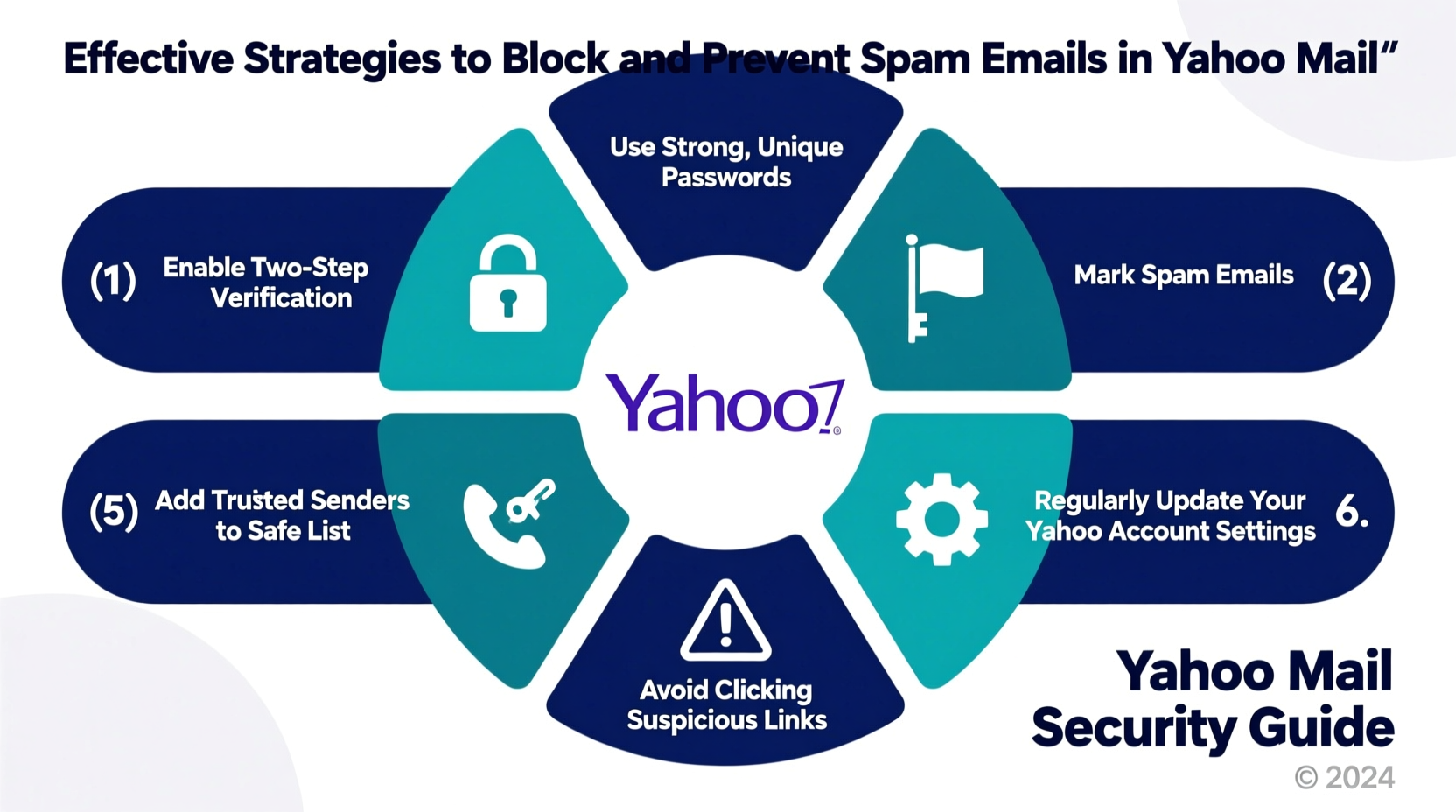
Yahoo Mail comes equipped with robust spam detection powered by machine learning algorithms. These systems analyze sender behavior, message content, and user feedback to identify and divert suspicious emails. While this feature is active by default, fine-tuning it enhances its effectiveness.
To optimize spam filtering:
- Log into your Yahoo Mail account via web browser or app.
- Navigate to Settings (gear icon) → More Settings.
- Select the Security and Privacy tab.
- Under “Spam,” ensure that “Automatically filter spam into the Spam folder” is enabled.
- Adjust sensitivity if needed—though Yahoo does not offer granular levels, consistent reporting improves accuracy over time.
Block Senders and Domains Manually
When spam slips through automated filters, manual blocking ensures repeat offenders don’t reach your inbox again. This method works best for persistent senders using recognizable addresses.
How to Block a Sender in Yahoo Mail
- Open the spam email you want to block.
- Click the three-dot menu (•••) next to the reply arrow.
- Select Block sender.
- Confirm the action when prompted.
Once blocked, all future messages from that address will be automatically moved to your Spam folder. You can manage your blocked list under Settings → Security and Privacy → Blocked Addresses.
For broader protection, consider blocking entire domains. For example, if you're receiving spam from multiple addresses ending in @spamexample.net, adding *spamexample.net* to your block list stops all variations at once.
| Action | Best For | Limits |
|---|---|---|
| Block individual sender | Known spammers with fixed addresses | Ineffective against rotating addresses |
| Block domain | Mass campaigns from single providers | May affect legitimate emails from same domain |
| Report as spam | Improving long-term filter accuracy | Delayed effect; relies on algorithm updates |
Create Effective Filters Using Message Rules
Filters act as custom gatekeepers, allowing you to define exactly how incoming mail is handled based on criteria like subject line, sender, or keywords.
Step-by-Step Guide to Creating a Filter
- In Yahoo Mail, go to Settings → More Settings → Mailboxes.
- Click on Filters in the left sidebar.
- Select Create a new filter.
- Name your filter (e.g., “Promo Spam”).
- Set conditions such as:
- \"From contains\" — sales@*, promo@*
- \"Subject contains\" — \"deal,\" \"offer,\" \"limited time\"
- Choose what happens: Move to Spam, Delete, or Label.
- Save the filter.
Use filters strategically for recurring spam themes—like cryptocurrency scams, fake lottery wins, or subscription traps—that evade standard detection.
“Users who implement customized filtering rules reduce spam exposure by up to 70% compared to those relying only on default settings.” — Dr. Lena Torres, Cybersecurity Analyst at NetShield Labs
Real Example: How One User Reduced Spam by 90%
Sarah, a freelance graphic designer, was overwhelmed with phishing attempts disguised as client inquiries. Her inbox received over 50 unsolicited messages daily, many mimicking real project offers with attachments containing malware.
She took the following actions:
- Reported every phishing email to Yahoo using the “Report Spam” button.
- Created a filter targeting emails with subjects like “Urgent Design Request” or “Final Payment Due.”
- Blocked common scam domains such as @mailservice-official.com and @freelance-hub.ru.
- Enabled two-factor authentication to protect her account from being exploited.
Within three weeks, her spam volume dropped dramatically. Today, fewer than five questionable messages appear weekly—and most are caught before she sees them.
Preventative Best Practices to Minimize Future Spam
Blocking existing spam is essential, but preventing new sources matters just as much. Many users unknowingly expose their email addresses through risky online behaviors.
Follow these preventative measures:
- Avoid clicking “Unsubscribe” in suspicious emails. Many fake unsubscribe links verify your address and lead to more spam or malware.
- Use strong, unique passwords to prevent account breaches that could result in spam sent from your own mailbox.
- Limit social sharing of your email. Posting your address publicly invites bots to harvest it.
- Regularly update recovery options so Yahoo can verify your identity if your account shows unusual activity.
Checklist: Essential Steps to Fight Yahoo Mail Spam
- ✅ Enable automatic spam filtering in settings
- ✅ Report spam emails consistently using the report button
- ✅ Block frequent spam senders and known malicious domains
- ✅ Create custom filters for recurring spam patterns
- ✅ Review Spam folder weekly for false positives
- ✅ Avoid exposing your email on public sites or forms
- ✅ Use secondary email accounts for registrations
- ✅ Keep your password strong and updated
Frequently Asked Questions
Can I permanently delete spam instead of moving it to the Spam folder?
Yes. When creating a filter, choose “Delete it” instead of “Move to Spam.” Be cautious—this skips review, so ensure your rules are precise to avoid losing important mail.
Why do I still get spam after blocking a sender?
Spammers often rotate addresses or spoof names. Blocking one address won't stop variations. Combine sender blocks with keyword-based filters and consistent reporting for better results.
Does Yahoo sell my data to advertisers?
No. As of recent privacy policy updates, Yahoo does not sell personal data. However, it may use anonymized usage patterns for service improvement. You can opt out of personalized ads in the Privacy settings.
Take Control of Your Inbox Today
Your email should serve you—not overwhelm you. By combining Yahoo Mail’s native tools with disciplined habits, you can drastically reduce spam and enhance your online safety. Start by auditing your current spam load, then apply filters, blocks, and reporting routines consistently. Over time, your inbox will become a more reliable, secure space for meaningful communication.




 浙公网安备
33010002000092号
浙公网安备
33010002000092号 浙B2-20120091-4
Comments
No comments yet. Why don't you start the discussion?