
Smart glasses are transforming how we interact with digital information—overlaying navigation, notifications, and even augmented reality into our field of vision. But when connectivity fails, the experience quickly deteriorates. Whether it’s Bluetooth dropouts, Wi-Fi instability, or pairing failures, unresolved connection issues can render these devices frustratingly unusable. Unlike smartphones or laptops, smart glasses have limited interface options, making diagnostics more challenging. However, with a systematic approach, most connection problems can be identified and resolved efficiently.
Understanding Common Connection Types in Smart Glasses
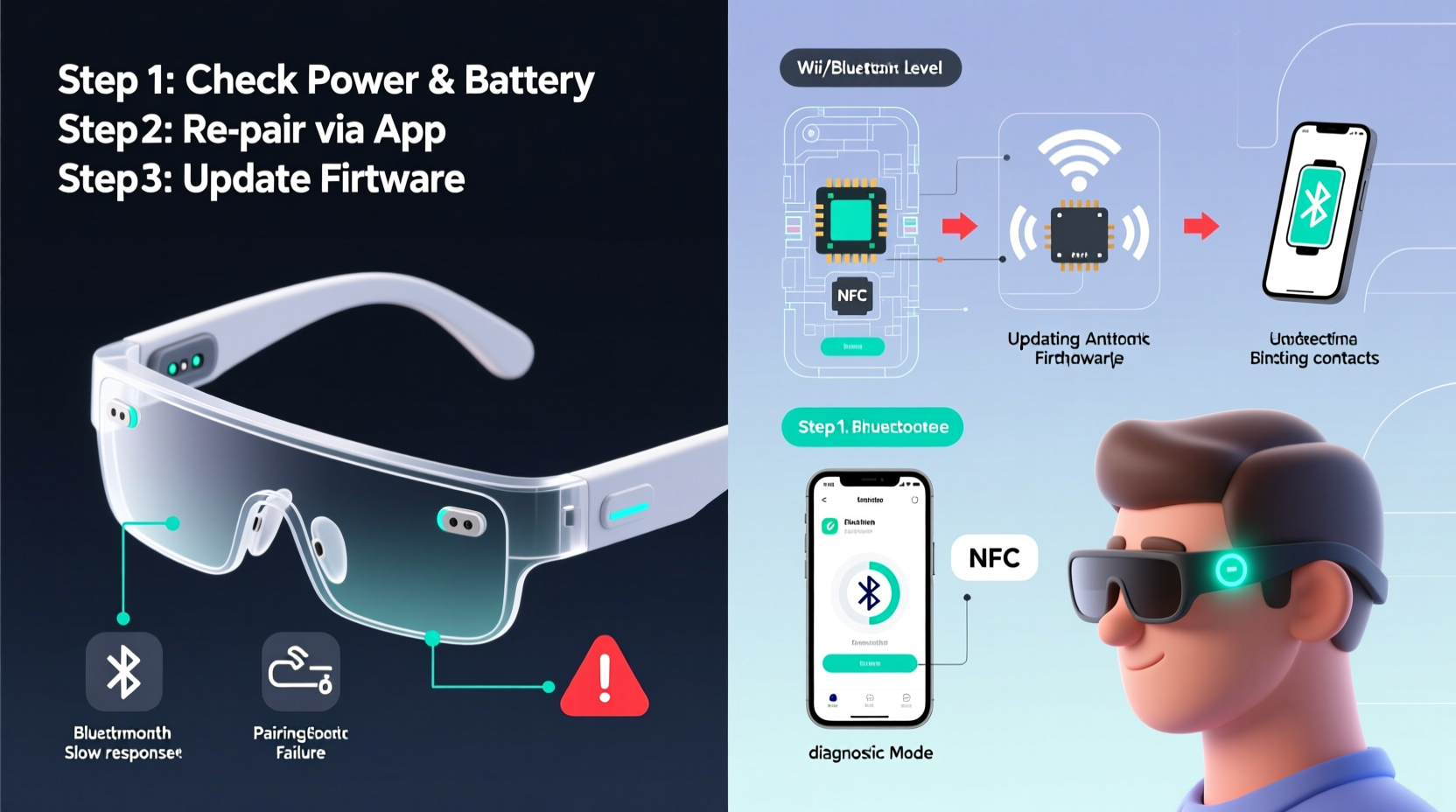
Smart glasses typically rely on three primary wireless technologies: Bluetooth, Wi-Fi, and occasionally cellular data (in standalone models). Each serves a different purpose and presents unique failure points.
- Bluetooth: Used for connecting to smartphones, earbuds, or other peripherals. Most common for syncing notifications and audio.
- Wi-Fi: Enables direct internet access for AR overlays, live translation, or cloud sync. Requires stable network credentials and signal strength.
- Cellular (LTE/5G): Found in advanced models like enterprise or outdoor-focused glasses. Dependent on carrier coverage and SIM activation.
Problems often arise not from hardware defects but from misconfigurations, interference, or outdated firmware. Recognizing which technology is failing is the first step toward resolution.
Step-by-Step Guide to Diagnosing Connectivity Issues
Follow this structured diagnostic process to isolate and resolve the root cause:
- Confirm Device Power and Proximity: Ensure both the smart glasses and the paired device (phone, tablet) are powered on and within range.
- Check Pairing Status: Open your phone's Bluetooth settings and verify if the glasses appear as “Connected” or “Paired.” If listed but not connected, attempt manual reconnection.
- Test with Another Device: Pair the glasses with a second smartphone or tablet. If the issue persists across devices, the problem likely lies with the glasses.
- Assess Network Environment: For Wi-Fi issues, check router signal strength near your location. Use a Wi-Fi analyzer app to detect congestion on the 2.4 GHz or 5 GHz bands.
- Review Notifications and Logs: Some smart glasses apps provide error logs. Look for messages like “Authentication Failed” or “Connection Timeout.”
- Reboot All Devices: Restart the glasses, paired phone, and router if Wi-Fi is involved. This clears temporary glitches in wireless stacks.
This methodical sequence eliminates guesswork and prevents unnecessary resets or factory wipes early in the process.
Common Fixes for Persistent Connection Problems
Once diagnosed, apply targeted fixes based on the failure type.
Bluetooth Pairing Failures
If the glasses fail to pair or disconnect intermittently:
- Remove the device from your phone’s Bluetooth list and re-pair from scratch.
- Disable Bluetooth on nearby devices that may interfere (e.g., speakers, fitness trackers).
- Ensure no metal objects or thick clothing obstruct the signal path between devices.
Wi-Fi Instability
For dropped signals or slow data loading:
- Forget the current Wi-Fi network in the glasses’ settings and reconnect using correct credentials.
- Avoid crowded networks; switch to a less congested channel via your router admin panel.
- Use WPA3 encryption where supported—older protocols like WEP can cause handshake failures.
Application-Level Sync Errors
Sometimes, the connection appears active but data doesn’t flow:
- Update the companion app on your smartphone.
- Clear the app cache (Android: Settings > Apps > [App Name] > Storage > Clear Cache).
- Grant required permissions (location, microphone, notifications) if recently denied.
“Over 60% of reported connectivity issues in wearable tech stem from software mismatches, not hardware faults. Always update firmware before assuming a defect.” — Dr. Lena Torres, Senior Engineer at Wearable Systems Lab, MIT
Troubleshooting Checklist
Action Checklist: Fix Smart Glasses Connection Problems
- ✅ Verify both glasses and phone are charged above 30%
- ✅ Confirm Bluetooth/Wi-Fi is enabled on both devices
- ✅ Move closer to the router or paired phone
- ✅ Reboot all involved devices
- ✅ Remove and re-pair the glasses
- ✅ Check for available firmware updates
- ✅ Test with a secondary mobile device
- ✅ Reset network settings on the glasses (if option exists)
When Hardware Might Be the Culprit: A Mini Case Study
Consider the case of a logistics manager using enterprise smart glasses for warehouse inventory tracking. The glasses consistently lost Wi-Fi signal in certain aisles, despite strong coverage elsewhere. Initial troubleshooting pointed to network congestion, but tests showed otherwise. After replacing the router and updating firmware without success, the IT team discovered the metal shelving was blocking the 5 GHz band. Switching the glasses to 2.4 GHz mode restored stability. Later, during a routine inspection, minor water damage near the antenna port was found—likely from humidity exposure. Cleaning and sealing the port prevented future degradation.
This example highlights two critical lessons: environmental factors can mimic software issues, and physical inspection should not be overlooked—even in sealed devices.
Do’s and Don’ts: Connection Maintenance Best Practices
| Do | Don’t |
|---|---|
| Update firmware monthly or when notified | Ignore persistent disconnection alerts |
| Store glasses in a dry, temperature-controlled environment | Expose them to extreme heat or moisture |
| Use manufacturer-recommended charging cables | Charge via unpowered USB hubs or low-output adapters |
| Limit background apps on the paired phone | Run multiple Bluetooth-intensive apps simultaneously |
| Perform a full reset every few months if usage is heavy | Factory reset without backing up custom settings |
Frequently Asked Questions
Why do my smart glasses keep disconnecting from my phone?
Intermittent disconnections are often caused by Bluetooth interference, low battery, or software conflicts. Try disabling other Bluetooth devices temporarily, ensuring both devices are updated, and resetting the Bluetooth module on your phone. If the issue continues, the glasses’ Bluetooth chip may require service.
Can I use smart glasses without Wi-Fi?
Yes, but functionality will be limited. Most glasses rely on a connected smartphone via Bluetooth for basic features like notifications. However, AR navigation, live search, or voice-to-text may require an internet connection. Standalone models with LTE can operate independently.
How do I update the firmware on my smart glasses?
Firmware updates are typically delivered through the manufacturer’s companion app. Connect the glasses to your phone, open the app, and navigate to the device settings section. If an update is available, follow the on-screen instructions. Ensure the glasses are charged above 50% and remain close to the phone during installation.
Conclusion: Take Control of Your Smart Glasses Experience
Connection problems in smart glasses don’t have to mean permanent frustration or premature replacement. By understanding the underlying technologies, applying structured diagnostics, and following best practices, users can maintain reliable performance. Most issues are solvable with simple resets, updates, or environmental adjustments. As these devices become integral to work, navigation, and accessibility, mastering their maintenance becomes essential.




 浙公网安备
33010002000092号
浙公网安备
33010002000092号 浙B2-20120091-4
Comments
No comments yet. Why don't you start the discussion?