
A sluggish computer doesn’t always mean it’s time for a costly upgrade. More often than not, poor performance stems from cluttered storage, bloated software, and inefficient system habits. Whether you're using Windows, macOS, or Linux, reclaiming disk space and optimizing system resources can dramatically improve speed, responsiveness, and overall user experience. The good news? You don’t need technical expertise—just consistent, practical steps.
1. Audit and Remove Unnecessary Files
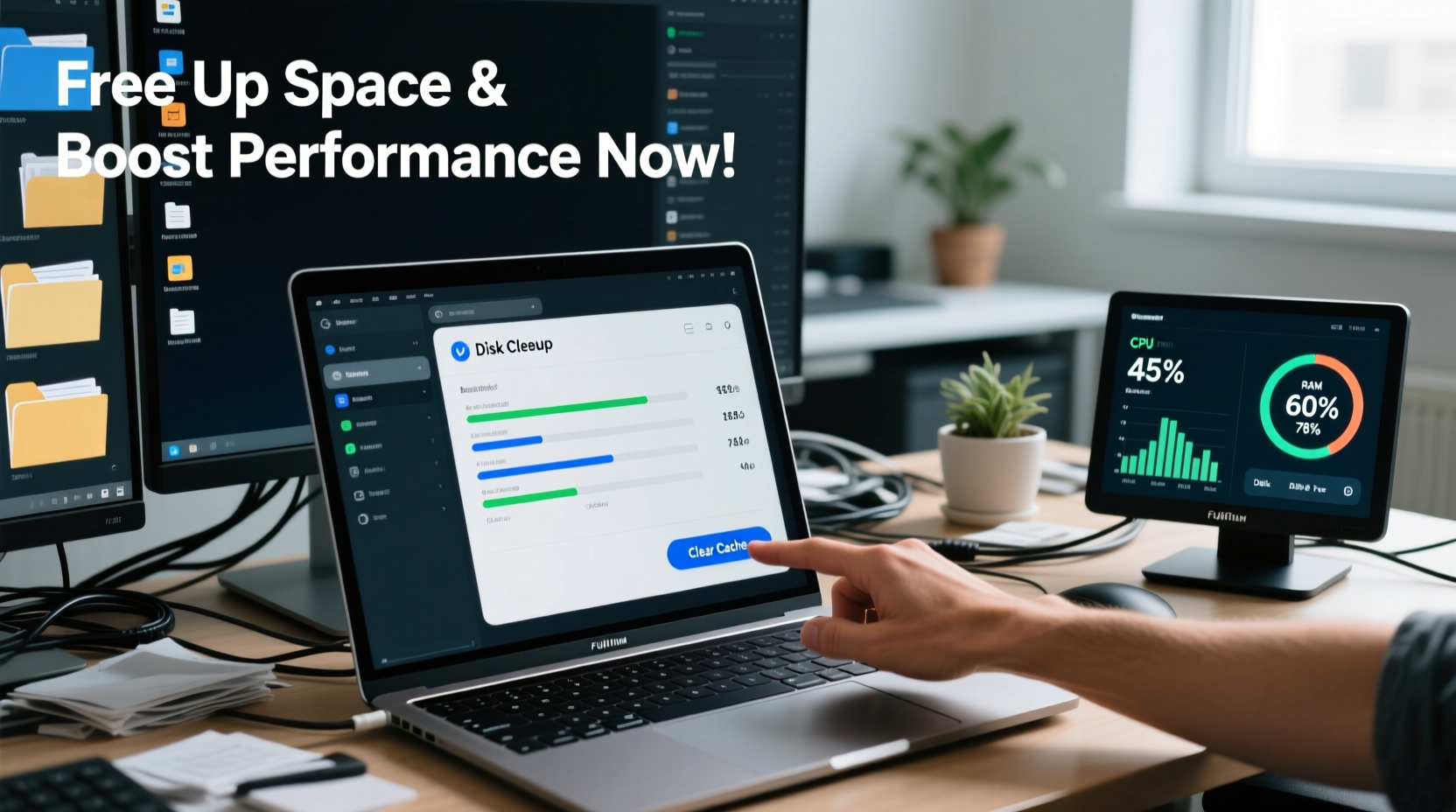
Over time, your computer accumulates temporary files, downloads, duplicate photos, old backups, and cached data that serve no purpose but consume valuable space. Start by identifying what’s taking up the most room. On Windows, use “Storage Sense” under Settings > System > Storage. On macOS, go to Apple Menu > About This Mac > Storage > Manage.
Common culprits include:
- Download folders filled with outdated installers and documents
- Old screenshots and video recordings
- Application caches (e.g., browser cache, media editing temp files)
- Duplicate files across folders
Once identified, delete or archive non-essential items. Be cautious with system files—never remove anything from system directories unless you’re certain of its purpose.
2. Uninstall Unused Programs and Bloatware
Many computers come preloaded with software you’ll never use—trial versions, promotional apps, and manufacturer utilities. These programs not only take up space but may run background processes that slow down your system.
To clean house:
- On Windows: Go to Settings > Apps > Installed apps. Sort by size and uninstall anything unnecessary.
- On macOS: Open Applications folder, right-click unwanted apps, and select “Move to Trash.” Use AppCleaner for deeper removal of associated files.
Pay special attention to resource-heavy applications like legacy antivirus suites, old media players, and redundant toolbars.
“Every unused application is a silent drain on system memory and storage. Removing just five rarely used programs can recover over 5GB and improve boot times.” — David Lin, Systems Optimization Specialist
3. Optimize Startup Processes
One of the most overlooked causes of slow performance is an overloaded startup sequence. Too many programs launching at boot can delay login by minutes and consume RAM before you even begin working.
Here’s how to streamline startup:
| Operating System | Action Steps |
|---|---|
| Windows | Press Ctrl+Shift+Esc → Startup tab → Disable non-essential entries (e.g., cloud sync tools, chat apps). |
| macOS | System Settings > General > Login Items → Toggle off auto-launch apps. |
| Linux (Ubuntu/GNOME) | Install GNOME Tweaks or use command line: systemctl list-unit-files --type=service |
Focus on disabling apps that aren’t mission-critical. For example, you likely don’t need Spotify, Discord, or printer utilities running at startup.
4. Leverage Cloud and External Storage
Not all files need to live on your primary drive. Large media libraries, project archives, and infrequently accessed documents are ideal candidates for relocation.
Consider this strategy:
- Migrate personal photos and videos to Google Drive, Dropbox, or OneDrive
- Back up old tax records, PDFs, and project files to an external hard drive or NAS (Network Attached Storage)
- Use symbolic links (symlinks) to maintain access without local storage burden
This approach reduces local footprint while preserving access when needed—especially useful for laptops with limited SSD capacity.
5. Perform Regular Maintenance Routines
Performance gains aren’t one-time fixes—they require maintenance. Just like changing oil in a car, routine digital upkeep prevents degradation.
Monthly Maintenance Checklist
- 🗸 Empty Recycle Bin / Trash
- 🗸 Clear browser cache and history
- 🗸 Run disk cleanup (Windows) or optimize storage (macOS)
- 🗸 Update operating system and drivers
- 🗸 Scan for malware using trusted tools
- 🗸 Review installed programs and remove redundancies
Automate where possible. Schedule weekly disk cleanups or enable automatic updates during off-hours to minimize disruption.
Real Example: Recovering a Sluggish Work Laptop
Sarah, a freelance graphic designer, noticed her MacBook Pro took nearly five minutes to boot and frequently froze during photo edits. Her internal 256GB SSD was 95% full. After analysis, she discovered 42GB of duplicated client assets, 18GB in Downloads, and seven unused design trial apps.
She followed these steps:
- Used DaisyDisk to identify top space consumers
- Archived completed projects to an encrypted external drive
- Uninstalled Adobe trial versions and Sketch plugins she no longer used
- Disabled Slack and Zoom from launching at startup
- Enabled iCloud Photos to offload originals
Result: She freed up 68GB, reduced boot time to 28 seconds, and saw a noticeable improvement in Photoshop responsiveness—all without spending a dollar.
6. Advanced Tactics for Power Users
For those comfortable with deeper system adjustments, additional options exist:
- Resize partitions: If dual-booting or using recovery partitions excessively, consider reallocating space via Disk Management (Windows) or Disk Utility (macOS).
- Disable hibernation (Windows): Run
powercfg -h offin Command Prompt as admin to remove hiberfil.sys, which can be several GB in size. - Clear system logs and update caches: On Windows, navigate to C:\\Windows\\Logs and C:\\Windows\\SoftwareDistribution\\Download to safely delete outdated files.
- Switch to a lightweight OS: For older machines, consider Linux distributions like Ubuntu Lite or Linux Mint XFCE, which run efficiently on minimal hardware.
Proceed with caution: Always back up critical data before making low-level changes.
Frequently Asked Questions
How much free space should I keep on my hard drive?
Experts recommend maintaining at least 10–15% of total storage free. For optimal performance, especially on SSDs, aim for 20%. When drives near full capacity, file fragmentation and swap inefficiencies degrade speed.
Will deleting temporary files harm my system?
No—temporary files (like those in Temp folders or browser caches) are designed to be disposable. They store short-term data such as installation remnants or session info. Regular deletion is safe and encouraged.
Is it better to upgrade RAM or storage for performance?
It depends. If your system constantly runs out of memory (evident by lag when multitasking), more RAM helps. If your drive is full or you have a traditional HDD, upgrading to a larger SSD provides broader benefits, including faster boot, app launch, and file access.
Conclusion: Take Control of Your Digital Environment
Your computer’s performance isn’t fixed—it evolves based on how you manage it. By systematically removing clutter, optimizing startup behavior, and adopting smart storage practices, you can breathe new life into aging hardware and maintain peak efficiency on newer machines. These strategies don’t require expensive tools or advanced skills; they demand only awareness and consistency.




 浙公网安备
33010002000092号
浙公网安备
33010002000092号 浙B2-20120091-4
Comments
No comments yet. Why don't you start the discussion?