
High packet loss on Xbox can turn an exciting multiplayer match into a frustrating slideshow of disconnected gameplay. When data packets fail to reach their destination between your console and the game server, you experience lag, rubberbanding, or sudden disconnections. While occasional network hiccups are normal, persistent packet loss degrades performance and undermines competitive fairness. The good news is that most causes are fixable with targeted adjustments to your hardware, software, and network setup. This guide outlines proven methods to diagnose and eliminate packet loss, ensuring a stable and responsive gaming session every time you power up.
Understanding Packet Loss and Its Impact
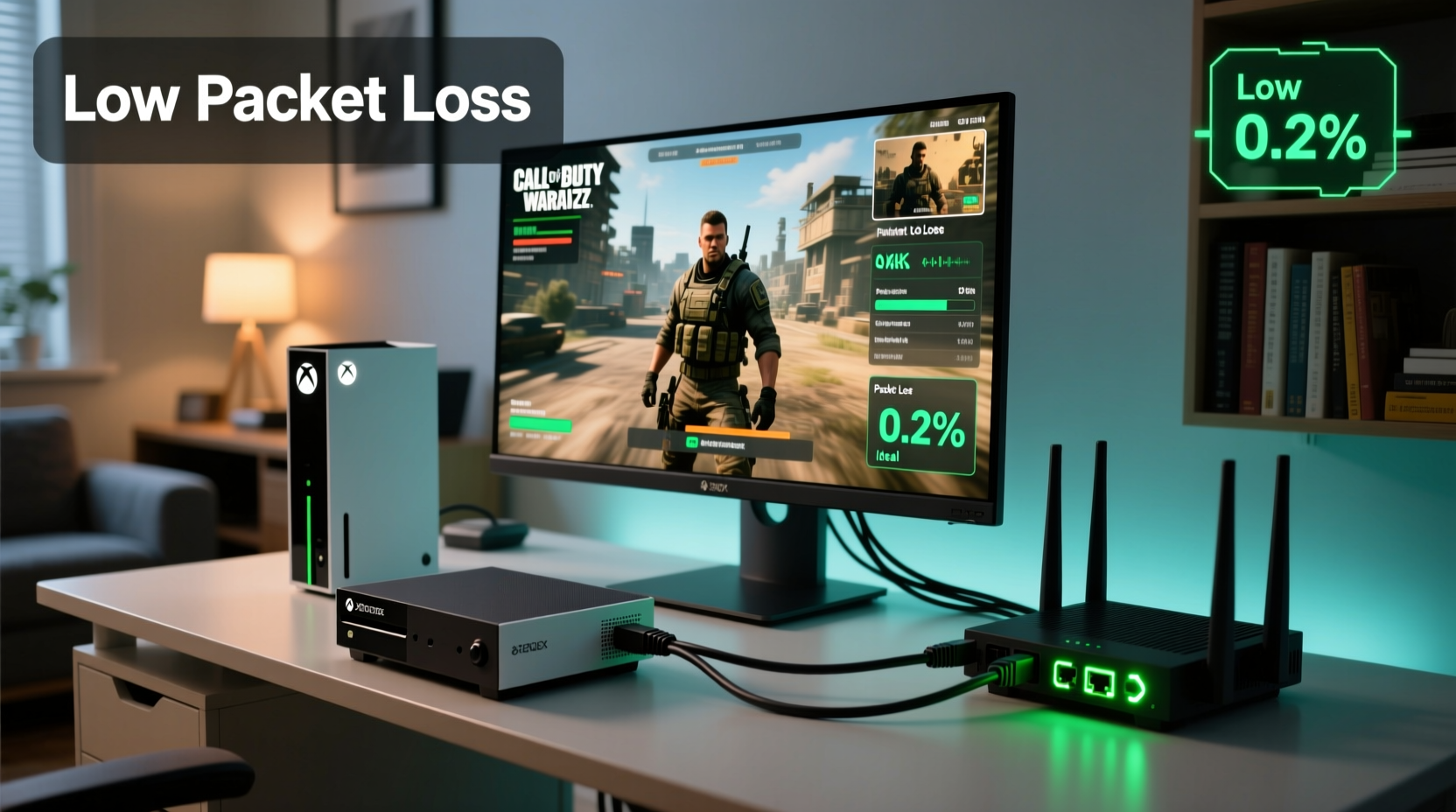
Packet loss occurs when data sent from your Xbox fails to reach the game server—or vice versa. In online gaming, each action (a jump, shot, or movement) is transmitted as a data packet. If too many packets go missing, the game compensates by guessing your actions, leading to delayed responses or character teleportation. Even 5–10% packet loss can disrupt real-time gameplay, especially in fast-paced titles like Call of Duty, Apex Legends, or Rocket League.
Common symptoms include:
- Frequent disconnections during matches
- “Your connection is unstable” warnings
- High latency despite good download speeds
- Audio dropouts or stuttering voice chat
“Persistent packet loss is often not about raw speed but network reliability. A stable 20 Mbps connection with low jitter and zero packet loss outperforms a shaky 100 Mbps line.” — Marcus Tran, Network Engineer at GameNet Labs
Step-by-Step Guide to Diagnose and Fix Packet Loss
Before applying fixes, confirm that packet loss is the root issue. Use the Xbox’s built-in network tools to assess your connection health.
- Run the Xbox Network Test: Go to Settings > General > Network settings > Test network connection. Note any warnings about NAT type, bandwidth, or packet loss.
- Check for Latency and Jitter: In the same menu, select “Advanced settings” to view your upload/download speeds, ping, and NAT type. High ping (>100 ms) combined with instability suggests packet issues.
- Use a Third-Party Speed Test: Access a browser on another device connected to the same network and run a test on sites like speedtest.net or fast.com. Look specifically for packet loss percentage.
- Monitor During Gameplay: Play a session while using a network monitoring app (on a PC or phone) to track real-time packet transmission if possible.
- Restart and Re-test: After each fix below, re-run the test to measure improvement.
Optimize Your Home Network Setup
Your router is the gateway between your Xbox and the internet. Misconfigurations or outdated hardware can severely impact packet delivery.
Use Ethernet Over Wi-Fi
Wi-Fi signals are prone to interference from walls, appliances, and neighboring networks. For consistent performance, connect your Xbox directly to the router via an Ethernet cable. This reduces latency and nearly eliminates packet loss caused by signal degradation.
Upgrade or Reposition Your Router
If you must use Wi-Fi, ensure your router supports modern standards (Wi-Fi 5/6) and is placed centrally, away from metal objects and microwaves. Older routers may struggle with multiple devices, causing congestion and dropped packets.
Enable Quality of Service (QoS)
QoS prioritizes gaming traffic over less time-sensitive activities like software updates or cloud backups. Log into your router’s admin panel (usually via 192.168.1.1) and assign higher priority to your Xbox’s IP or MAC address.
| Network Factor | Recommended Setting | Risk if Ignored |
|---|---|---|
| Connection Type | Ethernet (wired) | Wi-Fi interference increases packet loss |
| Router Age | Less than 3–4 years old | Outdated firmware lacks optimization |
| QoS Settings | Enabled, Xbox prioritized | Streaming/downloading disrupts gameplay |
| NAT Type | Open or Moderate | Strict NAT blocks peer connections |
Minimize Bandwidth Competition
Multiple devices consuming bandwidth simultaneously can overwhelm your network, leading to throttling and packet drops. Even background processes on your Xbox—like automatic downloads or cloud saves—contribute to congestion.
- Schedule large downloads for off-peak hours (e.g., overnight).
- Pause updates during gameplay via Settings > System > Updates.
- Limit streaming on other devices while gaming.
- Disable auto-upload of game clips in Capture & Share settings.
Real Example: Reducing Packet Loss in a Shared Household
Jamal, a competitive Halo Infinite player in Chicago, struggled with frequent disconnects during ranked matches. His home had six devices connected: two laptops, three phones, a smart TV, and his Xbox Series X—all on Wi-Fi. Initial tests showed 18% packet loss and 140 ms ping.
He took the following steps:
- Bought a 10-foot Cat 6 Ethernet cable and connected his Xbox directly to the router.
- Updated his 5-year-old router to a Wi-Fi 6 model with QoS support.
- Assigned top priority to his Xbox in the router settings.
- Set game downloads to occur after midnight.
After these changes, his packet loss dropped to 0%, ping stabilized at 38 ms, and disconnections ceased. He went from losing half his matches due to lag to climbing two ranks in three weeks.
Advanced Fixes: DNS, Firmware, and ISP Coordination
When basic optimizations aren’t enough, deeper technical adjustments can yield results.
Change DNS Servers
Default ISP DNS servers may be slow or unreliable. Switching to public alternatives like Google DNS (8.8.8.8 and 8.8.4.4) or Cloudflare (1.1.1.1 and 1.0.0.1) can improve routing efficiency.
To change DNS on Xbox: Settings > Network > Network settings > Advanced settings > DNS settings > Manual.
Update Console and Router Firmware
Xbox regularly releases system updates that improve network stack performance. Similarly, router manufacturers patch bugs that affect data handling. Check for updates monthly.
Contact Your ISP
If packet loss persists despite all efforts, contact your Internet Service Provider. Issues like line noise, faulty modems, or throttling during peak hours may require professional intervention. Request a line test and consider upgrading your plan if you’re on a congested node.
“Gamers often overlook the modem. A DOCSIS 3.1 modem paired with a quality router can drastically reduce packet loss, especially in areas with high network demand.” — Lila Nguyen, ISP Support Lead at NetSecure Inc.
Checklist: Eliminate Packet Loss on Xbox
Follow this actionable checklist to systematically address packet loss:
- ✅ Connect Xbox via Ethernet cable
- ✅ Restart router and modem
- ✅ Run Xbox network test and record baseline metrics
- ✅ Enable QoS and prioritize Xbox traffic
- ✅ Change DNS to 1.1.1.1 (Cloudflare) or 8.8.8.8 (Google)
- ✅ Pause background downloads and updates
- ✅ Update Xbox system software
- ✅ Upgrade router if older than 4 years
- ✅ Test connection during peak usage times
- ✅ Contact ISP if packet loss exceeds 5% consistently
FAQ
What is an acceptable level of packet loss for gaming?
Ideal packet loss is 0%. Up to 1–2% may be tolerable, but anything above 5% will noticeably impact gameplay, causing delays and disconnections.
Can a VPN reduce packet loss on Xbox?
Generally, no. Most consumer VPNs add latency and routing hops, which can worsen packet loss. However, some gaming-specific services claim optimized routes, but results vary and are not officially supported on Xbox.
Does my NAT type affect packet loss?
Not directly, but a Strict NAT type can limit your ability to connect to other players, forcing longer, less efficient routes that increase the chance of packet drops. Open NAT is ideal for peer-to-peer games.
Conclusion
Reducing high packet loss on Xbox isn’t about luck—it’s about control. By taking charge of your network environment, upgrading outdated equipment, and eliminating hidden bandwidth drains, you create a foundation for smooth, uninterrupted gameplay. The difference between average and elite performance often comes down to network stability, not just reflexes or gear. Apply these strategies methodically, monitor your progress, and enjoy the responsiveness and fairness every gamer deserves.




 浙公网安备
33010002000092号
浙公网安备
33010002000092号 浙B2-20120091-4
Comments
No comments yet. Why don't you start the discussion?